Installing Kodi on an Amazon Fire Stick can turn your little streaming stick into a flexible home media hub. Think of it as giving your TV a well-organized digital backpack: movies you own, music, photos, podcasts, local network files, and legal add-ons can all live in one place. The Fire Stick is small, affordable, and usually easy to use, while Kodi is powerful, customizable, and built for big-screen navigation. Put them together correctly, and your couch suddenly feels like command central.
There is one important detail: Kodi is not usually listed as a standard app in the Amazon Appstore. That means many Fire Stick users install it by “sideloading,” which simply means installing an Android app package from outside the official Amazon Appstore. Sideloading is not complicated, but it does require care. You should download Kodi only from the official Kodi website, avoid suspicious clone apps, and use Kodi for legal content only. The goal is a better media experience, not a mysterious digital treasure chest full of bad decisions.
This guide explains how to install Kodi on an Amazon Fire Stick, what to check before you start, how to set it up safely, and what to do if something goes wrong. It is written for beginners, so you do not need to be a tech wizard. If you can use a TV remote without accidentally launching three apps and muting the sound, you are already qualified.
What Is Kodi?
Kodi is a free, open-source media center app designed for TVs, computers, phones, tablets, and other devices. It gives you a remote-friendly interface for playing videos, music, podcasts, photos, and other digital media. Many people use Kodi to organize personal media libraries from a USB drive, home server, network-attached storage device, or legal online source.
Kodi itself does not provide movies, TV channels, or premium streaming content. It is more like an empty theater with excellent seats. You bring the content, choose the add-ons, and organize the experience. Official add-ons can expand Kodi with legal services, weather tools, media scrapers, subtitles, and other useful features. Unofficial add-ons vary widely, so be careful. If an add-on promises every paid movie, live sports event, and premium channel for free, that is not a “life hack.” That is a red flag wearing sunglasses.
Can You Install Kodi on Every Fire Stick?
Kodi can be installed on many Android-based Fire TV devices, including popular Fire TV Stick and Fire TV Stick 4K models. However, Amazon has started moving some newer Fire TV devices to Vega OS, which may restrict sideloading. Before you begin, check your device model and software behavior. On many supported Fire Stick models, you can still enable developer settings and allow an installer app to install unknown apps. On newer restricted models, the same method may not be available.
To check your device, go to Settings, then My Fire TV, then About. Look for your Fire TV model and software information. If your device includes an option called Developer Options or allows you to reveal it, you may be able to proceed. If your device blocks sideloading entirely, Kodi installation may not be possible through the standard Fire Stick method.
Before You Install Kodi on Fire Stick
1. Update Your Fire Stick
Before installing anything, update your Fire Stick. Go to Settings > My Fire TV > About > Check for Updates. Installing updates can fix bugs, improve security, and reduce strange installation issues. Nobody wants to spend twenty minutes blaming Kodi when the real villain is an outdated Fire OS build hiding in the corner.
2. Confirm You Have Enough Storage
Fire Sticks have limited storage, and Kodi needs room for the app, cache, thumbnails, and add-ons. Go to Settings > My Fire TV > About > Storage. If your device is nearly full, uninstall unused apps first. Streaming devices collect abandoned apps the way kitchen drawers collect mystery batteries.
3. Use a Stable Wi-Fi Connection
Kodi’s APK file is not enormous, but a weak Wi-Fi signal can interrupt downloads or cause installation errors. If possible, keep the Fire Stick close to your router or use a stronger 5 GHz Wi-Fi connection. A smooth download is much better than watching a progress bar freeze like it just saw a ghost.
4. Download Kodi Only from the Official Source
The safest source for Kodi is the official Kodi website. Avoid random APK websites unless you fully trust them and understand the risk. Modified APKs can include unwanted changes, outdated files, or security problems. When in doubt, stick with the official source and choose the stable Android release.
How to Install Kodi on an Amazon Fire Stick
The most common method uses an installer app such as Downloader, when available on your Fire TV device. Downloader lets you enter a web address, download the Kodi APK, and install it directly on the Fire Stick. Availability can change, so always check the Amazon Appstore on your own device and avoid fake apps with similar names.
Step 1: Install the Downloader App
From the Fire Stick home screen, select Find or the search icon. Type Downloader. Look carefully at the app name and developer. The well-known Downloader app is associated with AFTVnews. Select the correct app, then choose Download or Get.
If Downloader is not available in your region or on your device, do not install a suspicious copycat app that asks for unusual payments or has very few reviews. Fake apps often appear when popular tools are temporarily unavailable. It is better to pause than to install something sketchy. Your Fire Stick deserves better than digital mystery meat.
Step 2: Enable Developer Options
After installing Downloader, go to Settings > My Fire TV. If you see Developer Options, open it. If you do not see it, open About, highlight your Fire TV device name, and press the select button on your remote several times until developer settings are enabled. This is similar to Android’s developer mode trick. It feels like entering a secret code, except the prize is a settings menu instead of a dragon.
Step 3: Allow Downloader to Install Unknown Apps
Inside Developer Options, choose Install Unknown Apps. Find Downloader in the list and turn it On. This gives Downloader permission to install APK files. Only enable this permission for apps you trust, and turn it off later if you want a more locked-down setup.
Step 4: Open Downloader
Return to your apps list and open Downloader. The first time you launch it, you may see permission prompts. Allow the permissions needed for downloading files. You may also see a quick-start message. Read it if you like, or nod respectfully and continue like most people do with setup screens.
Step 5: Go to the Official Kodi Download Page
In Downloader’s URL field, enter the official Kodi website address and navigate to the download section. Choose Android, then select the stable release. For most Fire Stick models, the 32-bit ARM version is commonly used. Some newer Fire TV devices may support 64-bit builds, but the 32-bit ARM version is often the safer choice for broad Fire Stick compatibility.
When the APK download begins, wait for it to finish completely. Do not press random buttons while it downloads. This is not the time for remote-control jazz improvisation.
Step 6: Install the Kodi APK
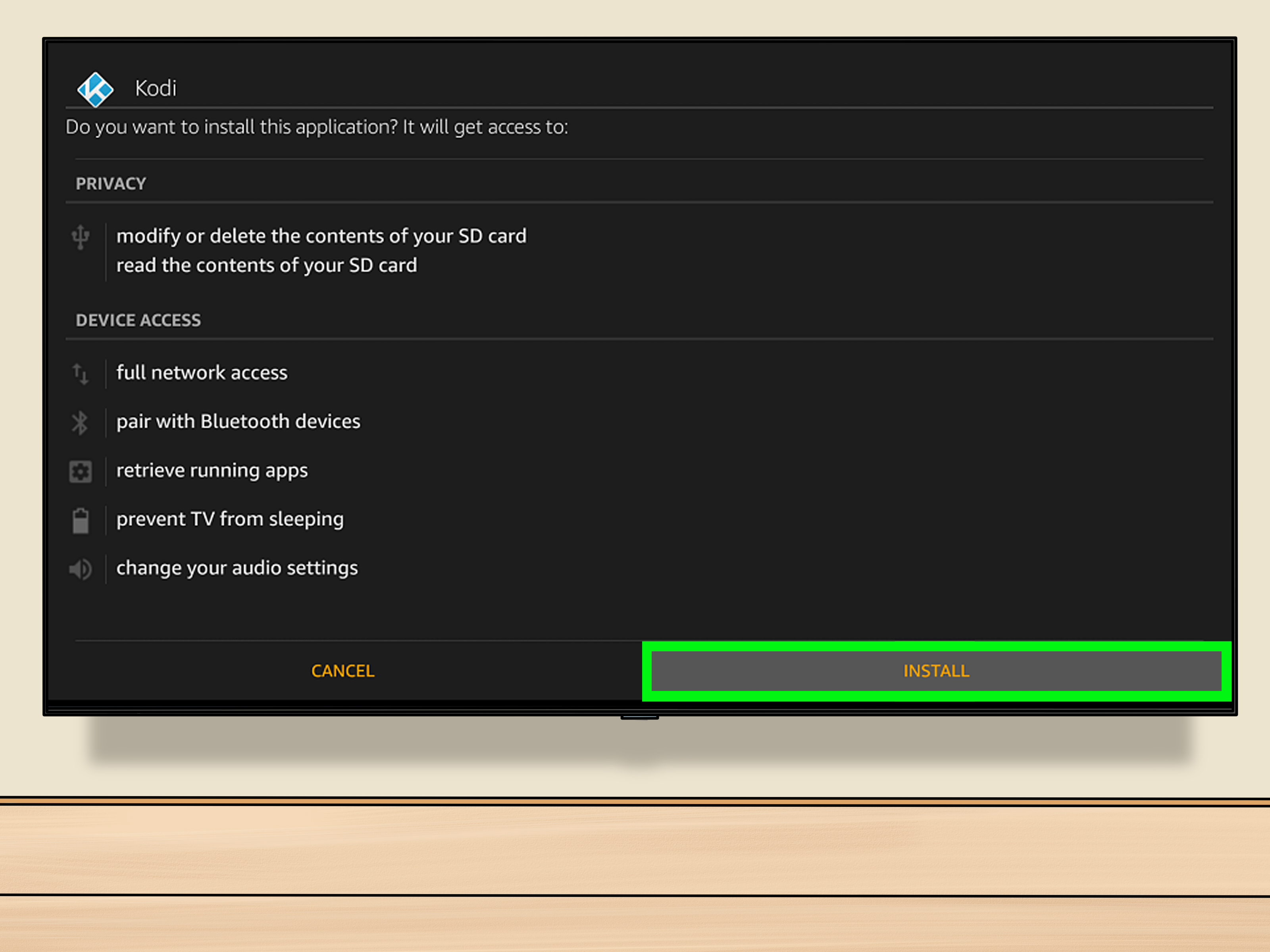
When Downloader finishes downloading the APK, Fire OS should show an installation prompt. Select Install. Wait until the installation completes, then choose Done or Open. If you choose Done, Downloader may ask whether you want to delete the APK file. Select Delete to save storage space. The APK file is only the installer; once Kodi is installed, you do not need to keep it.
Step 7: Launch Kodi
Go to your Fire Stick apps list and open Kodi. The first launch may take a moment. Kodi will create folders, load its interface, and prepare the default settings. Once it opens, you can start configuring your media library, display settings, subtitles, and add-ons.
How to Set Up Kodi After Installation
Add Your Media Sources
To add videos, go to Videos > Files > Add Videos. You can add folders from local storage, a network location, or a media server. If you have a home NAS, shared computer folder, or media drive connected through your network, Kodi can help organize your files with posters, titles, episode data, and artwork.
Adjust Display and Audio Settings
Go to Settings inside Kodi and review display, audio, and player options. If your TV supports 4K, HDR, or surround sound, your Fire Stick and Kodi settings should match your hardware. For basic setups, the default settings are usually fine. For home theater setups, you may want to adjust audio passthrough, refresh rate switching, and subtitle preferences.
Install Legal Add-ons
Kodi includes an official repository with legal add-ons. Open Add-ons, then browse the official Kodi repository. You can find tools for media organization, subtitles, information services, music, video sources, and more. Stay away from add-ons that advertise unauthorized access to paid content. Besides legal risk, those add-ons can be unstable, unsafe, and full of broken promises. In other words, they are the streaming equivalent of a “free vacation” email from someone named Prince Buffering III.
Is Kodi Legal on Fire Stick?
Kodi is legal software. Installing Kodi on a compatible Fire Stick for personal media, legal streaming sources, and official add-ons is generally fine. The legal problems usually come from third-party add-ons or services that provide unauthorized access to copyrighted content. Kodi is a media player, not a magic permission slip.
A simple rule helps: if the content normally requires payment, a subscription, or a licensed provider, do not trust an unknown add-on that claims to offer it for free. Use official sources, personal files, public domain media, or properly licensed content. This keeps your setup safer, cleaner, and less likely to break every other weekend.
Troubleshooting Kodi Installation Problems
Developer Options Are Missing
If Developer Options do not appear, go to Settings > My Fire TV > About, highlight the device name, and press the select button several times. If the option still does not appear, your device model or software may restrict sideloading. Some newer Fire TV devices may not support the traditional APK installation process.
Downloader Cannot Install the APK
Check whether Downloader has permission to install unknown apps. Go to Settings > My Fire TV > Developer Options > Install Unknown Apps, then turn Downloader on. Also make sure your download completed fully. A partial APK file will not install correctly.
Kodi Installs but Will Not Open
Restart your Fire Stick by going to Settings > My Fire TV > Restart. If Kodi still fails to open, uninstall it and download the stable Android ARM version again from the official Kodi website. Avoid development builds unless you specifically need them, because stable releases are better for everyday users.
Kodi Runs Slowly
Fire Sticks are compact devices, not supercomputers wearing HDMI hats. If Kodi feels slow, clear unnecessary add-ons, delete old cache files, remove unused apps from the Fire Stick, and restart the device. Also avoid heavy skins that demand more memory and graphics power. A clean Kodi setup usually performs better than one overloaded with flashy extras.
No Sound or Poor Video Playback
Check Kodi’s audio settings and your Fire Stick display settings. If you use a soundbar or AV receiver, confirm that your HDMI connection supports the audio format you selected. For video stutter, try using a lower-resolution file, checking Wi-Fi strength, or moving media closer to the router. Network playback depends heavily on your local connection.
Tips for Using Kodi Safely on Fire Stick
First, keep Kodi updated. New versions can improve performance, patch issues, and support newer media formats. Since Kodi is sideloaded on many Fire Stick devices, updates may not happen automatically through Amazon. You may need to download and install the newer APK manually when a stable update is released.
Second, be selective with add-ons. More add-ons do not always mean a better setup. Too many add-ons can slow Kodi down, create clutter, and increase security risk. Install only what you actually use. Your media center should feel like a clean living room, not a garage sale with a loading screen.
Third, organize your media files properly. Kodi works best when your file names are clear. For TV shows, include the show name, season, and episode number. For movies, include the movie title and year. Good naming helps Kodi match artwork and metadata correctly.
Fourth, consider using the Fire TV mobile app for easier typing. Entering URLs, passwords, and file paths with a TV remote can test your patience. A phone keyboard can make setup faster and less likely to turn into a thumb workout.
Best Practical Uses for Kodi on a Fire Stick
Kodi is especially useful if you have a collection of personal media files. For example, you might store family videos, downloaded public domain films, personal music, or home recordings on a network drive. Kodi can make those files easier to browse from the couch, complete with artwork and categories.
It is also useful for households with mixed media sources. Maybe you have photos on one computer, music on another, and videos on a shared drive. Kodi can bring those sources together in one interface. Instead of hunting through folders like a digital raccoon, you can browse from your TV in a more polished layout.
Advanced users may enjoy Kodi’s customization options. You can change skins, adjust menus, configure remote controls, add subtitle services, and fine-tune playback. Beginners can keep things simple, while hobbyists can spend an entire Saturday perfecting the home screen. Both approaches are valid, although only one of them usually remembers to eat lunch.
My Experience and Practical Lessons from Installing Kodi on a Fire Stick
Installing Kodi on a Fire Stick is usually straightforward, but the experience can vary depending on the device model, software version, Wi-Fi quality, and how much digital clutter is already living on the stick. The first thing I always notice is that preparation matters more than people expect. When the Fire Stick is updated, has enough storage, and is connected to reliable Wi-Fi, the installation feels simple. When storage is nearly full and the device has not been restarted since the last presidential debate, everything feels slower.
One practical lesson is to keep the setup clean from the beginning. After installing Kodi, it is tempting to explore every setting, every add-on, and every skin. That curiosity is understandable. Kodi has a lot of buttons, and buttons exist to be pressed. Still, the best Fire Stick setups are usually lightweight. A simple skin, a few legal add-ons, and well-organized media sources will perform better than a bloated build packed with features you never use.
Another lesson is that the official source matters. When people run into problems, it is often because they downloaded the wrong APK, used an outdated build, or followed an old guide that no longer matches the Fire TV menu. Fire TV settings change over time. App availability changes too. That is why it is smarter to understand the process instead of memorizing one exact screen path. The basic idea is always the same: install a trusted downloader tool if available, allow it to install unknown apps, download Kodi from the official source, and install the stable Android version.
Storage management is also a big deal. Kodi itself may install quickly, but thumbnails, metadata, add-ons, and cache can grow over time. On a Fire Stick, every megabyte counts. If Kodi starts slowing down after weeks or months, the problem may not be Kodi itself. It may be the device running low on space. Deleting unused apps, clearing cache, and removing old installer files can make the Fire Stick feel noticeably better.
For families, Kodi works best when it has a clear purpose. If you are using it for home videos, create a folder structure that makes sense. If you are using it for music, organize albums and artists before adding them to Kodi. If you are using it for legal streaming add-ons, install only the services you actually plan to open. A tidy setup makes Kodi feel like a media center. A messy setup makes it feel like a closet that learned how to buffer.
The final experience-based tip is to be patient during the first launch and first library scan. Kodi may take time to read files, download artwork, and build its database. Let it finish. Interrupting setup can create duplicate entries, missing artwork, or confusing library results. Once the first scan is complete, daily use becomes much smoother.
Overall, Kodi on a Fire Stick is worth trying if you want more control over personal media and legal add-ons. It is not the right tool for everyone, especially if you only use major subscription apps. But if you like organizing your own media, accessing local network files, or customizing your TV interface, Kodi can be surprisingly powerful for such a tiny streaming device.
Conclusion
Learning how to install Kodi on an Amazon Fire Stick is mostly about following the right steps in the right order. Update the Fire Stick, install a trusted downloader tool if your device supports it, enable installation permissions, download Kodi from the official source, and install the stable Android build. After that, keep your setup clean, legal, and organized.
Kodi can make your Fire Stick more flexible, especially if you have personal media files or want a customizable media center experience. Just remember that Kodi is a tool, and like any tool, it depends on how you use it. Used responsibly, it can turn your TV into a smooth media hub. Used carelessly, it can become a slow, cluttered headache with a remote control.
Note: This guide is intended for installing Kodi for legal personal media playback, official add-ons, and properly licensed content. Avoid unauthorized third-party add-ons, clone apps, and suspicious APK sources.