Chrome is fast, friendly, and occasionally a little too enthusiastic about throwing every downloaded file into the same folder. If your Downloads folder looks like a digital junk drawer full of PDFs, screenshots, invoices, ZIP files, and one mysterious file named “final-final-REAL-final.docx,” it may be time to change your Chrome download settings.
The good news? You do not need to be a tech wizard, system administrator, or the person in the family who “knows printers.” Chrome gives you two simple ways to manage downloads: you can change the default download location, or you can make Chrome ask where to save each file before downloading. With a few clicks, your browser can go from “drop everything into chaos” to “neatly organized like a tiny digital librarian.”
What Are Chrome Download Settings?
Chrome download settings control how and where files are saved when you download something from the web. These settings are especially useful if you regularly download work documents, school files, images, software installers, bank statements, eBooks, or large media files.
By default, Chrome usually saves files to your computer’s Downloads folder. That is convenient at first, but over time it can become a crowded hallway where every file bumps elbows with every other file. Changing your download settings helps you create a cleaner system. For example, you might save work files to a “Work Downloads” folder, school materials to a “Class Files” folder, or creative assets to a “Design Projects” folder.
There are two main Chrome download settings most users care about:
- Download location: This is the folder where Chrome automatically saves downloaded files.
- Ask where to save each file before downloading: This option lets you choose a folder every time you download something.
Once you understand these two settings, managing downloads in Chrome becomes much easier. No treasure map required.
Why Change Download Settings in Chrome?
Changing Chrome download settings is not just about being neat. It can save time, reduce mistakes, and keep important files from disappearing into the great fog of “I swear I downloaded it somewhere.”
Better Organization
If you download many types of files, one default folder can get messy fast. Changing your download location allows you to separate files by purpose. You might keep business invoices in one folder, personal photos in another, and software installers somewhere else entirely.
Faster File Access
When Chrome saves files exactly where you expect them, you spend less time searching. This is especially helpful if you regularly upload downloaded files to another website, attach them to emails, or move them into cloud storage.
More Control Over Each Download
The “Ask where to save each file” setting is perfect for people who download different file types throughout the day. Instead of cleaning up later, you organize files at the moment they arrive. It is like sorting laundry before it becomes a mountain with socks from another dimension.
Improved Security Awareness
Download settings also connect to safer browsing habits. Chrome can warn about suspicious or dangerous downloads, and users should pay attention to those warnings. Changing where files go will not magically make every download safe, but it does encourage you to notice what you are saving and where it came from.
Easy Way 1: Change the Default Download Location in Chrome
The first and most popular way to change download settings on Chrome is to choose a new default download folder. After you set it, Chrome will automatically save future downloads to that folder unless you change the setting again.
Step-by-Step: Change Chrome Download Location on Desktop
- Open Google Chrome on your Windows, Mac, Chromebook, or Linux computer.
- Click the three-dot menu in the top-right corner of the browser.
- Select Settings.
- In the left menu, click Downloads.
- Find the Location section.
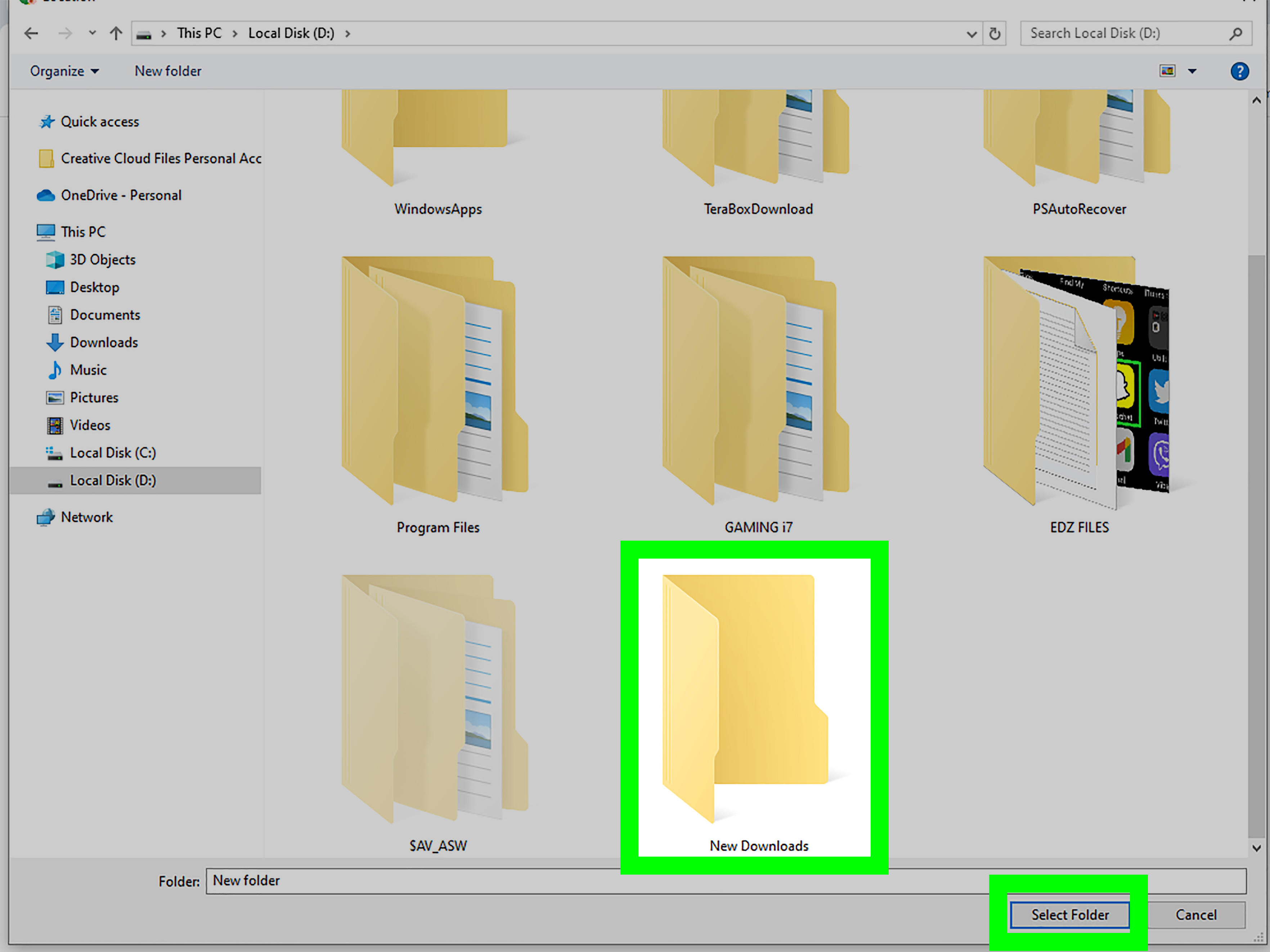
- Click Change.
- Choose the folder where you want Chrome to save downloaded files.
- Confirm your selection.
That is it. Chrome will now use your selected folder as the default download location. Future files will land there automatically, ready to behave themselves.
Example: A Smarter Folder Setup
Let’s say you use Chrome for both work and personal browsing. Your Downloads folder is currently packed with client PDFs, family photos, online receipts, tax forms, and a few files you are honestly afraid to open. A better setup might look like this:
- Documents > Chrome Downloads for general files
- Desktop > Today’s Downloads for temporary files you need immediately
- Google Drive > Work Downloads for files you want synced to the cloud
- External Drive > Large Files for videos, backups, or bulky installers
The best download location depends on how you work. If you often need files right away, a desktop folder may be convenient. If you care about backup and syncing, a cloud folder may be smarter. If you download large files, an external drive or secondary storage folder can help keep your main drive from gasping dramatically.
When This Method Works Best
Changing the default download location is ideal when you want Chrome to follow one consistent rule. It works well for users who download similar files every day, such as reports, invoices, study materials, images, or PDFs.
This method is also helpful for shared computers. For example, a family computer could have separate folders for each person. Instead of everyone’s files landing in one crowded Downloads folder, each user can select a personal destination inside Chrome or through their own system profile.
Easy Way 2: Make Chrome Ask Where to Save Each File
The second easy way is to turn on the setting that makes Chrome ask where to save every file before downloading. This gives you maximum control. Instead of one default folder, you choose the location each time.
Step-by-Step: Turn On “Ask Where to Save Each File”
- Open Chrome.
- Click the three-dot menu in the top-right corner.
- Choose Settings.
- Click Downloads in the left sidebar.
- Turn on Ask where to save each file before downloading.
Once this option is enabled, Chrome will open a save dialog whenever you download a file. You can rename the file, choose a folder, and keep everything tidy from the start. It is a tiny interruption, but a very useful one.
Example: Why This Setting Is So Useful
Imagine you are planning a vacation. You download flight confirmations, hotel receipts, restaurant menus, city maps, travel insurance documents, and maybe a PDF called “Top 37 Things to Do Before Your Feet Quit.” If Chrome saves everything to one default folder, you will probably need to clean it up later.
But if Chrome asks where to save each file, you can place every download directly into a folder named “Chicago Trip,” “New York Vacation,” or “Do Not Lose These Tickets.” Your future self will be grateful. Your future self may even applaud quietly.
When This Method Works Best
The “Ask where to save” setting is best for people who download many different file types for different projects. It is especially useful for students, freelancers, office workers, researchers, designers, bloggers, and anyone who regularly handles files from multiple websites.
However, it may feel annoying if you download dozens of files in a row. In that case, changing the default download folder may be smoother. The right choice depends on whether you prefer speed or precision.
How to Manage Automatic Downloads in Chrome
There is another download-related setting worth knowing: automatic downloads. This controls whether websites can automatically download multiple files after the first file. Chrome places this setting under site permissions, not under the main Downloads section, which is exactly the kind of menu placement that makes people stare at the screen like it owes them money.
How to Change Automatic Download Permissions
- Open Chrome.
- Click the three-dot menu.
- Go to Settings.
- Select Privacy and security.
- Click Site settings.
- Open Additional permissions.
- Select Automatic downloads.
- Choose whether sites can ask to automatically download multiple files.
This setting matters because some legitimate websites need to download several files, such as a batch of images, invoices, reports, or project assets. But unknown websites should not be allowed to spray files onto your computer like a confetti cannon. Keep this permission controlled, and only allow sites you trust.
How to Find Downloads Quickly in Chrome
Even with perfect settings, you may still need to find a file quickly. Chrome makes this easy with the Downloads page.
On Windows, Linux, and ChromeOS, press Ctrl + J to open your Chrome downloads list. On Mac, use Command + Shift + J. You can also click the three-dot menu and choose Downloads.
The Downloads page shows recent files, download status, and options to open files or reveal them in their folder. This is handy when a file downloads successfully but your brain immediately says, “Great. Where did it go?”
Chrome Download Settings on Android and iPhone
Chrome download behavior on mobile devices is more limited than on desktop. On Android, downloaded files are generally accessible from Chrome’s Downloads section or through your phone’s file manager. You can open Chrome, tap the three-dot menu, and choose Downloads to see downloaded files.
On iPhone and iPad, file handling depends more heavily on iOS and the Files app. You may find downloaded files in Files, Recents, Downloads, iCloud Drive, or On My iPhone, depending on how the file was saved. Mobile systems are more controlled than desktop computers, so you may not see the exact same download-location options available in desktop Chrome.
If you need serious download organization, desktop Chrome usually gives you the most flexible setup. Mobile Chrome is better for quick access, sharing, and occasional downloads.
Best Practices for Chrome Downloads
Changing Chrome download settings is helpful, but good habits make the system even better. Here are practical tips that keep your files organized and your computer safer.
Create Clear Folder Names
Use folder names that explain what belongs inside. Names like “Work PDFs,” “Receipts 2026,” “School Projects,” and “Design Assets” are much better than “Stuff,” “New Stuff,” or “Stuff 2,” the folder-naming equivalent of giving up.
Clean Your Downloads Folder Weekly
Even organized people collect digital clutter. Set a weekly reminder to delete old installers, duplicate PDFs, and files you no longer need. Your storage drive will feel lighter, and so will your soul.
Be Careful With Unknown Files
Do not open random downloads from websites you do not trust. Be especially cautious with executable files, compressed archives, browser extensions, and documents that ask you to enable extra features. Chrome’s warnings are there for a reason. Treat them like a smoke alarm, not background music.
Use Cloud Storage When Helpful
If you work across multiple devices, saving downloads to a cloud-synced folder can be useful. Just remember that cloud storage can fill up too. Organization still matters, even when your files are floating in the digital sky.
Rename Files Before Saving
If you turn on “Ask where to save each file,” use the save dialog to rename unclear files. A file named “invoice-march-client-a.pdf” is much easier to find later than “document(17).pdf.” Future you deserves better than a guessing game.
Troubleshooting: Chrome Download Settings Not Working
Sometimes Chrome download settings do not behave exactly as expected. Before blaming the browser, your computer, or Mercury retrograde, try these fixes.
Restart Chrome
Close Chrome completely and reopen it. Some settings apply immediately, but restarting can clear small glitches.
Check Folder Permissions
If Chrome cannot save to your chosen folder, the folder may have permission restrictions. Try selecting a different folder, such as a folder inside Documents, Desktop, or your user profile.
Make Sure the Folder Still Exists
If you changed your download location to an external drive, network folder, or removable storage device, Chrome may have trouble saving files when that location is disconnected.
Update Chrome
An outdated browser can cause performance or compatibility issues. Chrome usually updates automatically, but you can check by opening the three-dot menu, selecting Help, and clicking About Google Chrome.
Review Security Software
Antivirus tools, workplace policies, school-managed devices, or parental controls may affect downloads. If your device is managed by an organization, some Chrome settings may be locked or controlled by an administrator.
Which Chrome Download Method Should You Choose?
Choose Easy Way 1 if you want speed and consistency. Changing the default download location is simple, quiet, and efficient. It is the best choice if most of your downloads belong in the same place.
Choose Easy Way 2 if you want control. Making Chrome ask where to save each file is better when your downloads belong in different folders. It adds one extra step, but it can save many minutes of cleanup later.
For many users, the best setup is a combination: choose a sensible default folder and turn on “Ask where to save” only when working on complex projects. Chrome lets you switch these settings anytime, so you are not signing a lifetime contract with your Downloads folder.
Real-World Experience: What Changing Chrome Download Settings Actually Feels Like
Here is the honest truth: changing Chrome download settings sounds boring until it saves you from a small digital disaster. I have seen people lose time hunting for files that were technically “downloaded” but emotionally missing. The file was somewhere on the computer, of course, but “somewhere” is not helpful when you have five minutes before a meeting and need the exact PDF your boss requested.
The biggest improvement comes from choosing a download system that matches your daily routine. For example, if you download mostly work documents, setting Chrome’s default location to a dedicated work folder feels instantly cleaner. Every file lands where it belongs. You open the folder, grab the document, and move on with your life like a person who has made excellent choices.
On the other hand, if you download a mix of files all day, the “Ask where to save each file” option can be a lifesaver. It slows you down by a second, but that second is useful. It forces a tiny moment of decision: Is this a receipt? A project image? A school worksheet? A software installer I will delete later? That small pause prevents future clutter.
One practical habit is to create a “Temporary Downloads” folder. Use it for files you only need for a short time, such as installers, one-time PDFs, or images you plan to upload somewhere else. Then clean that folder every Friday. It is like taking out the trash, except the trash is named “setup_v4_latest_new_FINAL.exe.”
Another helpful habit is using project folders. If you are writing a report, planning a trip, building a website, or collecting research, create a folder before you start downloading. Then either set it as your temporary default location or use the “Ask where to save” prompt to place everything there manually. This makes the project feel more controlled and prevents related files from scattering across your computer like popcorn.
For students, this can be surprisingly powerful. Create folders by class, semester, or assignment. When Chrome asks where to save a file, place it directly into the right folder. Later, when you need that reading, worksheet, chart, or rubric, you will not have to search through hundreds of unrelated downloads. Your grade may not magically rise, but your stress level probably will.
For office workers, download settings can reduce embarrassing moments. Nobody wants to share their screen and open a Downloads folder filled with random personal files while searching for one professional document. A clean download structure helps you look organized because, technically, you are.
For creators, bloggers, and designers, Chrome download settings are even more useful. Images, templates, fonts, PDFs, CSV files, screenshots, and compressed folders can pile up quickly. Saving files directly into client or project folders keeps your workflow smooth. It also makes backups easier because related files already live together.
The main lesson is simple: do not let Chrome decide your file organization by default forever. Chrome is a browser, not your personal assistant with a clipboard and a tiny filing cabinet. Give it clear instructions. Pick a smart folder. Turn on the save prompt when needed. Review automatic download permissions. Pay attention to security warnings. Do that, and downloading files becomes less chaotic, less risky, and much easier to manage.
Once you change these settings, you may wonder why you waited so long. It is not a flashy upgrade. There are no fireworks. Chrome will not play a victory song. But the next time you download an important file and find it in three seconds, you will feel the quiet joy of a person whose browser finally has manners.
Conclusion
Learning how to change download settings on Chrome is one of those small browser upgrades that pays off again and again. You can change the default download location for a cleaner, faster workflow, or you can make Chrome ask where to save each file for more control. Both methods are easy, useful, and completely reversible.
If your Downloads folder has become a digital swamp, do not panic. Open Chrome settings, visit the Downloads section, and choose the setup that fits your routine. A few clicks today can save you from a lot of file-hunting tomorrow. Your folders are ready for a glow-up.