Instagram group chats can be useful, chaotic, funny, and occasionally unbearable all in the same afternoon. The catch is that Instagram does not give you one magic “block this entire group chat” button. What it does offer is a mix of tools that let you leave the chat, mute notifications, restrict people, block individual accounts, report unwanted conversations, and clean up your inbox. Instagram’s Help Center and Meta’s safety pages outline these options, and they are the safest, most current way to manage a noisy DM thread.
If your goal is peace and quiet, this guide walks through 12 practical steps that help you block the chaos behind a group chat, even if Instagram does not offer a literal one-tap group block. Along the way, you will also see the difference between muting, leaving, restricting, and blocking so you can choose the right fix instead of overdoing it and turning a small annoyance into a bigger drama.
What “blocking” a group chat on Instagram really means
On Instagram, a group conversation is part of Direct Messages, which means the app treats it as a shared chat rather than a single object you can simply banish forever. Instagram lets you leave a group, mute group notifications, delete the chat from your own inbox, and block people individually if needed. If you block someone who is in a group chat with you, Instagram may ask whether you want to stay in the group or leave it. That is the closest thing to a true group-chat block built into the app.
12 steps to block the noise from an Instagram group chat
-
1. Open Instagram and go to Messages
Start from the home screen and tap the Messages icon. Instagram keeps group chats inside its DM inbox, so this is where you will find the conversation you want to manage. If you are not sure which thread is the problem, look for the one with the repeated notifications, the loudest name, or the group photo that makes your eye twitch a little.
-
2. Open the exact group chat you want to stop
Tap into the conversation and confirm it is the right one before changing anything. Group chats can be renamed, which means the title may not always match the people inside it. Instagram’s Help Center notes that group chats can be named and managed from the chat details page, so do not rely only on memory.
-
3. Tap the group name at the top
Once inside the chat, tap the group name or header at the top of the screen. That opens the chat settings panel, where Instagram places the controls for leaving, muting, and other conversation options. This is the control room, not the chat itself.
-
4. Choose Mute if you want silence without drama
If the chat is annoying but not urgent, muting is often the smartest move. Instagram lets you mute group chat notifications from the group details screen, and Meta’s guidance explains that muting is meant to stop alerts without removing you from the conversation. Third-party privacy guides from Consumer Reports and The Verge describe the same idea: you stay in the thread, but the pings stop bothering you.
-
5. Leave the group if you are truly done
If you want out completely, tap Options and then Leave. Instagram’s Help Center says you can leave a group chat at any time. That is the cleanest option when the conversation is no longer relevant, the energy is bad, or the group has become a nonstop meme factory you never asked to join.
-
6. Block the specific person who keeps pulling you back in
If one person is the real problem, block that account directly. Instagram’s blocking tools prevent that person from contacting you in the normal ways, and accounts you block cannot send you message requests or add you to groups. Instagram also notes that if a blocked account is already in a group chat with you, you may be prompted to stay or leave.
-
7. Use Restrict when you want distance, not a full cutoff
Restrict is a softer option than block. It limits how someone interacts with you and can reduce the visibility of their messages without making the situation as obvious as a block. Instagram’s Help Center explains that you can restrict someone through messages, and Consumer Reports highlights this as a useful middle ground when you want control without a showdown.
-
8. Report the conversation if it crosses a line
If the group chat is abusive, threatening, spammy, or clearly violating community standards, report the chat or the individual accounts involved. Instagram’s Help pages say you can report a message or chat, and if you want to stop someone from messaging you, you can also block or report their profile. Reporting is the right move when the problem is bigger than plain old annoyance.
-
9. Clean up the thread by deleting it from your inbox
If you only want the conversation to disappear from view, delete the chat from your inbox. Instagram allows you to delete a chat on your end, which removes it from your list without affecting the group for everyone else. That is useful when you are done with the thread but do not need to announce your exit with fireworks.
-
10. Review your message request settings
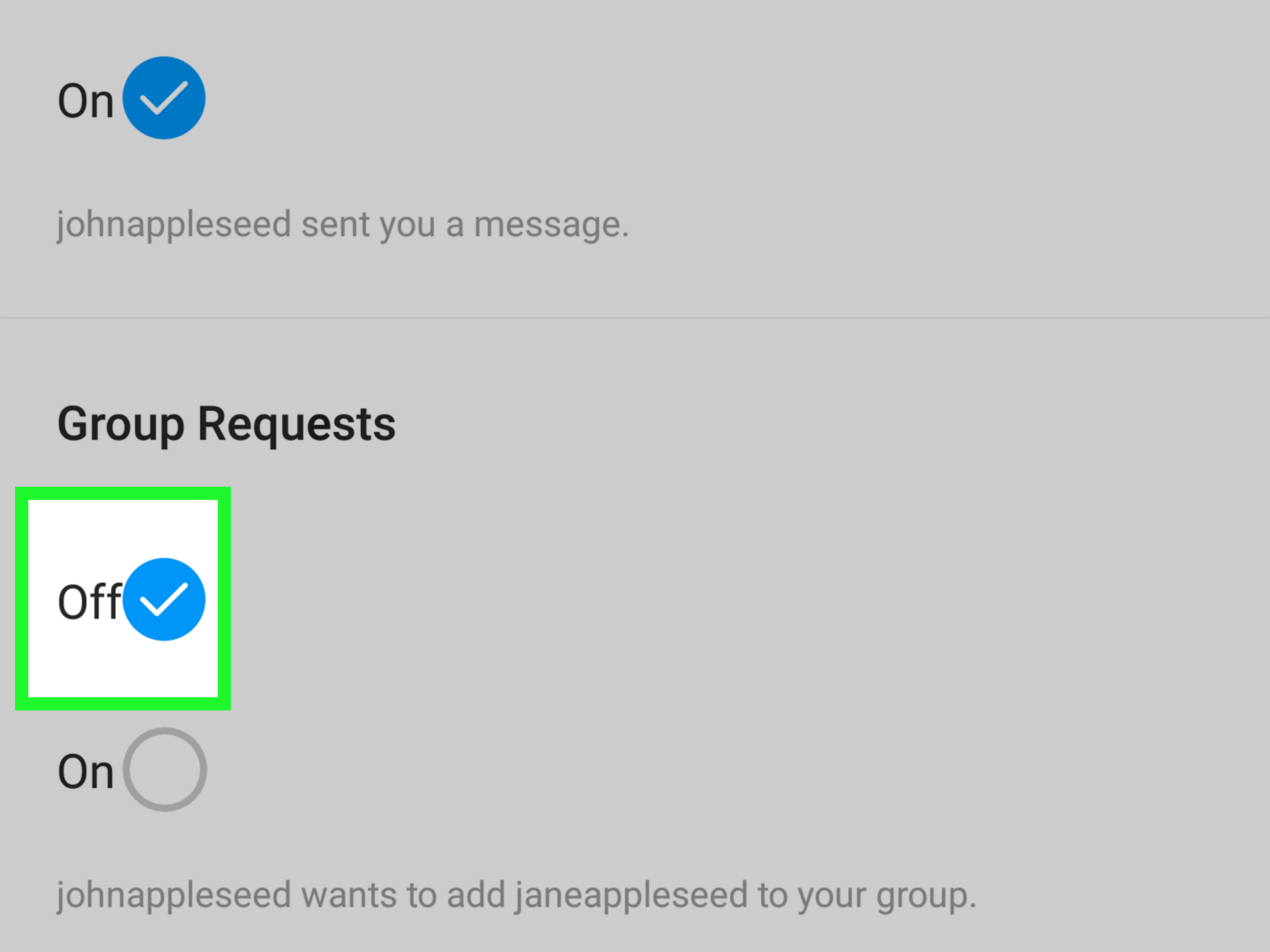
If strangers or semi-strangers keep pulling you into group chats, check your message request settings. Instagram’s Help Center says you can manage who can add you to groups, and Meta’s Family Center notes that message controls can limit who can message teens or add them to group chats. Tightening those settings can prevent future surprise invitations.
-
11. Turn on broader Limits if the problem is bigger than one chat
If several accounts are bothering you at once, Instagram’s Limits feature can temporarily reduce unwanted comments and messages from groups of accounts. That is helpful when the issue is not just one group chat but a wave of attention that keeps showing up like unwanted confetti.
-
12. Check the result and adjust
After you leave, mute, block, restrict, or report, go back to Messages and confirm the chat is behaving the way you want. If notifications still slip through, revisit the group details and your overall notification settings. Instagram and Meta both frame these tools as part of a larger set of safety and wellbeing controls, so the best outcome often comes from combining two or three actions instead of relying on just one.
Extra tips for choosing the right option
Use mute when you like the people but hate the noise. Use leave when you do not need the conversation anymore. Use block when one person keeps finding ways to reappear. Use restrict when you want a quieter middle ground. And use report when the chat crosses into harassment, spam, or abuse. That simple decision tree matches how Instagram’s own help pages separate these tools, and it keeps you from choosing a sledgehammer when a broom would do.
Real-world experiences people run into with Instagram group chats
The first surprise for many users is that muting feels almost too easy. One tap and the thread is still there, but the constant buzzing stops. That can feel like a tiny miracle if the group chat is active during class, work, dinner, or the exact moment you finally sat down to breathe. Consumer Reports and Wired both describe muting as a quiet way to reduce noise without making a public exit, which is why it is often the least awkward first step.
Another common experience is realizing that leaving a group chat is not as dramatic as it feels in your head. In real life, most people are too busy scrolling, studying, or sending ten more messages to notice immediately. Business Insider’s recent coverage of group-chat etiquette makes the same point: sometimes the healthiest move is simply stepping away and not treating every chat like a formal resignation speech. When the chat is unhelpful, leaving can feel surprisingly peaceful.
People also learn quickly that blocking works best when there is a specific person behind the problem. If one member keeps adding you back, sending DMs, or dragging you into more chats, blocking that account can stop the loop. Instagram’s own Help pages say blocked accounts cannot send message requests or add you to groups, which makes block one of the strongest tools available when the issue is persistent.
For many teens and families, the bigger lesson is not about one chat at all but about control. Meta’s Family Center explains that Instagram message controls can limit who can add teens to group chats, and that matters because random invites can pile up fast. Once people learn how to set those controls, the app usually feels less chaotic and a lot more manageable. A few minutes in settings can prevent weeks of annoyance.
There is also a psychological side to this. A noisy chat can feel small on paper but huge in your head, especially when it keeps pulling your attention away from schoolwork, sleep, or just trying to relax. AP and Wired have both noted how people now rely on app-level controls to reduce digital overload, and Instagram’s own safety guidance reflects that same mindset: fewer interruptions often means a calmer feed, calmer inbox, and calmer brain.
The best long-term habit is to treat group chats like traffic: not every lane deserves your time. Some threads are useful, some are funny, and some are just endless noise with a group name. Once you get comfortable using mute, leave, restrict, and block as separate tools, Instagram becomes much easier to live with. That is the real win here: not winning an argument in DMs, but getting your attention back.
Final takeaway
If you were looking for a single “block group chat” button, Instagram does not really work that way. The practical solution is to combine the tools the app already gives you: mute the noise, leave the thread, block the problem account, restrict contact when needed, and report anything abusive. Used together, those steps give you the same result most people want from a group-chat block: less drama, fewer alerts, and more control over your inbox.