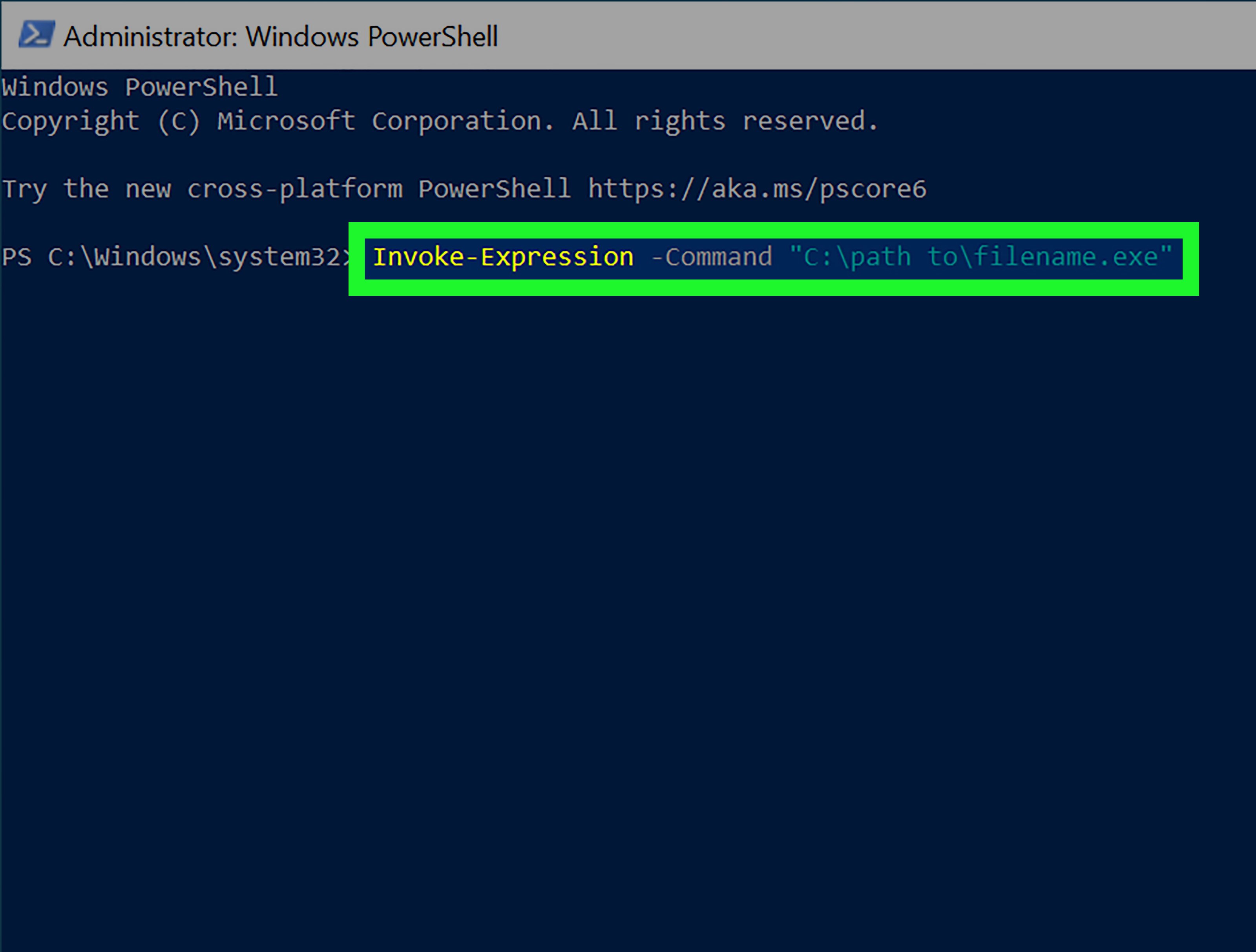
Running an EXE in PowerShell sounds like it should be as simple as typing the file name and pressing Enter. Sometimes it is. Other times, PowerShell looks at your perfectly innocent command, raises one digital eyebrow, and says, “I have questions.”
The good news: launching executable files in PowerShell is not difficult once you understand how PowerShell reads paths, arguments, quotation marks, and process options. Whether you want to start an installer, open a Windows utility, launch a command-line tool, or automate an application from a script, there are several reliable ways to do it.
This guide explains how to run EXE in PowerShell using four easy methods: direct execution, the call operator, Start-Process, and legacy command handling with cmd.exe /c. You will also learn how to pass arguments, run paths with spaces, wait for programs to finish, capture exit codes, and avoid common mistakes that make PowerShell feel more mysterious than it really is.
Before You Start: What PowerShell Needs to Run an EXE
An EXE file is a Windows executable program. PowerShell can run executable files just like Command Prompt can, but PowerShell has its own parsing rules. That means it may interpret spaces, quotes, parentheses, variables, and special characters differently from cmd.exe.
Before running an EXE, make sure you know three things:
- The exact file path: For example,
C:\Tools\app.exe. - Whether the path contains spaces: For example,
C:\Program Files\My App\app.exe. - Whether the program needs arguments: For example,
/silent,-install, or--version.
Also, run only trusted executable files from reliable sources. PowerShell is powerful, which is wonderful when you are automating work and slightly terrifying when someone sends you a random “totally safe” file named invoice-final-final-real.exe.
Method 1: Run an EXE Directly by Typing Its Path
The simplest way to run an executable in PowerShell is to type the path to the file and press Enter. This works well when the path has no spaces or when the executable is in the current directory.
Run an EXE from the Current Folder
If the EXE is in your current PowerShell directory, use .\ before the file name:
The .\ tells PowerShell, “Run the program in this folder.” Without it, PowerShell may search command locations in your system path instead of the current directory.
Run an EXE Using a Full Path
If the executable is somewhere else, type the full path:
This method is clean and fast when the path is simple. For example:
You can also run command-line tools that are already included in your system PATH environment variable:
or simply:
Run an EXE with Arguments
Many executable files accept arguments. For example, you can run:
Or check the version of a tool:
This direct method is best for quick commands, simple paths, and tools that behave nicely in the console. It is the PowerShell version of walking through the front door instead of climbing through a window.
Method 2: Use the Call Operator & for Paths with Spaces
The call operator, written as &, is one of the most useful tools for running EXE files in PowerShell. It tells PowerShell to execute the command that follows it.
This is especially important when the executable path contains spaces. For example, this will not work correctly:
PowerShell sees the quoted path as a string. It displays or evaluates the string, but it does not automatically run it as a program. To run it, add the call operator:
Use the Call Operator with Arguments
You can pass arguments after the executable path:
For installer-style commands, it might look like this:
Each argument is passed to the executable after PowerShell parses the command. When arguments contain spaces, quote those arguments separately:
Use the Call Operator with Variables
The call operator is also helpful when the executable path is stored in a variable:
This is a common pattern in scripts because it keeps your code readable. Instead of repeating a long path everywhere, you define it once and reuse it.
When Should You Use the Call Operator?
Use & when:
- The EXE path contains spaces.
- The EXE path is stored in a variable.
- You want the executable to run in the current console.
- You want output to appear directly in PowerShell.
- You need a simple, script-friendly way to call a native command.
For most command-line EXE tools, the call operator is usually the best first choice. It is direct, readable, and does not create extra ceremony. PowerShell already has enough ceremony; no need to bring a marching band.
Method 3: Use Start-Process to Launch an EXE
The Start-Process cmdlet is designed to start one or more processes. It gives you more control over how the executable runs, including whether PowerShell should wait for it, whether it should open in a new window, and whether it should run with elevated permissions.
The basic syntax is:
This launches the executable as a separate process. Depending on the program, it may open a new window or run independently from the PowerShell session.
Run an EXE with Arguments Using Start-Process
To pass arguments, use -ArgumentList:
You can also pass the arguments as one string:
For simple commands, both approaches may work. For more complex arguments, especially those with spaces and nested quotes, be careful. Argument parsing is where many PowerShell headaches are born, raised, and sent to college.
Wait for the EXE to Finish
If you are installing software or running a task that must finish before the next command starts, add -Wait:
This tells PowerShell to pause until the process exits. Without -Wait, PowerShell starts the process and immediately moves on to the next command.
Get the Exit Code
Exit codes are useful for automation. Many installers return 0 for success and another number for an error, restart requirement, or special condition.
The -PassThru parameter returns a process object, allowing you to inspect properties such as the exit code.
Run an EXE as Administrator
Some programs require elevated permissions. You can request elevation with the -Verb RunAs option:
This usually triggers a User Account Control prompt. It is useful for installers, system utilities, or administrative tools. It is not magic, though. If your user account does not have permission, PowerShell cannot politely sweet-talk Windows into ignoring security.
When Should You Use Start-Process?
Use Start-Process when you want to:
- Launch a GUI application from PowerShell.
- Run an installer and wait for completion.
- Request administrator elevation.
- Open a program in a separate process.
- Use process options like
-WorkingDirectory,-WindowStyle, or-RedirectStandardOutput.
For interactive command-line tools, the call operator is often simpler. For launching apps, installers, or processes that need special handling, Start-Process is the more flexible choice.
Method 4: Use cmd.exe /c for Legacy Commands
Sometimes you are dealing with a command that was written with Command Prompt syntax in mind. Maybe it uses older batch-style formatting, unusual quoting, redirection, or characters that PowerShell wants to interpret differently.
In those cases, you can ask PowerShell to run the command through Command Prompt:
The /c switch tells cmd.exe to run the command and then exit.
Example: Run a Legacy Installer
Notice the mixed quoting. PowerShell uses the outer quotes to pass the command to cmd.exe, and cmd.exe uses the inner quotes to handle the executable path. Yes, it looks like punctuation got into a bar fight. But it works when you need Command Prompt-style parsing.
When Should You Use cmd.exe /c?
Use cmd.exe /c when:
- A command works in Command Prompt but not in PowerShell.
- The tool expects legacy command-line parsing.
- You are converting old batch commands to PowerShell gradually.
- You need quick compatibility without rewriting the entire command.
This should not be your default method for every EXE. Think of it as a compatibility bridge. Bridges are useful, but you do not build one inside your kitchen unless something has gone very wrong.
How to Pass Arguments Correctly
Passing arguments is where many PowerShell users run into trouble. The executable receives arguments after PowerShell has parsed the command. That means PowerShell gets the first chance to interpret quotes, variables, and special characters.
For simple arguments, this works fine:
For Start-Process, you can use:
PowerShell uses the backtick character to escape quotes inside a string. However, if your command becomes hard to read, consider using variables:
This is cleaner, easier to debug, and much kinder to your future self, who may be reading the script at 11:47 p.m. with one eye open.
How to Run an EXE from a PowerShell Script
Running an EXE inside a PowerShell script works the same way as running it in the console. For example:
You can also use Start-Process when you need to wait for the installer:
This pattern is useful for deployment scripts, workstation setup, software updates, and internal IT automation.
Common Errors When Running EXE Files in PowerShell
“The term is not recognized”
This usually means PowerShell cannot find the executable. Use the full path, move into the correct folder, or make sure the program is added to the system PATH.
If you are in the same folder as the EXE, remember to include .\.
Quoted Path Does Nothing
If you type only a quoted path, PowerShell treats it as a string:
Use the call operator:
Arguments Are Not Working
Check your quoting. If an argument contains spaces, wrap that argument in quotes. If you are using Start-Process, test the command with & first to confirm the executable and arguments behave correctly.
PowerShell Script Is Blocked
This applies to PowerShell scripts, not ordinary EXE files. If a .ps1 script is blocked, the issue may involve execution policy. Execution policy controls how PowerShell loads scripts and configuration files. It does not mean every EXE is blocked by PowerShell.
Which Method Should You Choose?
| Method | Best For | Example |
|---|---|---|
| Direct execution | Simple paths and quick commands | .\tool.exe |
| Call operator | Paths with spaces, variables, console tools | & "C:\Program Files\App\app.exe" |
| Start-Process | Installers, GUI apps, waiting, elevation | Start-Process -FilePath "setup.exe" -Wait |
| cmd.exe /c | Legacy commands and CMD-style syntax | cmd.exe /c "legacy.exe /flag" |
For everyday use, start with direct execution or the call operator. Use Start-Process when you need more process control. Use cmd.exe /c only when compatibility requires it.
Best Practices for Running EXE Files in PowerShell
- Use full paths in scripts: Do not rely on the current directory unless you intentionally set it.
- Quote paths with spaces: Then use the call operator to execute them.
- Test arguments manually: Confirm the command works before adding it to a script.
- Check exit codes: Especially for installers and automation workflows.
- Avoid running unknown files: PowerShell will run what you ask it to run, even when that is a terrible idea.
- Keep commands readable: Use variables for long paths and complex arguments.
Real-World Experience: Lessons from Running EXE Files in PowerShell
After you run enough EXE files in PowerShell, you learn that the command itself is rarely the hard part. The real challenge is making the command predictable, readable, and repeatable. A command that works once in your console is nice. A command that works every time in a script, on multiple machines, under different user accounts, with proper logging? That is when PowerShell starts earning its coffee.
One of the biggest lessons is to be careful with paths. Many beginners assume that if they are already inside a folder, PowerShell should automatically run the EXE in that folder by typing its name. PowerShell is more cautious. It expects .\program.exe for executables in the current directory. This tiny detail prevents confusion and helps avoid accidentally running a different command from another location.
Another lesson is that spaces in paths are not a problem when handled correctly. The problem is usually forgetting that a quoted path is just a string until you execute it. That is why the call operator becomes second nature. Once you get used to typing & "C:\Program Files\App\app.exe", paths with spaces stop being annoying. Mostly. They still look annoying, but at least they behave.
For automation, Start-Process is extremely useful, especially with installers. Silent installation commands often need -Wait because the next step may depend on the installation being complete. Without -Wait, your script may race ahead like an overexcited intern and try to configure software that is not installed yet. Adding -PassThru and checking the exit code makes the script more professional and easier to troubleshoot.
However, Start-Process is not always the best tool for console programs. If you want output to appear directly in the terminal, the call operator is usually simpler. Many command-line tools are designed to print output, return errors, and provide exit codes in the current session. Running them directly keeps the feedback visible and immediate.
Quoting is another area where experience helps. If a command has one path with spaces, quoting is easy. If it has an executable path, multiple arguments, nested quotation marks, and output folders with spaces, the command can quickly look like a keyboard sneezed. In those cases, breaking the command into variables is not just cleaner; it prevents mistakes.
For example, storing the executable path in $app and the output folder in $destination makes the command easier to read. It also makes future edits safer. When scripts are shared with teammates, readability matters. Nobody wants to maintain a one-line command that looks like it was assembled during a thunderstorm.
Legacy tools are another practical reality. Some older programs were built for Command Prompt and behave strangely when PowerShell parses their arguments. Instead of fighting with the command for an hour, using cmd.exe /c can be the practical solution. It is not the most elegant method, but sometimes compatibility beats elegance. In IT, the best solution is often the one that works consistently and can be explained without drawing a diagram on a napkin.
Finally, security matters. Running EXE files from PowerShell is convenient, but convenience should not replace caution. Verify the source of installers, avoid random downloads, and be careful with commands copied from websites or chat messages. If you do not understand what a command does, pause before running it. PowerShell is not dangerous by itself; blindly running unknown executables is the risky part.
The best habit is simple: start with the easiest method, test with harmless commands, and choose the tool that matches your goal. Direct execution is great for quick tasks. The call operator is excellent for paths and variables. Start-Process is ideal for controlled launches and installers. cmd.exe /c is there when old-school syntax refuses to retire gracefully.
Conclusion
Learning how to run EXE in PowerShell is mostly about understanding how PowerShell handles paths, quotes, arguments, and processes. For simple commands, run the executable directly. For paths with spaces or variables, use the call operator. For installers, GUI apps, waiting, exit codes, or elevation, use Start-Process. For older commands that expect Command Prompt behavior, use cmd.exe /c.
Once these four methods make sense, PowerShell becomes a much friendlier place to run applications, automate installations, and manage Windows tools. It may still look dramatic with all the quotes, ampersands, and switches, but underneath the punctuation is a practical system that does exactly what you tell it to do. So tell it clearly, quote your paths, and let your EXE run like it has somewhere important to be.