Reinstalling Windows 10 sounds like something you do only after your laptop starts making mysterious noises, your desktop freezes at the worst possible moment, or your browser has collected more “helpful” toolbars than a garage wall. But in reality, learning how to reinstall Windows 10 is one of the most useful maintenance skills a PC owner can have.
A fresh Windows installation can fix deep software problems, remove stubborn malware, clear out years of digital clutter, and make an older computer feel surprisingly alive again. It can also prepare a PC for sale, donation, or a new owner. The good news? You do not need to be a technician in a polo shirt with a belt full of USB drives. Windows 10 includes several built-in recovery options, and Microsoft provides official installation media for clean installs.
Before you begin, one important reality check: Windows 10 reached the end of standard support on October 14, 2025. Your PC may still run Windows 10, but for long-term security, you should consider upgrading to Windows 11 if your device supports it, or look into available Extended Security Updates if you must remain on Windows 10. That said, many people still need to reinstall Windows 10 for compatibility, repair, resale, or older hardwareand this guide walks you through the safest way to do it.
When Should You Reinstall Windows 10?
You do not need to reinstall Windows every time your computer sneezes. Sometimes a reboot, driver update, malware scan, or cleanup is enough. But a reinstall makes sense when problems are persistent, confusing, or clearly tied to the operating system.
Common reasons to reinstall Windows 10
- Your PC is painfully slow even after removing unnecessary apps.
- Windows crashes, freezes, or shows repeated blue screen errors.
- Malware or suspicious software keeps coming back.
- You are replacing the hard drive or upgrading to an SSD.
- You want to remove manufacturer bloatware and start fresh.
- You are selling, recycling, or giving away the computer.
- System files are damaged and normal repair tools do not help.
Think of reinstalling Windows 10 like moving into a clean apartment. The walls are fresh, the junk drawer is empty, and you finally know where the scissors are. The catch is that anything you forget to pack before moving day may be gone for good.
Before You Reinstall Windows 10: Do These First
The reinstall itself is not usually the scary part. The scary part is realizing afterward that your tax folder, family photos, game saves, or password vault backup was sitting on the drive you just erased. Preparation turns a risky afternoon into a controlled reset.
1. Back up your personal files
Copy your important files to an external drive, cloud storage, or another computer. Focus on folders such as Desktop, Documents, Downloads, Pictures, Videos, Music, and any custom folders you created. If you use OneDrive, Google Drive, Dropbox, or another sync service, confirm that files are fully synced before wiping anything.
Do not assume everything is in the cloud just because an icon looks friendly. Open the cloud folder online and verify that your files are actually there. Computers are excellent at doing exactly what you told them to do, which is not always what you meant.
2. Save your software licenses and account details
Make a list of the apps you need to reinstall. This may include Microsoft Office, Adobe apps, antivirus software, accounting tools, VPN clients, games, printer utilities, and specialty work software. Save product keys, license emails, installer links, and login credentials where you can access them after the reinstall.
3. Check your Windows activation status
Most Windows 10 PCs use a digital license tied to the device hardware or your Microsoft account. To check activation, go to Settings > Update & Security > Activation. Note whether you are running Windows 10 Home or Windows 10 Pro. Reinstall the same edition to avoid activation headaches later.
4. Download important drivers if needed
Windows usually installs basic drivers automatically, but it is smart to download network, Wi-Fi, chipset, graphics, and storage drivers from your PC manufacturer before starting. This is especially important for older laptops, custom desktops, and systems with unusual hardware.
5. Plug in your laptop
A reinstall is not the moment to test your battery’s emotional resilience. Connect the charger and keep the computer powered throughout the process.
Choose the Right Windows 10 Reinstall Method
There are three practical ways to reinstall Windows 10. The best choice depends on whether your PC still boots, whether you want to keep personal files, and how clean you want the final result to be.
Method 1: Reset This PC
Best for: users who can still access Windows and want the easiest reinstall option.
Reset This PC is built into Windows 10. It lets you reinstall the operating system while choosing whether to keep personal files or remove everything. It is simple, convenient, and usually the best first option for non-technical users.
Method 2: Reinstall from USB installation media
Best for: clean installs, broken systems, new drives, or serious software problems.
This method uses a bootable USB drive created with Microsoft’s Windows 10 Media Creation Tool. It gives you the cleanest start because you can delete old partitions and install Windows fresh.
Method 3: Manufacturer recovery image
Best for: Dell, HP, Lenovo, ASUS, and other branded PCs that need factory drivers and original utilities.
Many manufacturers provide recovery tools that reinstall Windows with the original drivers and factory software. This can be useful if your device has custom hardware features, although it may also bring back preinstalled apps you do not want.
How to Reinstall Windows 10 Using Reset This PC
If Windows still starts normally, this is the simplest route. It is also less intimidating than boot menus, BIOS settings, and USB drives with names like “UEFI: Kingston DataTraveler,” which always sounds like a tiny spaceship.
Step-by-step instructions
- Click the Start button.
- Open Settings.
- Go to Update & Security.
- Select Recovery.
- Under Reset this PC, click Get started.
- Choose Keep my files or Remove everything.
- Select Cloud download or Local reinstall.
- Review the settings carefully.
- Click Reset and follow the on-screen instructions.
Keep my files vs. Remove everything
Keep my files removes apps and settings but attempts to preserve personal files. It is useful when Windows is acting strange but you are not giving away the computer. Still, you should back up your files first. “Should remain” is not the same as “guaranteed by a squad of data-protection angels.”
Remove everything deletes personal files, apps, and settings. Choose this option if you want the cleanest reset or plan to sell, donate, or recycle the computer.
Cloud download vs. Local reinstall
Cloud download downloads fresh Windows installation files from Microsoft. It is a good choice if your local system files may be corrupted, but it requires a stable internet connection and several gigabytes of data.
Local reinstall uses files already on your computer. It is faster and does not require a large download, but it may not solve problems caused by damaged local Windows files.
How to Reinstall Windows 10 from a USB Drive
A USB clean install is the gold-standard approach when you want a truly fresh Windows 10 installation. It is also the best option if your PC will not boot, you installed a new SSD, or the operating system is beyond polite conversation.
What you need
- A USB flash drive with at least 8GB of space.
- A working Windows PC to create the installation media.
- An internet connection.
- Your backed-up files.
- Your Windows edition information: Home or Pro.
Create Windows 10 installation media
- Go to Microsoft’s official Windows 10 download page.
- Download the Windows 10 Media Creation Tool.
- Run the tool as an administrator.
- Choose Create installation media for another PC.
- Select the language, edition, and architecture.
- Choose USB flash drive.
- Select your USB drive and allow the tool to create the installer.
Warning: creating the installation USB erases the USB drive. If that flash drive contains your vacation photos, move them first. The installer does not care that the beach sunset was “once in a lifetime.”
Boot from the USB drive
- Insert the Windows 10 USB installer into the PC.
- Restart the computer.
- Open the boot menu. Common keys include F12, F9, Esc, F8, or Del, depending on the manufacturer.
- Select the USB drive, preferably the option labeled UEFI.
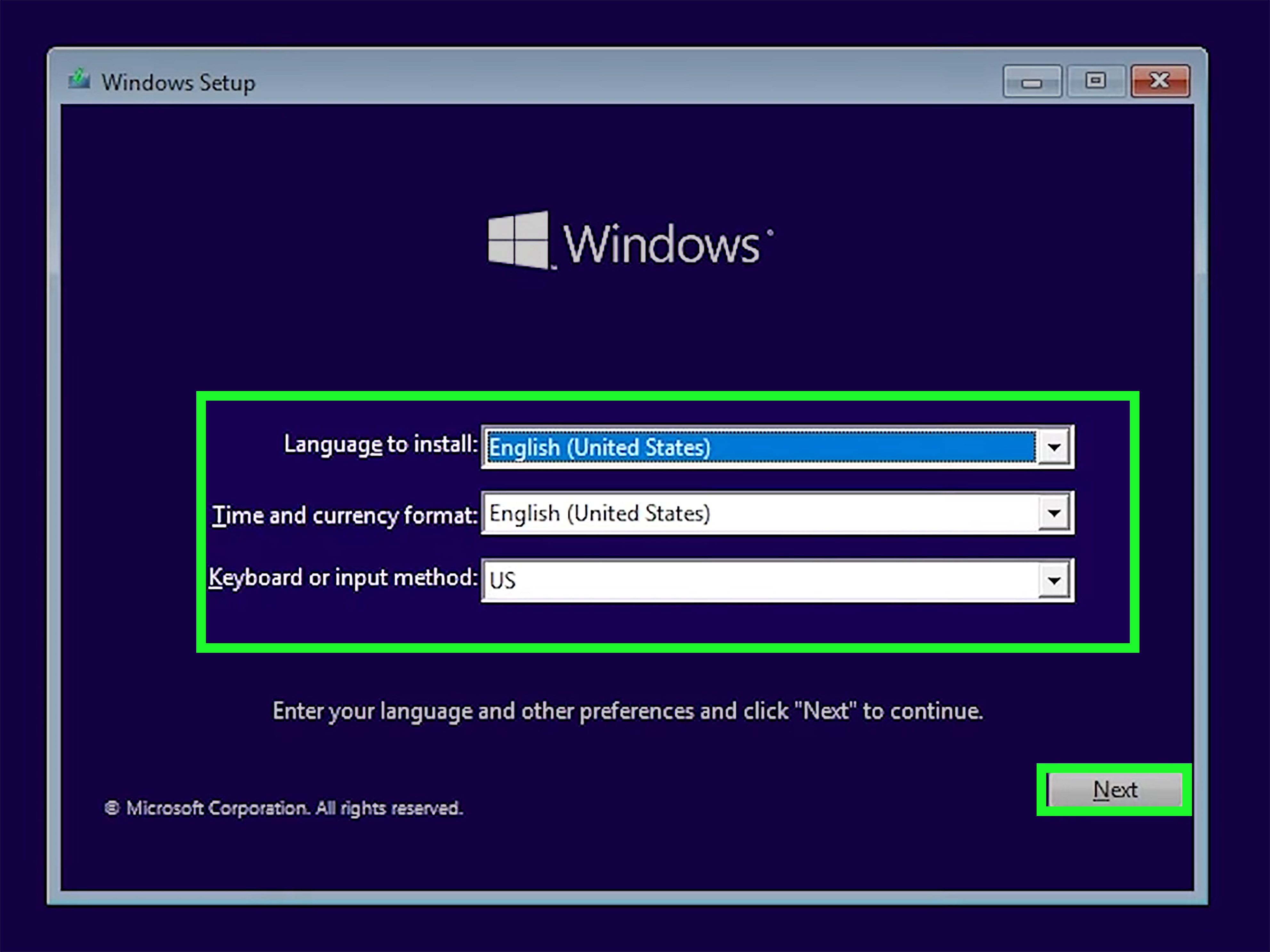
- Wait for Windows Setup to load.
Install Windows 10
- Choose your language, time, currency, and keyboard layout.
- Click Install now.
- If asked for a product key, choose I don’t have a product key if your PC already has a digital license.
- Select the same edition you had before, such as Windows 10 Home or Windows 10 Pro.
- Accept the license terms.
- Choose Custom: Install Windows only.
- Select the drive or partition where Windows should be installed.
- Delete old Windows partitions only if you are sure your files are backed up.
- Select the unallocated space and click Next.
- Let Windows copy files, restart, and complete setup.
During the install, your PC may restart several times. That is normal. Do not panic, unplug the USB too early, or begin pressing keys like you are defusing a movie bomb. If Windows Setup restarts from the USB again, remove the USB drive or let the computer boot from the internal drive.
What to Do After Reinstalling Windows 10
Once you land on the Windows desktop, you are not completely finished. You have a fresh operating system, but it still needs updates, drivers, settings, and your personal files restored.
1. Connect to the internet
Connect through Wi-Fi or Ethernet. If Wi-Fi does not work, use the network driver you downloaded earlier or connect temporarily with Ethernet if possible.
2. Run Windows Update
Go to Settings > Update & Security > Windows Update and install available updates. Restart when prompted, then check again. Updates often arrive in waves, like guests who forgot the party started at 7.
3. Check activation
Open Settings > Update & Security > Activation. If Windows does not activate automatically, confirm that you installed the correct edition. If the device has a digital license, signing in with the linked Microsoft account and running the Activation troubleshooter may help.
4. Install drivers and manufacturer utilities
Install missing drivers from your PC manufacturer first, especially chipset, graphics, audio, Bluetooth, touchpad, and Wi-Fi drivers. For gaming PCs, install the latest graphics driver from NVIDIA, AMD, or Intel as appropriate.
5. Restore files carefully
Copy your documents, photos, videos, and other files back to the computer. Avoid restoring old junk folders blindly. A reinstall is a perfect opportunity to leave behind duplicate downloads, mystery installers, and that folder named “New Folder (17).”
6. Reinstall apps only as needed
Install your browser, office suite, password manager, security tools, printer software, creative apps, and work programs. Skip anything you no longer use. Every app you do not reinstall is one less thing trying to launch at startup.
Troubleshooting Common Windows 10 Reinstall Problems
The PC will not boot from USB
Try a different USB port, preferably a USB-A port directly on the computer. Recreate the installation media if needed. Check the boot menu and choose the UEFI version of the drive. If Secure Boot or boot order settings are causing trouble, review the manufacturer’s BIOS or UEFI instructions.
Windows cannot find a drive
This can happen when storage drivers are missing or the drive is not detected in BIOS. Check whether the SSD or hard drive appears in firmware settings. On some systems, you may need storage controller drivers from the manufacturer.
Activation fails after reinstalling
Make sure you installed the same edition of Windows 10 that was previously activated. Windows 10 Home will not activate with a Pro license, and Windows 10 Pro will not activate with a Home license. If you changed major hardware, especially the motherboard, use the Activation troubleshooter or enter a valid product key.
You forgot to back up files
Stop using the computer immediately if you performed a clean install and lost data. The more you use the drive, the greater the chance that deleted data will be overwritten. Professional recovery may be possible, but it can be expensive and is not guaranteed.
Should You Reinstall Windows 10 or Upgrade to Windows 11?
If your computer supports Windows 11, upgrading may be the smarter long-term move because Windows 10 no longer receives standard support. However, reinstalling Windows 10 can still make sense for older hardware, specialized software, offline systems, or temporary use while planning a replacement.
For everyday internet-connected use, security should guide your decision. A clean install can make Windows 10 run better, but it does not magically restore standard support. If you stay on Windows 10, keep browsers updated, use reputable security software, avoid suspicious downloads, and consider Extended Security Updates where available.
Personal Experience: Lessons from Reinstalling Windows 10 the Hard Way
The first time I reinstalled Windows 10, I treated it like a quick oil change. I had a USB drive, a cup of coffee, and the dangerous confidence of someone who had watched exactly one tutorial. The reinstall worked, but my preparation was sloppy. I forgot to export browser bookmarks, missed a folder on the desktop, and had to spend an hour hunting for a printer driver that apparently lived in a cave guarded by riddles.
That experience taught me the most important rule of reinstalling Windows 10: the installation is only half the job. The real success comes from the checklist before and after. Backing up files is obvious, but backing up small conveniences matters too. Browser bookmarks, saved Wi-Fi passwords, email settings, game saves, fonts, templates, macros, VPN profiles, and app preferences can make the difference between “fresh start” and “why did I do this to myself?”
Another lesson: a clean install is often better than endless troubleshooting. I have seen PCs spend months limping along with random errors, slow startups, broken updates, and background apps fighting like raccoons in a trash can. After a clean reinstall, the same machines often boot faster, update properly, and stop producing mysterious pop-ups. Not every problem is software-related, of course. Bad RAM, failing drives, overheating, and power issues can survive a reinstall. But when Windows itself is tangled, starting fresh can save time.
I also learned to download network drivers before touching anything. Most Windows 10 reinstalls will detect Wi-Fi or Ethernet automatically, but “most” is not comforting when you are staring at a fresh desktop with no internet connection. Keeping drivers on a second USB drive is a simple insurance policy. It feels unnecessary right up until it saves your afternoon.
For older laptops, I prefer testing the reset method first if the computer still boots. Reset This PC is less dramatic and usually good enough for cleaning up performance issues. But for machines with years of accumulated software, strange partitions, malware concerns, or a new SSD, I choose the USB clean install. It is cleaner, more predictable, and gives the system a true reset.
One practical tip: do not reinstall every old program immediately. Use the clean system for a day or two and install apps only when you actually need them. Many people discover that half their old software was digital furnituretechnically present, rarely useful, and always collecting dust. A reinstall is your chance to keep the PC lean.
Finally, label your USB installer. A small piece of tape that says “Windows 10 Installer” can prevent future confusion. Otherwise, six months from now you will find a random flash drive and wonder whether it contains family photos, tax records, or the power to erase an operating system. Computers are complicated enough; your USB drawer does not need to become a suspense novel.
Conclusion
Reinstalling Windows 10 is not as frightening as it sounds. With the right backup, the correct installation method, and a little patience, you can refresh a slow PC, repair stubborn system problems, or prepare a computer for a new life. Use Reset This PC if you want the easiest path. Use a bootable USB drive if you want the cleanest installation. Use manufacturer recovery tools if your branded PC needs factory drivers and utilities.
The key is to slow down before you speed up. Back up your files, confirm your Windows edition, save your licenses, prepare drivers, and know whether you are keeping files or wiping everything. Once Windows is reinstalled, update it, activate it, restore only what you need, and enjoy the rare beauty of a computer that no longer groans when opening File Explorer.