Note: This web-ready article is based on real, current platform guidance and intentionally omits source links by request.
Sometimes your computer name matters way more than it should. You are happily sipping coffee, minding your business, and suddenly a printer asks for your device name, a coworker needs it for remote access, or your router is showing a mysterious machine called DESKTOP-7KQ2J9F and you need to know whether that is your laptop or your toaster pretending to be one. That is when knowing how to find the name of your computer becomes surprisingly useful.
If you use Windows 10, Windows 11, or a Mac, the good news is that your computer name is not hidden in some villainous cave behind seventeen menus and a warning screen. In most cases, you can find it in a few clicks. There are also command-line methods if you want to look a little more dramatic while doing it.
This guide walks through the fastest ways to find your computer name on Windows and Mac, explains the difference between a computer name and a hostname, and shows when each one matters. Whether you are troubleshooting a network issue, setting up file sharing, or just trying to identify which device is yours in a crowded list, this article has you covered.
What Is Your Computer Name, Exactly?
Your computer name is the label your operating system uses to identify your device on a network, in settings, and in certain sharing or management tools. On Windows, it is often shown as the device name. On a Mac, you may see both a computer name and a local hostname. They are related, but they are not always identical.
Think of it like this: your computer name is your device’s everyday name tag, while the hostname is the version that networking features like to use. One is the polite introduction. The other is the networking passport.
Knowing the right name matters when you are:
- Connecting to shared files or folders
- Using Remote Desktop or screen sharing
- Setting up printers or scanners on a local network
- Identifying devices on your Wi-Fi router
- Managing work or school devices
- Renaming a newly set up computer that still has a random default name
How to Find Your Computer Name in Windows 10
If you are using Windows 10, the easiest method is through Settings. Microsoft makes this refreshingly painless.
Method 1: Check Settings
- Click the Start button.
- Open Settings.
- Go to System.
- Select About from the left menu.
- Look for Device name under Device specifications.
That device name is your computer name. It is the quickest no-nonsense answer for anyone asking, “How do I find the name of my computer in Windows 10?”
Method 2: Use Windows Search
You can also press the Windows key and type About or System. Open the matching result, and Windows will take you to the screen where the device name is listed. This is handy when you do not feel like wandering through menus like a lost tourist.
Method 3: Use Command Prompt
If you like quick commands, open Command Prompt, type:
Then press Enter. Windows will display the host name portion of your computer name.
Another option is:
Then look for the line labeled Host Name. This method is useful if you are already checking network details and want everything in one place.
How to Find Your Computer Name in Windows 11
Windows 11 keeps things pretty similar to Windows 10, which is rare and beautiful.
Method 1: Find It in Settings
- Right-click the Start button and choose Settings, or press Windows + I.
- Click System.
- Scroll down and select About.
- Under Device specifications, find Device name.
This is the official, easiest route. It is also the best method for most people because it shows the device name clearly, along with model and system details.
Method 2: Use Search
Click the taskbar search box and type About your PC or System. Open the result, and you will land on the correct page. This is great for people who prefer searching over clicking through Settings menus one by one.
Method 3: Use Command Line Tools
Open Command Prompt, PowerShell, or Windows Terminal and type:
That displays the hostname immediately.
You can also use:
Then find the Host Name entry. If you are troubleshooting networking, this method can save time because it gives you the name alongside adapter information, IP details, and DNS data.
How to Find the Name of Your Mac
Mac users get a slightly more layered setup. Apple lets you view the computer name in one place and the local hostname in another. So if you are wondering why one screen says one thing and another screen says a version with hyphens and .local, you are not losing it. That is normal.
Method 1: Check the Computer Name in System Settings
- Click the Apple menu.
- Open System Settings.
- Click General.
- Select About.
- Look for the Name field.
That is your Mac’s computer name. This is the name people may see when you share files, your screen, or other services on a network.
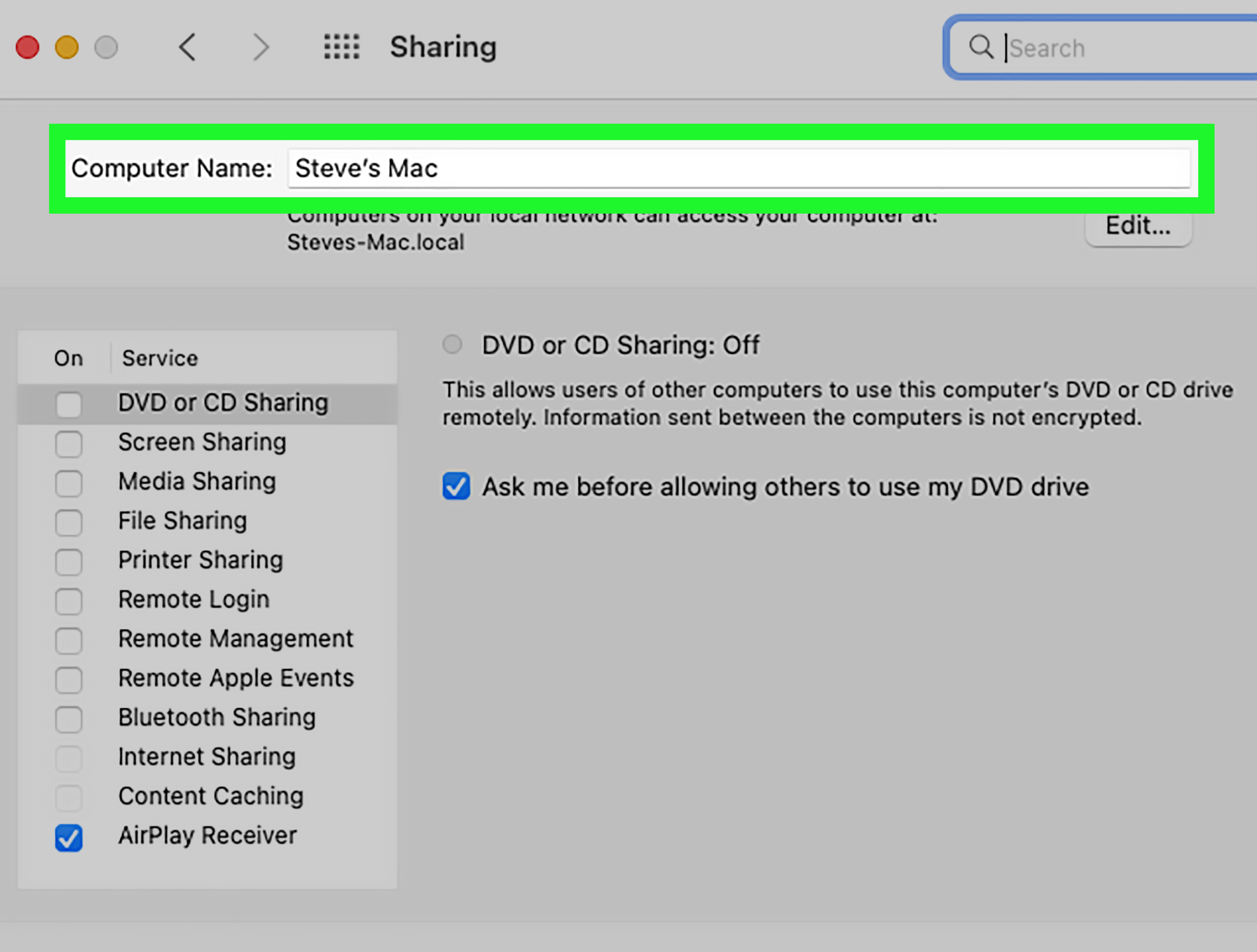
Method 2: Check the Local Hostname
- Open System Settings.
- Go to General.
- Click Sharing.
- Look near the bottom for the Local hostname.
This local hostname is often based on your computer name, but spaces are usually replaced with hyphens, and .local may be appended for local network use. For example, if your computer name is Emma’s MacBook Pro, the local hostname may look more like Emmas-MacBook-Pro.local.
Method 3: Find It in Terminal
If you prefer using Terminal, you can check the name with commands such as:
or use more specific commands for Mac naming values:
This approach is especially useful for advanced users, administrators, or anyone trying to compare the Mac’s different naming fields without clicking through settings.
Computer Name vs. Hostname vs. Device Name
Here is where people often get tripped up. These terms are related, but they do not always mean the exact same thing.
On Windows
Device name is the plain-language label shown in Settings. The hostname shown by commands like hostname usually matches or closely reflects the computer’s network name.
On Mac
You may encounter:
- Computer Name – the main human-readable name shown in About
- Local Hostname – the network-friendly version used on local networks
- HostName – a more advanced value that may be configured for network services or administration
For most everyday tasks, the computer name is all you need. For networking or remote access, the hostname or local hostname might be the more useful identifier.
When You Actually Need Your Computer Name
A lot of people only look up their computer name when something else stops cooperating. Here are a few common situations where it suddenly becomes the star of the show:
1. Setting Up Remote Access
Apps and services such as Remote Desktop, screen sharing, or SSH may ask for the device name or hostname so another computer can connect to it.
2. Finding Your Device on a Network
If you open your router settings or a printer dashboard, you may see a list of connected devices. The computer name helps you figure out which laptop belongs to you, which one belongs to your sibling, and which one is probably the smart TV pretending to be important.
3. Sharing Files and Folders
Both Windows and Mac use device names in local sharing features. If someone is trying to access a shared folder on your computer, the correct computer name makes the process far less annoying.
4. IT Support and Work Setups
In offices, schools, and managed device environments, support teams often ask for your computer name before they do anything else. It is the digital equivalent of “Can I get your full name and birthday?”
Can You Rename Your Computer?
Yes, and in many cases you probably should if the default name looks like it was generated by a keyboard falling down the stairs.
Rename a Windows PC
- Open Settings > System > About.
- Click Rename this PC.
- Enter a new name.
- Restart when prompted.
Rename a Mac
- Open System Settings > General > About.
- Edit the Name field.
On Mac, you can also adjust the Local hostname separately in General > Sharing if you want the networking version to be cleaner or more specific.
Tips for Choosing a Better Computer Name
If you rename your computer, keep it practical. Funny names are great until your boss asks for the hostname and you have to say, “Please connect to Burrito-Machine-3000.”
A good computer name should be:
- Easy to recognize
- Short enough to remember
- Unique on your home or office network
- Professional if used for work or school
Examples:
- Alex-Home-Laptop
- Office-Desktop-3
- Marketing-MacBook
- Smith-Family-PC
Troubleshooting: What If You Cannot Find It?
If you still cannot locate the name of your computer, try these quick fixes:
On Windows
- Use the search box and type About your PC
- Try
hostnamein Command Prompt - Use
ipconfig /alland look for Host Name - Restart the PC if system settings are acting weird
On Mac
- Check both General > About and General > Sharing
- Use Terminal commands if the settings layout looks unfamiliar
- Remember that older macOS versions may use slightly different menu names
If the name looks different in different places, that usually means you are seeing the difference between the user-facing computer name and the network-oriented hostname. Annoying, yes. Broken, usually not.
Real-World Experiences: When Finding Your Computer Name Actually Saves the Day
Here is the funny thing about computer names: almost nobody cares about them until the exact second they become essential. Then suddenly they are the most important words on Earth.
A classic example is setting up a new printer on a home network. Everything appears simple until the printer software asks which computer should receive scans. You see a list of names like DESKTOP-91A2FQ, John-PC, and MacBook-Pro-Local, and now you are in a low-budget detective movie. One quick check in Settings or System Settings solves the mystery and spares you from accidentally sending tax documents to your teenager’s gaming laptop.
Another common moment happens during remote work. A manager or IT technician says, “Can you send me your computer name?” and for one brief shining moment everyone forgets every password they have ever known. People often start reading out the brand of the laptop, the username, or the Wi-Fi name instead. Knowing where the actual device name lives makes that exchange much faster and much less awkward.
Mac users run into a slightly different version of the same confusion when AirDrop, file sharing, or screen sharing gets involved. The Mac’s visible name may look friendly and polished, while the local hostname looks like its practical cousin who wears hiking boots and replaces spaces with hyphens. Once you understand that both names can exist at the same time, network setup suddenly feels less like a puzzle and more like a mildly annoying but manageable chore.
Families with multiple devices also benefit from checking and renaming computers. Imagine a house with three Windows laptops and two Macs, all connected to one router. If every device keeps its factory-style name, the network device list looks like alphabet soup. Rename them clearly once, and life gets easier every time you troubleshoot Wi-Fi, set up parental controls, or figure out which machine is chewing through your bandwidth during movie night.
Students also run into this when connecting to campus printers, shared drives, or remote lab systems. The computer name is not glamorous, but it can be the key detail that lets support staff find the right machine. In those moments, knowing exactly where to look makes you seem wildly organized, even if your desktop is full of screenshots named Final-Final-RealFinal.png.
The bottom line is simple: finding your computer name is one of those tiny tech skills that feels minor until it suddenly makes everything smoother. It helps with troubleshooting, sharing, remote access, and identifying the right device quickly. And once you know where it is, you will probably never forget it again.
Conclusion
Finding the name of your computer is easy once you know where to look. On Windows 10 and Windows 11, head to Settings > System > About and check the Device name. On a Mac, go to System Settings > General > About for the computer name and General > Sharing for the local hostname.
If you prefer command-line shortcuts, Windows users can use hostname or ipconfig /all, while Mac users can check Terminal commands such as hostname or scutil. Once you learn the difference between a computer name and a hostname, a lot of networking and setup tasks become much easier.
In other words, your computer name may not be glamorous, but it is surprisingly useful. And unlike your junk drawer password list from 2019, this is one tech detail worth knowing by heart.