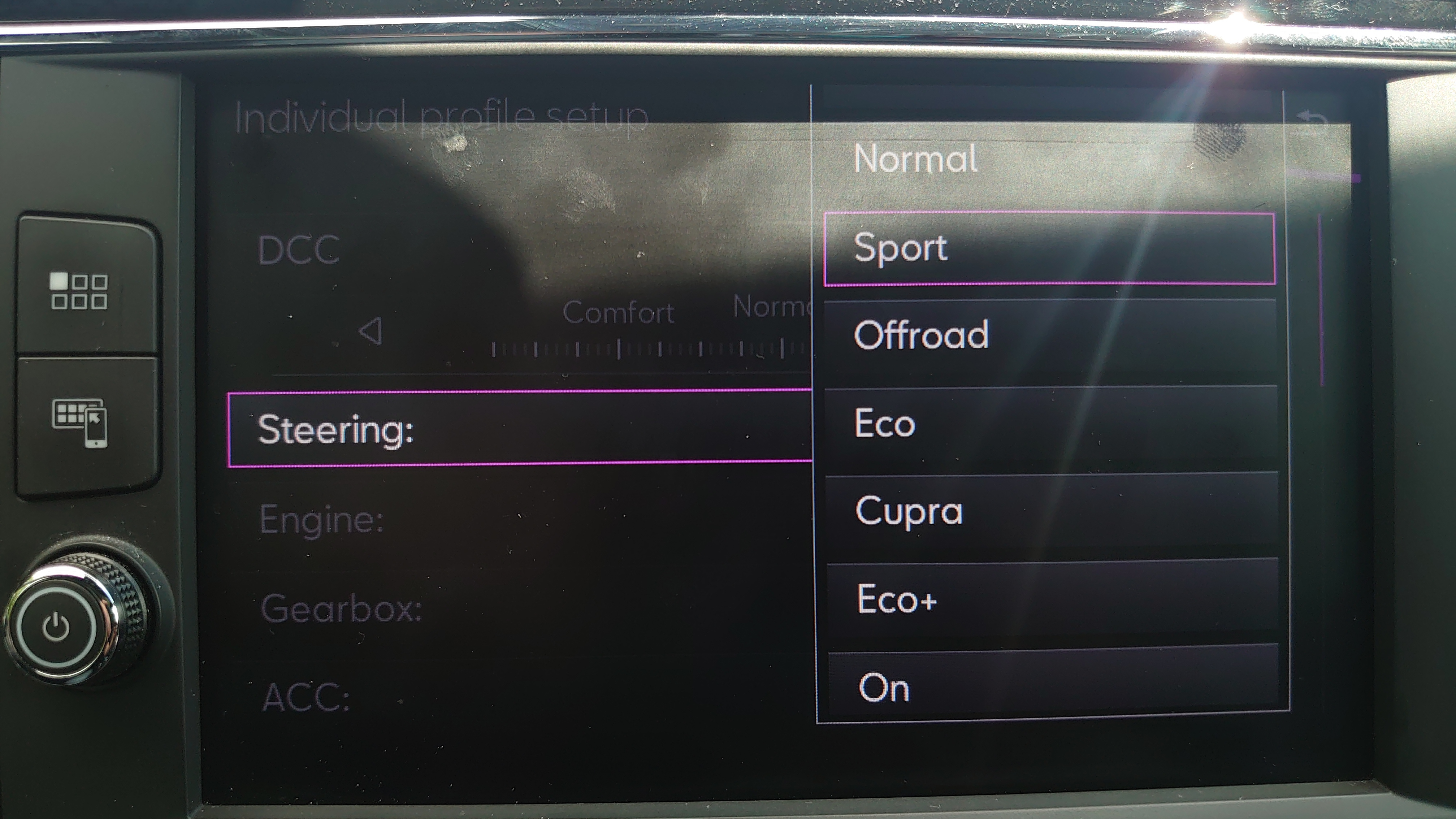
Your car may know more about your driving personality than your coffee order does. One minute it is politely easing away from a stoplight in Eco mode, and the next it is pretending to be a weekend track toy in Sport mode. Add in driver profiles that remember your seat position, mirrors, radio favorites, navigation preferences, climate settings, and even app logins, and modern vehicles start to feel less like machines and more like very expensive roommates with memory.
The tricky part is that people often use the phrase “driving profiles” in two different ways. Some mean driver profiles, which store personal settings for different people who use the same vehicle. Others mean drive modes, such as Eco, Normal, Comfort, Sport, Snow, Tow/Haul, Off-Road, or Custom, which change how the car responds while you drive. Both are useful. Both can make your daily drive smoother. And both can be confusing the first time you find them buried behind a touchscreen menu that looks like it was designed by someone who really loves submenus.
This guide explains what driving profiles are, how they work, how to change them, and when each setting actually makes sense. Whether you drive a sedan, SUV, pickup, hybrid, EV, or luxury car with more menus than a brunch restaurant, the basic idea is the same: your vehicle can adapt to you, the road, and the moment.
What Are Driving Profiles?
In everyday language, “driving profiles” usually refers to one of two systems: saved driver profiles or selectable drive modes. A saved driver profile is about who is driving. A drive mode is about how the vehicle should behave. Once you understand that difference, the whole feature becomes much less mysterious.
Driver Profiles: Personal Settings for Each Driver
A driver profile is like a personal account inside your car. When you select your profile, the vehicle can automatically restore settings such as seat position, side mirror position, steering wheel position, climate preferences, dashboard layout, radio presets, navigation favorites, display brightness, phone pairing, app preferences, and sometimes driver-assistance settings.
This is especially helpful if multiple people share one vehicle. For example, one driver may sit close to the wheel, prefer a warmer cabin, and listen to classic rock. Another may sit farther back, want the air conditioning set to “Arctic research station,” and keep the display in dark mode. Instead of adjusting everything manually every time, each person can select a profile and let the car do the boring work.
Some vehicles link driver profiles to a key fob, smartphone digital key, or mobile app account. That means the car may recognize who is approaching and load the correct profile automatically. When it works well, it feels magical. When it does not, you may briefly wonder why your spouse’s seat position is trying to fold you like a lawn chair.
Drive Modes: Different Personalities for the Car
Drive modes change the way the vehicle responds. Depending on the model, selecting a mode can adjust throttle response, transmission shift timing, steering weight, suspension firmness, regenerative braking, all-wheel-drive behavior, traction control, climate-control efficiency, and engine or motor output.
Common drive modes include Eco, Normal, Comfort, Sport, Snow, Mud, Sand, Tow/Haul, Off-Road, EV, Hybrid, and Custom. Not every vehicle has all of these, and some automakers use their own names. Mercedes-Benz calls its system DYNAMIC SELECT. Audi uses Audi drive select. Subaru has SI-DRIVE on certain models. Toyota, Kia, Ford, Hyundai, BMW, Chevrolet, Tesla, and many others use different combinations of profile and mode systems.
Why Your Car Has These Profiles in the First Place
Modern cars are controlled by networks of computers. That sounds dramatic, but it simply means the accelerator pedal, transmission, steering system, dampers, infotainment screen, driver-assistance features, and climate system can all communicate. Because of that, automakers can create different “personalities” without physically changing the car.
Eco mode may soften throttle response and encourage earlier gear changes to save fuel. Sport mode may sharpen acceleration, hold gears longer, and make steering feel heavier. Comfort mode may smooth out the ride if your vehicle has adaptive suspension. Snow mode may reduce wheelspin by calming throttle input and optimizing traction systems. Custom mode may let you mix and match settings, such as sporty steering with comfortable suspension.
Driver profiles exist for a different reason: convenience. They reduce the daily friction of sharing a car. Nobody wants to spend three minutes adjusting mirrors, reconnecting Bluetooth, changing temperature settings, and moving the seat before every commute. A good profile system turns all of that into one tap, one key fob, or one digital-key recognition.
How To Change a Driver Profile
The exact steps vary by brand, model year, trim, and software version, but most vehicles follow a similar process. Start while the vehicle is parked. This is not the moment to explore six layers of infotainment menus while merging onto the freeway. Your future self, nearby drivers, and the person in the passenger seat clutching the door handle will all appreciate the restraint.
Step 1: Open the Profile or User Menu
Look for a menu labeled Profiles, User Profile, Users, Driver Profiles, Personal Profiles, or Account. In many cars, this appears on the home screen of the infotainment display. In others, it is under Settings, Vehicle, System, Personalization, or Driver Assistance.
For example, many touchscreen-based systems use a profile icon in the top corner of the display. Some Ford systems use a profile icon on the home screen. Chevrolet and GMC systems may use a Users icon. BMW models commonly place driver profiles in the iDrive menu. Tesla vehicles use the Profiles area from the vehicle controls screen. Kia and Hyundai systems often place user profile settings under Setup.
Step 2: Select the Profile You Want
Once you open the menu, you should see existing profiles such as Driver 1, Driver 2, Guest, your name, or another saved user. Select the profile you want to use. The car may immediately apply saved settings. You may hear the seat motors moving, see mirrors adjusting, or notice the infotainment layout change.
If the vehicle asks for a PIN, account login, phone confirmation, or digital-key link, follow the on-screen prompts. Some systems allow a simple local profile, while others connect to a cloud account so your preferences can travel across compatible vehicles from the same brand.
Step 3: Create a New Profile if Needed
If your profile does not exist yet, choose Add Profile, Create Profile, Add New Driver, or a similar option. Enter your name or initials. Some systems let you choose an avatar, link a key fob, connect a smartphone, or sign in with a brand account.
After creating the profile, adjust the seat, mirrors, steering wheel, climate, display, audio, and navigation preferences the way you like them. In many vehicles, changes made while your profile is active are saved automatically. In others, seat and mirror positions may need to be saved by pressing and holding a memory button on the door.
Step 4: Link the Profile to a Key or Phone
For the best experience, link your profile to your key fob, smartphone digital key, or vehicle app account if your car supports it. This lets the vehicle recognize you before or when you enter. The next time you unlock the door, it can load your settings automatically.
There is one important catch: if multiple registered keys or phones are inside or near the vehicle, the car may choose the wrong profile. This is common in households where two drivers walk up to the car together. If the seat starts moving to someone else’s position, do not panic. Stop the adjustment if necessary, select your profile manually, and check the key-link settings later.
How To Change Drive Modes
Changing drive modes is usually faster than changing driver profiles. Automakers expect you to use drive modes more often, so they usually place the control on the center console, steering wheel, dashboard, or infotainment home screen.
Step 1: Find the Drive Mode Control
Look for a button, switch, dial, toggle, or touchscreen tile labeled Drive Mode, Mode, DYNAMIC SELECT, drive select, SI-DRIVE, Terrain Mode, or My Mode. In many vehicles, turning a knob cycles through modes. In others, pressing a button displays mode choices on the instrument cluster or center screen.
Some vehicles allow mode changes through voice commands, though availability varies. Others put the mode selector near the shifter, which is convenient until you accidentally press it while reaching for your coffee. The good news: changing from Normal to Eco will not launch you into hyperspace. Usually, the selected mode simply appears on the display.
Step 2: Choose the Mode That Fits the Road
Select the mode that matches your current driving conditions. For everyday driving, Normal or Comfort is usually the best default. For fuel-saving commutes, Eco makes sense. For curvy roads, quick passing, or a more energetic feel, Sport may be useful. For slippery surfaces, Snow or Slippery mode can help smooth out power delivery. For towing, use Tow/Haul if equipped. For dirt, sand, mud, rocks, or trails, use the matching terrain mode only when conditions call for it.
Step 3: Confirm the Mode on the Display
Most cars show the selected mode in the instrument cluster, head-up display, or infotainment screen. Some also change the dashboard color or graphics. Make sure the mode you selected is the one currently active. If nothing changes, the vehicle may require a certain condition, such as being in Park, moving below a specific speed, or having a certain drivetrain setting engaged.
What Each Common Drive Mode Actually Does
Eco Mode
Eco mode is designed to improve efficiency. It often reduces throttle sensitivity, encourages earlier transmission shifts, limits aggressive climate-control behavior, and smooths acceleration. In hybrids and EVs, it may also adjust power delivery and regenerative braking behavior. Eco mode is best for commuting, highway cruising, city traffic, and calm driving.
Eco does not magically turn an SUV into a bicycle, but it can help reduce wasteful acceleration. The biggest fuel savings still come from your right foot. If you floor the accelerator at every green light, Eco mode can only do so much. It is a helper, not a financial advisor.
Normal Mode
Normal mode is the balanced setting. It gives you predictable throttle response, typical steering weight, and standard transmission behavior. For most drivers, this is the “leave it alone and live your life” setting. If you are unsure which mode to use, Normal is almost always safe and sensible.
Comfort Mode
Comfort mode focuses on smoothness. In vehicles with adaptive suspension, it may soften the ride. Steering may feel lighter, throttle response may be gentler, and the transmission may shift smoothly rather than aggressively. Comfort mode is excellent for long highway drives, rough roads, passengers who get carsick, or days when you simply do not want your car acting like it drank three espressos.
Sport Mode
Sport mode sharpens the vehicle’s responses. It may make the accelerator feel more immediate, hold lower gears longer, increase steering weight, stiffen the suspension, change exhaust sound, or adjust all-wheel-drive behavior. Sport mode is useful when merging, passing, driving on winding roads, or when you want a more responsive feel.
However, Sport mode can reduce fuel economy and make the ride firmer. It also does not change physics. A family crossover in Sport mode is still a family crossover, not a race car with cupholders. Enjoy the sharper response, but keep your speed and road conditions in mind.
Snow, Slippery, or Winter Mode
Snow mode helps reduce wheelspin on slick roads. It may soften throttle response, adjust transmission starts, modify traction-control intervention, and optimize all-wheel-drive torque distribution if equipped. Use it when roads are icy, snowy, or unusually slippery. It is not a substitute for winter tires, safe following distance, or common sense.
Tow/Haul Mode
Tow/Haul mode is common in trucks and SUVs. It changes transmission behavior to better manage heavy loads, reduce gear hunting, improve engine braking, and help maintain control while towing. Use it when pulling a trailer or carrying a heavy load. Do not use it just because it sounds powerful. Your empty pickup does not need Tow/Haul mode to bring home a sandwich.
Custom or Individual Mode
Custom mode lets you build your own setup. Depending on the vehicle, you may be able to choose separate settings for steering, suspension, powertrain, climate, sound, regenerative braking, and driver-assistance behavior. A popular setup is sporty steering with comfortable suspension, because many drivers want sharper control without turning every pothole into a personal attack.
Driver Profile vs. Drive Mode: Which One Should You Change?
Change the driver profile when the wrong person’s personal settings are active. If the seat is too close, the mirrors are wrong, your radio presets disappeared, the navigation home address is not yours, or the display theme changed, you probably need to switch driver profiles.
Change the drive mode when the car’s behavior does not fit the situation. If acceleration feels too lazy, try Normal or Sport. If the ride feels too firm, try Comfort. If you want better efficiency, try Eco. If the road is slippery, use Snow or Slippery mode if available.
In some vehicles, your driver profile can remember your preferred drive mode. In others, the car always starts in Normal or a default mode because of emissions, safety, or regulatory requirements. That means you may need to choose Sport, Eco, or Custom again each time you start the vehicle.
Why Your Profile May Not Save Correctly
If your vehicle keeps forgetting your settings, there are several possible reasons. First, you may be using the Guest profile. Guest modes often do not save long-term personalization. Second, your key fob or phone may not be linked correctly. Third, another driver may be using your key. Fourth, the vehicle may need a software update. Fifth, some settings may not be part of the saved profile at all.
Seat memory can also be separate from infotainment profiles. In many cars, you must save seat and mirror positions using physical memory buttons labeled 1, 2, or SET. Meanwhile, radio, navigation, display, and app settings may save through the touchscreen profile. If the screen remembers you but the seat does not, check the memory-seat instructions in your owner’s manual.
Safety Tips Before Changing Profiles
Make profile changes while parked whenever possible. Adjusting deep touchscreen settings while driving can distract you from the road. If you only need to tap a physical drive-mode button, that is usually quick, but digging through menus for seat memory, account settings, app logins, or digital-key pairing should wait until the vehicle is stopped.
Also, test new drive modes in a calm environment before relying on them in traffic or bad weather. Sport mode may feel jumpier than expected. Eco mode may feel slower when pulling into fast traffic. Snow mode may change throttle behavior. Custom mode may surprise you if someone else adjusted it. Learn what each mode feels like before the road gives you a pop quiz.
Brand Examples: How Different Cars Handle Profiles
Tesla vehicles use driver profiles to save settings such as seat, mirror, and steering wheel position, and profiles can be connected with app access or keys depending on model and setup. Ford vehicles with supported systems allow personal profiles that can store seat, mirror, radio, navigation, and driver-assistance preferences. BMW uses BMW ID and driver profiles in iDrive to personalize settings and link a key. GM brands such as Chevrolet, GMC, and Cadillac offer infotainment profiles through the Users or profile setup menu on compatible vehicles.
Toyota models commonly use drive-mode select switches for Eco, Normal, Sport, and sometimes Custom or Sport S/S+ depending on equipment. Kia models may offer Eco, Comfort, Sport, Smart, Snow, or terrain-related modes, with Smart mode automatically adapting behavior based on driving patterns in some vehicles. Subaru SI-DRIVE offers modes such as Intelligent, Sport, and Sport Sharp on certain models. Mercedes-Benz DYNAMIC SELECT and Audi drive select let drivers choose programs that adjust vehicle characteristics such as steering, powertrain, and suspension when equipped.
The names differ, but the logic is similar: driver profiles personalize the cabin and infotainment experience; drive modes tune the vehicle for efficiency, comfort, performance, traction, or special use.
Real-World Experience: What It Feels Like To Use Driving Profiles Every Day
The first time you set up a driver profile, it may feel like a small chore. You sit there in the driveway, tapping through menus, naming your profile, adjusting the seat, fixing the mirrors, choosing your display layout, pairing your phone, and wondering whether “Driver 1” sounds too anonymous. But after a week, the feature starts to feel less like a gimmick and more like something every shared car should have had decades ago.
Imagine a household where two people share one SUV. One driver is tall and likes the seat low and far back. The other is shorter and prefers the seat higher, the steering wheel closer, and the mirrors angled differently. Without profiles, every handoff becomes a tiny negotiation with buttons and switches. With profiles, the car becomes civilized. Select your name, and the seat glides into place. The mirrors settle. The radio remembers your stations. The climate control stops pretending everyone enjoys the same temperature. Domestic peace improves by approximately one cupholder’s worth.
Drive modes are similar, but they change the driving mood instead of the cabin setup. On Monday morning, Eco mode can make a commute feel calmer. The accelerator becomes less jumpy, the transmission behaves politely, and the whole vehicle seems to say, “Relax, we are not racing the accounting department.” On a winding back road, Sport mode can wake the car up. Steering feels firmer, acceleration comes sooner, and the vehicle feels more alert. It is not always faster in a dramatic way, but it often feels more connected.
In bad weather, the experience becomes more practical. Snow or Slippery mode can make the accelerator easier to manage when the road surface is unpredictable. Instead of sending too much power too quickly, the vehicle responds more gently. That small change can make a driver feel more confident, especially in stop-and-go winter traffic. Still, the mode does not create grip where none exists. Tires, speed, visibility, and following distance matter more than any dashboard icon.
Custom mode is where many owners eventually land. After the novelty wears off, you may discover that full Sport mode is too firm for daily driving, while Comfort mode feels a little too relaxed. Custom mode lets you split the difference. You might choose sporty steering, normal powertrain response, and comfortable suspension. In an EV, you might select stronger regenerative braking with a softer acceleration curve. In a luxury SUV, you might want comfort suspension with a more responsive transmission for highway passing.
The best advice from real use is simple: do not treat driving profiles as one-time features. Revisit them after a few weeks. Your first setup may not be your best setup. Maybe the seat memory is slightly off. Maybe the mirrors need a small correction. Maybe Eco mode feels perfect for weekday traffic but annoying on hilly roads. Maybe Sport mode is fun for five minutes and tiring for fifty. The right profile is the one that makes the car feel natural without demanding attention.
Also, label profiles clearly. “Dad,” “Mom,” “Work,” “Road Trip,” or actual names are better than “Profile 1” and “Profile 2.” If your car allows guest access, reserve Guest for valets, friends, mechanics, or anyone who does not need permanent settings. And before selling or returning a leased car, delete personal profiles, unlink phones, remove home addresses, and reset app accounts. Your car may be smart, but it should not hand your playlist, contacts, garage location, and favorite taco place to the next owner.
Conclusion
Driving profiles are one of those modern car features that seem minor until you actually use them. A driver profile saves your personal setup, while a drive mode changes the way the car behaves. Together, they make your vehicle more comfortable, more efficient, more responsive, and easier to share.
To change a driver profile, open the profile or user menu, select your name, create a new profile if needed, and link it to your key or phone when supported. To change a drive mode, use the mode button, dial, steering-wheel control, or touchscreen menu, then choose the setting that fits your road conditions and driving style. Use Eco for efficiency, Normal for everyday balance, Comfort for smoothness, Sport for sharper response, Snow for slippery roads, Tow/Haul for heavy loads, and Custom when you want your own recipe.
The smartest approach is to set everything up while parked, test each mode calmly, and read your owner’s manual for model-specific details. Your car’s profiles are not just fancy menu decorations. Used well, they can make every drive feel a little more tailored, a little safer, and a lot less like borrowing someone else’s shoes.
Note: This article is written for general educational use. Menu names, available profiles, and drive modes vary by automaker, model, trim, market, and software version, so always check the owner’s manual or in-vehicle guide for exact instructions.