We have all done it. You send an Instagram DM, stare at it for two seconds, and suddenly realize your thumbs have betrayed you. Maybe it was a typo so bad it looked like your keyboard sneezed. Maybe it went to the wrong person. Maybe it was a joke that felt hilarious for exactly four seconds. Whatever happened, the good news is that Instagram gives you a way to clean up the mess.
If you are trying to figure out how to unsend messages on Instagram, the process is simple, fast, and much less dramatic than pretending your phone slipped into a sink. In most cases, you can remove your sent message directly from the chat. But there are a few important details to understand too, including what happens after you unsend a message, when deleting a chat is not the same thing, and when editing a message may be smarter than yanking it back entirely.
This guide breaks it all down in plain English, with step-by-step instructions for mobile and desktop, practical tips, and a few painfully relatable examples. By the end, you will know exactly how to unsend an Instagram message without turning a small mistake into a bigger one.
Can You Unsend Messages on Instagram?
Yes. Instagram lets you unsend a message you sent in a chat. When you use the Unsend option, that message is removed from the conversation instead of just disappearing from your own screen. In other words, this feature is designed to pull back your message from the chat thread, not merely hide it on your end.
That said, unsending is not a time machine. If the other person already saw the message, read it in a notification preview, or took a screenshot, unsending will not erase their memory. Sadly, Instagram has not yet released a “delete awkwardness from the human brain” button.
How to Unsend Messages on Instagram in the App
If you use Instagram on an iPhone or Android phone, these are the easy steps to unsend a DM:
Step-by-Step on iPhone and Android
- Open the Instagram app.
- Tap the Messages icon to open your inbox.
- Select the conversation that contains the message you want to remove.
- Find the exact message you sent.
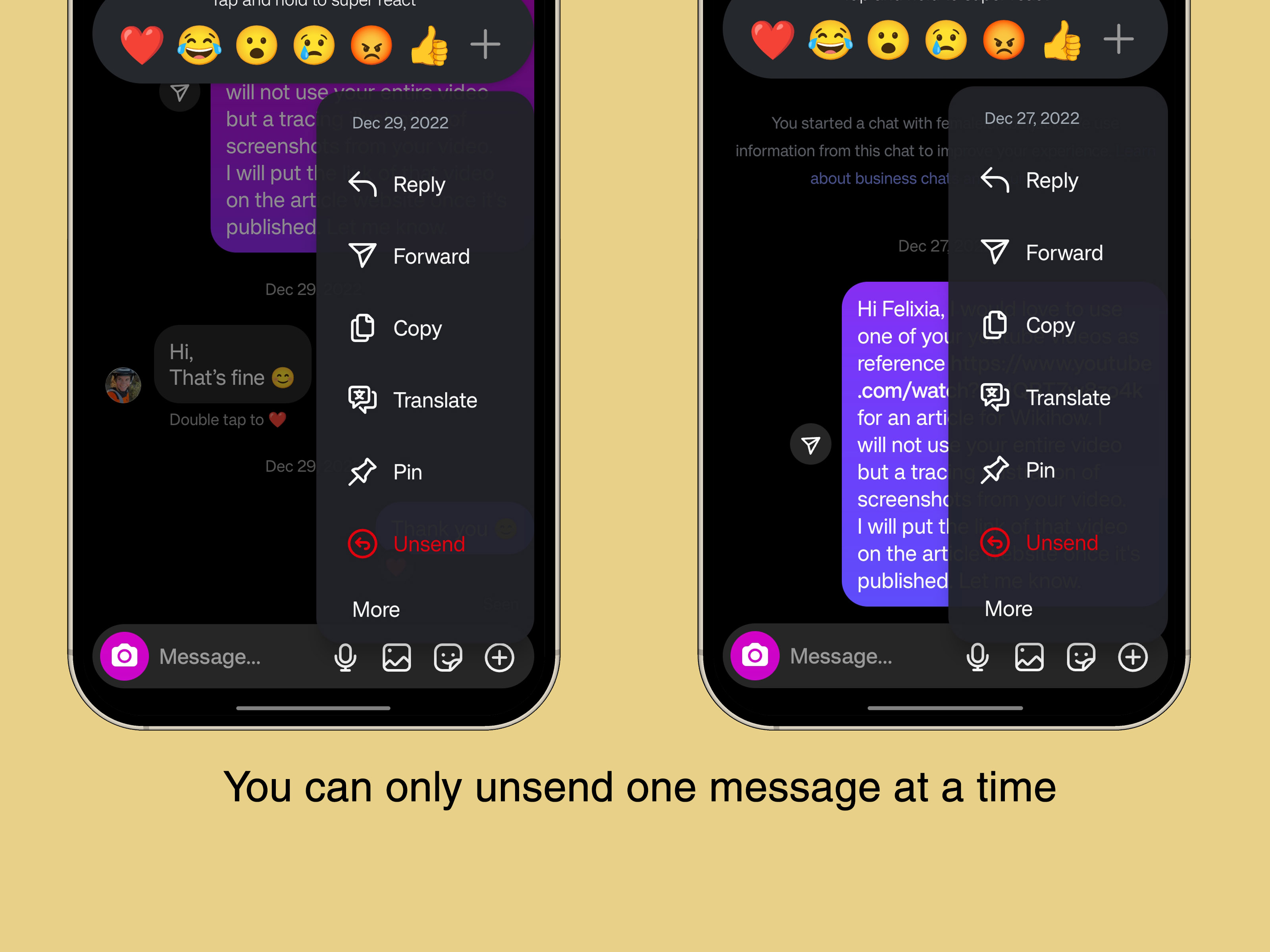
- Tap and hold the message.
- Choose Unsend.
That is the whole process. No hidden maze. No secret menu. Just press, hold, and unsend.
This works for regular text messages and can also help when you send something you immediately regret, like a rushed reply, the wrong emoji, or a message intended for your best friend that somehow landed in a semi-professional chat. Modern life is very brave.
How to Unsend Instagram Messages on Desktop
If you use Instagram on a laptop or desktop browser, you can still unsend messages. The steps are slightly different, but still easy enough to do before your soul leaves your body.
Step-by-Step on Instagram.com
- Go to Instagram.com and log in.
- Open Messages.
- Click the conversation.
- Hover over the message you want to remove.
- Click the three-dot menu next to the message.
- Select Unsend.
This is helpful if you do most of your messaging from a keyboard and want to fix a mistake without grabbing your phone.
What Happens When You Unsend a Message on Instagram?
Here is the part many users really want to know: what exactly changes after you unsend a message?
- The message is removed from the chat thread.
- It is not the same as deleting the conversation only for yourself.
- The other person may already have seen it before you removed it.
- Push notifications or previews may still have exposed part of the message.
- If someone took a screenshot or copied the content, unsending will not undo that.
So yes, unsending can be incredibly useful. But no, it is not magic. Think of it as an emergency cleanup tool, not a courtroom-grade evidence eraser.
Unsend vs. Delete Chat vs. Edit Message
These three Instagram actions sound similar, but they do very different jobs. Mixing them up is how people end up confidently pressing the wrong thing.
Unsend
This removes a specific message you sent from the chat. It is the best choice when one message is the problem and the rest of the conversation can stay.
Delete Chat
Deleting a chat removes the conversation from your inbox. It does not wipe the messages from the other person’s account. This is useful for cleaning up your inbox, not for taking back something embarrassing.
Edit Message
Instagram also allows message editing for sent DMs. If your issue is a typo, a missing word, or a sentence that needs a quick cleanup, editing can be smarter than unsending and resending. It is especially useful when the original message was basically fine, just a little crooked around the edges.
If the message says, “See you at 8,” when you meant “See you at 6,” editing is neat and efficient. If the message says, “Love you babe,” and you accidentally sent it to your dentist, go with unsend.
When Should You Edit Instead of Unsend?
Editing and unsending are cousins, not twins. Here is when editing usually makes more sense:
- You made a typo.
- You want to clarify your wording.
- You forgot a detail.
- You want to sound less chaotic without deleting the message entirely.
Unsend is better when:
- You sent the message to the wrong person.
- The message contains private information.
- The tone was way off.
- You instantly realized, “Absolutely not.”
A good rule of thumb is this: edit for small fixes, unsend for real regrets.
Common Reasons People Unsend Instagram Messages
People rarely unsend messages for fun. Usually, there is at least one tiny emotional fire involved. Common reasons include:
- Sending a message to the wrong chat
- Typos that completely change the meaning
- Accidentally oversharing
- Sending a duplicate message
- Firing off a reply while annoyed
- Sharing personal info too quickly
- Realizing the message sounded ruder, flirtier, or weirder than intended
This is why knowing how to unsend messages on Instagram matters. It is not just a convenience feature. It is social first aid.
Troubleshooting: Why Can’t I Unsend a Message on Instagram?
If you do not see the Unsend option, one of these issues is usually the reason:
You Are Pressing on Someone Else’s Message
You can unsend only messages you sent. You cannot unsend another person’s message from the conversation.
You Are Using the Wrong Gesture
On mobile, you usually need to tap and hold your sent message. On desktop, you may need to hover over it and use the menu.
Your App Needs an Update
If Instagram is outdated, some messaging features may not behave as expected. Updating the app is worth trying before you assume the feature vanished into the digital void.
You Confused Delete Chat with Unsend
Deleting an entire conversation from your inbox is a different action. If your goal is to remove one sent message from the chat, make sure you are choosing Unsend on that specific message.
Practical Tips Before You Panic
If you accidentally sent the wrong Instagram message, try this order of operations:
- Move fast. Open the chat immediately.
- Unsend first. Do not waste time composing an apology before removing the original message.
- Check the thread. Make sure the message is actually gone.
- Follow up only if needed. If the person likely saw it, a brief explanation may be more effective than pretending nothing happened.
Sometimes a clean, human follow-up works wonders: “Sorry, wrong chat,” or “That came out wrong, my bad.” Simple beats dramatic.
How to Avoid Sending Messages You’ll Need to Unsend
Yes, unsending is useful. But prevention is still the elite strategy. A few habits can save you from future DM disasters:
- Double-check the recipient before sending.
- Pause for three seconds before sending emotional replies.
- Reread anything that includes names, dates, money, or private details.
- Use edit for minor corrections instead of sending four follow-up messages in a row.
- Keep sensitive information out of casual DMs whenever possible.
That tiny pause before pressing send is boring, yes. But it is cheaper than spending the next twenty minutes wondering whether someone read your accidental message in their notification bar.
Does Unsend Work in Group Chats?
Yes, the same idea applies in a group conversation. If you sent the message, you can open the group chat, press and hold the message, and choose Unsend. But group chats raise the stakes. More people means more chances that someone already saw it, replied to it, laughed at it, or forwarded a screenshot to another group chat named something suspiciously cheerful.
So if you make a mistake in a group DM, speed matters even more.
Real-World Experiences With Unsending Instagram Messages
Here is where the topic gets more human. Learning how to unsend messages on Instagram is easy. Learning when it actually helps is the more interesting part.
One common experience is the classic wrong-chat disaster. Someone means to message a friend, sends a spicy joke or casual complaint, and realizes a split second later that the DM went to a coworker, classmate, client, or distant cousin who absolutely did not need that energy. In these moments, the unsend feature can feel like a tiny digital parachute. The user opens the conversation, removes the message, and hopes the other person was busy doing literally anything else. The relief is real, even if the heart rate takes a few minutes to come down.
Another very common scenario involves typos with chaotic consequences. Autocorrect can turn innocent messages into nonsense, and sometimes that nonsense is accidentally hilarious or mildly horrifying. A quick edit can fix small mistakes, but when the original wording creates the wrong tone entirely, people often prefer to unsend and rewrite. Many users say the real lesson is not just that Instagram gives you tools, but that choosing the right tool matters. Editing preserves the flow of the conversation. Unsending creates a cleaner reset.
There are also emotional situations. People sometimes send messages while annoyed, hurt, or trying to be clever after midnight, which is famously when no one becomes wiser. In those cases, unsending can prevent a small emotional wave from becoming a full-blown argument. But there is also a limit. If the other person already saw the message, removing it may stop the thread from preserving it, but it does not necessarily stop the impact. That is why experienced users often treat unsend as part one, not the full solution. Part two is usually a calmer follow-up message.
Some users have learned that deleting a conversation is not enough. They remove the chat from their inbox, feel briefly victorious, and then realize the other person can still see the messages on their side. That moment tends to teach the difference between organizing your inbox and actually taking back a sent message. It is a subtle difference until it becomes a very important one.
People also talk about the psychological side of unsending. On one hand, it offers control. On the other, it can tempt people into messaging more carelessly because they assume they can always fix it later. That confidence is not always earned. Notifications exist. Screenshots exist. Fast readers definitely exist. The best long-term experience usually comes from using unsend as a safety net, not a lifestyle.
In everyday life, the feature is most helpful for honest mistakes, not elaborate damage control. Wrong link, wrong person, wrong tone, duplicate message, clumsy wording, too much personal detail, accidental overshare, all of those are fair game. In that sense, Instagram’s unsend option is less about perfection and more about giving users one extra chance to be normal on the internet. Frankly, that may be one of the kindest features any app can offer.
Final Thoughts
If you were wondering how to unsend messages you sent on Instagram, the short answer is refreshingly simple: open the chat, press and hold the message, and tap Unsend. On desktop, use the message menu and do the same. That is the easy part.
The smarter part is knowing what unsend can and cannot do. It can remove a sent message from the chat. It cannot guarantee the other person never saw it. It can save you from many common DM mistakes. It cannot erase a screenshot, a preview notification, or a memory. Still, for a feature buried inside a chat menu, it does a surprisingly heroic amount of work.
So the next time your finger moves faster than your brain, do not panic. Instagram gives you a cleanup button. Just use it quickly, use it wisely, and maybe avoid sending emotionally charged paragraphs while half-asleep and holding a snack.