Typing in Telugu used to feel like a tiny technical adventure: part language lesson, part keyboard treasure hunt, part “why did my laptop suddenly change back to English?” mystery novel. The good news is that today you do not need a special Telugu typewriter, a secret software CD, or a cousin who “knows computers.” Whether you use Windows, Mac, Android, or iPhone, you can type Telugu script using built-in keyboard settings, phonetic typing, mobile keyboards, browser tools, and a few practical shortcuts.
This guide explains how to type in Telugu on Windows, macOS, Android, and iPhone in a clear, beginner-friendly way. You will learn the difference between Telugu phonetic typing, Telugu keyboard layouts, transliteration, voice typing, and online input tools. You will also see examples such as typing namaskaram and getting నమస్కారం, or typing telugu and producing తెలుగు. No panic. No keyboard gymnastics. Just useful steps that work.
Understanding Telugu Typing Before You Start
Telugu is written in the Telugu script, a beautiful South Indian writing system with rounded letters that look elegant enough to make plain text feel like calligraphy. Unlike English, Telugu is not typed as a simple one-letter-to-one-sound alphabet. It is an Indic script where consonants and vowel signs combine. For example, one base consonant can change shape or sound when a vowel mark is attached.
That may sound complicated, but modern input tools handle most of the hard work. Instead of manually building each letter combination, you usually choose one of three typing methods:
1. Telugu Phonetic Typing
Phonetic typing lets you type Telugu words using English letters. For example, you type amma, and the keyboard suggests or converts it to అమ్మ. This is the easiest method for most beginners because you can use your regular QWERTY keyboard.
2. Telugu Keyboard Layout Typing
A Telugu keyboard layout maps Telugu characters directly to keyboard keys. This is useful for people who type a lot in Telugu and want speed and accuracy. However, it has a learning curve, especially if you are used to English typing.
3. Telugu Transliteration Tools
Transliteration tools convert Roman letters into Telugu script. This is popular in Google Input Tools, Gboard, and many online Telugu typing tools. It is ideal when you want to write messages, social posts, emails, captions, or documents without memorizing a full Telugu layout.
How to Type in Telugu on Windows
Windows is one of the easiest platforms for Telugu typing because it supports Indic language keyboards, including Telugu phonetic input. If you want to type Telugu in Word, Gmail, Google Docs, WhatsApp Web, Facebook, or any text box, you can set up Telugu input directly from Windows settings.
Method 1: Add Telugu Keyboard in Windows Settings
- Open Settings.
- Go to Time & language.
- Select Language & region.
- Click Add a language.
- Search for Telugu.
- Add Telugu to your preferred languages.
- Open Telugu language options and add a Telugu keyboard layout if needed.
After adding Telugu, you can switch between English and Telugu using Windows key + Spacebar. You can also click the language icon in the taskbar and choose Telugu from the list. If you have ever accidentally switched keyboards and typed something like “asdf” into another script, congratulationsyou have already met the language switcher. Now you are using it on purpose.
Method 2: Use Telugu Phonetic Keyboard on Windows
The Telugu phonetic keyboard is usually the best choice for beginners. It lets you type Telugu based on pronunciation. Type the word roughly as it sounds in English, then choose the correct Telugu suggestion.
Examples:
- telugu → తెలుగు
- namaskaram → నమస్కారం
- mee peru enti → మీ పేరు ఏంటి
- dhanyavaadalu → ధన్యవాదాలు
When you first enable an Indic phonetic keyboard, Windows may need a moment to download or prepare the dictionary. If suggestions do not appear immediately, wait a little, check your internet connection, and try again. Telugu typing is fast, but sometimes the dictionary likes to make a dramatic entrance.
Method 3: Use Google Input Tools in a Browser
If you do not want to change system settings, browser-based Telugu typing is a convenient option. Google Input Tools and similar transliteration tools let you type Roman letters and convert them into Telugu script. This is useful on shared computers, school computers, work devices, or any machine where you cannot install new keyboards.
A typical workflow looks like this:
- Open a Telugu typing or input tool in your browser.
- Choose Telugu as the input language.
- Type using English letters.
- Copy the Telugu text.
- Paste it into your email, document, chat, or social media post.
This method is excellent for occasional Telugu typing. For daily typing, the built-in Windows Telugu phonetic keyboard is usually smoother.
How to Type in Telugu on Mac
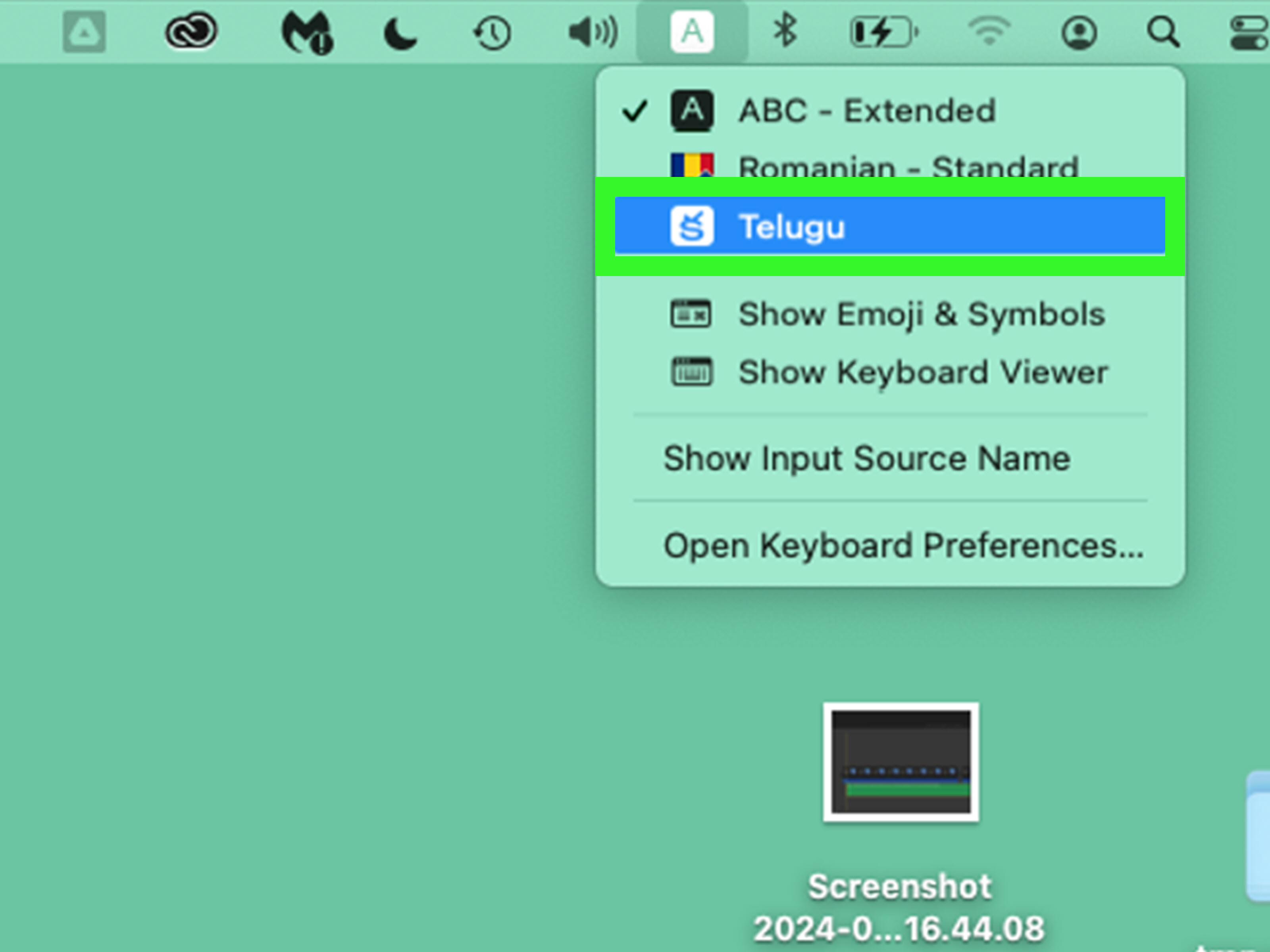
Mac users can type Telugu using macOS input sources. Apple includes support for typing in other languages, and Telugu input can be added from the keyboard settings. Once enabled, Telugu works across apps such as Notes, Pages, Safari, Mail, Messages, Google Docs, and Microsoft Word.
Add Telugu Input Source on macOS
- Click the Apple menu.
- Open System Settings.
- Select Keyboard.
- Find Text Input or Input Sources.
- Click Edit or the plus button.
- Search for Telugu.
- Add the Telugu input source you prefer.
After adding Telugu, use the input menu in the menu bar to switch between English and Telugu. You can also use keyboard shortcuts, depending on your macOS settings. Many users use Control + Space or the globe/function key to switch input sources.
Use Keyboard Viewer on Mac
If you are not sure which key produces which Telugu character, open Keyboard Viewer. This shows the active keyboard layout on screen. It is especially helpful when you are learning Telugu-QWERTY style layouts or trying to type vowels, vowel marks, and combined characters.
Think of Keyboard Viewer as training wheels for your keyboard. Very dignified training wheels, of course.
Mac Tip: Use Browser Transliteration for Faster Casual Typing
If your main goal is to write Telugu messages quickly, browser transliteration may feel easier than learning a macOS layout. You can type words like ela unnaru and convert them to ఎలా ఉన్నారు. Then copy and paste the result into Messages, Gmail, or a document.
For professional writing, proofreading, publishing, or long documents, use a consistent input method. Switching between too many tools can cause spelling variations, spacing issues, or odd character combinations.
How to Type in Telugu on Android
Android is excellent for Telugu typing, especially with Gboard. Many Android phones already include Gboard or allow you to install it from the Play Store. Gboard supports multiple languages, including Telugu, and offers typing, suggestions, voice input, and transliteration-style options depending on the selected layout.
Add Telugu in Gboard
- Open any app where you can type, such as Messages or WhatsApp.
- Tap the text field to open the keyboard.
- Open Gboard settings.
- Tap Languages.
- Choose Add keyboard.
- Search for Telugu.
- Select your preferred Telugu layout.
- Tap Done.
To switch between English and Telugu, tap the globe key or hold the spacebar and select Telugu. Your phone’s system language does not have to change. You can keep your phone in English and still type Telugu whenever needed.
Use Telugu Transliteration on Android
Many Telugu speakers prefer phonetic typing on Android. You type in English letters, and the keyboard suggests Telugu words. For example:
- nenu vastunnanu → నేను వస్తున్నాను
- bagunnara → బాగున్నారా
- chala santosham → చాలా సంతోషం
This is the fastest method for texting because it feels natural. You do not need to hunt for every Telugu character. Your thumbs can stay in familiar QWERTY territory, where they have paid rent for years.
Use Telugu Voice Typing on Android
Voice typing is another useful option. Open Gboard, tap the microphone icon, and speak clearly in Telugu. The phone will convert your speech into text. This works best in a quiet place and with natural pronunciation. It is great for long messages, but always proofread before sending. Voice typing has confidence, but not always wisdom.
How to Type in Telugu on iPhone
iPhone and iPad users can add Telugu keyboards from iOS settings. Apple also supports multilingual keyboard behavior for several Indian languages, and Telugu is included among supported Indian-language keyboard options in newer iOS versions.
Add Telugu Keyboard on iPhone
- Open Settings.
- Tap General.
- Tap Keyboard.
- Tap Keyboards.
- Select Add New Keyboard.
- Search for Telugu.
- Add the Telugu keyboard.
When typing, tap the globe icon to switch between English, emoji, Telugu, and any other keyboard you have added. If you hold the globe icon, you can choose the keyboard directly from a list.
Use Gboard on iPhone for Telugu Typing
If you prefer Google-style Telugu transliteration, install Gboard from the App Store and add Telugu in Gboard settings. Then enable Gboard under iPhone keyboard settings. On iOS, third-party keyboards may ask for additional permissions. Review those permissions carefully and choose what you are comfortable with.
For casual Telugu messages, Gboard can be very convenient. For users who move between Android and iPhone, it also creates a familiar typing experience across devices.
Best Telugu Typing Method for Each Device
| Device | Best Beginner Method | Best Advanced Method |
|---|---|---|
| Windows | Telugu Phonetic Keyboard | Telugu layout or dedicated input tool |
| Mac | Telugu input source or browser transliteration | Telugu-QWERTY layout with Keyboard Viewer |
| Android | Gboard Telugu transliteration | Gboard Telugu layout and voice typing |
| iPhone | Built-in Telugu keyboard or Gboard | Multilingual keyboard workflow |
Common Telugu Typing Problems and Fixes
Problem: Telugu Letters Look Broken or Misaligned
This usually happens when an app, website, or font does not fully support Telugu script rendering. Try using a modern browser, update your operating system, or switch to a Unicode-friendly font. Most modern devices handle Telugu well, but older software can still behave like it has never met a vowel sign before.
Problem: The Keyboard Keeps Switching Back to English
Check your input source shortcut. On Windows, use Windows + Spacebar. On Mac, check keyboard shortcut settings. On phones, hold the globe key or spacebar to confirm the active keyboard. Also make sure Telugu has actually been added, not just selected once temporarily.
Problem: Phonetic Typing Gives the Wrong Word
Try spelling the word another way. Telugu transliteration is based on pronunciation, and one Telugu word may be typed several ways in English. For example, cha, chaa, ca, or chala may produce different suggestions depending on the tool.
Problem: Copy-Pasted Telugu Text Looks Strange
Always copy from a Unicode-based tool. Avoid old non-Unicode fonts when writing for websites, social media, email, or modern documents. Unicode Telugu text is searchable, readable across devices, and much better for SEO.
SEO and Publishing Tips for Telugu Text
If you are typing Telugu for a blog, YouTube description, product page, or social media post, use Unicode Telugu text rather than images of text. Search engines can read real text, but they cannot understand Telugu text inside an image as reliably. Real Telugu text also improves accessibility, copyability, and mobile display.
For bilingual content, keep formatting clean. Do not mix too many fonts. Use clear headings, short paragraphs, and natural keyword placement. If your page targets users searching for Telugu typing, type Telugu online, Telugu keyboard for Windows, or Telugu typing on iPhone, include those phrases naturally in helpful sections rather than repeating them like a robot stuck in a keyword blender.
Extra Experience: What It Feels Like to Learn Telugu Typing Across Devices
The first time you try to type in Telugu, the experience can feel oddly personal. You may know the word perfectly in your head, pronounce it clearly, and still stare at the keyboard wondering how those English letters are supposed to become graceful Telugu script. That is normal. Telugu typing is not just about technology; it is about building muscle memory between sound, spelling, and script.
On Windows, the biggest “aha” moment usually comes when phonetic typing starts working. You type namaskaram, and suddenly నమస్కారం appears. It feels like the computer has finally decided to cooperate. The trick is to watch the suggestion bar carefully. Do not hit Enter too quickly. Telugu phonetic input often gives several possible words, and the first suggestion is not always the one you want. Slow down for the first week, choose the right suggestions, and your speed will improve naturally.
On Mac, the experience depends on your comfort with input sources. Some users love the clean built-in system. Others prefer online transliteration because it feels more forgiving. If you write Telugu only occasionally, browser tools are perfectly fine. But if you plan to write long emails, essays, subtitles, or blog posts, setting up a system-level input source saves time. The Keyboard Viewer is your friend here. It turns confusion into a map.
Android feels the most natural for many people because texting already happens on the phone. With Gboard, Telugu typing becomes part of your daily rhythm. You can switch from English to Telugu in the same chat, use voice typing when your hands are busy, and rely on suggestions for common words. The only danger is overconfidence. Always reread before sending, especially when writing respectful messages to elders, teachers, clients, or relatives. One wrong suggestion can turn a polite sentence into a tiny comedy show.
On iPhone, the built-in Telugu keyboard is stable and convenient, while Gboard is useful for users who prefer phonetic typing. The main habit to learn is switching keyboards with the globe icon. At first, you may accidentally open emoji instead of Telugu. That is not a failure; that is the universal iPhone language-learning ceremony. After a few days, switching becomes automatic.
The best long-term practice is simple: type five Telugu sentences every day. Start with common phrases: ఎలా ఉన్నారు?, నేను బాగున్నాను, ధన్యవాదాలు, and మళ్లీ కలుద్దాం. Save your favorite spellings in a note. Notice which Roman spellings produce the best Telugu suggestions. Over time, your fingers learn the pattern, and Telugu typing becomes less like solving a puzzle and more like speaking through your keyboard.
Most importantly, choose the method that matches your real life. If you write one Telugu message a week, use Gboard or an online tool. If you write Telugu every day, install the keyboard properly on every device. If you publish Telugu content, use Unicode text and proofread carefully. The goal is not to become a keyboard scholar overnight. The goal is to make Telugu easy enough that you actually use it.
Conclusion
Learning how to type in Telugu on Windows, Mac, Android, and iPhone is much easier than it looks. Windows users can rely on Telugu phonetic keyboards. Mac users can add Telugu input sources and use Keyboard Viewer. Android users get a smooth experience with Gboard, transliteration, and voice typing. iPhone users can add Telugu keyboards directly or use Gboard for a familiar phonetic workflow.
The best method depends on how often you type. For quick messages, phonetic typing is the easiest. For serious writing, a system keyboard and consistent Unicode input are better. Once you set things up and practice a little, Telugu typing becomes fast, practical, and even fun. Your keyboard may still be rectangular and boring, but now it can speak Telugu beautifully.