Instagram is fun until one tiny swipe turns your normal chat into a disappearing-message cave of mystery. One minute you are sending memes like a responsible digital citizen; the next, your messages are vanishing like socks in a dryer. If you opened a chat and noticed a darker screen, a message about disappearing messages, or a conversation that suddenly feels like it joined a spy movie, you probably turned on Vanish Mode.
The good news? Turning off Vanish Mode on Instagram is simple. You do not need to uninstall the app, perform a ritual under a full moon, or ask your most tech-savvy cousin to “just look at it real quick.” In most cases, you can disable it in seconds by opening the affected chat, swiping up, and confirming that the chat has returned to normal.
This guide explains how to turn off Vanish Mode on Instagram in three easy steps, what Vanish Mode actually does, why it may turn on accidentally, and what to do if the feature does not switch off right away. You will also learn how disappearing messages affect your chat history, screenshots, privacy, and everyday Instagram messaging.
What Is Vanish Mode on Instagram?
Vanish Mode is an Instagram messaging feature that lets people send disappearing messages, photos, videos, reactions, and other chat content. When it is active, messages sent in that mode are designed to disappear after they are viewed and the chat is closed or when the mode is turned off. In newer versions of Instagram, the feature may also appear under wording such as “disappearing messages,” but many users still call it Vanish Mode.
Think of it as Instagram’s temporary chat setting. It is not meant for long-term conversations, receipts, addresses, business details, school project notes, or anything you may need later. It is better suited for quick, casual messages that do not need to stay in the thread forever.
How to Know Vanish Mode Is On
You can usually tell Vanish Mode is active by looking at the chat screen. The background may appear darker than your usual Instagram chat, and Instagram may show a notice that disappearing messages are turned on. You may also notice that messages sent during that session do not remain in the normal conversation history.
If your chat suddenly looks different and you are wondering, “Why did Instagram turn into a secret agent?” that is your clue.
How to Turn Off Vanish Mode on Instagram: 3 Easy Steps
Here is the fastest way to disable Vanish Mode on Instagram. These steps work similarly on iPhone and Android, although the exact icons or wording may look slightly different depending on your app version.
Step 1: Open the Instagram Chat Where Vanish Mode Is On
First, open the Instagram app and go to your Direct Messages. Tap the Messenger or paper-airplane-style icon, depending on the version of the app you are using. Then select the conversation where Vanish Mode is active.
This matters because Vanish Mode is controlled per chat. Turning it off in one conversation does not automatically turn it off everywhere else. If your chat with one person is in Vanish Mode, open that specific conversation.
Step 2: Swipe Up From the Bottom of the Chat Screen
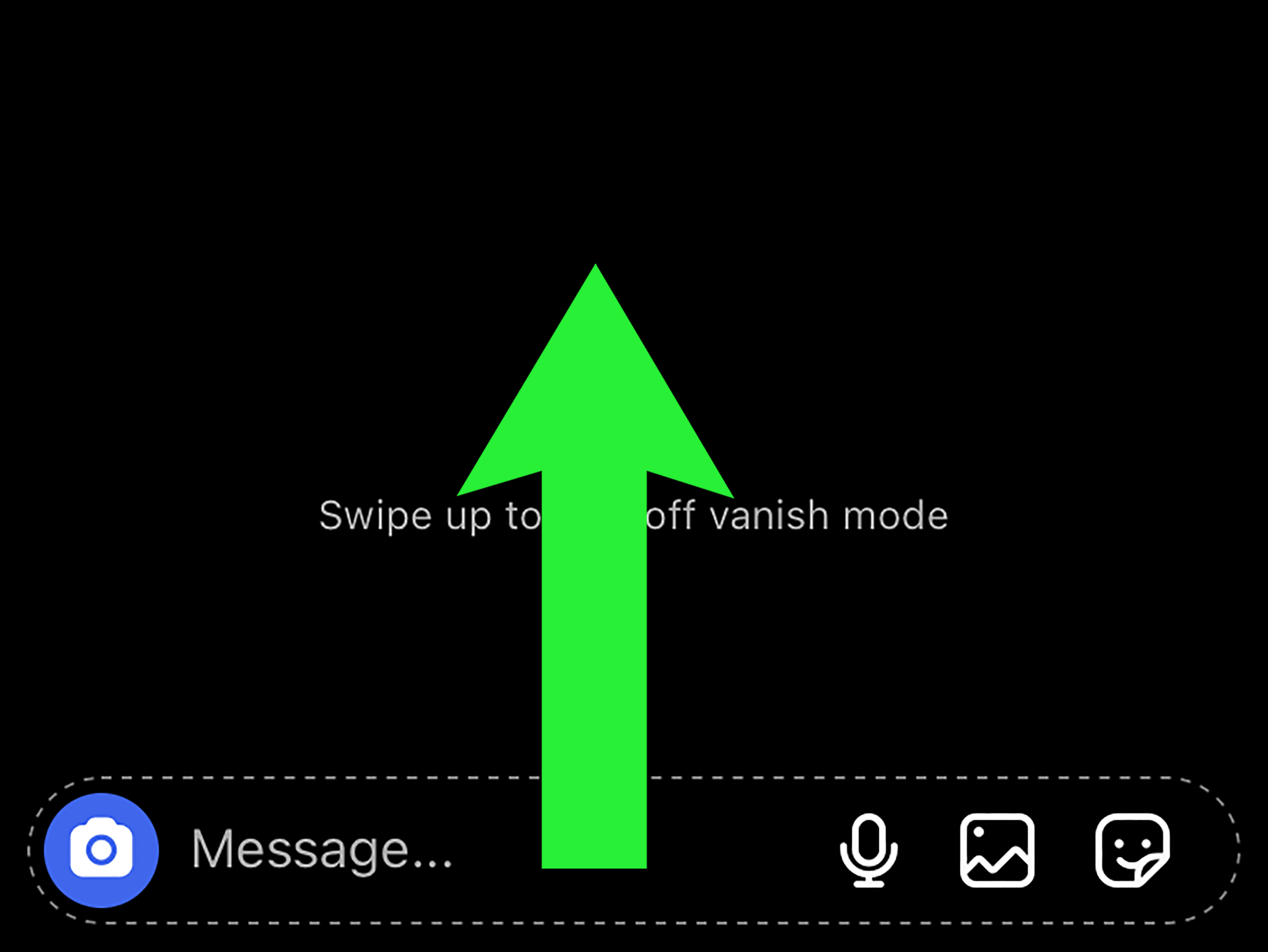
Once you are inside the chat, place your finger near the bottom of the screen and swipe upward. This is the same gesture often used to turn Vanish Mode on, so yes, Instagram gave the same move two jobs. Very efficient. Slightly confusing. Classic app behavior.
Swipe up within the chat itself, not from the very edge of your phone screen where your device’s navigation gestures live. If you are using an iPhone or Android phone with gesture navigation, try starting the swipe slightly above the bottom edge of the chat area.
Step 3: Release and Check That the Chat Returns to Normal
After you swipe up, release your finger. Instagram should exit Vanish Mode or disappearing messages. The chat background should return to its normal appearance, and new messages should remain visible like regular DMs.
In some app versions, Instagram may show a message confirming that disappearing messages have been turned off. In others, the main sign is simply that the chat no longer looks dark or temporary.
Quick Summary: Turning Off Vanish Mode
- Open Instagram and go to the chat where Vanish Mode is active.
- Swipe up from the bottom of the conversation screen.
- Release your finger and confirm the chat looks normal again.
That is it. Three steps. No settings maze. No secret menu. No need to throw your phone gently onto a pillow and whisper, “Why are you like this?”
Can You Turn Off Vanish Mode for All Instagram Chats?
Vanish Mode is generally managed inside individual Instagram chats. That means there is not always one universal “turn off Vanish Mode everywhere forever” button available to every user. If disappearing messages are active in one chat, turn them off in that conversation. If another chat also has the feature enabled, repeat the same swipe-up process there.
This per-chat design is helpful because you may want temporary messages with one person but normal saved messages with another. However, it can also confuse users who expect Instagram settings to behave like a single master switch.
Why Did Vanish Mode Turn On?
Vanish Mode often turns on because of an accidental swipe. If you scroll quickly through a conversation and your finger starts near the bottom of the screen, Instagram may read that as the swipe gesture for disappearing messages. It can also happen when someone else in the chat turns it on.
Another possibility is that you tapped or adjusted a disappearing-message setting inside the conversation. Instagram changes its interface over time, so some users may see a specific disappearing messages option in chat details, while others primarily use the swipe gesture.
Common Reasons Vanish Mode Appears
- You accidentally swiped up while reading a chat.
- The other person enabled disappearing messages.
- You changed a chat privacy setting without realizing it.
- Your Instagram app updated and renamed or moved the feature.
- You are using a different account or device with slightly different interface behavior.
What Happens After You Turn Off Vanish Mode?
After you turn off Vanish Mode, new messages should work like regular Instagram DMs. They remain in the conversation unless someone deletes them, unsends them, or Instagram removes them for another reason. The chat should return to its standard layout and feel less like a dramatic scene from a detective movie.
However, messages that already disappeared during Vanish Mode usually do not return. Turning the mode off does not magically restore messages that were meant to vanish. If you needed that information, this is the moment when the phrase “temporary message” becomes painfully literal.
Will Old Messages Come Back?
Your regular Instagram chat history from before Vanish Mode should still be there, unless it was deleted or unsent. But messages sent while Vanish Mode was active may disappear after being viewed and after the chat is closed or the mode is turned off. In short: normal messages usually stay; Vanish Mode messages are temporary by design.
Is Vanish Mode the Same as Deleting Messages?
No. Vanish Mode and deleting messages are not the same thing. Deleting or unsending a message is an action you take on a specific message. Vanish Mode is a chat setting that affects messages sent while the mode is active.
If you turn off Vanish Mode, you are not deleting the entire conversation. You are simply returning the chat to standard messaging. If you want to remove a specific message, you would need to use Instagram’s message options, such as unsending a message where available.
Can the Other Person Tell When Vanish Mode Is Turned Off?
Instagram may show chat notices when disappearing messages are turned on or off. The other person may be able to see that the chat has switched modes. This is normal and helps both people understand whether the conversation is temporary or regular.
That transparency is useful because disappearing messages affect both sides of the conversation. Nobody wants to type an important address, appointment time, or recipe for banana bread into a chat that plans to evaporate like morning fog.
Can Someone Screenshot Messages in Vanish Mode?
Vanish Mode is designed for temporary conversations, but it is not a perfect privacy shield. People may still have ways to save information, including screenshots, screen recordings, another camera, or simply writing things down. Instagram has used screenshot-related notices for certain disappearing content, but users should never treat Vanish Mode as a guarantee that a message cannot be saved.
The safest rule is simple: do not send anything in any chat mode that you would be uncomfortable seeing saved, shared, or misunderstood later. Digital privacy tools help, but they are not invisibility cloaks.
What to Do If Vanish Mode Will Not Turn Off
If swiping up does not turn off Vanish Mode, do not panic. App glitches happen. Instagram is a giant platform, not a toaster, and even toasters occasionally choose chaos.
Try the Swipe Again More Slowly
Start inside the chat window, place your finger near the lower portion of the conversation, swipe upward, and release. Avoid starting from the extreme bottom edge of the screen because your phone may interpret that as a system navigation gesture instead of an Instagram gesture.
Close and Reopen the Instagram App
Force-close Instagram, reopen it, and return to the same chat. Sometimes the interface simply needs a refresh before it displays the correct mode.
Update Instagram
Open the App Store or Google Play Store and check whether Instagram has an update available. Features like messaging, disappearing messages, and chat controls may change with app updates. Running an outdated version can cause missing buttons, broken gestures, or confusing labels.
Check the Chat Details
In some versions of Instagram, you may be able to tap the person’s name or the chat header, open chat settings, and look for disappearing message controls. If you see an option labeled “Disappearing messages,” “Vanish Mode,” or something similar, switch it off there.
Restart Your Phone
Restarting your phone sounds basic because it is basic. It also works more often than people want to admit. A restart can clear temporary app issues and help Instagram reload properly.
Reinstall Instagram
If nothing else works, uninstall and reinstall Instagram. Make sure you know your login details before doing this. Reinstalling can fix damaged app files or interface bugs, but it should be a later step, not the first move.
How to Avoid Turning On Vanish Mode by Accident
Accidental Vanish Mode usually comes from the swipe gesture. The best prevention is to scroll chats from the middle of the screen instead of starting at the bottom. If you often use one hand, slow down when reading long DM threads.
You can also pay attention to visual cues. If the chat suddenly becomes dark or shows a disappearing-message notice, stop typing and turn it off before sending anything important. It is easier to fix the mode first than to wonder later where your message went.
Practical Tips
- Scroll from the center of the chat instead of the bottom edge.
- Watch for dark chat backgrounds or disappearing-message labels.
- Do not send important information until you confirm the mode is off.
- Keep Instagram updated to reduce interface bugs.
- Explain the feature to friends or family members who keep turning it on accidentally.
When Should You Use Vanish Mode?
Vanish Mode is not useless. It can be helpful for light, temporary conversations that do not need to live forever in your inbox. For example, you might use it for a quick joke, a surprise party clue, or a message that only matters in the moment.
But it is not ideal for practical information. If you are discussing work details, travel plans, addresses, payments, school assignments, customer conversations, or anything you may need to reference later, keep Vanish Mode off. Future you will appreciate the evidence. Future you is already dealing with enough.
When Should You Turn Vanish Mode Off?
You should turn off Vanish Mode when you want messages to stay visible in your Instagram chat. This includes conversations where you need a record, want to remember details, or simply prefer normal messaging. It is also wise to turn it off if the other person turned it on unexpectedly and you are not comfortable using disappearing messages.
Disappearing messages should be a choice, not a surprise. If a chat suddenly enters Vanish Mode and you do not want that, swipe up to exit and continue the conversation normally.
Privacy Tips for Instagram DMs
Turning off Vanish Mode is only one part of managing your Instagram privacy. You can also control who messages you, block or restrict accounts, report abusive messages, and avoid clicking suspicious links. Instagram DMs are convenient, but they are still online conversations, which means caution is your best accessory.
Use Message Controls
Instagram offers message controls that help you decide who can contact you directly, who goes to message requests, and who cannot message you at all. These settings are useful if you receive unwanted DMs, spam, or messages from strangers.
Block or Restrict Problem Accounts
If someone repeatedly turns on Vanish Mode to make you uncomfortable, pressure you, or hide inappropriate messages, consider restricting or blocking the account. You can also report messages that violate Instagram’s rules.
Be Careful With Sensitive Information
Do not rely on disappearing messages for sensitive personal details. Avoid sending passwords, financial information, private documents, or anything that could create problems if copied or shared. Even temporary chats can become permanent in someone else’s camera roll.
Vanish Mode on iPhone vs. Android
The process for turning off Vanish Mode is nearly the same on iPhone and Android. Open the affected Instagram chat, swipe up from the bottom of the conversation, and release. The main differences are usually visual. Icons, menus, and chat labels may vary slightly depending on your device, app version, region, and whether Instagram is testing a new interface.
If your friend’s phone shows a button and yours only responds to a swipe, that does not necessarily mean either of you is doing something wrong. Instagram often rolls out features gradually, so two people can have slightly different experiences inside the same app.
Frequently Asked Questions About Turning Off Vanish Mode
Why is my Instagram chat black?
A dark or black-looking Instagram chat may mean Vanish Mode or disappearing messages are active. Swipe up in the chat to turn it off and return to normal messaging.
Does Vanish Mode delete all Instagram messages?
No. Vanish Mode affects messages sent while the mode is active. It does not automatically erase your entire normal chat history.
Can I disable Vanish Mode permanently?
Instagram usually manages Vanish Mode per conversation. You may need to turn it off in each chat where it is active. A universal permanent disable option may not be available to every account.
Will new messages save after I turn off Vanish Mode?
Yes. Once Vanish Mode is off, new messages should behave like regular Instagram DMs and remain in the chat unless deleted, unsent, or otherwise removed.
Why does Vanish Mode keep coming back?
It may be turned on again by accident through the swipe gesture, or the other person may be enabling it. If the issue continues, update Instagram, restart the app, and check the chat details for disappearing-message settings.
Real-Life Experiences: What It Feels Like to Turn Off Vanish Mode
Many people discover Vanish Mode by accident, not by reading Instagram’s feature announcements over coffee like a social media scholar. A common experience goes something like this: you open a DM, scroll too quickly, the screen changes, and suddenly your chat looks like it has entered nighttime mode with secrets. For a second, it feels as if you broke Instagram. You did not. You probably just triggered disappearing messages.
One of the most relatable moments happens when someone sends a practical message in Vanish Mode without realizing it. Maybe it is a restaurant address, a shopping list, a meeting time, or the name of a song they promised to remember. Later, they return to the chat and the message is gone. This is when Vanish Mode stops feeling mysterious and starts feeling like a tiny prank designed by your own thumb.
Turning it off feels surprisingly satisfying because the fix is so small. Open the chat, swipe up, release, and the conversation returns to normal. The first time, you may wonder if it really worked. The easiest way to check is to look at the chat background and send a harmless test message, such as “Testing normal chat.” If it stays visible after you leave and reopen the conversation, you are back in regular DM mode.
For parents, creators, small business owners, and anyone who uses Instagram for real communication, turning off Vanish Mode can prevent confusion. A small business owner, for example, may receive product questions in DMs and need a clear record of customer preferences, order details, or delivery instructions. Vanish Mode is not the best place for that. A creator may discuss collaboration details with a brand and later need to confirm dates or deliverables. Again, normal chat is better.
Even in personal conversations, saved messages can be useful. Friends share plans, screenshots, links, recipes, and reminders. If Vanish Mode is on, those details may not stick around. The feature can be fun for temporary jokes, but it is less charming when it eats the name of the taco place everyone agreed on.
The best habit is to pause whenever a chat looks different. If the screen is dark, the mode label appears, or Instagram mentions disappearing messages, turn it off before sending anything important. That one-second check saves a lot of “Wait, where did my message go?” energy later.
In daily use, Vanish Mode is not something to fear. It is simply a tool. Like any tool, it works best when you know what it is for. Use it when you want temporary messages. Turn it off when you want a normal conversation history. And if you activate it by mistake, remember: swipe up, release, breathe. Your Instagram chat is not haunted. It is just being dramatic.
Conclusion
Turning off Vanish Mode on Instagram is quick once you know where to look. Open the chat where disappearing messages are active, swipe up from the bottom of the conversation, and release. When the chat returns to its normal appearance, Vanish Mode is off, and new messages should remain in the thread like standard Instagram DMs.
The most important thing to remember is that Vanish Mode is controlled by chat, not always by one global setting. If multiple conversations have disappearing messages enabled, you may need to turn them off one by one. Also, do not expect disappeared messages to come back after switching the feature off. Vanish Mode is built for temporary communication, so use regular DMs when you need a reliable record.
Whether you turned it on accidentally or simply prefer messages that do not vanish like a magician with commitment issues, the fix is easy. Swipe up, confirm the chat is normal, and continue messaging with confidence.
Note: Instagram may update labels, icons, and chat settings over time. If your app uses the phrase “disappearing messages” instead of “Vanish Mode,” the basic idea is the same: open the affected chat, turn off the temporary-message setting, and confirm that new messages are saved normally.