Windows XP may be old enough to remember dial-up Internet, chunky monitors, and the cheerful sound of “You’ve got mail,” but plenty of legacy computers still use it. Some run specialized business refuse to retire because their owners have formed an emotional attachment to the blue taskbar.
When an XP computer freezes during startup, displays a blank screen, crashes after installing a driver, or behaves as though malware has taken over the keyboard, Safe Mode can provide a practical way back into the system. It starts Windows with a limited collection of essential drivers and services, leaving many third-party programs on the sidelines. That stripped-down environment can make troublesome software, drivers, and startup settings easier to identify. ide explains how to get Safe Mode in Windows XP in eight straightforward steps. It also covers the different Safe Mode options, what to do when the F8 key refuses to cooperate, how to exit Safe Mode, and lessons learned from troubleshooting real-world XP computers.
What Is Windows XP Safe Mode?
Safe Mode is a diagnostic startup environment. Instead of loading every device driver, background service, startup application, visual effect, and utility installed on the computer, Windows XP loads only the components it considers necessary for basic operation.
The desktop may look unusually large, plain, or slightly blurry because XP normally uses a basic display driver and low screen resolution in Safe Mode. You will also see the words Safe Mode in the corners of the screen. That is normal. Your computer has not suddenly traveled back to 1998, although visually it may feel that way.
Safe Mode can help diagnose problems involving:
- A recently installed graphics, audio, printer, or network driver
- Software that launches automatically with Windows
- Repeated blue-screen errors or unexpected restarts
- A screen that becomes blank after the XP logo appears
- Malware that interferes with normal startup
- Incorrect display settings
- A failed application installation or update
- A system that works in Safe Mode but crashes in normal mode
If Windows XP runs properly in Safe Mode but fails during a normal startup, the problem probably involves something that Safe Mode does not load. That commonly means a third-party driver, startup program, service, or configuration change.
Before Starting Windows XP in Safe Mode
Save open files and close your programs before restarting the computer. If the machine is frozen and you cannot shut it down normally, press and hold the physical power button until it turns off. Use a forced shutdown only when necessary because it can cause unsaved data to disappear faster than office snacks on a Friday afternoon.
Disconnect unnecessary hardware, including external hard drives, USB hubs, printers, scanners, cameras, and memory-card readers. Leave the monitor, keyboard, and mouse connected. Removing extra devices can prevent a defective accessory or driver from complicating the startup process.
If the computer contains important files, consider creating a backup before making major repairs. Safe Mode itself does not erase personal data, but some troubleshooting actionssuch as uninstalling software, editing system settings, or restoring Windowscan have consequences when performed incorrectly.
How to Get Safe Mode in Windows XP: 8 Steps
Step 1: Shut Down or Restart the Computer
Click Start, select Turn Off Computer, and then click Restart. If Windows will not respond, turn off the computer using its power button. Wait approximately 20 to 30 seconds before switching it on again.
The brief pause is not magic, but it gives the hardware time to power down completely. On some older desktop computers, an immediate power cycle can leave expansion cards or external devices in a confused state.
Step 2: Begin Tapping the F8 Key
Turn on the computer and begin tapping the F8 key repeatedly as soon as the manufacturer’s logo, memory count, or initial startup screen appears. Press F8 before the Windows XP logo is displayed.
Do not wait until you see the blue XP loading bar. By then, Windows has already started its normal boot sequence and the tiny F8 opportunity has galloped into the sunset. Microsoft and established hardware-support instructions consistently identify F8 as the standard way to reach the Windows XP Advanced Options Menu. : Wait for the Windows Advanced Options Menu
If your timing is correct, a black screen titled Windows Advanced Options Menu will appear. You may see choices such as:
- Safe Mode
- Safe Mode with Networking
- Safe Mode with Command Prompt
- Enable Boot Logging
- Enable VGA Mode
- Last Known Good Configuration
- Start Windows Normally
If Windows starts normally instead, restart and try again. Begin tapping F8 slightly earlier. Getting the timing right sometimes takes two or three attempts, especially on computers that move through the hardware startup screens quickly.
Step 4: Highlight “Safe Mode”
Use the keyboard’s up and down arrow keys to highlight Safe Mode. For general troubleshooting, this standard option is usually the best place to begin because it loads the smallest practical set of Windows components.
The mouse may not work on the Advanced Options screen, so use the keyboard. This menu predates the modern assumption that every screen needs animations, rounded buttons, and a shopping recommendation.
Step 5: Press Enter
After highlighting Safe Mode, press Enter. Windows will begin loading a list of system files and drivers. The file names may scroll down the screen for several seconds.
This display is expected. It can also be useful diagnostically. If the computer freezes while loading Safe Mode, write down the final file name shown on the screen. That clue may help identify a defective driver, storage problem, or damaged system component.
Step 6: Select the Windows XP Installation
If the computer has more than one operating system or more than one XP installation, a boot-selection screen may appear. Highlight the Windows XP installation you want to troubleshoot and press Enter.
Most home computers contain only one installation, so the correct choice may already be selected. Do not choose the Recovery Console unless you specifically intend to use command-line recovery tools and understand how they work.
Step 7: Sign In With an Administrator Account
Wait while Windows loads. Safe Mode can take longer than expected on an older machine, so do not assume it has frozen merely because the hard drive is performing its tiny mechanical drum solo.
When the Welcome screen appears, select an account with administrator privileges. You may also see a built-in account named Administrator that is not normally displayed during standard startup.
Enter the account password when required. Administrative access is commonly needed to uninstall drivers, remove programs, change system settings, use System Restore, or edit startup services.
Step 8: Confirm Safe Mode and Begin Troubleshooting
Windows XP may display a message explaining that it is running in Safe Mode. Click Yes to continue. The desktop will appear with a basic design, large icons, limited colors, and “Safe Mode” printed in the corners.
You are now successfully running Windows XP in Safe Mode. Complete only the troubleshooting actions you understand, and then restart the computer normally to see whether the problem has been corrected.
Which Windows XP Safe Mode Option Should You Choose?
Windows XP provides three main Safe Mode variations. They look similar on the Advanced Options Menu, but they serve different purposes.
Standard Safe Mode
This is the safest default choice. It loads essential Windows services and basic device drivers without normal network support. Use it for removing problematic software, rolling back drivers, changing startup settings, running System Restore, or testing whether Windows can reach the desktop.
Safe Mode with Networking
This option adds network drivers and services. It may allow access to a local network or the Internet, although support depends on the computer’s network adapter, driver, and connection type.
Choose it only when network access is genuinely neededfor example, to reach a trusted file server or download a specific driver from a verified source. Loading networking components introduces more drivers and services, which can make diagnosis less controlled than standard Safe Mode.
Because Windows XP has been outside Microsoft’s support lifecycle since April 8, 2014, connecting an XP computer to the public Internet carries significant security risk. Microsoft no longer supplies routine security fixes for the operating system. Keep legacy XP machines offline whenever possible. ode with Command Prompt
This mode loads a command-line window instead of the normal Windows Explorer desktop. It is intended for experienced users who need tools such as file-management commands, System Restore commands, disk checks, or other text-based utilities.
Do not select it simply because it sounds impressively technical. A blinking command prompt is not a magical repair wizard; it is more like a toolbox with no labels.
What to Do After Entering Safe Mode
Safe Mode does not automatically repair the computer. It gives you a simplified environment in which to investigate. The correct next step depends on what happened before the problem began.
Remove a Recently Installed Program
Open Start > Control Panel > Add or Remove Programs. Look for software installed shortly before the crashes or startup trouble began. Remove one suspected application at a time and restart normally after each meaningful change.
Roll Back a Device Driver
Right-click My Computer, choose Properties, open the Hardware tab, and select Device Manager. Find the relevant device, open its properties, and use Roll Back Driver when available.
A faulty display driver is a common suspect when Windows reaches the XP logo and then produces a black screen, distorted image, or immediate restart.
Use System Restore
Open Start > All Programs > Accessories > System Tools > System Restore. Choose a restore point created before the problem began.
System Restore can reverse certain driver, registry, and system-file changes without intentionally deleting personal documents. However, programs installed after the selected restore point may need to be installed again.
Disable Suspicious Startup Programs
Click Start > Run, type msconfig, and press Enter. Use the Startup tab to review programs configured to launch automatically.
Change only items you recognize or have researched. Disabling every entry because the names look strange can create a second troubleshooting project before you finish the first.
How to Exit Safe Mode in Windows XP
In most cases, exiting Safe Mode is easy:
- Save your work.
- Click Start.
- Select Turn Off Computer.
- Click Restart.
- Allow Windows to start without pressing F8.
The computer should return to normal mode automatically.
What If Windows XP Keeps Starting in Safe Mode?
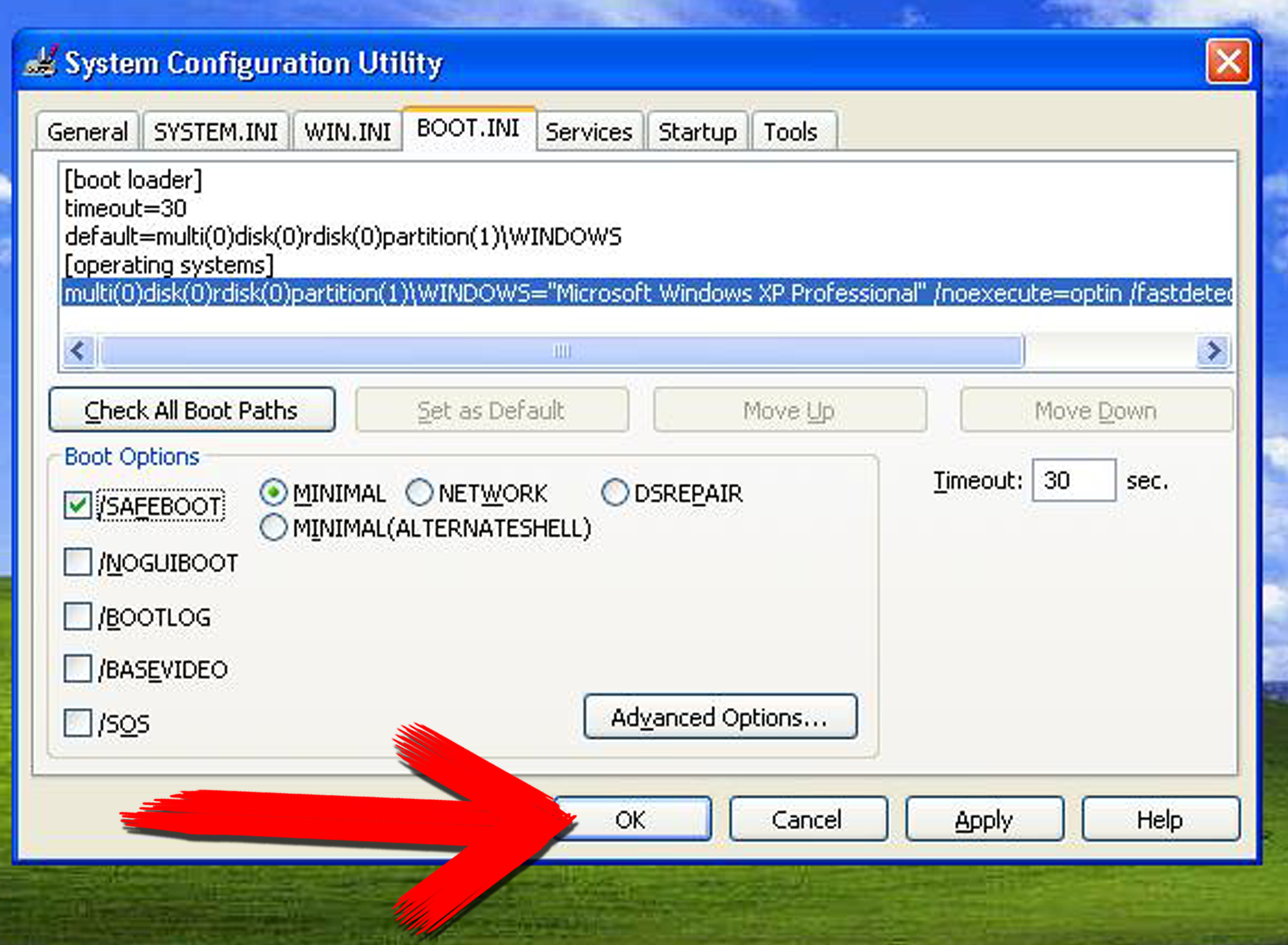
If you previously forced Safe Mode through the System Configuration Utility, Windows may continue entering it after every restart. Open Start > Run, type msconfig, and press Enter. Select the BOOT.INI tab and clear the /SAFEBOOT option. Click OK and restart.
The MSConfig method changes XP’s boot configuration, so forgetting to remove the /SAFEBOOT setting can trap the system in a Safe Mode loop. For that reason, the F8 method is generally preferable when it works. o Do When F8 Does Not Open Safe Mode
Start Pressing F8 Earlier
Restart and begin tapping F8 immediately after the manufacturer’s logo appears. Do not wait for the Windows XP splash screen.
Try a Slower Rhythm
Press F8 repeatedly rather than holding it down. Holding the key may trigger a keyboard error on certain older computers. A steady tap every half-second is usually effective.
Check the Keyboard
Some USB keyboards are not recognized until Windows begins loading, particularly when legacy USB keyboard support is disabled in the BIOS. Try a different USB port or a traditional PS/2 keyboard if the computer provides the round purple keyboard connector.
On some laptops, you may need to press Fn + F8 because the function-key row is assigned to hardware controls. However, this varies by manufacturer.
Avoid the Manufacturer’s Boot Menu
Some computers assign F8, F9, F11, or F12 to a hardware boot menu. If you see options such as Hard Drive, CD-ROM, USB, or Network Boot, you are in the firmware’s device menu rather than the Windows Advanced Options Menu.
Select the internal hard drive, press Enter, and immediately begin tapping F8 again as Windows starts from that drive.
Use MSConfig Only When Windows Still Starts Normally
When XP can reach its normal desktop, click Start > Run, enter msconfig, and open the BOOT.INI tab. Select /SAFEBOOT, choose the appropriate option, click OK, and restart.
Remember to clear /SAFEBOOT afterward. Avoid forcing this setting when the computer already has severe boot problems because a failed Safe Mode startup could leave you with fewer recovery options.
Practical Experiences With Windows XP Safe Mode
One lesson from working on older Windows XP computers is that entering Safe Mode is often less difficult than discovering what to do once you arrive. The plain desktop feels reassuring, but it is only the examination roomnot the diagnosis.
A typical example involves an aging office computer whose screen turns black immediately after the Windows XP logo. Because the machine reaches Safe Mode successfully, the monitor and core operating system are probably still functional. Device Manager reveals that a new graphics driver was installed the previous day. Rolling back that driver and restarting restores the normal desktop. Safe Mode did not repair the graphics driver by itself; it simply avoided loading the troublesome version long enough to remove it.
Another common case begins after someone installs a “helpful” toolbar, free system optimizer, or mysterious download manager. Suddenly the computer takes ten minutes to start, pop-ups appear, and the hard drive sounds as though it is attempting to escape. In standard Safe Mode, many third-party startup programs remain inactive. That makes it easier to uninstall the suspicious application, inspect startup entries, and copy important documents to external storage.
The F8 timing can be surprisingly frustrating. On some machines, tapping too late causes XP to start normally. On others, pressing too early opens a hardware menu or produces a keyboard warning. The practical trick is to restart, watch for the first manufacturer screen, and begin tapping F8 as that screen disappears. Do not angrily hammer the key. Windows XP responds to persistence, not percussion.
Safe Mode with Networking deserves special caution. Years ago, technicians commonly used it to download antivirus updates or replacement drivers. Today, placing an unsupported XP machine directly on the Internet is a much riskier decision. A safer approach is to use a supported computer to download the needed driver or diagnostic utility from the hardware manufacturer, scan the file, and transfer it using clean removable media.
Hardware problems can also imitate software trouble. A computer may freeze in both normal mode and Safe Mode because its hard drive is failing, memory is defective, or internal components are overheating. If Safe Mode stops at the same file every time, makes unusual clicking noises, or repeatedly displays disk errors, back up accessible data before attempting aggressive repairs.
It is also wise to change one thing at a time. Uninstalling five programs, disabling twelve services, deleting random files, and editing the registry in one heroic session may produce a working computerbut it may also make it impossible to determine which action helped. Make one logical change, restart normally, and observe the result. Troubleshooting rewards patience more reliably than dramatic keyboard gestures.
Finally, treat Safe Mode as a bridge to a safer long-term solution. It can help retrieve old documents, remove a bad driver, or keep a legacy application running temporarily. It cannot restore ongoing security support to Windows XP. When the machine contains valuable information, use the successful Safe Mode session to create backups and prepare a migration plan rather than assuming the computer is ready for another decade of online adventures.
Conclusion
To get Safe Mode in Windows XP, restart the computer, tap F8 before the XP logo appears, choose Safe Mode from the Windows Advanced Options Menu, select the correct installation, and sign in with an administrator account. After troubleshooting, restart normally to leave Safe Mode.
The process is simple, but Safe Mode is most useful when paired with a careful diagnostic strategy. Consider what changed before the problem began, reverse one suspicious change at a time, and protect important files before performing major repairs.
Windows XP can still help recover old data or operate certain legacy equipment, but it should not be treated as a secure modern platform. Keep it disconnected from the Internet whenever practical and move valuable data to a currently supported system.
Note: Windows XP reached the end of Microsoft support on April 8, 2014. This guide is intended for legacy-system maintenance and data recovery. Keep XP computers offline whenever possible and migrate important files and applications to a supported operating system.