TikTok captions can be a lifesaver when you’re scrolling in a silent waiting room… and a full-on nuisance when they’re covering the only thing you came to see (hello, recipe measurements and tiny on-screen text). The good news: you can disable TikTok captions / subtitles in seconds. The slightly less good news: TikTok has a few different “caption types,” and not all of them are truly removable.
In this guide, you’ll learn two easy ways to turn off captions and subtitles on TikTok (one for a single video, one for your overall viewing experience), plus quick troubleshooting if subtitles keep popping back up like an uninvited party guest.
Quick Answer: 2 Easy Ways to Disable TikTok Captions
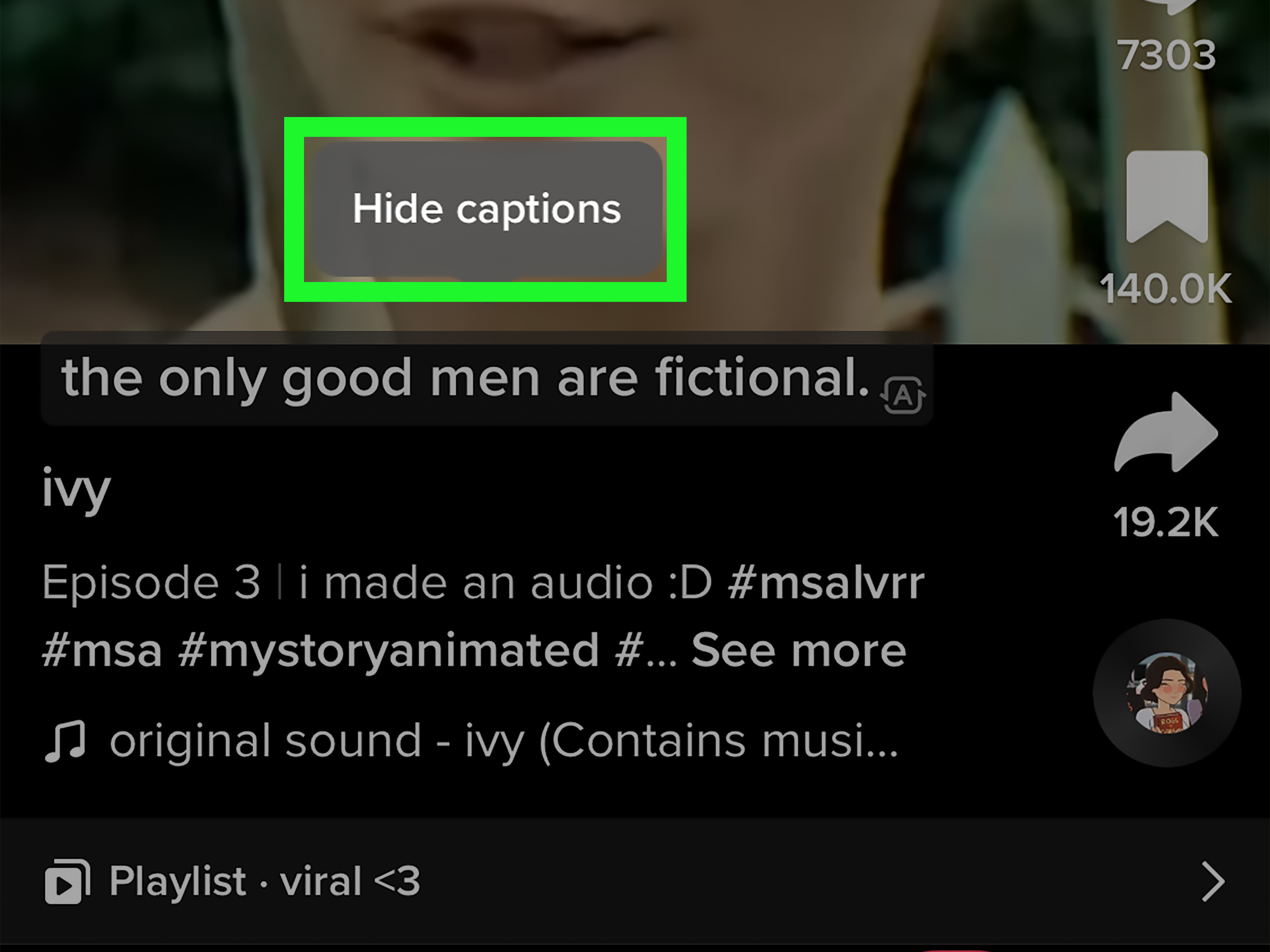
- Turn off captions on one video: tap the caption text and choose Hide captions (or use the share/options panel, depending on your app version).
- Turn off captions for your feed: go to Settings and privacy → Accessibility and toggle off Always show captions (wording may vary).
Before You Toggle Anything: What Kind of “Captions” Are You Seeing?
“Captions” and “subtitles” get used interchangeably on TikTok, but what you’re seeing usually falls into one of these buckets:
1) Auto-generated captions (the ones you can usually hide)
These are created by TikTok’s speech-to-text and appear line-by-line as people talk. They’re meant for accessibility and sound-off scrolling. Most of the time, these are the captions you can disable with a quick tap.
2) Creator captions (TikTok-generated, but “published” with the video)
Creators can generate captions while editing and post them with the video. Viewers can often hide these too, but the on/off switch may live in a menu instead of directly on the caption text.
3) Burned-in captions / text overlays (the ones you can’t truly turn off)
If the creator edited text into the video itself (think CapCut-style subtitles that are part of the footage), TikTok can’t “turn them off” because they’re basically glued onto the pixels. If that’s what you’re seeing, your only options are zooming, rotating your phone, or politely asking the creator to move their text off the center of the screen next time.
Way #1 (Fastest): Turn Off Captions on a Single TikTok Video
This is the “I just want the text gone right now” method. It’s perfect when captions block a punchline, a product label, or someone’s face (which is… kind of important in a video).
Option A: Tap the caption text → “Hide captions”
- Open the TikTok video where captions are showing.
- Tap directly on the caption text as it appears.
- Tap Hide captions.
After that, captions should disappear (often replaced by a tiny indicator that captions are available). If you change your mind, tap the small caption indicator to bring them back.
Option B: Use the share/options panel (when your app hides the toggle there)
- While watching the video, tap the Share arrow (or the options menu, depending on the layout).
- Look for a Captions button or a captions toggle.
- Switch captions Off.
TikTok’s interface changes a lot, so don’t panic if the button name isn’t identical. You’re looking for anything that says Captions, Subtitles, or sometimes Captions and translations.
What to expect (so you don’t think your phone is haunted)
- Some videos won’t have captions available, so you won’t see the hide option.
- Some toggles are per-video (great for occasional use).
- Some toggles stick longer, especially if you use the “Always show…” style setting (see Way #2).
Way #2 (Most Useful): Turn Off Captions Everywhere via TikTok Settings
If captions show up constantly and you want a more “set it and forget it” solution, turn off TikTok’s global caption display setting. This is the best method for people who never use captions (or only want them occasionally).
Steps to disable “Always show captions” (or similar)
- Open TikTok and tap Profile.
- Tap the Menu button (usually the three lines in the top corner).
- Go to Settings and privacy.
- Tap Accessibility (sometimes found under “Content & Activity,” or inside a “Display” section).
- Toggle off Always show captions (wording may vary by version).
Once that’s off, TikTok should stop automatically displaying captions across your feed when they’re available. If you still want captions sometimes, you can re-enable them per video using Way #1.
If Captions Still Won’t Turn Off: 6 Fixes That Actually Work
If you’ve turned captions off but subtitles still appear, one of these is usually the culprit:
1) The captions are burned into the video
If the text is perfectly styled, always visible, and doesn’t behave like TikTok captions (no “Hide captions” option), it may be part of the video edit. TikTok can’t remove those.
2) Your phone is adding system-level captions (Live Caption / Live Captions / CC+SDH)
Sometimes your device (not TikTok) is generating captions on top of everything:
- iPhone/iPad: Check Settings → Accessibility → Subtitles & Captioning. If Closed Captions + SDH is on, some apps may show captions more aggressively.
- Android: Check Settings → Accessibility → Caption preferences (and/or Live Caption). Turning these off can stop device-generated subtitles from appearing.
3) TikTok is cached in a weird state (yes, apps get moody)
Try: Profile → Menu → Settings and privacy → find Free up space or Clear cache. Then restart the app.
4) You’re seeing translations, not captions
TikTok can translate text and captions in some contexts. If you’re seeing translated subtitles, look for a menu labeled Captions and translations or a translation toggle alongside caption controls.
5) Your TikTok app version is out of date
TikTok moves settings around like it’s playing hide-and-seek. Updating the app can restore missing caption toggles or place them back where the internet promised they’d be.
6) Try the nuclear-but-reasonable option: log out/in or reinstall
If the caption setting refuses to “stick,” logging out and back in (or reinstalling) can reset display preferences. It’s annoying, but it beats squinting through a wall of text.
Bonus: How to Remove Captions from Your Own TikTok Videos (Creator Tip)
If you posted a video and now regret the captions (maybe the auto-captions turned “guacamole” into “walk-a-mole”), you have a couple of options depending on how the captions were created.
Edit or remove auto-generated captions on a posted video
- Open your posted video.
- Tap the caption overlay.
- Tap Edit captions, then fix or remove lines.
- Tap Save to update.
Prevent caption chaos on future posts
- On the posting screen, look for Select video language so TikTok generates captions in the right language.
- Always proofread auto-captions before you post (your audience will thank you, and so will your comment section).
FAQ: Turning Off TikTok Captions & Subtitles
Why don’t I see a “Hide captions” option?
Either captions aren’t available for that video, the text is burned into the video edit, or TikTok placed the control in a menu (try the share/options panel).
Does turning off captions work for all videos?
It works for TikTok captions when they’re actually a feature layer. It won’t remove creator-added text overlays or burned-in subtitles.
Will captions stay off permanently?
If you disable a global setting like “Always show captions,” it should persist. If you hide captions per video, it may reset later, depending on your app version and how the creator added captions.
Can I turn off subtitles on TikTok Live?
Live interfaces vary, but the same idea applies: look for a captions/CC control in the live options menu. If it’s not there, the creator may be using on-screen text that can’t be disabled.
Why are captions suddenly huge or styled differently?
That’s often your phone’s accessibility styling (caption style, text size, bold text) being applied. Check your device caption settings.
Do captions affect TikTok SEO or discoverability?
For creators, captions can help accessibility and viewer retention, and they may support understanding of your content. But for viewers, turning them off is purely a display preferenceyou’re not “breaking the algorithm,” just reclaiming your screen.
Real-Life Experiences (and Practical Tips) Using TikTok Without Captions (500+ Words)
The first time I turned off TikTok captions, it was for a very serious reason: a pasta tutorial where the captions were covering the only two numbers that mattered“2 tbsp” and “20 minutes.” The creator was doing that lightning-fast, confident hand motion thing (the universal sign for “trust me, I do this a lot”), and TikTok’s captions were parked directly on top of the measuring spoon like a tiny, overly helpful librarian.
I tried powering through. I tried pausing at the perfect moment (impossibleTikTok pauses are like trying to stop a hummingbird mid-flight). Finally, I hid the captions. Instantly, the video became watchable. And that’s the first “aha” moment: captions are greatuntil they compete with the content.
The second time captions had to go was in bed, lights off, volume low, trying not to wake up anyone within a 10-mile radius. TikTok captions were useful here… except they weren’t normal captions. They were the creator’s burned-in subtitles, styled in huge, high-contrast blocks that made every video look like a dramatic courtroom transcript. I learned the hard truth: if text is edited into the video itself, TikTok can’t remove it. That’s not a setting problem; that’s an editing choice. So I started using a simple rule: if tapping the text doesn’t give me a “Hide captions” option, I stop hunting for the toggle and assume it’s baked in.
Another surprisingly common scenario: captions that “come back” when you swear you turned them off. In my experience, this usually happens when you’re mixing two different controlsone per-video and one global. If you hide captions on a single video, TikTok may still show captions on the next one because your global setting allows it. The fix is to turn off the global “Always show captions” option (or whatever your version calls it), then use the per-video toggle only when you actually want captions.
And then there’s the device-level curveball. I once spent way too long blaming TikTok for captions that were popping up everywhereTikTok, Instagram, random videos in my photo galleryonly to realize my phone had system captions enabled. Turning off the device caption feature solved it instantly. So if captions appear across multiple apps, don’t just troubleshoot TikTok. Check your phone’s accessibility settings too.
My favorite “best of both worlds” approach now is this:
- Keep global captions off so my screen stays clean by default.
- Use per-video captions when the situation calls for itlike a quiet commute, a loud coffee shop, or a creator with audio that sounds like it was recorded inside a blender.
- Accept that some captions are permanent (burned-in subtitles) and decide quickly whether the video is worth the visual clutter.
In other words: captions should work for you, not the other way around. Your eyeballs pay rent. Protect them.