Setting up voicemail on a Tracfone should not feel like negotiating with a tiny robot that refuses to repeat itself. Fortunately, tvated and connected to the cellular network. In most cases, you open the Phone app, press and hold the number 1 or dial *86, create a security PIN, and record a greeting.
The exact wording of the automated prompts can vary by phone model, software version, and voicemail service. An iPhone may offer a visual setup screen, while a Samsung, Motorola, Nokia, or other Android phone may connect directly to an automated mailbox. Tracfone also provides voicemail help through its 611611 text service. is guide explains how to set up voicemail on a Tracfone in 13 practical steps, including instructions for Android phones, iPhones, visual voicemail, password resets, and common problems.
What You Need Before Setting Up Tracfone Voicemail
Before beginning, confirm that your Tracfone has been activated and can make regular cellular calls. Voicemail is a carrier feature, so it may not initialize correctly when the phone has no service, is still being activated, or is connected only to Wi-Fi.
You should have:
- An activated Tracfone phone number
- An active service plan
- A usable cellular signal
- The Phone or Dialer app
- A four- to seven-digit PIN that you can remember
- A quiet place to record your greeting
If you recently transferred your number from another carrier, allow the transfer to finish before troubleshooting voicemail. Calling, texting, mobile data, and voicemail do not always become available at precisely the same moment.
How to Set Up Voicemail on a Tracfone in 13 Steps
Step 1: Confirm That Your Tracfone Is Activated
Place a quick outgoing call before trying to create your voicemail mailbox. Call a friend, a family member, or another phone you own. If the call connects, your voice service is active.
If the call fails, solve the activation or service problem first. Voicemail cannot perform its one jobanswering missed callswhen the cellular account itself is not ready.
Step 2: Check Your Cellular Signal
Look at the signal bars near the top of the screen. Move outdoors or closer to a window if the signal is weak. Turn Airplane Mode on for approximately 15 seconds, turn it off, and wait for the phone to reconnect.
A stable cellular connection is more important than Wi-Fi during initial voicemail setup because your mailbox is managed by the wireless carrier rather than by your home internet connection.
Step 3: Open the Phone App
Find and open the app used to make calls. It is usually labeled Phone and has a telephone-receiver icon.
On many Android devices, tap the keypad or dial-pad button after opening the app. On an iPhone, you can use the Keypad or Voicemail section, depending on which voicemail features are available for your account.
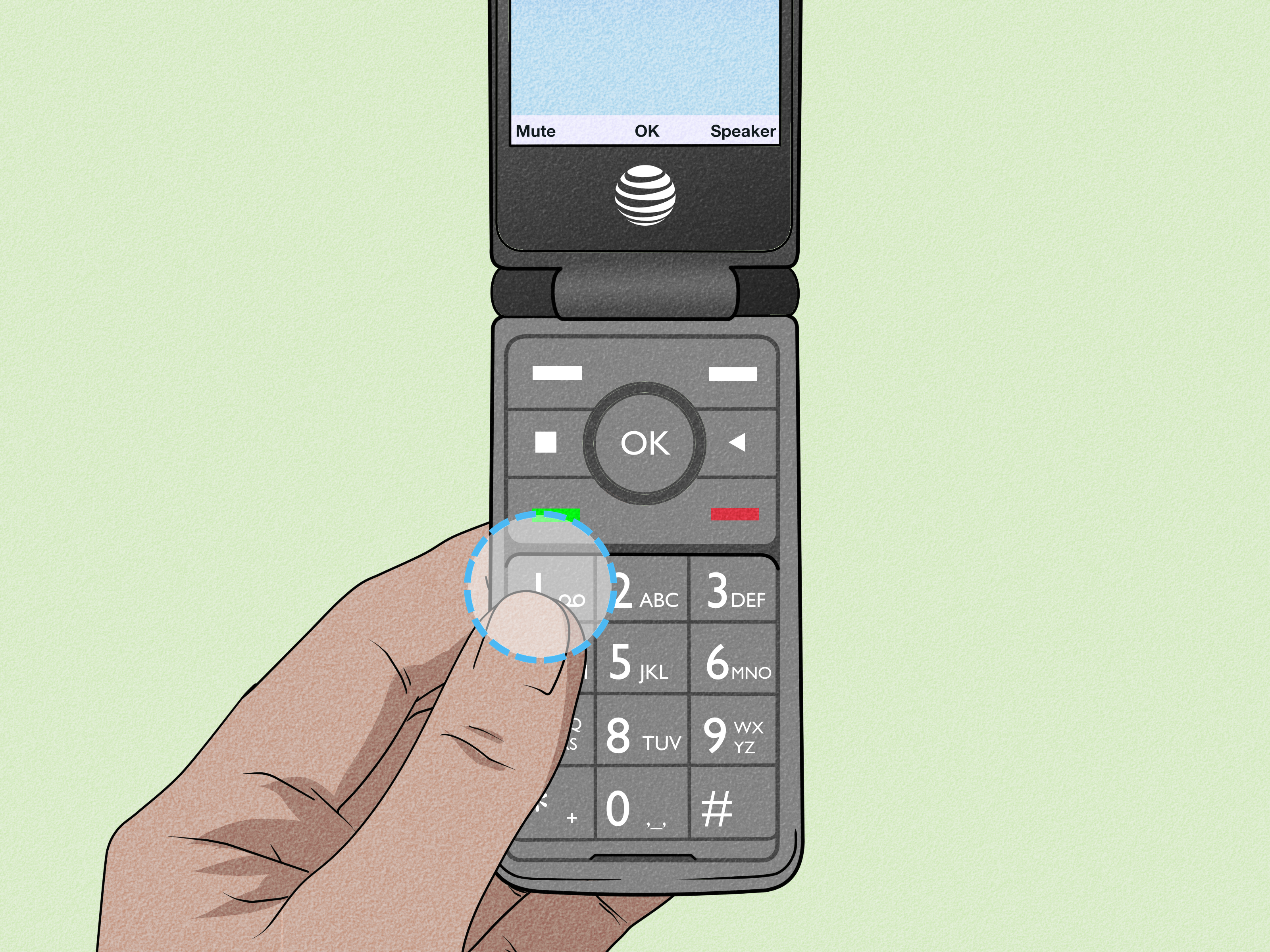
Step 4: Press and Hold the Number 1
Touch and hold the 1 key until the phone begins calling voicemail. The number 1 often has a small voicemail symbol underneath it.
Samsung and Motorola support materials describe holding the 1 key as a standard way to connect to a carrier-managed mailbox. not tap the key quickly. Hold it for a second or two. A quick tap merely enters the number 1, which is not especially useful unless you were planning to call the world’s shortest imaginary phone number.
Step 5: Dial *86 If Holding 1 Does Not Work
If pressing and holding 1 does not connect, enter *86 on the dial pad and tap the Call button. Current Tracfone voicemail guidance for compatible service directs users to call *86 and follow the recorded instructions. me phones automatically store the correct voicemail access number behind the 1 key. Others may lose that setting after a SIM change, software update, factory reset, or number transfer. Dialing *86 bypasses the shortcut and calls the mailbox directly.
Step 6: Select Your Language
When the voicemail system answers, listen for the language options. Choose English or another available language by pressing the requested key, followed by the pound sign if instructed.
Automated menus occasionally change, so follow what you hear rather than assuming every button sequence found in an older manual is still identical.
Step 7: Create a Voicemail Password or PIN
The system will ask you to create a password, passcode, or PIN. Depending on the mailbox platform, the allowed length may vary. Choose a number that is difficult for another person to guess but easy for you to recall.
Avoid weak options such as:
- 1234
- 1111
- Your birth year
- The last four digits of your phone number
- Four identical digits
Your voicemail may contain medical information, appointment details, financial messages, authentication calls, or private conversations. Treat the PIN as a real security credential, not as a decorative speed bump. The FCC also recommends protecting mobile devices and accounts with strong passwords because control of a phone number can expose other personal services. tep 8: Confirm Your New PIN
Enter the PIN again when prompted. The system may ask you to press the pound key after entering it.
Save the PIN in a secure password manager if you regularly forget numeric codes. Do not store it in a phone contact named “Voicemail Password.” That is convenient in roughly the same way that leaving your house key taped to the front door is convenient.
Step 9: Record Your Name
The automated system may ask you to record your name or a short voice signature. Say your first name, full name, or business name clearly, then press the requested key to stop recording.
This recording may be used by the system to identify your mailbox. Speak at a normal volume and keep the phone a few inches from your mouth. Shouting does not improve digital audio; it merely lets everyone in the room know that voicemail setup has become personal.
Step 10: Choose a Default or Custom Greeting
You may be offered a standard greeting or a personalized greeting.
A default greeting generally tells callers that the person they reached is unavailable. It is quick, private, and perfectly acceptable for personal use. A custom greeting sounds more welcoming and helps callers confirm that they reached the correct person.
A simple personal greeting could be:
“Hi, you’ve reached Jordan. I can’t answer right now, so please leave your name, number, and a brief message. I’ll return your call as soon as I can.”
A small-business greeting could be:
“Thank you for calling Pine Street Repairs. We are unable to answer at the moment. Please leave your name, phone number, and a short description of the service you need.”
Step 11: Record and Save Your Greeting
Select the option to record a custom greeting, speak after the tone, and press the indicated key when finished. Listen to the playback before saving it.
Re-record the greeting if there is loud background noise, a long pause, or an accidental comment at the end. Your callers do not need to hear, “Was that recording already?” followed by six seconds of confused breathing.
Keep the message concise. State who the caller reached, explain that you are unavailable, and request the information needed for a return call.
Step 12: Complete the Automated Setup
Continue following the prompts until the system confirms that your voicemail mailbox has been initialized. Do not hang up immediately after recording the greeting. Some systems require a final keypress to save your selection.
Once you hear confirmation, end the call. Your Tracfone voicemail should now be ready to receive messages.
Step 13: Test Your New Voicemail
Call your Tracfone number from a different phone. Do not answer the Tracfone. Wait for the call to transfer to voicemail, listen to the greeting, and leave a short test message.
Then open the Phone app and retrieve the message by holding 1, dialing *86, or opening the Voicemail tab. Testing confirms that:
- Calls are forwarding to the mailbox
- Your greeting was saved
- The PIN works
- New-message notifications appear
- The audio is understandable
Delete the test message afterward unless you enjoy receiving mysterious updates from your past self.
How to Set Up Tracfone Voicemail on an iPhone
On a compatible iPhone, open the Phone app and tap Voicemail. If you see Set Up Now, tap it, create a voicemail password, and choose a Default or Custom greeting. Apple notes that voicemail features and transcription availability depend on the carrier and region. the Voicemail tab does not display a setup button, use the Keypad and call *86. Follow the carrier prompts to create the mailbox first. Restart the iPhone afterward and check the Voicemail tab again.
Visual voicemail, voicemail transcription, and Live Voicemail are related but separate features. Carrier voicemail stores messages on the wireless network. Visual voicemail displays those messages in a list. Live Voicemail can show a real-time transcription while a caller is leaving a message, when the feature is supported and enabled.
How to Set Up Tracfone Voicemail on Android
On most Android phones, open the Phone app, display the dial pad, and hold the number 1. You can also dial *86 manually.
To review Android voicemail settings, open the Phone app and look for:
More options > Settings > Voicemail
Depending on the device, the menu may include Visual Voicemail, notifications, the voicemail service, and an advanced setup section containing the voicemail access number. Google and Motorola documentation confirm that these options can vary by carrier and device. not replace the stored voicemail number with a random number found in an old forum post. If the number appears incorrect, use Tracfone’s device-specific support instructions or contact support.
How to Reset a Forgotten Tracfone Voicemail Password
Using the Tracfone associated with the mailbox, open the Messages app and text:
VOICEMAIL
to:
611611
Tracfone states that this keyword provides instructions for setting up, retrieving, changing, and resetting a voicemail password. You should receive an automated response with the next steps. member that your Tracfone account password and voicemail PIN are not necessarily the same credential. Reset the voicemail PIN specifically when the mailbox rejects your code.
What to Do When Tracfone Voicemail Is Not Working
Restart the Phone
Turn the phone completely off, wait approximately 30 seconds, and turn it back on. A restart forces the device to reconnect to the network and reload carrier settings.
Toggle Airplane Mode
Enable Airplane Mode for 15 to 30 seconds, then disable it. Wait until cellular signal bars return before calling voicemail again.
Call *86 Manually
If holding 1 produces an error, call *86. If *86 works, the mailbox is active and the problem is probably the shortcut stored in the Phone app.
Check the Stored Voicemail Number
On supported Android phones, open Phone > Settings > Voicemail > Advanced Settings > Setup. Review the displayed voicemail number without changing it unless you have verified the correct replacement.
Disable Wi-Fi Calling Temporarily
If voicemail setup repeatedly fails while Wi-Fi Calling is active, turn it off temporarily and retry over the cellular network. You can enable Wi-Fi Calling again after the mailbox is initialized.
Update the Phone Software
Install available operating-system and carrier-setting updates. Updates can correct compatibility problems affecting the Phone app, notifications, visual voicemail, or network registration.
Clear the Phone App Cache on Android
On Android, go to Settings > Apps > Phone > Storage and tap Clear Cache. Avoid clearing all app data unless simpler troubleshooting has failed, because that action may reset app preferences.
Check Whether the Mailbox Is Full
A full mailbox may stop accepting new messages. Call voicemail, listen to old recordings, and delete anything you no longer need. Save important information elsewhere before deleting it.
Wait for a Number Transfer to Finish
After porting a number, voicemail may temporarily route incorrectly or play the previous carrier’s greeting. Test incoming calls periodically and contact Tracfone if the transfer appears complete but the problem continues.
How to Create a Better Voicemail Greeting
A useful greeting should be clear, brief, and appropriate for the people likely to call. Avoid including your address, travel schedule, or other unnecessary personal details.
For personal use, ask callers to leave their name, number, and reason for calling. For business use, include the business name and expected response time. Update seasonal or vacation greetings when they expire. A message that promises you will return on March 12 is less reassuring when the caller hears it in October.
Before saving the recording:
- Turn off televisions, fans, and loud music
- Speak slowly and naturally
- Keep the phone close without covering its microphone
- Avoid jokes that may confuse professional callers
- Play the greeting back at least once
Practical Experiences When Setting Up Tracfone Voicemail
The most important practical lesson is that voicemail setup is usually not difficult; identifying which setup route your phone expects is the part that causes confusion. Two Tracfone users can own phones running the same version of Android and still see slightly different menus because the Phone app, device manufacturer, SIM configuration, and carrier provisioning all influence the interface.
When the number 1 shortcut works, setup can take less than five minutes. The user holds 1, creates a PIN, records a name and greeting, and completes a test call. Problems often begin when someone expects a visual voicemail button before initializing the underlying carrier mailbox. Visual voicemail is a front-end interface. In many cases, the traditional mailbox must exist before the app has anything to display.
Another common experience occurs after moving an existing Tracfone number to a new device. Calls and texts may start working immediately, creating the impression that every service has transferred successfully. Voicemail, however, may still ask for an old PIN, play the wrong greeting, or connect to an uninitialized mailbox. Restarting the phone and calling *86 directly often clarifies whether the issue is the device shortcut or the carrier mailbox.
Password trouble is also more common than people expect. A user may enter the Tracfone account PIN, the phone’s lock-screen code, or the last four digits of the number, assuming one of them must be the voicemail password. They are separate credentials. The fastest recovery path is generally to text VOICEMAIL to 611611 from the affected Tracfone and follow the automated directions.
Greeting quality creates its own small adventure. People frequently record while holding the phone too far away, standing beside a television, or speaking before the tone. The resulting greeting may begin halfway through a sentence or sound as though it was recorded inside a moving dishwasher. Recording in a quiet room and listening to the preview prevents an otherwise functional setup from sounding unprofessional.
Testing from another phone is the step most often skipped and the one that provides the most useful information. A successful connection to *86 proves that the owner can enter the mailbox, but it does not prove that unanswered calls reach it. An outside test verifies call forwarding, the saved greeting, recording quality, message storage, and notification delivery in a single experiment.
Visual voicemail can require extra patience. Its appearance depends on the phone model, software, carrier support, and account configuration. Sometimes the feature becomes available only after the traditional mailbox has been created and the phone has been restarted. On Android, toggling Visual Voicemail off and on may refresh registration. On an iPhone, reopening the Phone app or restarting the device may cause the Voicemail tab to populate.
The final practical lesson is not to change advanced voicemail numbers without verified instructions. Online discussions sometimes recommend copying another user’s access number, but mailbox routing is carrier-specific. An incorrect number can create a second problem while leaving the original one untouched. Use *86, the 611611 help service, device-specific Tracfone tutorials, or official support before editing network-related settings.
Final Thoughts
To set up voicemail on a Tracfone, confirm that the phone is activated, open the Phone app, hold the number 1 or call *86, and follow the prompts to create a secure PIN, record your name, and choose a greeting. Finish by calling your number from another phone and leaving a test message.
Android and iPhone menus may look different, but both ultimately connect to a carrier-managed mailbox. When setup fails, restart the device, verify cellular service, call *86 manually, and use the VOICEMAIL keyword at 611611 for Tracfone-specific assistance.
Note: Voicemail menus and feature availability can differ by Tracfone model, SIM configuration, operating-system version, and account. Follow the prompts heard on your phone when they differ from generic examples.