Setting up a Tekkit server is one of those projects that starts with a noble goal: “I just want to play modded Minecraft with my friends.” Then, about 40 minutes later, you are staring at a server panel, a ZIP file, a Java version menu, and one friend who keeps asking, “Is it up yet?”
The good news is that creating a Tekkit server is not nearly as scary as it looks. Once you understand the moving parts, the process is actually pretty logical. You pick the right Tekkit version, install the server files, match the client and server, tweak a few settings, and launch. After that, you can get to the truly important work of industrializing the landscape and arguing over whose quarry just ate the power grid.
This guide walks through everything you need to know to set up a Tekkit server the right way. It covers hosted panels, manual installs, essential settings, common mistakes, and real-world tips that make the difference between “smooth launch” and “everyone got kicked because Steve installed the wrong pack again.”
What Is a Tekkit Server, Exactly?
A Tekkit server is a modded Minecraft server built to run a Tekkit modpack from the Technic ecosystem. Depending on the pack you choose, you get a version of Minecraft focused on technology, automation, machinery, power systems, transport pipes, factories, and a level of engineering obsession that makes regular survival mode look like arts and crafts.
The phrase Tekkit server can mean a few different things today. Some players still mean classic Tekkit flavors, while others mean newer versions such as Tekkit 2. That matters, because each pack can use a different Minecraft version, a different server file, and different mod behavior. Before you touch a control panel or unzip a file, decide exactly which Tekkit pack you want to run.
Popular Tekkit paths to choose from
- Tekkit: Great for players who want the classic tech-heavy experience with a later-era modded feel.
- Tekkit 2: A nostalgia-driven pack with modern polish for players who want the old-school spirit without feeling trapped in a time capsule.
- Other Technic-based packs: Some server owners use a similar setup process for related Technic packs, but the exact files and versions differ.
Rule number one: every player joining your server must use the same modpack and matching version as the server. A Tekkit server is not a “close enough” situation. Modded Minecraft is wonderfully creative and hilariously unforgiving.
What You Need Before You Start
Before setting up a Tekkit server, gather the basics first. This avoids the classic mistake of opening six tabs, downloading three wrong files, and briefly considering a new hobby.
Your setup checklist
- A copy of Minecraft: Java Edition.
- A Technic Launcher installation on the computer you will use to play.
- The exact Tekkit modpack page for your chosen version.
- The matching server pack or server download files.
- A server host or a self-hosted machine.
- The correct Java version for the pack, which is commonly Java 8 for Tekkit and Tekkit 2 setups.
- Enough RAM for the modpack and number of players.
If you are renting Minecraft hosting, the process is usually easier because many providers give you a one-click installer, file manager, and startup controls. If you are self-hosting, you have more control, but you also get more chances to accidentally break something in a folder with a name like forge-1.12.2-whatever.jar.
Choose Hosted or Self-Hosted
There are two common ways to set up a Tekkit server: use a hosted control panel or do it manually on your own machine. Neither choice is wrong, but they appeal to different types of people.
Hosted Tekkit server setup
This is best for players who want the fastest path from idea to gameplay. A good host handles the machine, network, uptime, and most of the ugly server stuff. You handle the fun stuff, like naming the server something dramatic.
Hosted setups are ideal when:
- You want easier installation and updates.
- You do not want to deal with port forwarding.
- You want friends to join anytime without your PC staying on.
- You prefer a web panel for file management and restarts.
Self-hosted Tekkit server setup
This works well for small private groups, testing, or players who enjoy managing everything themselves. You will typically need to install Java, configure the server files manually, and set up networking so other players can connect from outside your home network.
Self-hosting is ideal when:
- You want maximum control.
- You are comfortable editing files and managing Java.
- You are only running a small server for friends.
- You do not mind handling maintenance and troubleshooting.
How to Set Up a Tekkit Server on a Hosting Panel
For most people, this is the smoothest route. Many hosts support Technic or general modpack installs either through a one-click option or a manual upload workflow.
Step 1: Create the server and stop it first
After ordering or creating the server instance, stop the server before installing anything. This is basic modded-server hygiene. Uploading files while the server is running is like changing a car tire while driving on the highway: technically memorable, but not recommended.
Step 2: Check for a one-click Tekkit installer
Some hosts let you search for Tekkit or Tekkit 2 directly in the installer or jar menu. If your panel supports that, use it. Pick the exact pack and version you want, install it, and let the panel finish the work.
This is the easy-button method, and there is no shame in pressing the easy button. Civilization was built on easy buttons.
Step 3: Use the manual install method if needed
If the pack is not available in your panel’s installer, go to the Technic modpack page and download the Server Download file for the Tekkit pack you want. Then:
- Extract the ZIP file on your computer.
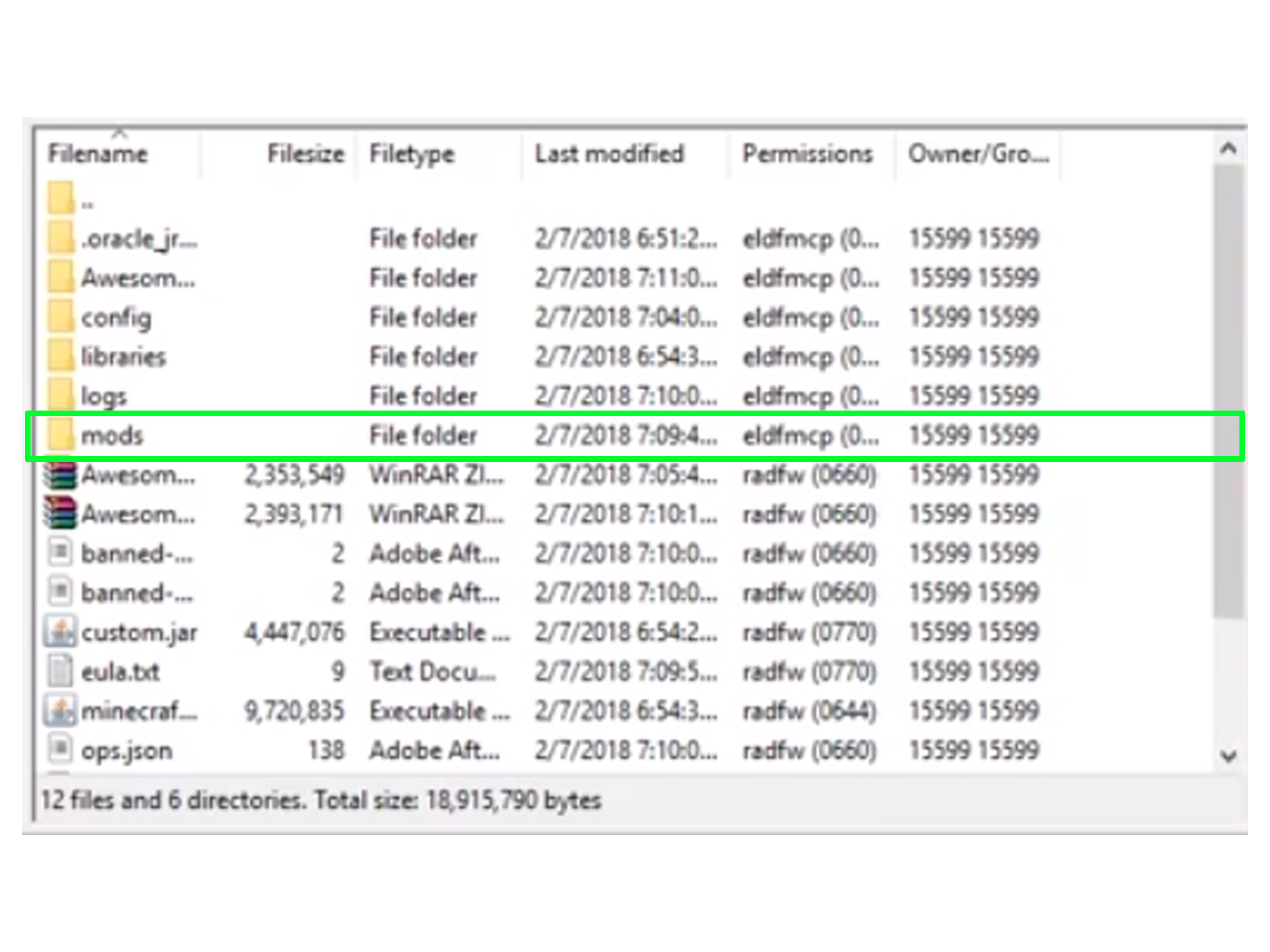
- Open your host’s file manager or connect through SFTP/FTP.
- Upload the extracted server files to the server.
- Delete or replace old files if this is a fresh conversion.
- Extract the uploaded archive if your host requires server-side extraction.
Some hosts also recommend generating a new world name after uploading fresh modpack files. That can help avoid weird behavior from an old incompatible world. Translation: do not force your brand-new Tekkit server to inherit a cursed vanilla map from 2022.
Step 4: Select the correct server JAR and Java version
This is one of the most important steps in the entire process. Your server must launch with the right Forge or modded server JAR included in the Tekkit server files. On many panels, that means choosing the correct startup JAR from a dropdown.
For Tekkit and Tekkit 2 style installs, Java 8 is often the safe and expected choice. If your server tries to boot with the wrong Java version, it may fail to start, crash during launch, or greet you with error messages written in the ancient dialect of Programmer Panic.
Step 5: Start the server and let it finish first boot
Once the files, Java version, and startup JAR are correct, start the server. The first boot can take longer than later launches because the server may generate files, build a world, and initialize mods. Be patient. This is normal. The server is just waking up and putting on 157 different modded boots.
How to Set Up a Tekkit Server Manually on Your Own Machine
If you want to self-host a Tekkit server, the overall logic is similar. You just do more of the work yourself.
Step 1: Install the right Java version
Install the Java version that fits your chosen Tekkit pack. For many classic Tekkit-family setups, Java 8 remains the safest bet. Use a 64-bit installation if possible so you can allocate enough memory.
Step 2: Download the Tekkit server files
Go to the Technic page for your chosen Tekkit pack and download the server pack. Create a dedicated folder for the server on your computer and extract everything there. Keep it organized. Your future self will thank you when you are not hunting for the correct JAR inside a folder called new folder (7).
Step 3: Launch the server once
Run the included modded server JAR once so the server can generate its base files. Depending on the pack, you may use a startup script or a direct Java launch command. After the first run, accept the EULA if prompted.
Step 4: Adjust memory allocation
Tekkit is not a lightweight vanilla server. It needs breathing room. Your startup script should allocate enough RAM for the server to run smoothly, especially if multiple players will be online at once or building industrial monstrosities powered by half the known universe.
A simple example looks like this:
That example is just a model. The exact JAR name and memory values depend on your pack and hardware.
Step 5: Port forward if players are joining from outside your network
For self-hosting, Minecraft Java’s default server port is typically 25565. If you want people outside your home network to connect, you usually need to port forward that port in your router and point it to the machine hosting the server.
If that sentence made you blink slowly, hosted Minecraft servers may be your true destiny.
Install the Tekkit Client So You Can Join
Running the server is only half the job. You also need the matching client on your own computer.
- Download and install the Technic Launcher.
- Sign in with the account that owns Minecraft.
- Search for your exact Tekkit pack, such as Tekkit or Tekkit 2.
- Click Install.
- Launch the pack after the files finish downloading.
- Go to Multiplayer and add your server IP or hostname.
Client and server versions must match. Same modpack. Same version. Same expectations. This is not the place for “close enough” energy.
Best Server Settings to Change First
Once your Tekkit server is online, edit the basics in server.properties or your host’s control panel settings. This file controls core server behavior, and restarting the server after changes is usually required.
Smart first changes
- MOTD: Set a fun server name players can recognize.
- max-players: Match this to your hardware, not your optimism.
- white-list: Turn this on for a private friend group.
- pvp: Disable it if your group cannot resist “accidental” wrench violence.
- view-distance: Lower it if performance gets ugly.
- online-mode: Leave authentication on for normal public or private use.
- level-name: Use a fresh world when changing packs.
Example starter settings:
How to Add a Whitelist and Protect Your Server
A whitelist is one of the simplest ways to keep your Tekkit server from becoming a public science fair run by raccoons. When enabled, only approved players can join.
You can often enable it through the panel or with console commands like these:
Also be careful with operator permissions. OP players can bypass some restrictions and have major control over the server. Only give that power to people you trust not to turn a small disagreement over copper cables into a constitutional crisis.
Common Tekkit Server Problems and Fixes
Problem: The server will not start
Usually caused by: wrong Java version, wrong JAR selected, missing files, or incomplete upload.
Fix: verify the startup JAR, confirm Java 8 for older Tekkit-family packs, and re-upload the server files if anything looks incomplete.
Problem: Players get kicked on join
Usually caused by: mismatched client and server versions.
Fix: make sure every player installed the exact same Tekkit pack and version through Technic Launcher.
Problem: World generation looks broken after switching packs
Usually caused by: reusing an old world.
Fix: create a fresh world or upload a world made for that exact pack.
Problem: Lag turns your factory into a slideshow
Usually caused by: too many machines, chunk loaders, pipes, quarries, or not enough RAM.
Fix: reduce view distance, limit runaway machine builds, add more RAM if available, and keep player count realistic.
Problem: Updating breaks everything
Usually caused by: updating without a backup.
Fix: always back up your world and important files before changing jars, pack versions, or modpack files. Modded servers are amazing, but they absolutely can turn one tiny update into a history lesson.
Final Tips for a Smooth Tekkit Server
- Pick the exact Tekkit pack before you build anything around it.
- Use a fresh world for new installs whenever possible.
- Match the server pack, client pack, and Java version carefully.
- Back up before updates, migrations, or “just testing one thing.”
- Use a whitelist for private groups.
- Do not invite 20 players to a machine-heavy server that can barely handle six.
- Document your settings so you remember what changed when problems appear.
The truth is that setting up a Tekkit server is less about wizardry and more about matching the right files in the right places. Once those pieces line up, the rest becomes routine. Then the real adventure starts: power grids, mining lasers, automation loops, moon missions, and one suspicious friend who definitely said he was “only building a small workshop.”
Real Experiences From Running a Tekkit Server
The first time you launch a Tekkit server successfully, it feels a little like opening a garage door and discovering you accidentally built a science lab. The world loads, your friends log in, and for about 12 minutes everyone behaves like normal Minecraft players. Then someone starts talking about ore processing efficiency, somebody else wants a quarry immediately, and the peaceful little starter base turns into an industrial district with cables running through the kitchen.
One of the funniest things about running a Tekkit server is how quickly player personalities show up in their builds. The cautious player makes a tidy workshop with labeled chests and backup generators. The chaos goblin puts a reactor near the front door and says, “Trust me.” The explorer disappears for three hours and comes back with rare resources, no food, and a story that sounds made up. A Tekkit server does not just host a game. It becomes a tiny economy, an engineering challenge, and occasionally a group therapy session.
Performance is usually where experience teaches the biggest lessons. On paper, everything sounds manageable: a few machines, some pipes, a quarry or two. In practice, Tekkit players are basically powered by ambition and poor restraint. The moment the server seems stable, someone automates half the ore chain, someone else chunk-loads an outpost, and suddenly the map is humming like a toaster possessed by a physics degree. That is why smart server owners learn to watch RAM usage, keep backups, and say brave things like, “No, we do not need six quarries running overnight.”
Another very real experience is discovering that modded servers reward preparation more than heroics. The most successful launches are rarely the flashy ones. They are the boringly sensible ones. The owner tests the pack first, confirms the Java version, sets up the whitelist, creates a fresh world, and tells everyone exactly which launcher version to install. It is not glamorous, but it works. The chaotic launches, meanwhile, usually begin with someone saying, “I think I downloaded the right one,” which is server-admin language for “prepare for confusion.”
There is also something uniquely satisfying about a Tekkit server once it settles into a rhythm. The early scramble fades. The machines stop feeling overwhelming. Players specialize. One person becomes the power expert. One handles storage and sorting. One turns into the unofficial expedition department. By that point, the server starts to feel less like a technical project and more like a living world shaped by everyone’s bad ideas and occasional genius.
Maybe that is the real appeal of setting up a Tekkit server. It is not just about installing files or choosing a host. It is about creating the stage for a certain kind of multiplayer chaos: the fun kind. The kind where a machine line finally works, the moon trip actually happens, and the base somehow survives another weekend. Sure, there will be crashes, restarts, version mismatches, and at least one argument about pipes. But when the system clicks, a Tekkit server delivers the kind of multiplayer story people remember long after the world save is backed up and archived.
Conclusion
If you have been wondering how to set up a Tekkit server, the path is simple once you break it down. Choose the exact Tekkit version, install the matching server files, use the correct Java version, configure the startup JAR, and make sure every player joins with the same client pack. Add a whitelist, tweak your core server settings, and make backups before updates. Do that, and you will spend far less time fixing startup errors and far more time building the beautifully overcomplicated machine empire you came for.