Playing Steam games on a phone used to sound like something a wizard would say right before your Wi-Fi exploded. Today, it is surprisingly normal. With Steam Link, cloud gaming services, mobile controllers, and a decent network, your phone can become a tiny portal into your PC game library. No, your phone does not magically install a 120GB AAA game and start sweating pixels. In most cases, your gaming PC or a cloud server does the heavy lifting, while your phone displays the stream and sends your button presses back.
The main keyword here is simple: how to play Steam games on a phone. The answer is a little bigger. You can use the official Steam Link app, try GeForce NOW for supported Steam titles, use Moonlight with Sunshine for advanced home streaming, or choose PC remote-play apps like Parsec or Razer PC Remote Play. Each method has strengths, weaknesses, and a slightly different tolerance for your router’s mood swings.
This guide explains the best ways to stream Steam games to Android and iPhone, how to set up Steam Link, which controllers work best, how to reduce input lag, and what to do when your phone turns into a slideshow with buttons.
Can You Really Play Steam Games on a Phone?
Yes, but with one important clarification: most Steam games are PC games, not native Android or iOS apps. When you use Steam Link, the game runs on your Windows, macOS, or Linux computer. Your phone receives a live video stream, and your taps or controller inputs are sent back to the PC. Think of it like FaceTiming your gaming computer, except the computer is fighting dragons, driving race cars, or getting destroyed in a boss fight while you pretend everything is under control.
The most beginner-friendly solution is Steam Link, Valve’s official app for streaming your Steam library to a mobile device. It is available for Android, iPhone, and iPad. The basic idea is simple: install Steam Link on your phone, keep Steam running on your computer, pair both devices, and start playing.
However, Steam Link is not the only option. If you want to play away from home, do not own a powerful PC, or want a different streaming setup, services like NVIDIA GeForce NOW, Moonlight, Sunshine, and Parsec may fit better. The “best” method depends on your hardware, internet speed, game type, and patience level.
Best Ways to Play Steam Games on a Phone
1. Steam Link: Best Free Official Method
Steam Link is the easiest starting point because it is official, free, and built specifically for Steam Remote Play. It lets you stream games from a computer running Steam to your Android phone, iPhone, iPad, tablet, or compatible TV device. For most players, this should be the first method to try.
Steam Link works especially well when your gaming PC is connected to your router with Ethernet and your phone is connected to a strong 5 GHz Wi-Fi network. You can use on-screen touch controls, but a Bluetooth or USB-C mobile controller is strongly recommended. Touch controls are fine for slow games, menus, and “let me just check something quickly” moments. For shooters, racing games, platformers, and action RPGs, a controller is the difference between gaming and finger gymnastics.
2. GeForce NOW: Best Cloud Option for Supported Steam Games
NVIDIA GeForce NOW is a cloud gaming service that can connect with game stores such as Steam, Epic Games, and Xbox. Instead of using your home PC, you stream from NVIDIA’s cloud servers. This is useful if your computer is old, underpowered, or currently being used by someone who insists their spreadsheet is “important.”
The catch is that not every Steam game is available on GeForce NOW. Games must be supported by the service, and some may require syncing your Steam account or launching through a cloud session. Still, for compatible games, GeForce NOW can be a very convenient way to play PC games on Android, iPhone, iPad, Chromebook, smart TVs, and browsers.
3. Moonlight and Sunshine: Best for Advanced Low-Latency Streaming
Moonlight is an open-source game streaming client, while Sunshine is a self-hosted streaming host that runs on your gaming PC. Together, they offer a powerful alternative to Steam Link, especially for users who like tweaking settings. Moonlight and Sunshine can stream more than Steam games because they can broadcast your desktop or specific applications.
This method is great for tech-comfortable players who want more control over bitrate, resolution, frame rate, codec settings, and remote access. It is not as plug-and-play as Steam Link, but when configured well, it can feel extremely smooth. It is the “I own three Ethernet cables and know where all of them are” option.
4. Parsec: Best for Remote Desktop and Co-Op Flexibility
Parsec is another remote-access tool designed for low-latency streaming. It can be used for games, creative work, and remote desktop access. On Android, it lets you connect to your PC and play through a stream. Parsec is especially popular with users who want a flexible remote desktop experience or want to play local multiplayer games with friends over the internet.
Parsec may not be the simplest path for iPhone users, and mobile performance depends heavily on your device and connection. But for Android users and people who want more than Steam-only streaming, it is worth knowing.
5. Razer PC Remote Play and Mobile Controller Apps
Razer PC Remote Play is designed to stream PC games to iOS and Android devices and integrates with Razer’s mobile gaming ecosystem. It supports major PC game platforms, including Steam, and aims to simplify the streaming experience by automatically adjusting resolution and refresh rate for mobile displays.
This type of app makes the most sense if you already use a mobile controller such as the Razer Kishi series or want a polished controller-first mobile setup. It is another reminder that phone gaming has moved far beyond “tap the glass until something happens.”
How to Set Up Steam Link on Android or iPhone
Steam Link setup is refreshingly simple. You need a phone, a gaming computer with Steam installed, your Steam account, and a stable network. A controller is optional but highly recommended.
Step 1: Install Steam Link
Download the Steam Link app from Google Play on Android or the App Store on iPhone and iPad. Make sure you are installing Valve’s official app, not a mysterious knockoff with three downloads and a logo that looks like it was drawn during lunch.
Step 2: Open Steam on Your Computer
Turn on your PC or Mac and open Steam. Log in to the same Steam account that owns your games. Your computer must stay powered on while you stream. Steam Link is powerful, but it cannot wake a fully shut-down PC from another dimension.
Step 3: Connect Both Devices to the Same Network
For the smoothest first-time setup, connect your phone and computer to the same local network. Ideally, your PC should use Ethernet, and your phone should use 5 GHz Wi-Fi. If your router has separate 2.4 GHz and 5 GHz network names, choose 5 GHz for the phone. The 2.4 GHz band is better for range but usually worse for game streaming because it is more crowded.
Step 4: Pair Your Phone with Your Computer
Open Steam Link on your phone. The app should scan for computers running Steam. Select your PC, then enter the PIN shown on your phone into Steam on your computer. Once paired, Steam Link will run a network test and confirm the connection quality.
Step 5: Connect a Controller
You can use Steam Link’s touch controls, but pairing a controller makes the experience much better. Xbox Wireless Controllers, PlayStation DualSense or DualShock controllers, MFi controllers, Backbone One, Razer Kishi, and other mobile gamepads may work depending on your phone and operating system. On iPhone, controller pairing is handled through Bluetooth settings. On Android, Bluetooth pairing works similarly, while USB-C controllers can connect directly if supported.
Step 6: Start Playing
Tap “Start Playing” in Steam Link. Steam will open in Big Picture-style mode, making your library easier to navigate on a small screen. Choose a game and launch it. If the first game you test is a tiny-text strategy title with 43 menus, do not blame Steam Link. Some PC games were simply not born to live on a phone screen.
Best Steam Games to Play on a Phone
Not every Steam game is equally comfortable on mobile. The best games for Steam Link usually have controller support, readable UI, and gameplay that does not punish tiny delays. A cozy farming sim, turn-based RPG, visual novel, platformer, racing game, or controller-friendly action game often works beautifully.
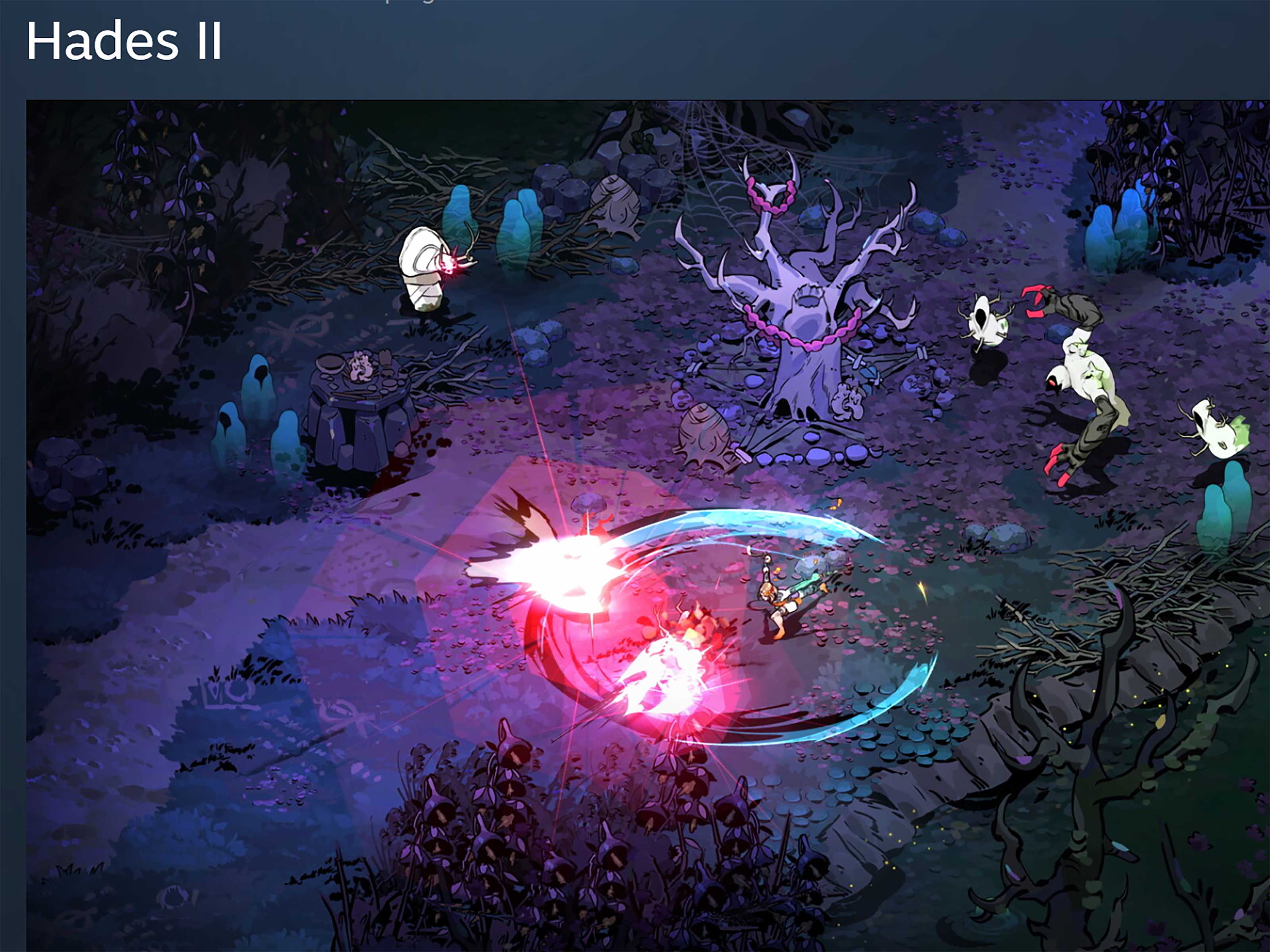
Games like Stardew Valley, Hades, Dead Cells, Portal 2, Vampire Survivors, Slay the Spire, Hollow Knight, and many JRPGs are strong candidates. They either work well with controllers or do not require ultra-fast mouse precision. Meanwhile, competitive shooters, complex RTS games, and MMORPGs with many hotkeys can be awkward unless you create custom controls or use a tablet with a keyboard and mouse.
For best results, check whether the game has full controller support in Steam. If it does, your phone session will likely be smoother. If a game expects a mouse, keyboard, and the hand span of a concert pianist, prepare for extra setup.
How to Reduce Lag When Streaming Steam Games
Lag is the villain of game streaming. It appears when your input takes too long to reach the computer or when the video stream struggles to reach your phone. The good news is that most lag problems can be improved with a few practical changes.
Use Ethernet for the Gaming PC
The single best improvement is connecting your host computer to the router with an Ethernet cable. This reduces wireless interference and gives the stream a more stable path. Your phone can stay on Wi-Fi, but the PC should ideally be wired.
Use 5 GHz Wi-Fi or Wi-Fi 6
Use a 5 GHz network when possible. If you have a newer router and phone, Wi-Fi 6 or Wi-Fi 6E can help, especially in crowded apartments. Keep your phone near the router and avoid streaming from the room where Wi-Fi dreams go to retire.
Lower Resolution and Bitrate
If the stream stutters, lower the resolution from 1080p to 720p or reduce the bitrate in Steam Link settings. A slightly softer image is much better than a beautiful slideshow. For a phone screen, 720p can still look surprisingly good.
Close Background Downloads
Game streaming hates competition. Pause large downloads, cloud backups, video uploads, torrents, and 4K streaming on the same network. If someone starts downloading a massive update during your boss fight, that boss just gained a new special move: buffering.
Use a Controller with a Stable Connection
Bluetooth controllers are convenient, but some add a little latency. USB-C controllers such as Backbone One or Razer Kishi-style devices may feel more direct because they plug into the phone. For casual games, Bluetooth is fine. For fast action, a wired mobile controller can feel better.
Steam Link Touch Controls: Useful, but Not Magic
Steam Link includes customizable touch controls, which means you can create layouts, move buttons, resize controls, and adjust the interface for different games. This is excellent for slower titles or games with simple inputs. You can build a layout for a turn-based game, a point-and-click adventure, or a visual novel without carrying a controller.
Still, touch controls have limits. Your thumbs cover part of the screen, virtual buttons have no physical feedback, and camera control can feel slippery. For games that need precise movement, aiming, or quick dodging, a controller is the smarter choice. Touch controls are a backup plan, not a replacement for every gamepad ever made.
Can You Play Steam Games on a Phone Away from Home?
Yes, but the experience depends on your setup. Steam Remote Play can work beyond your home network after pairing, but performance depends on your home upload speed, mobile download speed, router configuration, and network stability. Cloud options like GeForce NOW may be easier for travel because the game streams from NVIDIA’s servers instead of your home PC.
If you want to play away from home, test everything before you leave. Make sure your PC is awake, Steam is running, Remote Play is enabled, and your power settings will not put the computer to sleep after ten minutes. Nothing ruins mobile gaming like realizing your gaming PC is peacefully napping 20 miles away.
Steam Link vs. GeForce NOW vs. Moonlight: Which Should You Use?
Use Steam Link if you already own a gaming PC and mostly play at home. It is free, official, simple, and good enough for many players. Use GeForce NOW if you want cloud gaming, have supported Steam titles, or do not want your own PC to render the game. Use Moonlight with Sunshine if you want advanced control, low-latency tuning, and the flexibility to stream more than Steam. Use Parsec if you want a broader remote desktop and gaming tool.
The casual answer is Steam Link. The traveler answer is GeForce NOW. The tinkerer answer is Moonlight and Sunshine. The remote-desktop power-user answer is Parsec. The “I bought a controller and now I need excuses to use it” answer is all of them.
Common Problems and Fixes
Steam Link Cannot Find Your Computer
Make sure Steam is open on your computer and both devices are on the same network for the initial pairing. Check firewall settings if your PC does not appear. Restarting Steam, the Steam Link app, and your router can also help.
The Game Looks Blurry
Blurry video usually means Steam Link is lowering quality to keep the stream stable. Move closer to the router, use 5 GHz Wi-Fi, wire your PC with Ethernet, or increase the streaming quality if your network can handle it.
The Controls Feel Delayed
Input delay can come from Wi-Fi congestion, Bluetooth latency, high graphics settings, or an overloaded PC. Try lowering resolution, closing background apps, using a wired controller, and enabling performance-friendly streaming settings.
The Text Is Too Small
This is common with PC games on phones. Lowering in-game resolution, increasing UI scale, or choosing games with controller-friendly interfaces can help. Some games are better on tablets than phones because menus need breathing room.
Real-World Experience: What Playing Steam Games on a Phone Actually Feels Like
The first thing you notice when playing Steam games on a phone is how strange it feelsin a good way. Launching a full PC game on a device that normally handles messages, photos, and “where did I park?” searches feels like smuggling a gaming laptop into your pocket. The second thing you notice is that your network matters more than your enthusiasm. A great connection makes Steam Link feel almost local. A bad connection makes even a peaceful farming game feel like it is being streamed through a potato wearing sunglasses.
In practical use, slower and controller-friendly games are the easiest wins. A game like Slay the Spire feels natural because it does not demand twitch reflexes. Stardew Valley works nicely because the pace is relaxed, and the small screen does not ruin the experience. Hades and Dead Cells can feel excellent with a good controller and strong Wi-Fi, although you will notice lag quickly if the network is unstable. Meanwhile, games with tiny interface elements or heavy keyboard shortcuts can become comedy shows. You may technically be playing, but you are also squinting like a detective reading a secret contract.
A mobile controller changes everything. With touch controls, Steam Link feels clever but temporary. With a Backbone-style or Razer Kishi-style controller, the phone starts to feel like a real handheld gaming device. The physical sticks and buttons make movement, camera control, and combat far more comfortable. Bluetooth Xbox and PlayStation controllers also work well, especially if you use a phone clip or prop the phone on a stand. The only downside is portability. A phone plus controller is still smaller than a laptop, but it is not exactly invisible in a pocket unless your pocket was designed by a cargo-pants engineer.
Battery life is another real-world factor. Streaming games uses Wi-Fi, screen brightness, controller connectivity, and video decoding, so your phone battery can drain faster than during ordinary browsing. Long sessions are better with pass-through charging or a nearby power bank. Heat can also build up, especially if your phone is in a thick case. Removing the case during longer sessions may help keep things comfortable.
For travel, GeForce NOW often feels simpler than streaming from a home PC, assuming your game is supported. You do not need to leave your computer on, and you avoid home upload-speed problems. But Steam Link remains fantastic around the house. Playing from bed, the couch, the balcony, or the room where your desktop PC does not live is the real magic. It turns your existing Steam library into something more flexible without making you buy every game again.
The best experience comes from matching the game to the device. Use your phone for platformers, roguelikes, racing games, cozy sims, turn-based games, and controller-ready adventures. Save complex strategy games, competitive shooters, and mod-heavy setups for your full PC unless you enjoy troubleshooting as a hobby. When everything lines upa wired PC, strong 5 GHz Wi-Fi, a good controller, and the right gameplaying Steam games on a phone feels less like a trick and more like the future quietly working as intended.
Conclusion
Learning how to play Steam games on a phone is mostly about choosing the right streaming method. Steam Link is the best first step for most people because it is free, official, and easy to set up. GeForce NOW is excellent for cloud gaming when your Steam games are supported. Moonlight and Sunshine are powerful for advanced users who want more control, while Parsec and Razer PC Remote Play offer additional ways to access PC games from mobile devices.
The secret is not just the app. It is the whole setup: Ethernet for your PC, strong 5 GHz Wi-Fi for your phone, a good controller, and games that make sense on a small screen. Do that, and your phone becomes more than a phone. It becomes a portable Steam machineminus the fan noise, desk chair, and dramatic cable jungle.