If you are still using Windows XP, first of all: wow. That computer has seen things. Second: changing the language on XP is possible, but the phrase change the language is sneakier than it sounds. On Windows XP, you might mean the keyboard language, the typing language, the regional format, or the language shown in some system menus. Those are not always the same setting, because XP loves a little drama.
This guide breaks the process into seven clear steps so you can change the language of your computer on Windows XP without feeling like you are decoding an ancient stone tablet. Whether you want to type in Spanish, switch to a French keyboard layout, use an East Asian input method, or make older non-Unicode programs behave, this walkthrough will help you do it the practical way.
One quick reality check before we begin: on many Windows XP systems, especially XP Home Edition, you can change input language, keyboard layout, and regional settings fairly easily, but you may not be able to fully change the Windows interface language for all menus and dialog boxes unless your edition supports a Multilingual User Interface pack. In plain English, that means your keyboard can become bilingual long before the whole operating system does.
Before You Start: Know Which “Language” You Want to Change
To save yourself from clicking around like a caffeinated squirrel, decide which of these you actually want:
- Input language: the language you type in.
- Keyboard layout: how keys behave, such as US, UK, French, or US-International.
- Regional format: how dates, times, numbers, and currency appear.
- Language for non-Unicode programs: a system setting that helps older apps display text correctly.
- Display language: the language used in some Windows menus and dialog boxes, when supported.
Once you know which one you want, the steps below become much easier. Think of it this way: if your problem is “I cannot type accented letters,” you probably need a new keyboard layout. If your problem is “this old program shows weird boxes instead of characters,” you probably need to change the language for non-Unicode programs. If your problem is “I want all of Windows XP to become English,” that is the trickiest request of the bunch.
How to Change the Language of Your Computer on Windows XP in 7 Steps
Step 1: Open Regional and Language Options
Click Start, then open Control Panel. From there, select Regional and Language Options. If your Control Panel is in Category View, you may first need to click something like Date, Time, Language, and Regional Options.
This is your home base for nearly every language-related setting in Windows XP. If XP were a house, this would be the room where all the keyboards, date formats, and surprise compatibility issues are hiding behind the curtains.
Step 2: Install Extra Language Support if Needed
Click the Languages tab. Here you may see checkboxes for extra language support, such as:
- Install files for complex script and right-to-left languages
- Install files for East Asian languages
If you want to use languages such as Arabic, Hebrew, Thai, Chinese, Japanese, or Korean, check the box that applies. Windows XP may ask for the original installation CD or setup files, and it may also ask you to restart the computer after installation.
This is one of the most important parts of the process. A lot of people skip it, then wonder why the language they want does not appear properly later. XP is basically saying, “I can do that, but I need my old files first.” Fair enough.
If you only need a standard Latin keyboard language such as English, Spanish, French, or German, you may not need to install extra language files. But if you are working with East Asian input methods or complex scripts, do this step first so the later steps do not turn into a scavenger hunt.
Step 3: Add the New Input Language and Keyboard Layout
Still on the Languages tab, click Details under Text services and input languages. A new window will open.
Click Add. You can now choose:
- the Input language
- the Keyboard layout/IME
For example:
- If you want to type in American English, choose English (United States) and the US keyboard.
- If you want easier accent marks, choose English (United States) with United States-International.
- If you want British typing rules, choose English (United Kingdom) with the United Kingdom layout.
- If you want Japanese or Chinese input, choose the matching language and its IME.
Then click OK. Your new language should now appear in the list of installed services.
This step is where most users actually solve their problem. In many cases, they do not need to “change Windows XP language” in the dramatic, whole-system sense. They just need to add the right typing language and keyboard layout. That is the difference between fixing the issue in five minutes and spending an entire afternoon threatening a beige desktop tower.
Step 4: Set the Default Input Language
In the same Text Services and Input Languages window, look for the drop-down menu labeled Default input language. Choose the language and keyboard combination you want Windows XP to use automatically when programs start.
This matters more than people think. If the wrong default is selected, you may keep getting the wrong keyboard layout every time you open a new program. Suddenly your quotation marks move, the at-sign goes on vacation, and your password feels personally offended.
If you use more than one language regularly, keep both installed and choose the one you use most often as the default. That way, you get convenience without turning every login screen into a guessing game.
Step 5: Turn On the Language Bar and Switching Options
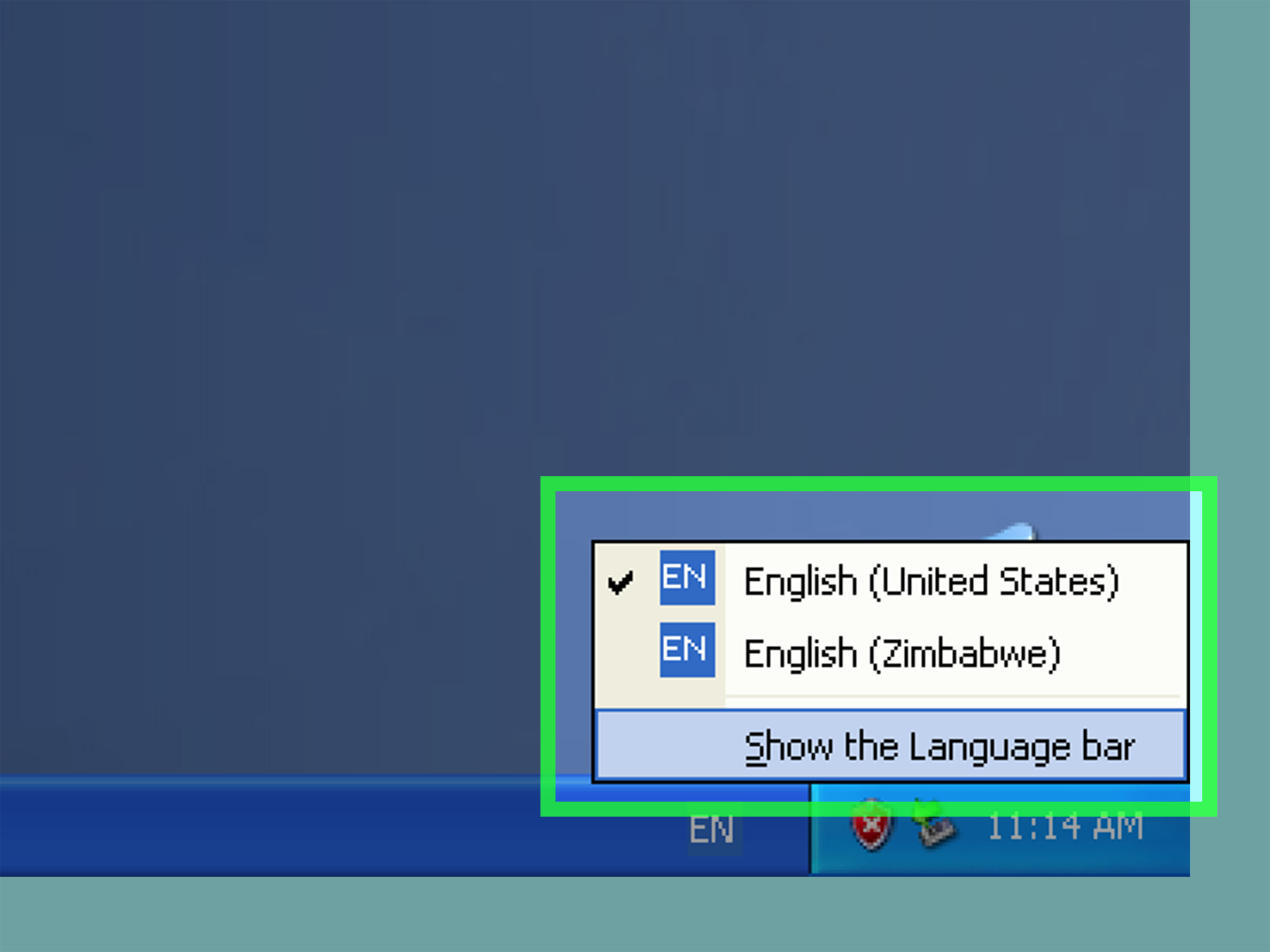
Click Language Bar under Preferences. Make sure the Language Bar is enabled if you want to switch between languages while you work. This usually places an indicator near the taskbar clock, letting you move between installed input languages more easily.
You can also review key settings for switching languages. On systems with multiple installed input languages, this is incredibly useful. It means you do not need to go back into Control Panel every time you want to type one email in English and one sentence in another language.
For multilingual users, the Language Bar is the unsung hero of Windows XP. It is not flashy. It will not impress your neighbors. But it saves you from typing half a paragraph before realizing your keyboard is still set to the wrong layout.
Step 6: Adjust Regional Formats and Older Program Support
Now go back to Regional and Language Options and look at the other tabs.
Regional Options
Use this tab to change how Windows XP displays:
- dates
- time
- currency
- numbers
- location-based formats
For example, even if your keyboard is set to English, you can still choose regional formatting that matches the United Kingdom, Canada, or another country. That affects whether your date looks like 04/05/2006 or 5/4/2006, which is useful because nothing spices up computer life quite like a completely avoidable date misunderstanding.
Advanced
Open the Advanced tab if an older program is displaying the wrong characters. Here you can change the Language for non-Unicode programs. This setting is especially important for legacy software built before Unicode became common.
Why does this matter? Because some old applications do not understand modern universal character handling. They expect the computer to behave like a system localized for one specific language. If that setting is wrong, you may see scrambled text, missing accents, or characters that look like your computer sneezed into the dialog box.
After changing this setting, Windows XP usually requires a restart. Also note that changing the language for non-Unicode programs does not automatically change the language used in Windows menus and dialog boxes.
Step 7: Apply Changes, Restart, and Test Everything
Click Apply, then OK. If Windows XP asks you to restart, do it. Yes, really. XP is from an era when “Please restart your computer” was not a polite suggestion. It was a lifestyle.
After the restart, test the settings in a few places:
- Open Notepad and type a few lines.
- Switch between installed languages using the Language Bar.
- Check whether symbols and accent marks work correctly.
- Open any old program that previously displayed garbled text.
- Look at date, time, and number formatting in Control Panel or Explorer.
If everything works, congratulations: your Windows XP language settings are now behaving themselves. That is no small victory.
Can You Change the Full Windows XP Display Language?
Sometimes yes, sometimes no, and that is the part that frustrates people.
If your goal is to change the actual language of Windows XP menus and dialog boxes, the answer depends on your edition and what language resources are available. On many systems, especially Windows XP Home Edition, you cannot simply flip the whole operating system from one fully localized language to another through ordinary settings.
In practical terms, here is the simple version:
- XP Home Edition: full interface language switching is generally not supported the way users hope.
- XP Professional or Tablet PC Edition: some systems supported MUI packs for menus and dialog boxes.
- Fully localized installations: often the cleanest way to get a complete English, French, or other-language Windows interface was to install that language version of XP directly.
So if you have a German or Japanese copy of Windows XP and want the entire interface to become English, adding an English keyboard layout is not the same thing. It helps you type in English, but it does not magically replace every system string in the operating system.
Common Problems and Easy Fixes
The language I want is missing
Go back to the Languages tab and install the necessary support files. Some languages and IMEs do not appear properly until that support is installed.
My keyboard types the wrong symbols
You likely selected the wrong keyboard layout. For example, English language with a French keyboard layout will still feel wrong if your physical keyboard is actually US. Match the layout to the hardware you are using.
Old software shows gibberish
Use the Advanced tab to change the language for non-Unicode programs. This setting affects older applications much more than modern typing tools do.
I changed the language, but Windows menus are still not in English
You probably changed the input language, not the display language. That is normal on XP. On many installations, especially XP Home, a full interface-language change is not available through standard Control Panel settings.
The Language Bar is gone
Return to Text Services and Input Languages, open Language Bar, and turn it back on. Also make sure at least two input languages are installed if you want a visible switcher on the taskbar.
Specific Examples That Make This Easier
Example 1: You want to type in Spanish on an English XP computer
Add Spanish as the input language, choose the matching keyboard layout, set it as default if needed, and use the Language Bar to switch when typing.
Example 2: You want English punctuation with easy accent marks
Use English (United States) with the United States-International layout. This is popular with bilingual users who type mostly in English but occasionally need characters like á, é, ñ, or ü.
Example 3: You use an old Japanese application on an English XP machine
Install East Asian language files, add the Japanese IME, and, if the program still displays broken text, change the language for non-Unicode programs to Japanese and restart.
Example 4: Your computer came in another language and you want everything in English
First check your XP edition. If it is XP Home, a full interface switch may not be supported. If it is XP Professional and compatible MUI resources are available, you may have more options. Otherwise, a proper English installation is often the cleanest solution.
Conclusion
Changing the language of your computer in Windows XP is absolutely doable, but it works best when you know which setting you actually need. In many situations, the solution is not a dramatic full-system language conversion. It is simply adding the right input language, choosing the correct keyboard layout, enabling the Language Bar, and adjusting regional or legacy program settings.
The smart way to approach Windows XP language settings is to think in layers. Start with the keyboard and input language. Then adjust regional formats. Then deal with older non-Unicode software if necessary. And only after that should you worry about whether the entire operating system interface can change languages, because that depends heavily on your XP edition and available language resources.
In other words, do not ask Windows XP for a magic button it never promised. Ask it for the exact setting you need, and it becomes surprisingly cooperative for an operating system old enough to remember when dial-up internet noises were a normal part of the evening.
Experience-Based Notes: What It’s Actually Like to Change Windows XP Language Settings
People who work with old computers often discover the same thing the hard way: changing language settings on Windows XP is less like flipping a light switch and more like convincing a stubborn old filing cabinet to open one drawer at a time. The first experience many users have is simple confusion. They open Control Panel expecting to find one giant button labeled Make Everything English, and instead they meet tabs, checkboxes, and terminology that sounds like it was written by three different teams that never had lunch together.
A very common real-world situation is this: someone inherits an older XP laptop from a relative, a small office, or a storage closet that apparently doubles as a museum. The system boots fine, but the menus are in a language they barely understand. Their first instinct is to add English. That works for typing, but not for the full interface. So now they can type “Hello” perfectly while Windows still talks back in another language. It feels like progress, but only halfway. That experience teaches an important lesson: input language and display language are not twins. They are cousins who do not return each other’s calls.
Another common experience happens with multilingual households. One person wants a US keyboard layout, another wants French accents, and a third just wants the at-sign to appear where it is supposed to. Once the Language Bar is enabled, the machine suddenly becomes much more manageable. Users can switch languages without diving back into settings every time. This tends to be the moment when XP stops feeling like a cranky obstacle and starts feeling oddly practical again.
Then there is the legacy software scenario, which is where things get interesting. Someone installs an old accounting program, educational tool, or region-specific business app, and the text comes out scrambled. The fix often has nothing to do with the keyboard at all. It is the non-Unicode setting. That discovery surprises almost everyone the first time. They expect a font problem, maybe a broken installer, maybe a tiny ghost inside the monitor. But the real answer is usually system locale. Once changed, the same program suddenly displays characters correctly, and the user feels like they just won an argument with time itself.
What these experiences have in common is that success on Windows XP usually comes from patience and precision. The people who do well are the ones who test one change at a time, restart when XP asks, and check the results in real programs instead of assuming the settings window tells the whole story. In practice, the best mindset is not “I will force this old computer to become modern.” It is “I will work with the way XP was designed.” Once you do that, the process becomes much less frustrating and a lot more predictable.