Changing keyboard and language settings on Windows sounds like one of those tiny computer tasks that should take twelve seconds. Then you open Settings, see words like “display language,” “preferred languages,” “regional format,” “input method,” and “language pack,” and suddenly your keyboard is typing quotation marks where the @ symbol should be. Welcome to the club. We have snacks, but the keyboard shortcut may depend on your layout.
The good news is that Windows 11 and Windows 10 give you plenty of control over how your computer displays language, formats dates and numbers, and handles keyboard layouts. The slightly spicy news is that these settings are not all the same thing. Your Windows display language changes the language used in menus and system screens. Your keyboard layout controls what happens when you press keys. Your region settings affect dates, currency, numbers, and local formats. Your preferred languages can influence apps and websites.
This guide explains how to change keyboard and language settings on Windows in plain English, with practical steps, troubleshooting tips, and real-world examples. Whether you want to switch from a U.S. keyboard to a U.K. keyboard, type in Spanish, add Vietnamese input, use Japanese IME, change the Windows display language, or stop Windows from randomly acting like your keyboard took a vacation abroad, this article walks you through it.
Understanding Windows Keyboard and Language Settings
Before changing anything, it helps to understand the main settings Windows uses. They may look similar, but they control different parts of your computer experience.
Windows Display Language
The Windows display language controls the language used in Windows menus, Settings, File Explorer, system notifications, and other supported parts of the operating system. For example, if you change the display language to Spanish, many Windows interface elements will appear in Spanish after the language pack is installed and you sign out or restart.
Keyboard Layout
The keyboard layout controls how Windows interprets your physical keys. This is why an English U.S. keyboard and an English U.K. keyboard can produce different symbols even though both use English. If your @ key and quotation mark key are suddenly playing musical chairs, your keyboard layout is probably wrong.
Preferred Languages
The preferred languages list tells Windows which languages you want to use for apps, websites, and typing. The language at the top of the list may be used by Microsoft Store apps and supported websites. This does not always have to match your Windows display language.
Regional Format
Regional format controls how Windows displays dates, times, numbers, and currency. For example, the United States commonly uses month/day/year, while many other countries use day/month/year. This setting is helpful if you want English menus but local date and currency formats.
How to Change the Windows Display Language
Use this option when you want Windows itself to appear in another language. This changes system menus, Settings, File Explorer labels, and supported app language behavior.
Steps for Windows 11
- Click the Start button.
- Open Settings. You can also press Windows + I.
- Select Time & language.
- Click Language & region.
- Under Windows display language, choose your preferred language from the drop-down menu.
- If the language does not appear, click Add a language under Preferred languages.
- Search for the language you want, select it, and click Next.
- Choose the available language features, such as language pack, text-to-speech, speech recognition, or handwriting.
- Select Install.
- After installation, return to Windows display language and select the new language.
- Sign out or restart your PC if Windows asks you to do so.
Steps for Windows 10
- Click Start and open Settings.
- Select Time & Language.
- Click Language.
- Under Windows display language, choose the language you want.
- If it is missing, click Add a preferred language.
- Install the language pack, then set it as the display language.
- Sign out or restart to apply the change fully.
One important note: Windows 10 reached the end of free support on October 14, 2025. If you still use Windows 10, these steps may still work, but Windows 11 is now the safer long-term choice for security updates and ongoing improvements.
How to Add a New Keyboard Layout on Windows
Adding a keyboard layout is different from changing the display language. You can keep Windows in English and still add a Spanish, French, German, Vietnamese, Japanese, Korean, or Arabic keyboard layout. This is useful for multilingual writing, international work, language learning, or simply typing accents without summoning ancient keyboard magic.
Steps to Add a Keyboard Layout in Windows 11
- Press Windows + I to open Settings.
- Go to Time & language.
- Select Language & region.
- Under Preferred languages, find the language you want to modify.
- Click the three-dot menu next to that language.
- Select Language options.
- Scroll to the Keyboards section.
- Click Add a keyboard.
- Choose the layout you want from the list.
Example: Adding a U.K. Keyboard While Keeping Windows in English U.S.
Suppose your Windows display language is English (United States), but your physical keyboard is English (United Kingdom). Go to Language & region, open Language options for English, and add the United Kingdom keyboard layout. Then switch to that layout using the input icon or Windows + Spacebar.
Example: Adding a Spanish Keyboard
If you type in Spanish often, add Spanish under Preferred languages, then install a Spanish keyboard layout. Once added, you can switch between English and Spanish whenever you need accents, ñ, or punctuation marks used in Spanish. Your keyboard will stop behaving like it has never met an accent mark before.
How to Switch Between Keyboard Languages
After adding more than one keyboard layout, Windows lets you switch between them quickly. This is especially useful if you write emails in English, chat in another language, and occasionally type a password that gets very angry when the wrong layout is active.
Use Windows + Spacebar
The easiest shortcut is Windows + Spacebar. Hold the Windows key and press the Spacebar to move through installed keyboard layouts. A small language selector appears so you can see which layout is active.
Use Alt + Shift
On many Windows setups, Alt + Shift can also switch between input languages. This shortcut is common on older Windows configurations and some current setups. If it does not work, use Windows + Spacebar, which is usually the most reliable shortcut for modern Windows.
Use the Taskbar Input Icon
Look at the right side of the taskbar, near the clock. If more than one input method is installed, you may see an abbreviation such as ENG, ESP, FRA, or another language indicator. Click it and select the keyboard layout you want.
How to Set the Default Keyboard Input Method
If Windows keeps choosing the wrong keyboard after startup, set your preferred default input method. This is helpful when you use multiple keyboard layouts but want one to be the main layout every time you sign in.
Steps for Windows 11
- Open Settings.
- Go to Time & language.
- Select Typing.
- Click Advanced keyboard settings.
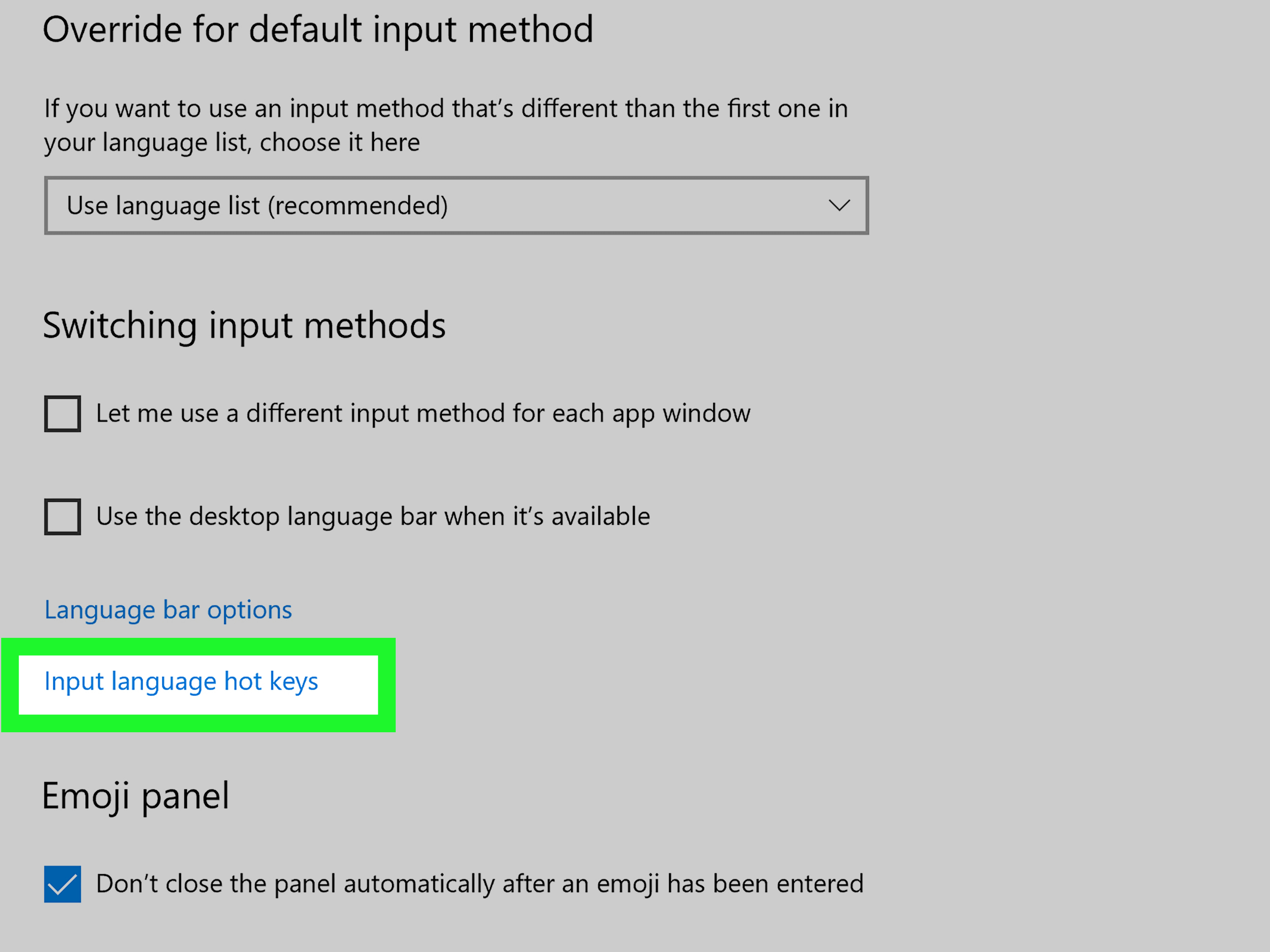
- Under Override for default input method, choose the keyboard layout you want Windows to use by default.
You may also see an option called Let me use a different input method for each app window. Enable it if you want Windows to remember separate keyboard layouts for different apps. For example, you might use English in your browser, Japanese IME in a document editor, and Vietnamese input in a chat app.
How to Remove a Keyboard Layout
Unwanted keyboard layouts can be surprisingly annoying. One minute you are typing a normal email; the next minute your punctuation looks like it was assembled during a thunderstorm. Removing unused layouts keeps your input menu clean.
Steps to Remove a Keyboard Layout
- Open Settings.
- Select Time & language.
- Click Language & region.
- Under Preferred languages, click the three-dot menu next to the language that contains the keyboard layout.
- Select Language options.
- Scroll to Keyboards.
- Click the three-dot menu next to the keyboard layout you want to delete.
- Select Remove.
What If the Keyboard Layout Is Not Listed?
Sometimes a layout appears in the taskbar switcher but does not appear under the language where you expect it. In that case, add the matching language temporarily, remove the unwanted keyboard layout from its language options, then remove the temporary language if you no longer need it. This little trick often works when Windows seems to be hiding a keyboard layout behind the curtains.
How to Change Region and Format Settings
Changing your keyboard language does not automatically change how dates, times, currency, or numbers appear. For that, use regional format settings.
Steps to Change Regional Format
- Open Settings.
- Go to Time & language.
- Select Language & region.
- Find Regional format.
- Choose the region or format that matches your preference.
For example, you can keep Windows menus in English while using Vietnamese, French, or German regional formatting. This is perfect for users who work internationally but still prefer English system menus.
How to Change the Language Used by Apps and Websites
Windows can use your preferred language list to influence Microsoft Store apps and supported websites. The language at the top of your preferred languages list often has priority. If your apps are appearing in the wrong language, rearrange the list.
Steps to Reorder Preferred Languages
- Open Settings.
- Go to Time & language.
- Select Language & region.
- Under Preferred languages, drag your preferred language to the top, or use the available move options.
- Restart apps that were already open.
This can help when Windows is in English, but some apps keep opening in another language. Apps are not always perfectly consistent, but the preferred language list is the best place to start.
How to Use IME for Japanese, Chinese, Korean, and Other Languages
Some languages require more than a simple keyboard layout. Japanese, Chinese, and Korean often use an Input Method Editor, usually called an IME. An IME lets you type phonetic characters and convert them into the correct written characters.
How to Add an IME
- Open Settings.
- Go to Time & language.
- Select Language & region.
- Click Add a language.
- Search for Japanese, Chinese, Korean, or another supported language.
- Install the language and its input features.
- Switch to the IME using Windows + Spacebar or the taskbar input icon.
IME settings may include conversion options, prediction settings, candidate windows, and keyboard behavior. If the IME is not ready immediately, make sure the language features have finished downloading and that your PC is connected to the internet.
Common Problems and Quick Fixes
Problem: The @ and Quotation Mark Keys Are Swapped
This usually means Windows is using the wrong English keyboard layout. A U.S. keyboard and a U.K. keyboard place some symbols differently. Go to Language & region, open Language options, and select the layout that matches your physical keyboard.
Problem: The Display Language Is Not Available
If your preferred display language does not appear in the drop-down menu, install the language pack first. Go to Preferred languages, click Add a language, and install the language pack if available. Some editions or managed work computers may limit which languages can be installed.
Problem: Windows Keeps Switching Keyboard Layouts
Set your default input method under Advanced keyboard settings. Also remove layouts you do not use. If you have enabled per-app input methods, Windows may remember different layouts in different windows, which can feel random until you realize each app is keeping its own keyboard personality.
Problem: The Language Icon Is Missing from the Taskbar
The input language icon usually appears only when more than one keyboard layout or input method is installed. If you have only one layout, there may be nothing to switch, so Windows hides the icon. Add another keyboard layout if you want the selector to appear.
Problem: A Removed Keyboard Layout Comes Back
This can happen when a language pack, app, or account setting reintroduces the layout. Check every installed language under Preferred languages. If needed, temporarily add the language that matches the unwanted layout, remove the keyboard from its options, then remove the language again.
Best Practices for Keyboard and Language Settings
For the smoothest experience, keep your setup simple. Install only the languages and keyboard layouts you actually use. Set your most common layout as the default input method. Remove duplicate layouts, especially if they look similar, such as English (United States) and English (United Kingdom). Similar names can cause very different typing results.
If you share a computer with family members or coworkers, create separate Windows accounts. Each user can have their own language, keyboard, and region settings. This is much better than everyone fighting over one keyboard layout like it is the last slice of pizza.
For work computers, remember that some language settings may be controlled by your organization. If options are grayed out, missing, or reset after restart, your IT department may be managing those settings through company policy.
Practical Examples for Everyday Users
For Students
A student learning French can keep Windows in English while adding a French keyboard layout. This makes it easier to type accents and complete assignments without copying characters from the internet every five minutes.
For Remote Workers
A remote worker living in Vietnam but working for a U.S. company may prefer English display language, Vietnamese regional settings, and both U.S. English and Vietnamese input methods. This setup keeps work software familiar while supporting local typing needs.
For Gamers
Gamers should remove unnecessary keyboard layouts if hotkeys suddenly stop working or keys produce unexpected symbols. Accidentally switching layouts during a game is a classic way to turn a simple match into a keyboard mystery novel.
For Writers and Editors
Writers who handle multilingual content should use Windows + Spacebar regularly and keep only essential layouts installed. This makes switching fast without cluttering the input menu.
Extra Experience Section: Real-World Lessons from Changing Keyboard and Language Settings on Windows
After helping many users fix Windows keyboard and language settings, one thing becomes obvious: most problems are not caused by broken keyboards. They are caused by mismatched settings. A person may buy a laptop in one country, install Windows in another language, use a different physical keyboard layout, and then wonder why the symbols have staged a rebellion. The keyboard is innocent. Windows is simply following the layout it was told to use.
One of the most common experiences is the U.S. versus U.K. keyboard mix-up. The keys look almost the same, so users assume nothing major can go wrong. Then they try to type an email address and the @ symbol appears in the wrong place. This is a classic sign that Windows is using a layout that does not match the physical keyboard. The fix is simple: add the correct English keyboard layout and remove the incorrect one. Once the right layout is active, the keys behave normally again.
Another common situation happens with bilingual users. They install two or three languages, which is perfectly reasonable, but then Windows starts switching input methods between apps. For example, a user may type English in Chrome, Vietnamese in a messaging app, and Japanese in Word. If the option to use different input methods for each app window is enabled, Windows may remember those choices separately. This can be useful, but it can also feel like chaos if the user does not know the feature is turned on.
For people who write in multiple languages every day, the best experience usually comes from building a clean, intentional setup. Keep your Windows display language separate from your typing languages. For example, you can use English for Windows menus, Vietnamese for daily communication, and Japanese IME for study or work. There is no need to change the entire operating system just to type in another language. Add the keyboard or input method, learn the shortcut, and keep moving.
IME tools deserve special patience. When adding Japanese, Chinese, or Korean input, Windows may need to download extra features. Sometimes the IME may not work immediately if the download is incomplete or the internet connection is unstable. Restarting the app, switching input methods again, or restarting the computer often solves the issue. It is not glamorous, but neither is waiting for a printer to behave, and we have all survived that drama.
Users who publish content, manage websites, or work with international clients should also pay attention to regional format settings. Date confusion can cause real problems. For example, 04/05/2026 may mean April 5 in the United States, but May 4 in many other regions. If you work across countries, choose the regional format that matches your audience or your business workflow. It is a small setting with big consequences.
The most helpful habit is checking the taskbar input icon before typing passwords, email addresses, code, or special characters. If the wrong layout is active, passwords may fail even though you are pressing the correct physical keys. This is especially frustrating because password fields hide characters, giving you no visual clue. When in doubt, click the input icon or press Windows + Spacebar and confirm the active layout.
Finally, do not install every language feature unless you need it. Language packs, speech recognition, handwriting, and text-to-speech features are useful, but not every user needs all of them. A lean setup is easier to manage. Add what you use, remove what you do not, and your Windows language settings will feel less like a maze and more like a well-labeled toolbox.
Conclusion
Changing keyboard and language settings on Windows is easy once you know which setting controls what. Use Windows display language for system menus, keyboard layouts for typing behavior, preferred languages for app and website language priority, and regional format for dates, times, numbers, and currency. If something looks wrong, do not panic. Most issues come from an incorrect layout, a missing language pack, or an unwanted input method hanging around like a guest who missed the hint to leave.
For most users, the perfect setup is simple: install the display language you prefer, add only the keyboard layouts you actually use, set your default input method, and learn Windows + Spacebar. That shortcut alone can save you from many typing disasters. Once configured properly, Windows can handle multiple languages smoothly, whether you are writing business emails, studying a new language, chatting with family, coding, gaming, or creating multilingual web content.