So you have a Google Doc, but now Microsoft Word is calling your name. Maybe your boss wants a .docx file. Maybe your teacher says, “Please submit in Word format,” which is academic code for “don’t make me click extra things.” Or maybe you just prefer Word because it feels like the grown-up office cousin of every text editor on Earth.
Whatever the reason, the good news is this: opening a Google Doc in Word is not hard. The slightly less exciting news is that you usually do not open a live Google Docs link directly inside Word the same way you open a regular Word file on your computer. In most cases, you first download or export the Google Doc as a Word document, then open that file in Microsoft Word.
This guide walks through the easiest ways to do it, explains what happens to formatting, comments, and images, and shows you how to avoid the classic “Why does my document look weird now?” moment.
Note: The picture blocks below are placeholder illustrations. Replace them with your own screenshots before publishing if you want true step-by-step pictures from your own device.
Why You Usually Can’t Open a Google Doc in Word With One Click
A Google Doc is a cloud-based file that lives in Google’s ecosystem. Microsoft Word, meanwhile, is happiest when it receives a Word file such as .docx. That means Word does not normally treat a Google Docs web link as a ready-to-edit Word document. Instead, the document usually needs to be exported from Google Docs into Word format first.
Think of it like this: Google Docs and Word are friendly neighbors, but they still speak with different accents. Most of the time they understand each other just fine, but sometimes a font, comment, margin, or image placement gets translated with a little too much enthusiasm.
That is why the cleanest method is to convert the Google Doc into a Word file before opening it. This preserves the content in a format Word expects, and it reduces the odds of strange layout surprises.
Method 1: Open a Google Doc in Word by Downloading It as a Word File
This is the best option for most people. It is quick, simple, and works whether the document is yours or shared with you, as long as you have permission to download it.
Step 1: Open the Google Doc
Go to Google Docs or Google Drive and open the document you want to use. Make sure you are looking at the actual document, not just the file list in Drive. If someone shared the document with you, open it from the shared link or your Drive.
Step 2: Click File, Then Download, Then Microsoft Word (.docx)
At the top-left corner of the document, click File. In the dropdown menu, hover over or click Download, then choose Microsoft Word (.docx).
That single move is the magic trick. Google Docs creates a Word-compatible copy of your document and downloads it to your computer. In many browsers, the file will appear in your Downloads folder automatically. In others, you may be asked where to save it.
If you are the type who saves everything to the desktop for “easy access” and then never finds anything again, this is your cue to pick a folder you will actually remember.
Step 3: Open the Downloaded File in Microsoft Word
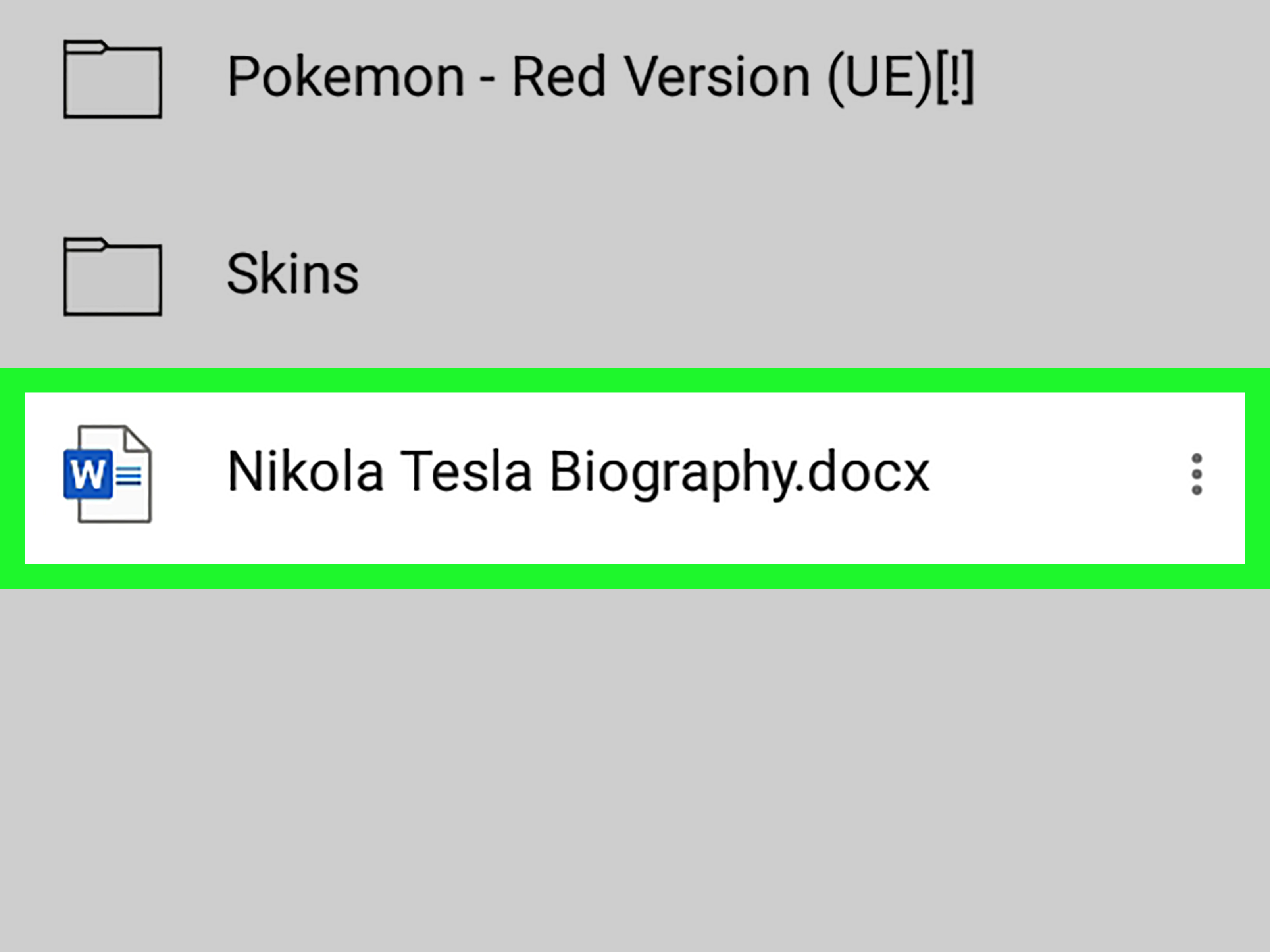
Locate the downloaded .docx file on your computer. Double-click it if Microsoft Word is already your default app for Word documents. If it is not, right-click the file, choose Open with, and select Microsoft Word.
Once Word opens the file, you can edit, save, print, or share it just like any other Word document.
Step 4: Check the Formatting Before You Celebrate
Most Google Docs files convert nicely, especially plain text documents, essays, reports, and basic business docs. Still, it is smart to check a few items before sending the file to anyone important:
- Headings and font styles
- Tables and bullet points
- Images and text wrapping
- Page breaks and margins
- Comments or suggested edits
Simple documents usually behave well. Heavier files with lots of custom formatting, unusual fonts, nested tables, or elaborate comments can shift a bit during conversion. That is not betrayal. That is just file-format diplomacy.
Method 2: Open the Google Doc in Word Through Google Drive
If you are already browsing in Google Drive, you can still get to Word without opening the document editor first. This method is convenient when you are handling multiple files and want to move faster.
Here’s How It Works
- Open Google Drive.
- Find the Google Doc file.
- Open it, or select it and move into the document preview/editor.
- Choose File > Download > Microsoft Word (.docx).
- Open the downloaded file in Word.
Some users expect to right-click a Google Doc in Drive and magically choose “Open in Word.” That would be lovely. That would also be too easy for software companies. In practice, the dependable route is still downloading the document as a .docx file first.
Can You Open a Live Google Doc Directly in Microsoft Word?
Usually, nonot in the sense of typing a Google Docs link into Word and instantly editing the original live Google file there. Google Docs files are web-based documents, while Word works best with Word file formats stored locally or in Microsoft’s own cloud ecosystem.
What you can do is export the Google Doc as a Word file, then open that exported copy in Word. After that, it becomes a separate Word version unless you intentionally re-upload it somewhere and continue managing versions.
This matters because some people assume changes made in Word will automatically sync back to the original Google Doc. Usually they will not. Once you download a Google Doc as .docx, you are working on a copy. It is related, but not telepathically linked.
How to Open a Google Doc in Word on a Phone or Tablet
You can also do this on mobile, although the steps vary a little by device. On the Google Docs mobile app, you generally open the document, tap the menu, then use a share, export, or download option to create a Word-friendly copy. After that, you open the exported file in the Word app.
This method is useful when someone emails or messages you a Google Docs link and you need a Word version while away from your computer. It is not always as smooth as desktop, but it gets the job done.
What Happens to Formatting, Comments, and Images?
This is the part people care about after the fact, usually while staring at a heading that has wandered three inches to the left.
Formatting
Basic formatting usually transfers well. Bold text, italics, headings, lists, and standard images are generally fine. More advanced formatting may shift, especially if the document uses fonts Word does not have, unusual spacing rules, or layout-heavy elements.
Comments and Suggestions
Comments may carry over imperfectly, and suggestion history does not always behave exactly like Word’s Track Changes. That is because Google Docs suggestions and Word tracked changes are similar, but not identical. If markup matters, always open the Word file and review the comments or revision display before sending it out.
Images
Images usually survive the trip, but the wrapping, alignment, or spacing around them can change. Check captions, text flow, and page breaks after opening the file in Word. It is a two-minute quality check that can save you from publishing a page where a product photo appears to be attacking a paragraph.
Common Problems and Easy Fixes
The File Downloads but Won’t Open in Word
Make sure the file actually downloaded as .docx. If the extension looks odd or the download was interrupted, download it again from Google Docs.
The Document Looks Different in Word
Check fonts first. Then review spacing, page breaks, tables, and image placement. If the document is especially important, compare the Google Docs version side by side with the Word version and fix the differences manually.
You Only Have a Google Docs Link
Open the link in Google Docs, then download it as a Word file. If you do not have permission to view or download the document, you will need the owner to change sharing settings or send you a Word copy directly.
You Don’t Have the Desktop Version of Word
You can still open the downloaded .docx file in Word for the web with a Microsoft account. It is a handy fallback when desktop Word is not installed.
Best Practices Before You Send the Final Word File
- Rename the downloaded file clearly so you do not confuse it with the Google Docs version.
- Open it in Word and skim the full document once.
- Check comments, headers, footers, and page numbers.
- Save your final version before sharing it.
- Keep the original Google Doc in case you need to re-export later.
If multiple people are involved, it also helps to tell them which version is now the “real” one. Without that step, somebody always edits the Google Doc while somebody else edits the Word file, and then everyone acts shocked when chaos arrives wearing loafers.
Final Thoughts
If you are wondering how to open a Google Doc in Word, the simplest answer is also the best answer: open the document in Google Docs, download it as Microsoft Word (.docx), and then open that file in Word. That is the cleanest, most reliable workflow for most users.
It is fast, it preserves most formatting, and it gives you a proper Word document you can edit, print, or submit. Just remember that a downloaded Word file is usually a separate copy, not a live mirror of the original Google Doc. Once you know that, the whole process becomes much less mysterious and much more “done in under two minutes.”
Experience: What It’s Actually Like to Move a Google Doc Into Word
In real life, opening a Google Doc in Word often happens at the exact moment you did not plan for it. You finish writing something in Google Docs because it is easy, collaborative, and always there in the browser like a loyal golden retriever. Then, right before the deadline, someone says they need the file in Word. Not a link. Not a PDF. Not “whatever works.” Word. Always Word.
The first time this happens, a lot of people assume Word can just open the Google Docs link directly. That sounds reasonable until you try it and discover that software likes technicalities. The better approach is to download the document as a .docx file and open that copy in Word. Once you do it once, it feels obvious. Before you do it once, it feels like the internet is personally mocking you.
For basic documents, the experience is pleasantly boring. Essays, letters, meeting notes, outlines, and simple reports usually transfer with almost no drama. You download the file, double-click it, Word opens, and there it is. Same title. Same paragraphs. Same carefully chosen line that took twenty minutes to write and four seconds to delete by accident earlier in the day.
Things get more interesting with complicated documents. If the Google Doc has special fonts, images tucked between paragraphs, large tables, or a flock of comments in the margin, Word may open it with a few surprises. A heading might look bigger. An image might shift. A page break might relocate like it found a better neighborhood. None of this is unusual, but it does mean the smartest users always do a quick review after conversion.
There is also the version-control experience, which deserves its own warning label. Once you export the Google Doc to Word, you now have two versions floating around: the original Google Doc and the Word copy. If you keep editing both, you are basically volunteering for confusion. The smoother experience is to decide which file becomes the final master copy and tell everyone involved. Future You will be deeply grateful.
On mobile, the experience is a little less elegant but still workable. You tap through menus, export a copy, and open it in the Word app. It is fine in the same way airport coffee is fine: not your first choice, but absolutely capable of saving the day.
Overall, opening a Google Doc in Word is easy once you understand that “open” usually means “export first, then open the exported file.” That one mental shift makes the process feel less like troubleshooting and more like normal document management. And honestly, that is half of tech: learning which button means what the human thought the first button meant.