Instagram is great for sharing photos, reels, opinions, and the occasional story that should probably have stayed in drafts. But it is also one of those apps people leave logged in everywhere: on an old phone, a borrowed tablet, a work browser, or that laptop you swore you would sell three years ago. That is why knowing how to view and delete login activity on Instagram matters.
Here is the important truth right up front: Instagram does let you view recent login activity and remove suspicious sessions, but it does not always offer a dramatic little button labeled “Delete history forever.” In practice, what most people mean by deleting login activity is signing out devices and sessions you no longer trust. That is the real fix, and luckily, it is simple.
In this guide, you will learn where to find Instagram login activity, how to remove devices, what to do if you spot a strange location, and how to lock the account down before a random stranger starts liking old posts from 2021. We will also cover common mistakes, security tips, and real-world examples so you know exactly what to do on mobile and desktop.
What Instagram Login Activity Actually Shows
Instagram’s login activity feature is designed to help you monitor where your account is signed in. Depending on the device and version of the app, you may see a list of recent logins, active sessions, approximate locations, device names, and timestamps. Sometimes the labels vary a little because Instagram and Meta love updating menus just when everyone finally memorizes them.
Most users now find this information through Accounts Center, especially if their Instagram account is connected with other Meta services. Older tutorials may refer to a path like Settings > Security > Login Activity. That older wording is not always wrong, but the current interface often routes you through password and security settings inside Accounts Center.
This feature is useful for checking whether:
- You are still logged in on an old phone or computer
- Someone used your account on a shared device
- A login appeared from a city, state, or device you do not recognize
- You forgot to log out after signing in somewhere temporary
- Your account may have been accessed without permission
How to View Login Activity on Instagram Using the Mobile App
If you use Instagram mostly on your phone, this is the route that matters most. The exact wording can differ slightly between iPhone and Android, but the overall path is usually similar.
Step-by-Step on iPhone or Android
- Open the Instagram app and go to your profile.
- Tap the menu icon in the top-right corner.
- Open Accounts Center if it appears.
- Tap Password and security.
- Select Where you’re logged in or Login activity.
- Choose your Instagram account if you manage more than one.
- Review the list of devices, locations, and recent sessions.
Take your time here. A location may look unfamiliar because Instagram sometimes estimates location based on IP address rather than your exact street or neighborhood. So if you live in one suburb and the app says a nearby city, do not panic immediately and throw your phone across the room.
What should make you pause is a device you do not recognize, a browser you never use, or a login from a place that makes no sense. If your account suddenly appears active on a device in another state while you are sitting in sweatpants at home, that deserves attention.
How to View Instagram Login Activity on Desktop
If you log in from a browser at work or on a home computer, checking desktop sessions is just as important. Browser sessions are easy to forget, especially when Chrome kindly remembers every password you ever regretted saving.
Step-by-Step on a Computer
- Go to Instagram in your web browser and sign in.
- Open your profile or account menu.
- Go to Settings or Accounts Center.
- Open Password and security.
- Click Where you’re logged in.
- Review active sessions and recent devices.
This is especially useful if you have ever logged in on a public computer, a work machine, or a shared family laptop. One of the simplest ways to avoid future account drama is checking this page once in a while, the same way you check your fridge for expired leftovers. Not glamorous, but very wise.
How to Delete Login Activity on Instagram
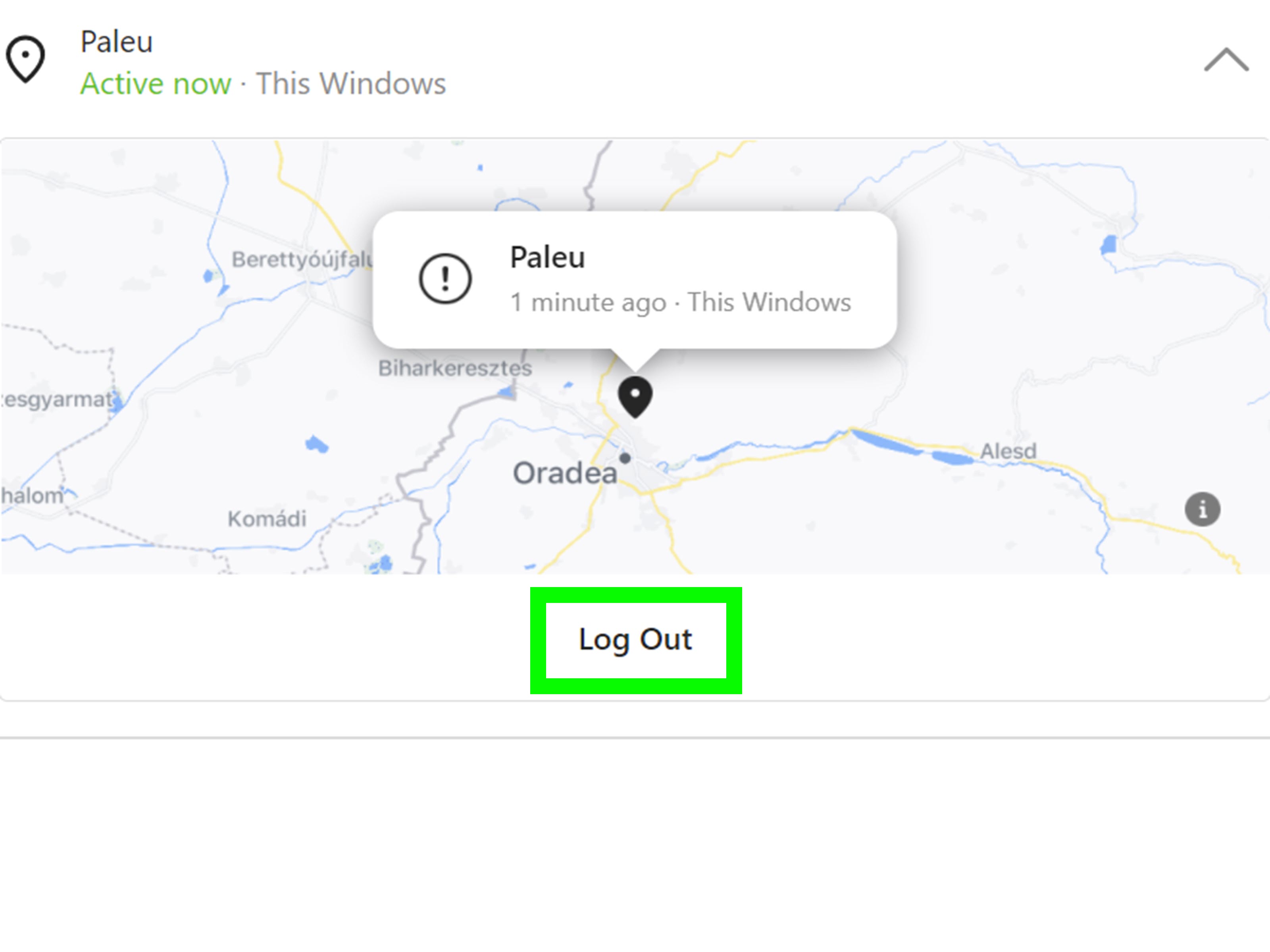
Now for the phrase everyone searches: delete login activity on Instagram. Here is the plain-English answer. In most cases, you do not truly erase a permanent log the way you clear a browser history. Instead, you remove or end sessions by logging out devices you no longer trust.
How to Remove a Suspicious Device
- Open Where you’re logged in.
- Select the device or session that looks suspicious.
- Tap or click Log out.
- Confirm the action.
That is the Instagram equivalent of saying, “Thanks for visiting, now please leave.” Once a suspicious session is removed, that device should no longer stay signed in.
How to Log Out of All Devices
Some users prefer the scorched-earth method, especially after a suspicious login alert. If the option is available, log out of all sessions. If it is not, manually remove each unfamiliar device and then change your password. A password change is often the most effective way to force reauthentication across devices.
If you suspect someone had access for more than a few minutes, do not stop at logging them out. Treat the situation as a security issue, not a housekeeping task.
What to Do Right After You Remove a Login Session
Logging out a suspicious device is good. Securing the whole account is better. The moment you remove a strange session, do these next steps.
1. Change Your Password Immediately
Create a new password that is long, unique, and not recycled from your email, Netflix, or that old gaming account from middle school. A strong password should be hard to guess and unrelated to personal details like birthdays, pet names, or favorite teams.
2. Turn On Two-Factor Authentication
Two-factor authentication adds a second layer of protection. Even if someone gets your password, they still need the second verification method. An authentication app is often a stronger choice than basic SMS, though either is better than having no extra protection at all.
3. Check Your Email and Phone Number
Review the contact information attached to your Instagram account. If a hacker changed your recovery email or phone number, you need to fix that fast. Otherwise, they could keep trying to regain access after you lock them out.
4. Review Linked Accounts and Third-Party Access
Look for suspicious connected apps, unusual account center changes, or unexpected cross-account permissions. If you see something you do not remember authorizing, revoke it.
5. Look for Signs of Tampering
Check whether new posts, DMs, bio changes, story uploads, or profile edits appeared without your permission. Sometimes the login activity is the first clue, but the real damage shows up elsewhere.
How to Tell Whether a Login Is Actually Suspicious
Not every unfamiliar entry means you have been hacked. Sometimes it is just a weird location estimate or a device label that sounds suspiciously generic. Before you hit the panic button, ask yourself a few questions.
- Did you recently log in from a browser instead of the app?
- Did you use a VPN, hotel Wi-Fi, airport Wi-Fi, or mobile hotspot?
- Did you sign in on a tablet, old phone, or work computer and forget?
- Is the listed location close enough to be explained by IP-based mapping?
Now the red flags:
- A device type you have never owned
- A login from a distant state or country
- Repeated login alerts you did not trigger
- Changes to your profile, password, or email that you did not make
- Messages sent from your account that you did not write
Common Reasons People Check Instagram Login Activity
Most people do not wake up thinking, “Today feels like a great day to audit my social sessions.” Usually, there is a trigger. These are the most common ones.
You Logged In on a Shared Device
Maybe you used a friend’s phone, a school computer, or a family tablet. Checking login activity lets you make sure that session is gone before someone opens Instagram and accidentally learns far too much about your meme habits.
You Got a Security Alert
Instagram may notify you about a login from a new device or unusual location. This is exactly the moment to review your login activity and remove anything unfamiliar.
You Suspect Someone Knows Your Password
An ex, a roommate, a sibling with too much free time, or a random scammer might have figured out your login. Do not debate it for hours. Check sessions, remove devices, and change the password.
You Want Better Account Hygiene
Honestly, this is the best reason. Just as you update apps and delete junk files, reviewing Instagram sessions a few times a year is a smart routine.
Best Practices to Keep Your Instagram Account Secure
Once your login activity is clean, the next goal is keeping it that way.
- Use a unique password for Instagram
- Enable two-factor authentication
- Do not click suspicious links in DMs or emails
- Be careful with fake “Instagram support” messages
- Avoid logging in on public computers unless absolutely necessary
- Log out of devices you no longer use
- Review account activity regularly
Phishing is still one of the biggest reasons accounts get compromised. If a message says your account is in danger, your badge is disappearing, or your page will be deleted unless you click right now, take a breath. Real security notices should be verified through official account settings and help channels, not random panic-inducing links.
Frequently Asked Questions
Can you completely erase Instagram login history?
Not always in the way people imagine. Instagram mainly allows you to remove sessions by logging devices out. Think of it as clearing access, not shredding every trace of history.
Does changing your password log everyone out?
It often forces sessions to reauthenticate, which is why changing your password is one of the best moves after suspicious activity. Still, review your active sessions manually for extra peace of mind.
Why does Instagram show the wrong location?
Locations are often estimated from IP data, so they can be approximate or slightly off. Focus more on the device type, browser, and overall plausibility than the exact map pin.
Is login activity the same as activity status?
No. Login activity is about devices and account access. Activity status is the “active now” indicator in messages. Different feature, very different level of drama.
Real-World Experiences With Instagram Login Activity
One of the most common stories people share is discovering they were still logged in on a device they no longer owned. Someone upgrades their phone, trades in the old one, and months later realizes that Instagram never got signed out properly. Nothing terrible happened, but the account was technically still open on hardware that left their hands ages ago. That kind of discovery is not rare. It is a reminder that login activity is not just for emergencies. It is also for cleaning up digital leftovers.
Another frequent experience involves travel. A person checks login activity after getting an alert and sees a city they do not recognize. Instant panic. Then they remember they connected through airport Wi-Fi, hotel internet, or a mobile carrier route that made the login appear in a nearby region. In these cases, the location looks weird, but the device and timing still make sense. This is why context matters. A strange city by itself is not always proof of compromise.
Then there are the more uncomfortable situations, like someone noticing an active browser session they know they did not create. Maybe it is a Windows PC when they only use an iPhone and a Mac. Maybe the login time matches a period when they were asleep. Maybe messages were read or a story draft suddenly disappeared. These are the moments when the feature becomes more than a casual settings page. It becomes evidence that something is off, and it gives people a direct way to start fixing the problem.
Some users also learn the hard way that logging out one device is not always enough for peace of mind. They remove the suspicious session, but keep the same password, skip two-factor authentication, and assume the problem is solved. A few days later, the weird login returns because the original weakness never changed. The better approach is always layered: remove the session, change the password, verify recovery details, and turn on two-factor authentication. That combination gives the account a much stronger defense.
A surprisingly common mistake is confusing login activity with search history, link history, or active status. People go looking for a full timeline of every sign-in, every tap, and every swipe, as if Instagram is a personal detective file. In reality, the tool is more practical than theatrical. It helps you identify where your account is currently or recently active so you can remove access when needed. That is still incredibly useful, but it helps to know what the feature can and cannot do before diving in.
There is also the shared-device problem. A user signs into Instagram on a sibling’s tablet to upload a photo, then forgets to sign out. Weeks later, that sibling innocently opens the app and suddenly has front-row access to private messages, story viewers, and the deeply curated chaos of the Explore page. No hacker involved, just a very human lapse in attention. Checking login activity once in a while prevents exactly this kind of accidental oversharing.
The biggest lesson from these experiences is simple: Instagram login activity works best when you use it proactively, not just after something goes wrong. People who make a habit of checking it every few months usually spot old devices, unused browser sessions, and unnecessary risk before those things become real problems. It is not flashy, but it is effective. And in account security, boring and effective beats dramatic and too late every single time.
Conclusion
If you want to view and delete login activity on Instagram, the process is straightforward once you know where to look. Open your security settings, review Where you’re logged in, and remove any devices or sessions you do not trust. Just remember that “delete” usually means ending access, not wiping a secret vault of permanent records.
The smart move is to treat login activity as part of regular account maintenance. Check it after travel, after using shared devices, after security alerts, and anytime something feels off. Pair that habit with a strong password and two-factor authentication, and your Instagram account will be much harder for unwanted guests to hijack.
Because let’s be honest: the only thing that should be active on your Instagram account is your content strategy, not some mystery browser in another city.