Google Photos is great at holding your favorite memories, but iPhone and iPad wallpaper settings live inside Apple’s world. That means you usually cannot press one magic “make this my wallpaper forever” button directly inside Google Photos and call it a day. Sad? A little. Difficult? Not at all. Once you know the right path, setting a Google Photos image as your Lock Screen, Home Screen, Photo Shuffle, or Live Photo wallpaper is easier than finding the one vacation picture where nobody blinked.
This guide explains 7 ways to set a wallpaper on Google Photos on iPhone or iPad, including the fastest method, the cleanest method, the Photo Shuffle method, the screenshot workaround, and a few smart tricks for people who manage most of their photo library in Google Photos instead of iCloud Photos.
Before You Start: How Google Photos and iOS Wallpapers Work Together
On iPhone and iPad, wallpaper customization is handled by iOS or iPadOS through the Settings app, the Photos app, or the Lock Screen customization menu. Google Photos can store, organize, back up, edit, and download your images, but Apple’s wallpaper picker mainly reads from the device’s local Photos library. In plain English: the photo usually needs to be saved to your iPhone or iPad first.
The good news is that Google Photos makes this simple. Open the image, tap the three-dot menu or swipe up, then choose Download. If the image is already on your device, the Download option may not appear. That is normal, not your phone being dramatic.
1. Download from Google Photos, Then Set It in Settings
This is the most reliable way to set a wallpaper from Google Photos on iPhone or iPad. It works well for single images, edited photos, family portraits, travel shots, pet pictures, screenshots, art, or any image you want to use as a clean, stable background.
Steps
- Open the Google Photos app on your iPhone or iPad.
- Select the photo you want to use as wallpaper.
- Tap the three-dot menu or swipe up on the photo.
- Tap Download. The image will save to the Apple Photos app.
- Open Settings.
- Tap Wallpaper.
- Tap Add New Wallpaper.
- Choose Photos, then select the downloaded image.
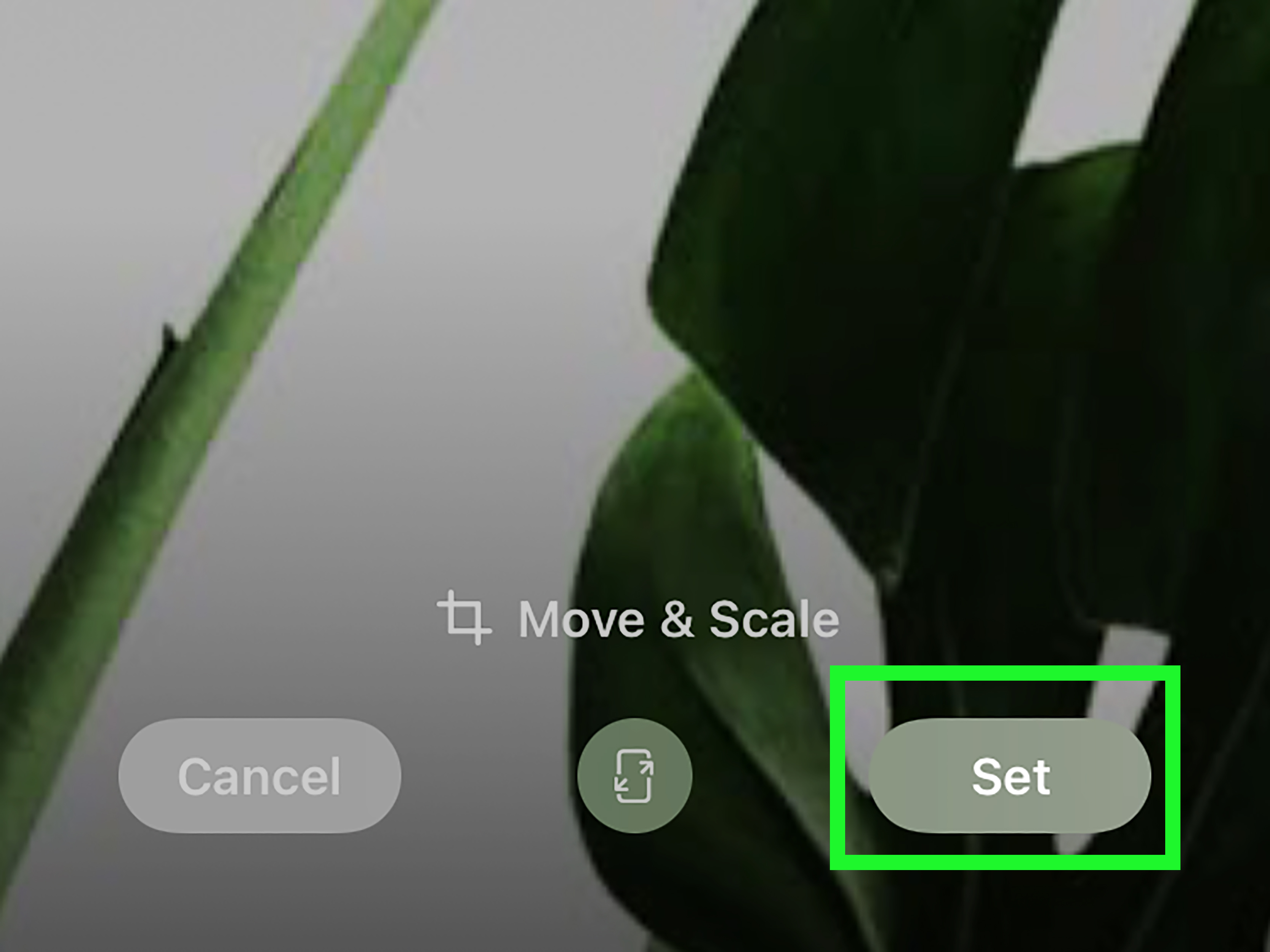
- Pinch to crop, drag to reposition, and customize the look.
- Tap Add, then choose whether to set it as a wallpaper pair or customize the Home Screen separately.
This method gives you the most control because the wallpaper setup screen lets you preview the photo before it goes live. If the clock covers someone’s face, you can move the image. If your dog’s ears are too close to the top edge, you can zoom out. If the image looks too busy behind app icons, you can blur the Home Screen version.
2. Use the Apple Photos App After Saving the Google Photos Image
Another easy method is to download the image from Google Photos first, then set it directly from the Apple Photos app. This is ideal when you are already browsing your recently saved images and want a faster route than opening Settings.
Steps
- Open Google Photos and download the image you want.
- Open the Photos app on your iPhone or iPad.
- Find the saved image in Recents.
- Tap the image to open it.
- Tap the Share icon.
- Scroll through the options and tap Use as Wallpaper.
- Adjust the crop and position.
- Tap Set or Add, depending on your iOS or iPadOS version.
This method is quick, clean, and beginner-friendly. It also helps you confirm that the photo actually downloaded to your device. If you do not see the image in Apple Photos, go back to Google Photos and check whether the Download button was available.
3. Set a Google Photos Image from the Lock Screen
If your iPhone or iPad supports Lock Screen customization, you can create a new wallpaper setup without digging through Settings. This method feels modern and fast, especially if you enjoy switching wallpapers often.
Steps
- Download the image from Google Photos to your device.
- Lock your iPhone or iPad.
- Wake the screen, then press and hold the Lock Screen.
- Tap the plus button to create a new wallpaper.
- Choose Photos.
- Select the image downloaded from Google Photos.
- Adjust the crop, clock style, widgets, and depth effect if available.
- Tap Add.
This is one of the best options for people who like customizing the whole Lock Screen experience. You can pair a Google Photos wallpaper with widgets, a specific clock font, and even a Focus mode. For example, you might use a calm beach photo from Google Photos for Sleep Focus, a family picture for Personal Focus, and a clean landscape for Work Focus. Your phone gets a wardrobe. A tiny, glowing wardrobe.
4. Create a Photo Shuffle Wallpaper from Google Photos Images
Photo Shuffle is perfect when one wallpaper is not enough. Maybe you want your Lock Screen to rotate between family photos, vacation views, favorite food pictures, or your cat’s many award-worthy facial expressions. To use Google Photos images in Photo Shuffle, save the selected pictures to your iPhone or iPad first.
Steps
- Open Google Photos.
- Select several images you want to use.
- Download them to your device. If downloading multiple images is not smooth from the app, save them one by one or use a shared album workflow.
- Open Photos and create an album for these wallpaper images.
- Go to Settings > Wallpaper > Add New Wallpaper.
- Tap Photo Shuffle.
- Choose your album or manually select photos.
- Pick a shuffle frequency, such as On Tap, On Lock, Hourly, or Daily.
- Tap Use Album or finish the wallpaper setup.
Photo Shuffle works best with images that have similar orientation and visual style. A mix of vertical portraits, wide landscapes, dark photos, and bright screenshots can look chaotic. For better results, create a dedicated wallpaper album with photos that already look good on a tall screen. Think of it as building a playlist, but instead of songs, it is your favorite sunsets and “why is my toddler wearing sunglasses indoors?” moments.
5. Use a Live Photo from Google Photos as a Lock Screen Wallpaper
Live Photo wallpapers can add motion to your Lock Screen on supported iPhone models and iOS versions. If your Live Photo was backed up to Google Photos and can be saved back to Apple Photos as a Live Photo, you may be able to use it as an animated Lock Screen wallpaper. This depends on how the Live Photo was backed up, downloaded, and preserved.
Steps
- Open Google Photos and locate the Live Photo.
- Save or download it to your device.
- Open the Photos app and confirm it still appears as a Live Photo.
- Go to Settings > Wallpaper > Add New Wallpaper.
- Choose Photos, then tap the Live Photo category if available.
- Select the Live Photo.
- Preview the motion effect.
- Set it as your Lock Screen wallpaper.
Live Photo wallpapers are best for simple motion: a wave rolling in, a candle flickering, a child laughing, a dog doing the famous one-second head tilt. Avoid extremely shaky clips. Your Lock Screen should feel alive, not like it just drank six coffees.
6. Edit and Crop in Google Photos Before Setting the Wallpaper
Sometimes the right photo is hiding inside a not-quite-right photo. Maybe the image is too wide, too dark, slightly tilted, or full of background clutter. Before saving it as wallpaper, use Google Photos editing tools to crop, brighten, straighten, or clean it up.
Steps
- Open the image in Google Photos.
- Tap Edit.
- Use Crop to shape the image for a vertical iPhone wallpaper or a wider iPad wallpaper.
- Adjust brightness, contrast, warmth, shadows, or sharpness if needed.
- Save a copy if you want to keep the original unchanged.
- Download the edited version to Apple Photos.
- Set it as wallpaper through Settings, Photos, or the Lock Screen.
For iPhone wallpapers, vertical images usually work best. For iPad wallpapers, wider images often fit better because the screen may rotate between portrait and landscape. If you use the same image on both iPhone and iPad, leave extra space around the subject so the wallpaper crop does not accidentally perform a digital haircut.
7. Use the Screenshot Workaround When Downloading Does Not Work
Occasionally, a photo may not download correctly, the Download option may not appear, or the image may already exist somewhere on the device but is annoyingly hard to find. In that case, the screenshot method can save the day. It is not the highest-quality option, but it is fast and useful for simple backgrounds, quotes, graphics, or images that do not need maximum resolution.
Steps
- Open the photo in Google Photos.
- Tap the screen to hide menus if possible.
- Zoom and position the image the way you want it.
- Take a screenshot.
- Open the screenshot in Apple Photos.
- Crop out any unwanted edges or interface elements.
- Tap Share > Use as Wallpaper, or set it through Settings > Wallpaper.
This workaround is especially handy for quote wallpapers, mood boards, simple designs, and old images that do not need to be razor sharp. However, for high-resolution photography, use the Download method instead. A screenshot is a clever shortcut, not a museum-grade preservation plan.
Best Tips for Better Google Photos Wallpapers
Choose Images with Empty Space
The iPhone Lock Screen has a clock, widgets, notifications, and sometimes depth effects. Images with open sky, plain walls, soft backgrounds, or negative space usually look better than busy group shots.
Use Vertical Photos for iPhone
Portrait photos fit the iPhone screen more naturally. A horizontal image can still work, but you may need to zoom in heavily, which can cut off important details.
Use Higher-Resolution Images
A low-resolution image may look fine in Google Photos but blurry as wallpaper. If possible, use the original-quality version or the sharpest available copy.
Separate Lock Screen and Home Screen Styles
Your Lock Screen can handle a dramatic photo. Your Home Screen needs to sit behind app icons. If the picture is too detailed, use blur, a darker crop, or a simpler companion image.
Keep Wallpaper Favorites in One Album
Create a “Wallpapers” album in Google Photos and another in Apple Photos. This makes it easier to find your best images later, especially when your camera roll contains 4,000 photos of receipts, meals, and accidental pocket shots.
Common Problems and Quick Fixes
The Download Button Is Missing
If Google Photos does not show Download, the image may already be saved on your device. Open Apple Photos and check Recents. You can also search by date or look in your albums.
The Wallpaper Looks Blurry
Use a higher-resolution photo, avoid over-zooming, and download the original image when possible. Screenshots and heavily cropped images may lose sharpness.
The Photo Is Cropped Wrong
Return to the wallpaper preview screen and pinch to zoom out or drag the image. If the subject is still cut off, edit the photo in Google Photos first and add more space around the subject by choosing a better crop.
The Image Is Too Bright Behind App Icons
Customize the Home Screen separately and apply blur. You can also darken the image in Google Photos before saving it as wallpaper.
Live Photo Motion Does Not Work
Confirm that the image is still saved as a Live Photo in Apple Photos. If it downloaded as a still image or video, it may not work as a Live Photo wallpaper.
Personal Experience: What Actually Works Best in Real Life
After testing different ways to set wallpapers from Google Photos on iPhone and iPad, the most dependable method is still the classic download-and-set approach. It is not flashy, but it works. Open Google Photos, download the image, go to Settings, choose Wallpaper, and set it from Photos. That method avoids most confusion because iOS recognizes the image as part of the local photo library. It also gives you the best preview before committing to the wallpaper.
The biggest lesson is that not every beautiful photo makes a good wallpaper. A photo can be gorgeous in your gallery and still look messy behind the clock, widgets, and app icons. Close-up portraits often look awkward because the time covers someone’s forehead. Group photos can feel crowded. Screenshots of quotes may look great on the Lock Screen but chaotic on the Home Screen. The best wallpaper images usually have a clear subject, soft background, and enough empty space near the top.
For iPhone, vertical photos are the easiest. Travel photos with sky, beaches, mountains, city streets, or simple architecture often work beautifully. Pet photos also work, as long as the animal is not positioned too high in the frame. A dog’s face behind the Lock Screen clock is funny once. After that, it starts to feel like your phone is wearing a furry hat.
For iPad, the experience is a little different. Because iPads are often used in both portrait and landscape orientation, wallpapers need more breathing room. A tight vertical photo may look great one moment and oddly cropped the next. Wide landscapes, abstract images, desk setups, flowers, soft patterns, and scenic shots usually perform better on iPad. If you plan to use one wallpaper across both iPhone and iPad, choose a high-resolution image with extra space around the subject.
Photo Shuffle is the most fun option, but it benefits from preparation. Instead of throwing random Google Photos images into a shuffle album, choose 10 to 30 images with similar brightness and style. A shuffle album with warm travel photos feels intentional. A shuffle album that jumps from a dark concert shot to a bright grocery receipt feels like your phone is having a personality crisis.
The screenshot workaround is useful, but it should be treated as a backup plan. It is great for quote wallpapers, simple graphics, or images you only need temporarily. For meaningful photos, especially family pictures or professional shots, downloading the image is better because it preserves more detail.
The smoothest workflow is to create a dedicated “Wallpaper Picks” album in Google Photos. Whenever you find a picture that would look good on your screen, add it to that album. Once a month, download your favorites to Apple Photos and refresh your wallpaper. This keeps the process organized and turns wallpaper changing into a small creative ritual instead of a scavenger hunt through years of photos. Your future self will thank you, probably while admiring a perfectly cropped sunset.
Conclusion
Setting a wallpaper from Google Photos on iPhone or iPad is mostly about moving the image into Apple’s wallpaper system. The simplest path is to download the photo, open Settings or Apple Photos, and apply it from there. For more personality, try Lock Screen customization, Photo Shuffle, Live Photos, or a polished edit before saving. Google Photos is your memory library; iOS is your wallpaper stage. Put them together, and your screen can finally stop looking like it came with the phone five years ago.
Note: Menu names and wallpaper options may vary slightly depending on your iPhone model, iPad model, iOS version, iPadOS version, and Google Photos app version. Update both your device software and Google Photos app if you do not see the same options.