You know that moment when you have six PDFsan invoice, a contract, two screenshots, a scan that looks like it survived a hurricane,
and a “FINAL_final_v7(2).pdf”and someone asks for “one file, please”? Congratulations: you’re about to become the hero of document chaos.
In this guide, you’ll learn five genuinely easy ways to merge PDF files (online, on a Windows PC, and on a Mac), plus smart tips on page order,
file size, privacy, and the “why did my pages rotate like a haunted carousel?” problem.
Before You Merge: A 60-Second Checklist That Saves Hours
Merging PDF files is simple. Merging them well is where people accidentally create a 200-page masterpiece in the wrong order and then
spend their afternoon dragging pages like it’s digital Jenga. Do this quick checklist first:
1) Confirm the order (and name files like an adult)
If the PDF order matters (it usually does), rename files with numbers: 01-Cover, 02-Contract, 03-Exhibits.
Most PDF merger tools follow the order you upload or arrangeso a little naming discipline prevents “page 14 is now page 2” surprises.
2) Watch for password-protected PDFs
If a PDF requires a password to openor has restrictions on printing/editingsome merger tools will refuse to combine it or will drop pages.
If you own the document, unlock it first using the same app you used to protect it.
3) Decide: online convenience or offline privacy?
Online tools are fast and great for everyday documents. But if you’re dealing with medical records, legal paperwork, financial statements, or anything
you wouldn’t casually read aloud at a coffee shop, an offline desktop tool is the safer vibe.
4) Keep an eye on file size
Many web-based PDF mergers have file size or daily usage limits. If your PDFs are scanned images (especially high resolution), your merged file can
balloon quickly. If that happens, use an offline tool or compress the final PDF after merging.
Quick Picker: Which PDF Merger Should You Use?
| Method | Best For | Cost | Privacy Level |
|---|---|---|---|
| Adobe Acrobat Online | Fast merges anywhere, polished output | Free (basic), account may be needed for extras | Online upload |
| Other Online PDF Mergers | Quick one-offs, simple combining | Often free with limits | Online upload |
| Microsoft 365 (OneDrive/SharePoint) | Work files already in your Microsoft cloud | Included with many Microsoft 365 plans | Cloud-based (within your tenant) |
| PDFsam Basic (Windows PC) | Offline merging, large files, no uploading | Free (open-source) | Offline/local |
| Preview (Mac) | Free Mac merging, drag-and-drop pages | Free (built-in) | Offline/local |
1) Merge PDFs Online with Adobe Acrobat (Fast + Familiar)
If you want a clean, straightforward “upload → reorder → merge → download” experience, Adobe’s online PDF combiner is the classic pick.
It’s especially handy when you’re on a borrowed laptop, switching between operating systems, or just want the most predictable workflow.
How to do it
- Open the Adobe Acrobat online PDF merge tool in your browser.
- Add the PDF files you want to combine (drag-and-drop usually works).
- Reorder the files so pages appear in the right sequence.
- Click the merge/combine button, then download the merged PDF.
When this method is perfect
- You need results fast, with minimal fuss.
- You’re working across Mac and Windows.
- You want a mainstream tool that most workplaces recognize.
Heads-up
Like most online PDF tools, this involves uploading files to a web service. For sensitive documents, consider an offline method (PDFsam on PC or Preview on Mac).
2) Merge PDFs Online with Other Web Tools (Quick One-Offs)
There are plenty of web-based PDF merge tools that follow the same basic routine: upload your PDFs, arrange the order, merge, download.
They’re great when your needs are simple and you don’t want to install software.
A typical workflow (works across many sites)
- Open a reputable online PDF merger site.
- Upload or drag in your PDF files.
- Drag thumbnails to rearrange the order.
- Merge and download the combined PDF.
What to look for in a good online PDF combiner
- Clear privacy policy (file retention and deletion timing should be stated plainly).
- Order control (thumbnail preview and easy rearranging).
- Reasonable limits (file size, number of merges per day, and upload speed).
- No weird output (some tools compress aggressively or convert text to images).
Pro tip: Don’t “accidentally” create a PDF burrito
If you merge PDFs and your final file is suddenly massive or blurry, it’s often because the tool re-processed your pages (especially scanned PDFs).
Try an offline merger, or merge first and compress afterward using a dedicated compression tool.
3) Merge PDFs in Microsoft 365 (When Your Files Live in OneDrive/SharePoint)
If you’re working in a business environment where everything already lives in OneDrive or SharePoint, Microsoft 365 can be a convenient way to merge PDFs
without juggling downloads and re-uploads. Think of this as the “stay inside the ecosystem” approach.
Why this is handy
- You keep documents in the same cloud location where your team works.
- You avoid emailing multiple attachments back and forth (and starting a new “final_final” naming saga).
- You can consolidate PDFs for sharing, approvals, or archiving.
General steps (varies by Microsoft interface)
- Open your work library (OneDrive or SharePoint) where the PDFs are stored.
- Use the merge/combine option available in the Microsoft 365 PDF experience.
- Select the PDFs, arrange them as needed, and create a new merged file.
- Save the merged PDF back to the same location for easy sharing.
If you don’t see a merge option in your specific setup, it could be a licensing/feature availability difference. In that case, use an offline tool
(PDFsam) or a web merger depending on your privacy needs.
4) Merge PDFs on a Windows PC with PDFsam Basic (Free + Offline)
If you want to merge PDF files on a Windows PC without uploading anythingand without payingPDFsam Basic is a strong option.
It’s built for classic PDF chores like merging, splitting, rotating, and extracting pages.
How to merge PDFs in PDFsam Basic
- Install and open PDFsam Basic.
- Choose the Merge function.
- Drag and drop the PDF files you want to combine into the list.
- Reorder files (and, depending on settings, select specific pages if needed).
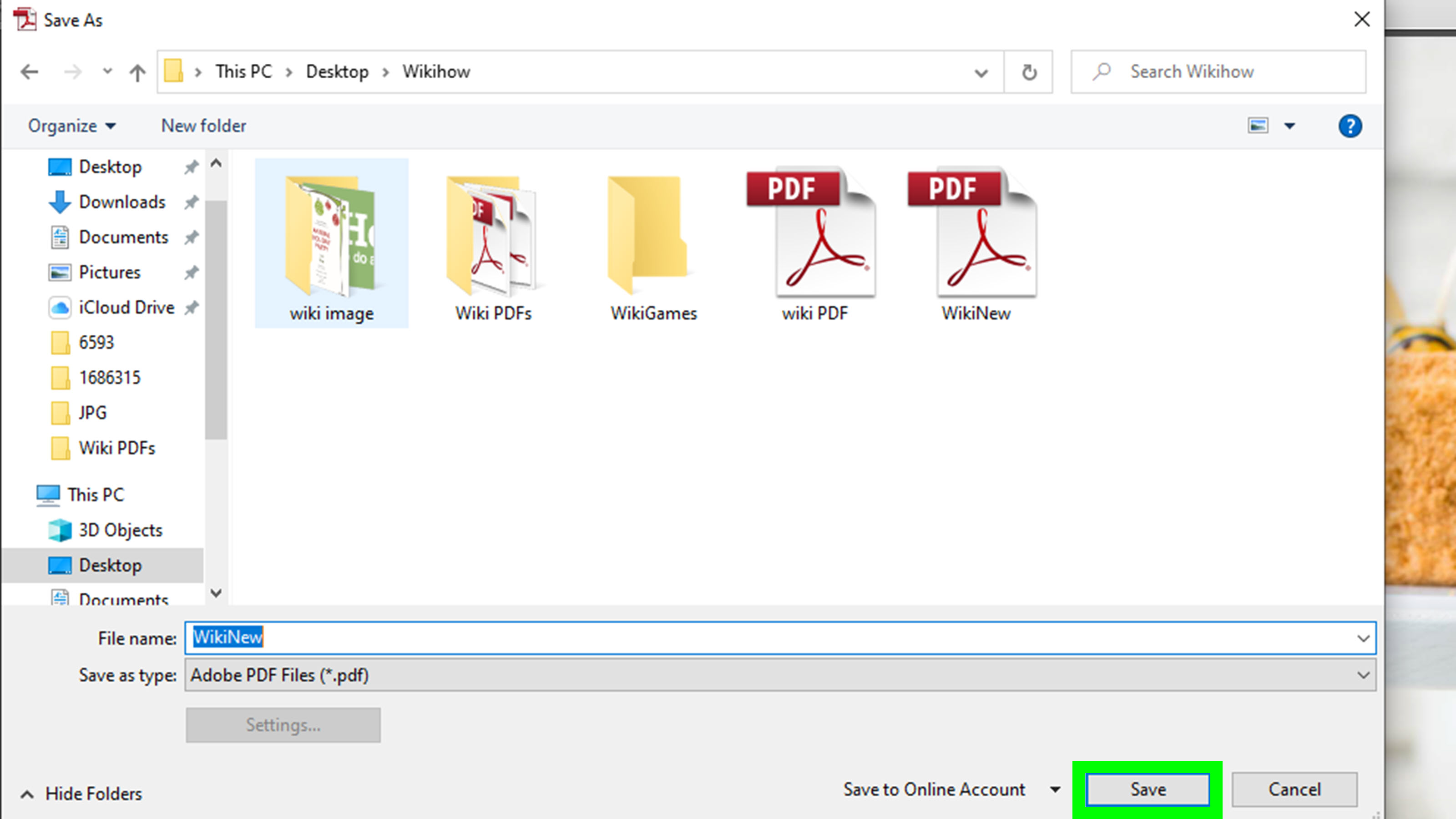
- Choose an output file name and destination folder.
- Click Run to generate your merged PDF.
Why people love this method
- Privacy: Your PDFs stay on your computer (no uploading).
- Handles big files: Useful for large scanned documents.
- No account drama: No sign-ins, no “verify your email to download your own file.”
Bonus: If you already have a paid PDF editor
Apps like Adobe Acrobat Pro or other full PDF editors often include advanced merging controls (like reorganizing individual pages, preserving bookmarks,
and handling forms). If you do this weekly for work, a full editor can pay for itself in saved time (and in reduced “why is page 3 missing?” stress).
5) Merge PDFs on a Mac with Preview (Free and Shockingly Powerful)
Mac users have a secret weapon: Preview. It’s already on your Mac, it’s free, and it can merge PDFs by dragging pages right in the sidebar.
It’s the kind of built-in tool that feels like cheatingin the best way.
Merge two PDFs (or selected pages) using thumbnails
- Open both PDFs in Preview.
- In each window, turn on the thumbnail sidebar (View > Thumbnails).
- In the source PDF, select the page thumbnails you want to move.
- Drag those thumbnails into the destination PDF’s thumbnail sidebar (drop where you want them).
- Save the destination PDF (use Save As if you want to keep the original unchanged).
Create a PDF from multiple files right in Finder (handy for images)
If your “PDF merge” situation is really “I have five images and a document and I need one PDF,” macOS also lets you select multiple files in Finder
and generate a combined PDF in one shot. The file order follows the order you selectso click carefully.
Best use cases
- Combining a few PDFs quickly without installing anything.
- Reordering pages visually (drag-and-drop feels natural).
- Building a single PDF packet for forms, homework, or applications.
Troubleshooting: Common PDF Merge Problems (and Fixes)
“My PDF won’t mergenothing happens.”
Usually this is one of three things: (1) the PDF is password-protected, (2) the PDF has usage restrictions, or (3) the file is corrupted.
Try opening the PDF normally first. If it prompts for a password, unlock it before merging. If it fails to open in multiple apps, re-export or re-scan the document.
“My merged PDF is huge.”
Scanned PDFs (images) can be enormous. If you merged a pile of high-resolution scans, the combined file might be too large for email or uploading.
Fix: merge offline, then compress the final PDF. If your tool offers “optimize” or “reduce file size,” use it after merging so you keep order and readability.
“My pages rotated or look sideways.”
This often happens when pages were scanned with mixed orientation. Before merging, rotate pages in your editor (Preview on Mac can rotate; many Windows editors can too).
Then merge. It’s easier than fixing rotation after everything is combined.
“Bookmarks disappeared / forms don’t behave.”
Not all merge tools handle bookmarks and interactive form fields the same way. If your merged PDF needs to preserve navigation or form logic, use a full PDF editor
designed for that (often paid tools) rather than a basic web merger.
“I only need certain pages from each PDF.”
Many desktop tools let you pick page ranges during merging. Another simple approach: extract the pages you need first (into smaller PDFs), then merge those.
That keeps your final file clean and avoids the “why is my dinner menu in the middle of my contract?” situation.
Final Thoughts: The Best Way to Merge PDFs Depends on Your Goal
If you want the fastest universal option, an online PDF merger is hard to beat. If privacy matters, go offline with PDFsam (Windows) or Preview (Mac).
If your PDFs already live in Microsoft 365, keep everything in OneDrive/SharePoint and merge there. The best tool is the one that matches your document’s
sensitivity, size, and how often you do this.
And remember: the real “PDF merge” skill isn’t clicking the merge button. It’s preventing Future You from reopening the file and whispering,
“Why are these pages… like this?”
Common Experiences When Merging PDFs (and What People Wish They Knew Earlier)
Here’s the funny thing about merging PDFs: the act itself takes 30 seconds, but the experience around it can feel like a mini-adventureespecially
when deadlines are involved. Below are common real-world scenarios people run into (and how to make them go smoother), so your next PDF merge feels more like
a victory lap and less like a documentary about paperwork.
The “I merged everything… and it’s in the wrong order” moment
One of the most common experiences is merging files quickly, opening the final PDF, and realizing the order is wildly off. It happens because many tools
default to upload order, file name order, or whatever order your mouse clicks happened to create. The fix is simple: rename files with numbers before you start
(01, 02, 03), or use a tool that shows thumbnails and lets you drag-and-drop. That small step saves you from rearranging a 70-page document like you’re
organizing a deck of cards in a wind tunnel.
The “Why is my merged PDF suddenly 10x bigger?” surprise
People often notice the merged PDF is unexpectedly hugeespecially after combining scanned pages. Scans are basically images, and images love to eat storage.
If you merge five high-resolution scans, you’re not just stacking documentsyou’re stacking pixels. A better experience comes from merging offline (to avoid web limits),
then compressing the final PDF. Many workflows work best as: merge first, compress second. That keeps page order stable while shrinking the file
for email, portals, or uploading.
The “My tool says no because the PDF is protected” roadblock
Another common experience: everything is ready to go, but one PDF refuses to merge. Often, it’s password protection or usage restrictions. This shows up a lot with
bank statements, legal forms, and PDFs generated by specialized systems. The smoothest approach is to open the PDF in a trusted app first and confirm it’s unlocked.
If you have permission and the password, remove protection before merging. If you don’t have permission, request an unprotected copy rather than trying random workarounds
that’s both faster and safer.
The “I just needed pages 2–4, not the whole thing” realization
People frequently merge entire documents when they only needed a subsetlike including just the signature page of a contract or the receipt page of a statement.
The best experience comes from trimming first. Extract the needed pages into a smaller PDF, then merge those smaller PDFs into one clean packet. You’ll end up with a
final file that’s easier to review, easier to share, and less likely to trigger a “please resend, this is confusing” reply.
The “Everything looks fine… until someone prints it” problem
A classic: on-screen, the merged PDF looks okaybut when printed, margins are weird, pages are rotated, or one section prints faintly. This often happens when the original
PDFs came from different sources (scans, exports, screenshots) with inconsistent page sizes and orientations. A smoother experience starts by standardizing: rotate pages correctly,
consider converting odd-sized images into consistent pages, and do a quick print preview check. If this is for an official packet (applications, onboarding, legal docs),
the extra minute of checking can prevent a lot of back-and-forth.
The “Online tools are convenient… until privacy matters” tradeoff
Many people love online mergers until they’re working with sensitive material. Then the experience shifts from “wow, that was easy” to “wait, I uploaded what where?”
If the document includes personal identifiers, medical details, financial info, or confidential business content, the more comfortable route is offline merging.
On Windows, an offline tool like PDFsam Basic keeps files local; on Mac, Preview does the same. The peace of mind is realand it makes the whole process feel less risky.
The “I merge PDFs all the timethere has to be a faster workflow” upgrade
For frequent merging (weekly reports, invoices, client packets), people often graduate from one-off merges to a repeatable workflow. That might mean using a desktop editor
with better page organization, using consistent file naming conventions, or keeping a “merge-ready” folder structure so you don’t hunt for documents every time.
The experience gets dramatically better when merging becomes a routine instead of a scavenger hunt.
Bottom line: merging PDFs is easybut getting a polished, correctly ordered, right-sized, share-ready PDF is what makes the difference between “done” and “done well.”
Once you’ve had one chaotic merge session, you’ll appreciate the small habits that prevent the next one.