Copying an Instagram caption should not feel like defusing a tiny digital bomb. You see a clever quote, a useful recipe note, a product description, a travel tip, or a hashtag stack that deserves a place in your notes. You press, hold, tap, squint, and bargain with the app. Nothing. Instagram looks back at you like, “Nice try.”
The good news: there are simple, safe, and practical ways to copy Instagram captions without turning your afternoon into a tech-support opera. Whether you are using an iPhone, Android phone, tablet, desktop browser, or laptop, you can usually save caption text with one of three methods: opening the post in a web browser, using screenshot text recognition, or copying your own caption from Instagram’s edit screen or original draft.
This guide explains each method step by step, with real-world examples, smart safety tips, and a friendly reminder that copying a caption is not the same thing as owning it. In other words, borrow ideas like a respectful human, not like a raccoon in a jewelry store.
Why Copying Instagram Captions Is Not Always Obvious
Instagram is designed for scrolling, watching, liking, sharing, and commenting. It is not always designed for easy text selection inside the mobile app. On many phones, pressing and holding a caption inside the Instagram app does not highlight the caption the way it would in a browser, email, or notes app. That can be annoying when the caption includes a quote you want to save, a long list of recommendations, a discount code, a recipe, a workout plan, or a set of hashtags you want to analyze later.
There are also good reasons to be careful. Captions can include original writing, brand messaging, personal stories, jokes, poems, product claims, and other creative work. Saving a caption for reference is one thing. Republishing it as your own is another. If you plan to reuse wording, ask for permission, credit the creator, or rewrite the idea in your own words. Your content calendar does not need a copyright headache wearing sunglasses.
Before you start, decide what you are trying to do. Are you saving a caption for personal notes? Collecting hashtag ideas? Quoting a short line with credit? Copying your own old caption to reuse as a template? Your purpose will help you choose the best method.
Method 1: Copy Instagram Captions Using a Web Browser
The easiest way to copy an Instagram caption is often to open the post in a browser instead of trying to select text inside the Instagram mobile app. This works especially well on desktop computers, laptops, tablets, and sometimes mobile browsers.
Best for
This method is best for public Instagram posts, long captions, hashtag research, content planning, and anyone who prefers using a keyboard and mouse. If you are writing a blog post, managing a social media calendar, or saving examples for marketing research, the browser method is usually the cleanest option.
How to do it on desktop
- Open Instagram in your browser and log in if needed.
- Find the post with the caption you want to copy.
- Click the post to open it fully.
- Use your cursor to highlight the caption text.
- Right-click and choose Copy, or press Ctrl + C on Windows or Command + C on Mac.
- Paste the caption into Notes, Google Docs, Word, Notion, or your favorite planning tool.
How to do it from the Instagram app
If you first find the post inside the Instagram app, look for the share option or the post menu and copy the post link. Then paste that link into your browser. Once the post opens on the web, try selecting the caption text there. This small movefrom app to browseroften turns “why won’t this copy?” into “oh, that was easy.”
Example
Suppose a food creator posts a caption with five tips for making fluffy pancakes. You do not want to screenshot the whole thing and retype “do not overmix the batter” while your coffee gets cold. Copy the post link, open it in a browser, highlight the caption, and paste it into your recipe notes. Then, if you later write about pancakes, use the idea as inspiration and create your own wording.
Common problems and fixes
If you cannot select the caption in your mobile browser, switch to desktop view. Most mobile browsers have an option such as Request Desktop Website or Desktop site. If the post is from a private account, you may need to be logged in and approved as a follower. If the caption is hidden behind “more,” expand the full caption before copying it.
Pro tip
After pasting the caption into your notes, clean it up immediately. Remove extra spaces, check line breaks, and separate hashtags into their own section. Future you will be grateful. Future you is busy and does not want to decode a wall of hashtags at midnight.
Method 2: Copy Instagram Captions With a Screenshot and Text Recognition
If the browser method does not work, use your phone’s built-in text recognition tools. This is one of the most reliable ways to copy Instagram captions from the app because it turns visible text in a screenshot into selectable text.
Best for
This method is ideal for iPhone users with Live Text, Android users with Google Lens, captions that cannot be selected, comments you want to save, Reels descriptions, and quick personal reference. It is also helpful when the caption has unusual formatting, emojis, line breaks, or hashtags.
How to copy captions on iPhone with Live Text
- Open the Instagram post and expand the full caption.
- Take a screenshot of the caption.
- Open the screenshot in the Photos app.
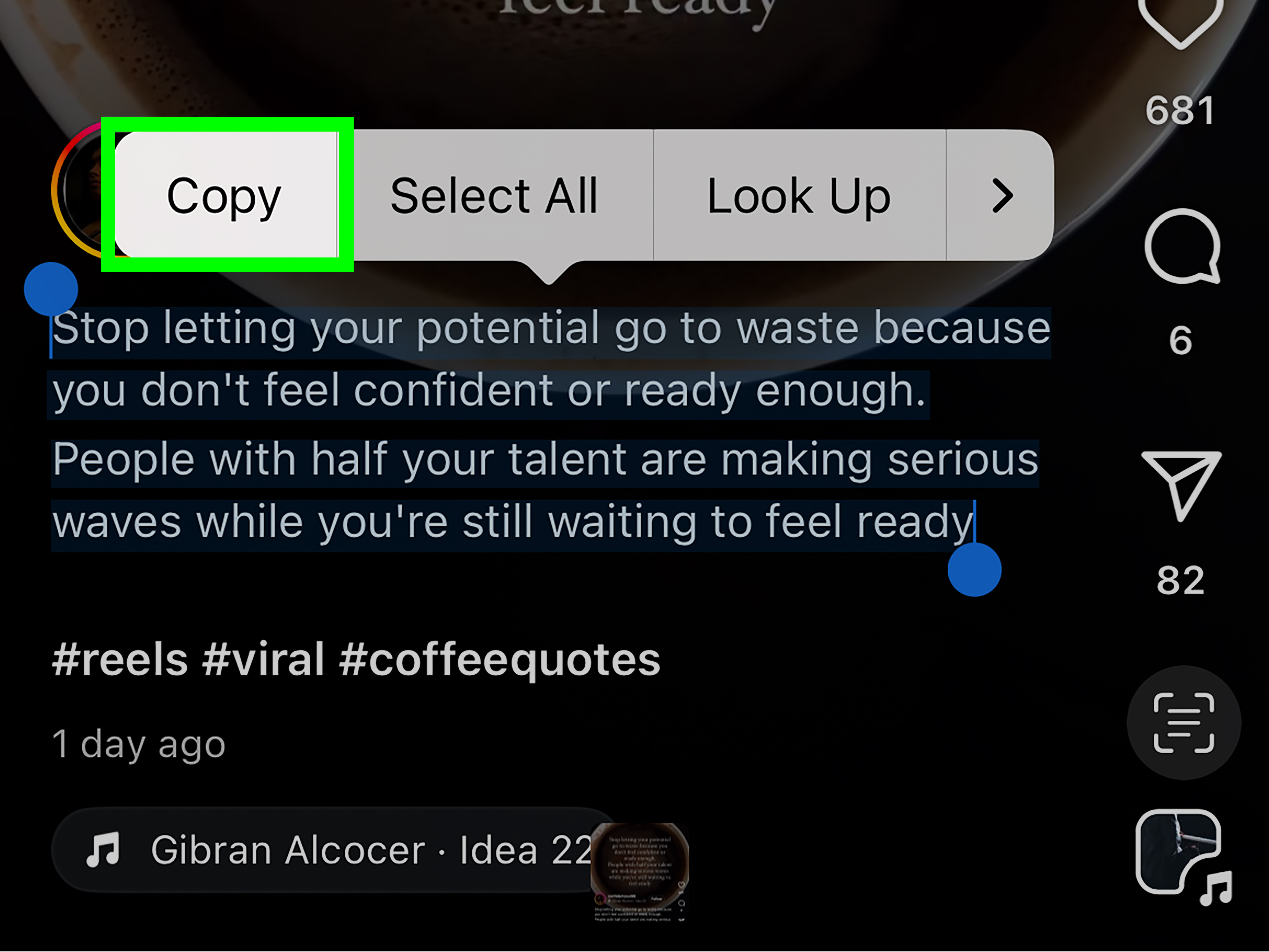
- Press and hold the caption text, or tap the text recognition icon if it appears.
- Adjust the selection handles to capture the exact caption text.
- Tap Copy.
- Paste the text into Notes, Messages, Google Docs, or another app.
How to copy captions on Android with Google Lens
- Open the Instagram post and make sure the caption is visible.
- Take a screenshot.
- Open the screenshot in Google Photos or Google Lens.
- Choose the text option or tap the Lens icon.
- Highlight the caption text.
- Tap Copy text.
- Paste it wherever you want to save or edit it.
Example
Imagine a fitness coach posts a caption with a 20-minute no-equipment workout: squats, planks, lunges, push-ups, and a few motivational lines about not negotiating with your couch. You can screenshot the caption, use Live Text or Google Lens, and paste the routine into your workout notes. No retyping. No typos like “plak” instead of “plank.” Your abs may still complain, but your thumbs will not.
Accuracy tips
Text recognition is impressive, but it is not magic. Always proofread the copied caption before using it. Emojis, fancy fonts, line breaks, hashtags, and usernames may not copy perfectly. A lowercase “l” can become a number “1.” A hashtag can lose its symbol. A line break can vanish like your motivation after leg day.
Privacy tip
If your screenshot includes usernames, profile photos, private comments, direct message previews, or personal information, crop the screenshot before storing or sharing it. Saving a caption is fine; accidentally saving someone’s personal details is not.
Method 3: Copy Your Own Instagram Captions From Edit Mode or Your Drafts
If the caption belongs to you, the simplest method may be hiding in plain sight: edit mode. Instagram allows users to edit captions on their own posts. When you open your own post for editing, the caption appears in a text field, which is usually easier to select, copy, revise, and reuse.
Best for
This method is best for creators, small business owners, social media managers, coaches, bloggers, photographers, and anyone who wants to reuse their own caption structure. It is also helpful when you want to turn an Instagram caption into a blog intro, newsletter paragraph, product description, or short-form video script.
How to copy your own caption from an existing post
- Open Instagram and go to your profile.
- Tap the post that contains the caption you want to copy.
- Open the post menu and choose Edit.
- Tap inside the caption field.
- Select the text you want to copy.
- Tap Copy.
- Cancel the edit if you do not want to change the post.
How to copy from your original planning document
If you write captions in Google Docs, Apple Notes, Notion, Trello, Asana, Buffer, Later, Hootsuite, or another planning tool, go back to the original draft and copy it there. This is often cleaner than copying from the live Instagram post because your formatting, links, campaign notes, and hashtag groups may already be organized.
Example
Let’s say you run a small candle brand and posted a caption last fall about “cozy season.” Now you want to create a fresh winter caption with the same structure: hook, product benefit, scent notes, customer prompt, and hashtags. Copy your own caption from edit mode or your planning doc, paste it into a new note, and update the details. You are not stealing. You are repurposing your own work like a responsible content goblin.
Use templates, not clones
Copying your own caption does not mean reposting the exact same text forever. Audiences notice repetition. Search engines and social platforms also reward useful, fresh, relevant content. Instead, reuse the structure. For example:
- Hook: Ask a question or name a problem.
- Value: Share a tip, story, or benefit.
- Proof: Add a detail, result, or example.
- Call to action: Invite a comment, save, share, or click.
- Hashtags: Use relevant, specific tags.
This way, you keep what worked without sounding like your caption got stuck in a washing machine cycle.
Important Safety and Ethics Rules Before You Copy
Copying Instagram captions is technically simple, but using copied text wisely matters. A caption may look casual, but it can still be original creative writing. If someone wrote a personal story, branded slogan, poem, joke, or educational breakdown, do not paste it onto your own account and pretend it came from your brilliant morning brain.
Do not give your Instagram password to caption-copying tools
Some third-party websites and apps claim they can extract Instagram captions for you. Be cautious. If a tool asks for your Instagram login, avoid it. A caption is not worth risking your account, personal data, business page, ad account, or client access. Use safer methods first: browser copying, screenshots with text recognition, or your own draft files.
Credit creators when appropriate
If you quote a short section of someone’s caption, name the creator and link or tag them where appropriate. If you want to reuse a full caption, ask permission. Most creators appreciate being asked. Many will say yes, especially if the use is respectful and credited.
Rewrite for your own audience
The best use of copied captions is study, not theft. Look at the structure. Why did the hook work? Was the caption funny, emotional, practical, or surprising? Did the creator use short lines, strong verbs, smart spacing, or a clear call to action? Take the lesson, then write your own version.
Respect private accounts
If a caption comes from a private account, treat it as private content. Do not copy and distribute someone’s words from a protected space. Just because a screenshot is possible does not mean sharing it is respectful.
Which Method Should You Use?
If you want the fastest route, try the browser method first. It is clean, simple, and works especially well on desktop. If Instagram blocks text selection or the caption is easier to capture visually, use a screenshot with Live Text or Google Lens. If the caption is yours, copy it from edit mode or your original planning document.
Quick comparison
| Method | Best Use | Main Advantage | Watch Out For |
|---|---|---|---|
| Web browser | Public posts and long captions | Clean text selection | May require desktop view |
| Screenshot + text recognition | Mobile app captions and comments | Works when text cannot be selected | Needs proofreading |
| Edit mode or drafts | Your own captions | Best formatting control | Only for your own content |
Extra Tips for Copying Instagram Captions Like a Pro
Save captions in organized folders
Create folders such as “Caption Ideas,” “Hashtag Research,” “Customer Questions,” “Competitor Examples,” and “My Old Captions.” Organization may not sound thrilling, but neither does searching through 400 random screenshots named “IMG_8492.”
Separate inspiration from reusable text
When you paste a copied caption into your notes, label it clearly. Add tags such as “inspiration only,” “quote with credit,” “rewrite,” or “my own caption.” This helps prevent accidental copying later.
Use copied captions for analysis
For marketers and creators, captions are valuable learning tools. Study the first line, sentence length, emoji use, call to action, storytelling style, and hashtag strategy. Ask what made the caption engaging. Was it useful? Funny? Bold? Relatable? Did it invite comments naturally?
Keep formatting simple
Instagram captions often rely on spacing. When you paste copied text into another app, line breaks may change. Clean the caption before saving it. If you plan to post your own version, preview it first to make sure the spacing looks good on mobile.
Avoid copying spammy hashtag blocks
Just because a caption has 30 hashtags does not mean all 30 are helpful. Choose hashtags that match your niche, post topic, audience, and location. A bakery in Ohio probably does not need a hashtag meant for luxury yacht photography unless something very exciting is happening with cupcakes.
of Real-World Experience: What Copying Instagram Captions Teaches You
After working with Instagram content long enough, you start to notice something funny: copying captions is rarely just about copying text. It is about saving ideas before they disappear into the endless scroll. A good caption can teach you how people package emotion, humor, education, urgency, and personality into a few short lines. Sometimes the caption is better than the photo. Sometimes the caption explains the photo. Sometimes the caption is doing all the heavy lifting while the photo just stands there looking pretty.
One of the most useful habits is keeping a swipe file. A swipe file is a private collection of examples that inspire your own writing. It might include strong hooks, clever calls to action, thoughtful storytelling, product descriptions, seasonal phrases, or question prompts. The goal is not to copy and paste someone else’s voice. The goal is to understand why the writing worked. For example, a caption that begins with “Nobody tells you this about starting a small business…” creates curiosity. A caption that says “Save this for your next grocery run” gives the reader a reason to act. A caption that ends with “Which one would you try first?” invites comments without sounding desperate.
When you copy Instagram captions for research, you also become more aware of structure. Many strong captions follow a simple rhythm: hook, context, value, personality, call to action. The hook grabs attention. The context explains why the post matters. The value gives the reader something useful or entertaining. The personality makes the caption feel human. The call to action tells the reader what to do next. Once you see that pattern, you can write better captions from scratch.
Another lesson is that shorter is not always better, and longer is not always smarter. Some captions need only one sharp sentence. Others need a mini-story. A recipe post may need details. A travel post may need location notes. A personal brand post may need vulnerability. A product post may need benefits, sizing, shipping, or care instructions. Copying captions into a notes app lets you compare them side by side and see what kind of length works for different goals.
There is also a practical benefit: copying your own captions saves time. If you manage a business account, you probably repeat certain themes: new arrivals, customer reviews, behind-the-scenes updates, FAQs, event reminders, seasonal promotions, and educational tips. Instead of starting from zero every time, copy one of your old captions and turn it into a flexible template. Keep the bones, change the outfit. A caption about a summer sale can become a winter promotion. A caption introducing one service can become a caption introducing another. This is not lazy; it is efficient content strategy with a better haircut.
The final experience-based tip is simple: always edit after copying. Captions copied through screenshots may contain errors. Captions copied from browsers may include odd spacing. Captions copied from your old posts may sound outdated. Give every copied caption a quick cleanup. Replace stale phrases, update dates, remove irrelevant hashtags, and make sure the voice still sounds like you. Copying is the first step. Editing is where the caption becomes useful.
Conclusion: Copy Smart, Save Time, Stay Original
Learning how to copy Instagram captions can save time, protect useful information, and improve your own content strategy. The three simplest methods are opening the post in a web browser, using screenshot text recognition with Live Text or Google Lens, and copying your own captions from edit mode or original drafts. Each method solves a slightly different problem, so keep all three in your digital toolbox.
Just remember the golden rule: copying for reference is useful; copying for publication without permission is risky and lazy. Use captions as inspiration, research, or personal notes. When you create your own posts, rewrite ideas in your voice, add your own examples, and give credit when credit is due. Instagram may make caption selection awkward, but with the right method, you can copy the text you need without losing your patience, your ethics, or your afternoon.
Article Note
Note: This article is based on current public information from Instagram help resources, mobile text-recognition guidance, online safety recommendations, and copyright principles. Always respect creator rights and avoid tools that ask for unnecessary account access.