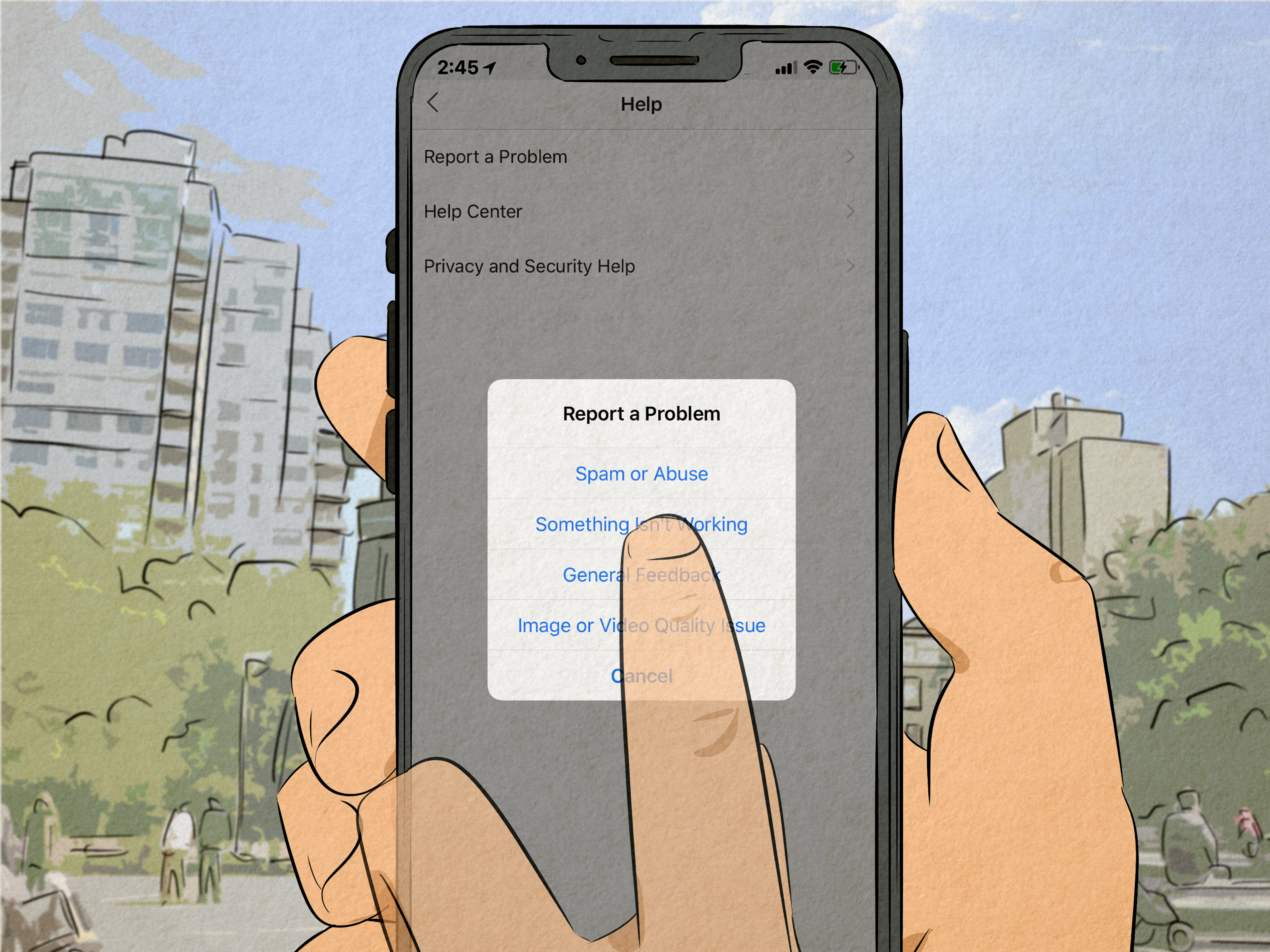
Few modern frustrations feel as dramatic as tapping “Share” on Instagram and watching your post refuse to upload. One minute you are a confident content creator with a latte, a good caption, and a suspiciously flattering selfie. The next minute, Instagram looks at your masterpiece and says, “Not today, Picasso.”
If you are wondering, “Why can’t I post on Instagram?” the good news is that most posting problems are fixable. The bad news is that the cause can hide anywhere: your internet connection, app cache, phone storage, file format, account status, caption, permissions, or even Instagram’s own servers having a little digital nap.
This guide breaks down the 12 most common reasons Instagram won’t let you post, with easy fixes you can try right away. Whether your photo is stuck uploading, your Reel keeps failing, your carousel disappears into the void, or Instagram gives you a vague error message that sounds like it was written by a toaster, this article will help you troubleshoot like a calm, organized human.
Why Instagram Won’t Let You Post: The Quick Overview
Instagram posting errors usually come from one of four areas: your device, your connection, your content, or your account. Sometimes the issue is simple, like weak Wi-Fi. Sometimes it is more specific, like a video file that does not match Instagram’s technical requirements. And occasionally, it is not your fault at all because Instagram or Meta services may be experiencing an outage.
Before you panic-delete your app, your caption, and possibly your entire personality, start with the basics: restart the app, check your connection, confirm Instagram is not down, and make sure your content follows Instagram’s format and community rules.
1. Your Internet Connection Is Weak or Unstable
The most common reason you can’t post on Instagram is also the least glamorous: your internet connection is acting like it has somewhere else to be. Uploading a photo, video, carousel, or Reel requires a stable connection. If your Wi-Fi is slow, your mobile data is weak, or your signal keeps dropping, Instagram may freeze during upload or show a “couldn’t post” message.
Easy fix:
Switch between Wi-Fi and mobile data. If you are on Wi-Fi, move closer to the router or restart it. If you are using mobile data, check that Instagram has permission to use cellular data. You can also try turning Airplane Mode on for 10 seconds, then turning it off to refresh your connection.
A quick test: open a browser and load a few websites. If everything else is crawling too, Instagram is probably not the villain. Your connection is.
2. Instagram Is Down or Having Server Problems
Sometimes you can’t post because Instagram itself is having problems. Meta platforms have experienced outages in the past, and during those moments users may be unable to post, refresh feeds, send messages, or log in. If many users are reporting trouble at the same time, your phone is innocent. Let it rest.
Easy fix:
Check Meta’s official status page or a reliable outage tracker. You can also search social media for recent reports from other users. If Instagram is down, the best fix is patience. Trying to upload the same post 47 times will not make the servers recover faster, although it may make you feel like the main character in a tech tragedy.
3. Your Instagram App Is Outdated
An outdated app can create posting errors, especially after Instagram changes features, upload rules, or media handling. Older versions may struggle with Reels, carousels, Stories, filters, music, stickers, or new editing tools.
Easy fix:
Go to the App Store or Google Play Store and check for updates. Install the latest version of Instagram. After updating, fully close the app and reopen it before posting again. If your phone’s operating system is also outdated, update that too. Instagram and your phone software need to be on speaking terms.
4. The App Cache Is Corrupted
Instagram stores temporary data to help the app load faster. That temporary data is called cache. Usually it helps. Sometimes it becomes messy, bloated, or corrupted, which can cause upload loops, frozen drafts, blank screens, or failed posts.
Easy fix:
On Android, go to Settings, open Apps, choose Instagram, tap Storage, and clear the cache. Do not confuse “clear cache” with “clear data” unless you are ready to log back in. On iPhone, iOS does not offer the same one-tap cache clearing for Instagram. The easiest option is to delete and reinstall the app.
After clearing cache or reinstalling, log back into Instagram and try posting again with a simple test image first.
5. Your Phone Is Running Out of Storage
Instagram needs space to process uploads, especially videos and Reels. If your phone storage is nearly full, the app may fail when compressing, editing, saving drafts, or uploading media. Your phone may technically have “some” space left, but not enough to comfortably handle a large video file.
Easy fix:
Free up storage by deleting old downloads, duplicate videos, unused apps, and giant group chat media files that somehow include 900 blurry screenshots. Restart your phone afterward. Then open Instagram and try uploading again.
For videos, consider exporting a smaller version. A clean MP4 file is often easier for Instagram to handle than a huge, highly edited file with unusual settings.
6. Your Photo or Video Format Is Not Supported
Instagram accepts common media types, but not every file is upload-friendly. If your image is oddly sized, your video uses an unusual codec, or the file is too large, Instagram may reject it or get stuck during processing. Reels, feed videos, Stories, and carousel posts all have technical expectations around resolution, aspect ratio, frame rate, and file type.
Easy fix:
For images, use JPG or PNG when possible. For video, MP4 or MOV is usually safest. For Reels and Stories, 1080 x 1920 pixels with a 9:16 aspect ratio is a reliable standard. For feed images, 1080 pixels wide is a strong target, with common ratios like square, portrait, or landscape depending on your post style.
If a video fails, re-export it using standard settings: MP4, H.264, 30 frames per second or higher, and a vertical 9:16 layout for Reels. Think of it as giving Instagram a sandwich it recognizes instead of a mystery casserole.
7. Your Carousel Has Too Many Items or Problematic Media
Instagram allows carousel posts, but they still have limits. If your carousel contains too many photos or videos, or if one item has a strange format, the entire post may fail. This is extra annoying because one stubborn file can ruin the party for the other perfectly innocent images.
Easy fix:
Reduce the number of items in the carousel and try again. If the post still fails, upload each item one at a time to identify the problem file. Re-save or re-export the media that fails. Also make sure all carousel items are in supported formats and reasonable dimensions.
Practical tip: when a carousel refuses to post, remove the videos first and test with photos only. Videos are more likely to trigger file size, codec, or processing problems.
8. Your Caption, Hashtags, or Mentions Are Causing Trouble
Sometimes the media is fine, but the caption is the troublemaker wearing sunglasses. Instagram may block or fail a post if the caption includes restricted phrases, broken formatting, too many repeated hashtags, suspicious links, excessive mentions, or text that triggers spam filters.
Easy fix:
Copy your caption into a notes app, then try posting with a shorter caption and no hashtags. If it works, add your caption back in smaller sections. Avoid repeating the same hashtag many times, tagging too many accounts, or pasting a block of text that looks automated.
For SEO-friendly Instagram captions, use natural language. A clear caption with a few relevant keywords beats a hashtag soup that looks like it was assembled during a power outage.
9. Your Account Has a Restriction or Policy Issue
If Instagram thinks your account has violated community rules, spam policies, or platform standards, it may limit your ability to post, comment, follow, like, or use certain features. Sometimes you will see a warning. Sometimes your post simply will not go through, which is about as helpful as a map with no roads.
Easy fix:
Check your Account Status in Instagram settings. Look for removed content, recommendation restrictions, feature limits, or warnings. If you believe Instagram made a mistake, use the review or appeal option when available. Also remove any recent content that may violate platform rules.
If your account was temporarily action-blocked, waiting may be necessary. During that time, avoid rapid posting, mass following, aggressive commenting, or using automation tools.
10. You Are Posting Too Fast or Acting Like a Bot
Instagram watches for spam-like behavior. If you post repeatedly, edit drafts nonstop, follow and unfollow many accounts, paste the same comment everywhere, or use automation tools, the system may restrict your activity. Real people do not usually perform 300 identical actions in ten minutes. Robots do. And Instagram is not throwing robots a welcome party.
Easy fix:
Slow down. Stop posting for a few hours or up to 24–48 hours if you suspect an action block. Disconnect suspicious third-party apps that promise followers, engagement, analytics shortcuts, or automated activity. Change your password if you think an app has access to your account without permission.
When you return, post normally. Avoid copy-paste behavior and give your account time to rebuild trust signals.
11. Instagram Does Not Have the Right Permissions
If Instagram cannot access your photos, camera, microphone, or mobile data, posting can fail before it even starts. This often happens after a phone update, privacy setting change, app reinstall, or accidental “Don’t Allow” tap.
Easy fix:
Open your phone settings and check Instagram permissions. Allow access to photos and videos. If you are posting Reels or Stories, allow camera and microphone access. If you upload on mobile data, make sure cellular access is enabled for Instagram.
On iPhone, check whether Instagram has access to “Selected Photos” only. If the image you want is outside that selection, Instagram may not see it properly. Update the selection or allow broader photo access.
12. A Third-Party Scheduler or Connected App Is Failing
If you are posting through a scheduling platform, social media management tool, or business dashboard, the problem may not be the Instagram app itself. It may be a connection error, expired permission, unsupported post type, API limitation, or temporary issue between Meta and the scheduling tool.
Easy fix:
Try posting directly inside the Instagram app. If direct posting works, reconnect your third-party tool. Remove and reauthorize Instagram permissions, confirm your Facebook Page connection if required, and check whether your post type is supported for automatic publishing.
For business accounts, this step matters. Tools can save time, but when permissions expire, they can also turn a simple post into a tiny administrative escape room.
Fast Troubleshooting Checklist
If you want the fastest path to fixing Instagram posting errors, follow this order:
- Restart Instagram.
- Check your internet connection.
- Check whether Instagram is down.
- Update the Instagram app.
- Clear cache or reinstall the app.
- Free up phone storage.
- Try posting a simple photo with no caption.
- Check your media format and file size.
- Review your Account Status.
- Disconnect suspicious third-party apps.
- Check app permissions.
- Try posting from another device or browser.
This sequence helps you separate simple device problems from account-level issues. It also keeps you from doing extreme things too early, like deleting a perfectly fine draft because Instagram had a five-minute hiccup.
Specific Examples: What the Error Might Mean
“Couldn’t Post. Try Again.”
This usually points to a connection issue, app bug, file problem, or temporary server error. Try switching networks, restarting Instagram, and uploading a smaller file.
“We Restrict Certain Activity to Protect Our Community.”
This often means Instagram has limited your activity because of unusual behavior, policy concerns, or spam-like actions. Check Account Status, pause activity, and avoid automation tools.
Upload Stuck on “Preparing”
This is commonly linked to cache problems, large video files, weak connection, or app glitches. Clear cache on Android, reinstall on iPhone, and re-export the video in a standard MP4 format.
Post Works Without Caption but Fails With Caption
Your caption may include restricted terms, too many hashtags, too many mentions, or suspicious formatting. Shorten it, remove links, and add hashtags gradually.
How to Prevent Instagram Posting Problems in the Future
Prevention is easier than troubleshooting while emotionally bargaining with your phone. Keep Instagram updated, maintain enough storage, use standard media formats, and avoid suspicious third-party apps. If you post for a brand or business, create a simple upload checklist before publishing important content.
For photos, keep files clean and properly sized. For Reels, use vertical video, standard frame rates, and MP4 or MOV formats. For captions, write naturally and avoid stuffing hashtags. For accounts, follow Instagram’s rules and check Account Status regularly.
If you run a business account, always keep a backup version of your caption and media file. That way, if the post fails, you are not rewriting your best caption from memory while muttering, “It was funnier the first time.”
Real-World Experience: What Usually Works When Instagram Refuses to Post
After dealing with many Instagram posting problems, one pattern becomes clear: the fix is usually simpler than the fear. Most users immediately assume their account is banned, hacked, shadowbanned, cursed, or personally disliked by the algorithm. In reality, the cause is often a weak connection, overloaded cache, bad video export, or caption issue.
One common experience is the “perfect Reel that will not upload” situation. The creator edits a video in a third-party app, adds music, exports it in high quality, and sends it to Instagram. The Reel looks beautiful in the camera roll, but Instagram refuses to post it. The fix is usually to re-export the video in a more standard format: MP4, vertical 9:16, reasonable file size, and a normal frame rate. Instagram likes creativity, but it does not always enjoy exotic export settings.
Another frequent case involves captions. A user tries to publish a post with a long caption, a stack of hashtags, multiple mentions, and maybe a link copied from somewhere else. The post fails. Then they try posting the same image with no caption, and suddenly it works. That is a big clue. The caption, not the image, is likely triggering the issue. The practical fix is to simplify the caption, remove suspicious links, reduce hashtags, and avoid tagging too many accounts at once.
For business owners, third-party scheduling tools can create their own little maze. A post may fail in a scheduler but publish normally inside Instagram. That usually means the connection needs to be refreshed, permissions expired, or the content type is not supported for automatic publishing. The fastest test is simple: try posting natively. If native posting works, reconnect the tool instead of rebuilding the post from scratch.
Storage problems are also surprisingly common. People record several takes, edit multiple drafts, download large files, and then wonder why Instagram freezes during upload. A phone with almost no free storage struggles to process media. Deleting unused apps, old videos, and duplicate files often makes Instagram behave better immediately. It is not glamorous, but neither is having 14 versions of the same brunch video.
The best troubleshooting mindset is to test one variable at a time. Try a plain photo. Then try the same photo with a short caption. Then try your original caption. Then try your video. This method quickly shows whether the problem is the account, app, media file, or text. Randomly changing everything at once may work, but it also leaves you with no idea what fixed it.
Finally, remember that not every Instagram posting issue is under your control. If Instagram is having an outage, waiting is the only real fix. Do not delete your content, change your password five times, or accuse your router of betrayal until you check whether other users are reporting the same issue. Sometimes the best tech support strategy is making tea and letting Meta fix Meta.
Conclusion
When you can’t post on Instagram, the problem usually falls into one of a few categories: connection trouble, app glitches, media format issues, caption problems, account restrictions, missing permissions, or platform outages. Start with simple fixes before moving to bigger ones. Restart the app, test your connection, update Instagram, clear cache, check storage, simplify your post, and review your Account Status.
The key is not to panic. Instagram errors often look mysterious, but they usually leave clues. A video that fails may need re-exporting. A caption that blocks posting may need trimming. A scheduler that fails may need reconnecting. And if Instagram itself is down, congratulations: for once, it is truly not you.
With the 12 fixes above, you can solve most Instagram posting problems quickly and get back to sharing photos, Reels, carousels, and Stories without turning your phone into a stress rectangle.