Discord has a language of its own. Some of it is loud and obvious: server pings, emoji reactions, voice channels, and that one friend who joins a call eating chips directly into the microphone. But some of Discord’s communication is quieter. Tiny status icons beside a profile picture can say a lot before anyone types a single word.
One of the most common questions new users ask is simple: what does Idle mean on Discord? The short answer is that Idle means a user appears to be away or inactive, even though Discord may still be open. The longer answer is more useful: Idle is a presence status that helps other people understand whether you are actively available, temporarily distracted, or possibly making a sandwich while pretending to be “right back.”
In this guide, we will break down Discord Idle status, explain how it compares with Online, Do Not Disturb, Invisible, and Offline, and show how these statuses work on desktop and mobile. We will also cover practical examples, privacy considerations, notification behavior, and real user experiences so you can read Discord’s little colored dots like a seasoned server detective.
What Does Idle Mean on Discord?
Idle on Discord means the user is logged in but inactive or away from the app for a period of time. The Idle status is usually represented by a yellow or orange crescent moon icon next to the user’s profile picture. It tells others, “I am around, but I may not be paying attention right now.”
Discord can set your status to Idle automatically when you have not interacted with the app for a while. You can also manually set yourself to Idle if you want people to know you are not fully available, even if you are still checking messages. Think of it as the digital equivalent of leaving your jacket on a chair: you are technically nearby, but no one should expect a lightning-fast response.
Idle Does Not Mean Offline
A common misunderstanding is that Idle means someone has logged out. It does not. If a user is Idle, they may still have Discord open on desktop, browser, or mobile. They may receive messages, see notifications, or return to a conversation at any moment. Idle simply suggests they are not actively engaging with Discord at that exact time.
Offline, by contrast, means the user is not visibly connected to Discord. Invisible also makes a user appear offline, even while they continue using the app. So if someone is Idle, they are more reachable than an Offline or Invisible user, but less actively available than someone marked Online.
How Discord Sets Idle Automatically
Discord uses activity signals to estimate whether you are active. On desktop, that may include interaction with the app, keyboard activity, mouse movement, or whether the app has been left open without attention. On mobile, status behavior can vary depending on whether the app is open, running in the background, restricted by battery settings, or closed entirely.
When Discord detects inactivity for a while, it may automatically change your visible status from Online to Idle. Different explainers often describe the timing as roughly five to ten minutes, but the exact behavior can vary by device, operating system, app version, and whether Discord is running in the foreground or background. The important takeaway is this: Idle usually means “not actively using Discord right now.”
Can You Manually Set Idle on Discord?
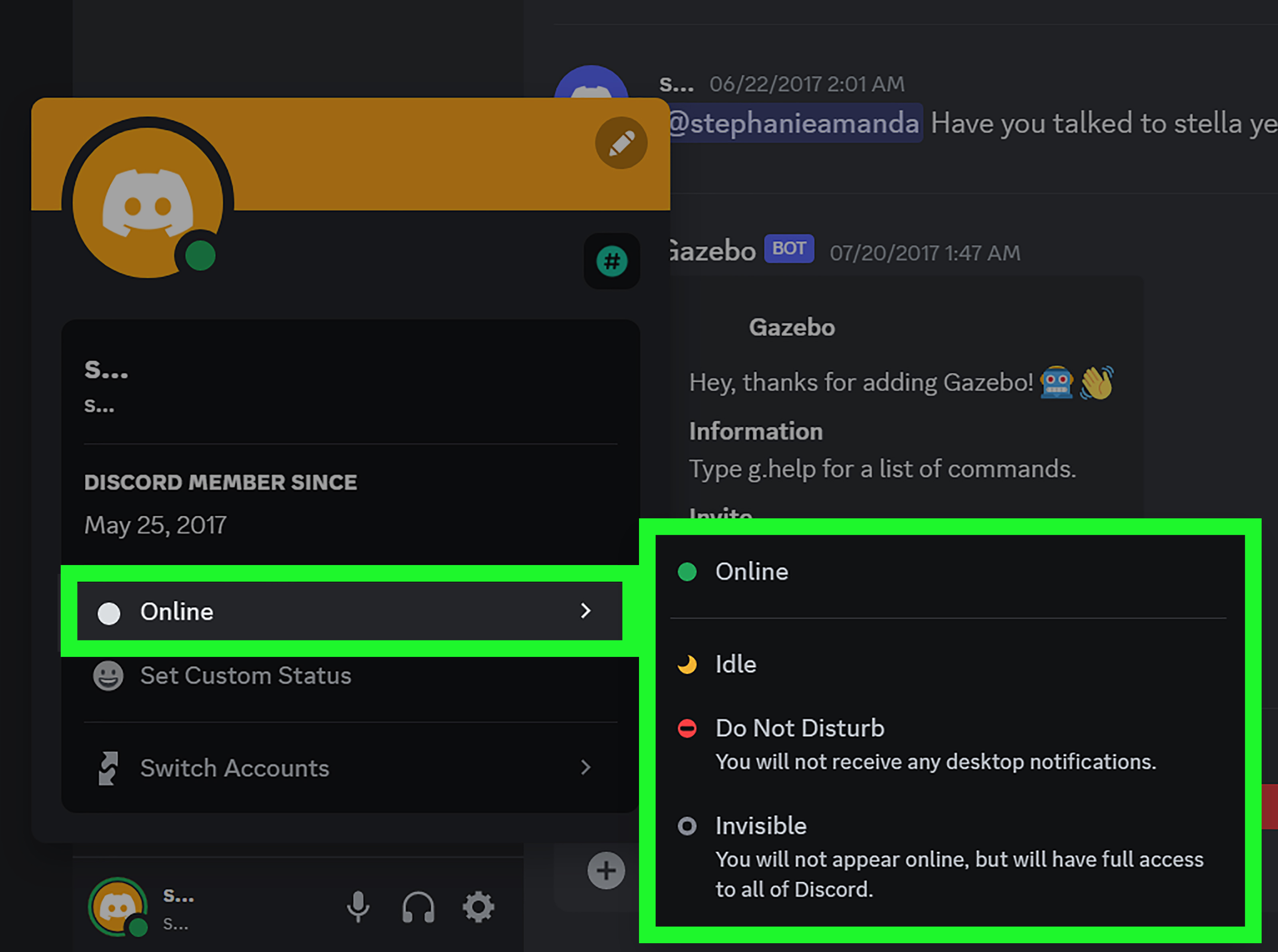
Yes. You can manually choose Idle from Discord’s status menu. On desktop, click your profile picture or avatar area, then choose the status you want. On mobile, tap your profile area and use the status options there. The available choices generally include Online, Idle, Do Not Disturb, and Invisible.
Manual Idle is useful when you want to lower expectations. Maybe you are studying, gaming, working, cooking, or pretending to work while actually scrolling through memes. Setting Idle tells friends and server members that you may respond slowly without making yourself look completely offline.
Discord Statuses Explained
Discord statuses are small presence indicators that show your availability. They are simple on the surface, but they can affect how people interpret your attention, response time, and notification preferences.
Online: Green Circle
Online means you are active and available. Discord shows this with a green circle. If someone sees you Online, they may assume you are currently at your computer or phone and able to reply. Of course, “Online” does not guarantee that a person wants to talk. They may be in a game, in a meeting, or mentally checked out while staring at a loading screen like it owes them money.
Idle: Yellow Crescent Moon
Idle means you are away or inactive. The yellow crescent moon is a polite warning sign: “I might be here, but I might also be in the kitchen negotiating with a microwave.” Idle does not mute notifications. It does not block messages. It simply changes how others see your availability.
Do Not Disturb: Red Circle
Do Not Disturb, often called DND, tells Discord not to bother you with normal notifications. It is commonly shown as a red circle with a line or minus-style symbol. This status is best when you are focusing, streaming, sleeping, recording, studying, or simply not in the mood for a symphony of pings.
DND is different from Idle because it directly affects notifications. Idle says, “I may be away.” DND says, “Please do not interrupt me.” If Discord statuses were office doors, Idle would be a sticky note saying “back soon,” while DND would be a closed door with a very serious-looking sign.
Invisible: Gray Circle
Invisible lets you use Discord while appearing offline to others. This is useful when you want privacy, quiet browsing, or a break from social expectations. Invisible does not necessarily mean the user has closed Discord. It means they chose not to show their presence.
Invisible is especially helpful for people who moderate servers, manage communities, or simply want to check messages without starting conversations. It is not rude; it is digital sunglasses.
Offline: Gray or No Active Indicator
Offline means a user is not visibly connected to Discord. They may have closed the app, lost connection, logged out, or selected Invisible. From another person’s perspective, Offline and Invisible can look very similar, which is exactly the point of Invisible mode.
Idle vs Online: What Is the Difference?
The difference between Idle and Online is availability. Online means Discord sees the user as active. Idle means the user is connected but inactive. A person can still receive messages while Idle, but they may not respond immediately.
For example, suppose your friend Alex is marked Online while playing a game and chatting in a voice channel. You send a message and expect a quick answer. Ten minutes later, Alex’s status turns Idle because they stopped interacting with Discord or stepped away. Now the status suggests you should not panic if there is no reply. Alex may be grabbing water, answering the door, or heroically fighting a printer jam.
Idle vs Do Not Disturb: Which One Should You Use?
Use Idle when you want to show that you are away or not fully active but still open to messages. Use Do Not Disturb when you want Discord to reduce interruptions.
Idle is about appearance. DND is about boundaries. If you are doing homework and may glance at Discord occasionally, Idle makes sense. If you are in a meeting or recording audio and cannot risk a notification sound, DND is the better choice. In other words, Idle is a soft “maybe later,” while DND is a firm “not now, tiny notification gremlins.”
Idle vs Invisible: Privacy and Expectations
Idle still shows that you are present in some way. Invisible hides your presence. If you set yourself to Idle, people can see that your account is not fully offline. If you choose Invisible, people generally see you as offline even if you are reading messages, checking servers, or browsing channels.
For privacy, Invisible gives you more control. For social transparency, Idle is friendlier. Many users choose Idle when they are stepping away temporarily and Invisible when they want a deeper break from attention.
Does Idle Affect Discord Notifications?
In general, Idle does not mute Discord notifications. You can still receive messages, mentions, calls, and server alerts depending on your notification settings. If your goal is to stop pings, Do Not Disturb or server-specific mute settings are more appropriate.
This is an important distinction. Many users assume Idle works like a quiet mode, but it does not. It is more like a visible availability label. Your notification settings still do the heavy lifting. If your server is noisy enough to qualify as a small airport, Idle will not save you. You need DND, muted channels, role notification controls, or server notification settings.
Does Idle Mean Someone Is Ignoring You?
No, Idle does not mean someone is ignoring you. It means Discord sees them as inactive or they manually chose that status. They may be away from their computer, busy with another app, on a phone call, eating, studying, or taking a break.
It is tempting to overread statuses, especially in direct messages. But Discord status indicators are not mind-reading devices. They do not reveal emotion, intention, or social drama. A yellow moon is not a confession. It is just a yellow moon.
Why Do People Manually Set Idle?
Some users manually set Idle because they want to reduce pressure to reply quickly. Others use it as a low-key focus mode. It can also be useful for people who are online but multitasking. For example, a student might set Idle while writing an essay. A moderator might set Idle while watching a server casually but not actively chatting. A gamer might set Idle to say, “I am around, but do not expect deep conversation while I am fighting a boss with twelve health bars.”
Manual Idle is also socially softer than Invisible. It does not hide you completely, but it sets realistic expectations. In busy communities, that little status icon can prevent misunderstandings.
How to Change Your Discord Status
Changing your Discord status is simple. The steps may vary slightly by app version, but the basic path is easy to remember.
On Desktop
- Open Discord.
- Click your profile picture or avatar area near the bottom-left corner.
- Select your current status.
- Choose Online, Idle, Do Not Disturb, or Invisible.
On Mobile
- Open the Discord app.
- Tap your profile icon or account area.
- Tap the status option.
- Choose the status you want to display.
You can also set a custom status with text and emoji. A custom status can add context, such as “Studying,” “At lunch,” “Recording,” “Slow replies,” or “Fighting for my life in ranked.” Custom status messages are useful because the colored dot alone can only say so much.
What Is a Custom Status on Discord?
A custom status is a short message you add to your profile. It can include text and sometimes emoji. Unlike Online, Idle, DND, and Invisible, which are presence statuses, a custom status gives people more detail.
For example, setting Idle tells others you may be away. Setting Idle with a custom status that says “Studying for finals” tells them why you may not reply. That extra detail can prevent confusion, especially in friend groups, study servers, gaming communities, and work-related Discord spaces.
Common Examples of Discord Idle Status
Here are a few practical situations where Idle makes sense:
- You left Discord open while cooking dinner. Your friends can see you are not fully active.
- You are studying but checking messages occasionally. Idle lowers reply expectations.
- You are watching a movie in another window. You are online, but not focused on Discord.
- You are in a voice channel but stepped away. Idle may signal temporary absence.
- You are working and cannot chat constantly. Idle is a gentle “slow replies” sign.
Is Discord Idle Always Accurate?
Not always. Idle is a helpful signal, but it is not perfect. Someone may appear Idle while still reading messages. Another user may appear Online while distracted. A mobile user’s status may change because of background app behavior, battery settings, or network conditions. A desktop user may be active in another program while Discord sits open quietly.
That is why you should treat Idle as a clue, not a courtroom verdict. It tells you something about likely activity, but not everything. If communication matters, send a clear message and give the person time to reply.
Discord Idle Status and Gaming
Discord is deeply connected to gaming culture, so status indicators often overlap with game activity. If activity sharing is enabled, Discord may show what game or app someone is using. However, Idle and activity status are not the same thing.
A person can appear Idle while a game is still displayed, depending on settings and activity detection. They may have left the game open, minimized Discord, or stepped away from the keyboard. If someone looks Idle during a gaming session, do not assume they are ignoring the party invite. They may be AFK, adjusting settings, or trapped in the ancient gamer ritual known as “just one more minute.”
Privacy Tips for Discord Statuses
Your Discord status can reveal more than you think. It can show when you are online, when you may be away, and sometimes what you are playing or doing. If you prefer more privacy, review your activity sharing settings and consider using Invisible when you want to browse quietly.
For server-specific privacy, check whether Discord allows you to adjust activity visibility for particular servers. If you do not want everyone to know what game you are playing, turn off activity sharing or limit it where possible. Status control is not just about convenience; it is also about managing attention.
Best Practices: When to Use Each Discord Status
Use Online When You Are Available
Choose Online when you are actively chatting, gaming with friends, or open to messages. It is the clearest signal that you are present.
Use Idle When You Are Around but Distracted
Choose Idle when you are away, multitasking, studying, or only casually checking Discord. It is ideal for slow replies without disappearing.
Use Do Not Disturb When You Need Quiet
Choose DND when notifications would interrupt your work, sleep, stream, class, meeting, or emotional stability during a difficult boss fight.
Use Invisible When You Want Privacy
Choose Invisible when you want to read, organize, moderate, or browse without announcing your presence.
Real Experiences: What Idle Feels Like in Everyday Discord Life
Anyone who uses Discord long enough learns that status icons become part of the social rhythm. Idle is probably the most misunderstood one because it sits in the middle: not fully available, not fully gone. In real use, that middle ground is exactly why it is helpful.
Imagine a student in a study server. They open Discord to ask a question about chemistry homework, then switch back to their notes. Ten minutes later, they are marked Idle. Their classmates can still send answers, but nobody expects an instant reply. This is where Idle shines. It prevents the awkward “Are you there???” messages that arrive after thirty seconds, usually from someone who has never heard of patience.
In gaming communities, Idle can be even more useful. A player may leave Discord open while grabbing a drink, changing controller batteries, or explaining to a family member that online matches cannot be paused. The Idle icon quietly tells the squad that the player may not hear a callout right away. It is not a perfect system, but it beats guessing whether someone vanished into the internet fog.
For remote workers and creators, Idle often becomes a soft boundary. Many people keep Discord open for collaboration, community management, or fan messages, but they cannot respond every minute. Setting Idle manually can help manage expectations without looking completely unavailable. It says, “I am reachable, but please do not treat me like a customer support chatbot with a caffeine addiction.”
There is also a social comfort factor. Some users feel rude going Invisible because it can seem like hiding. Others feel too exposed staying Online all day. Idle gives them a middle option. They can remain present in their communities while signaling that their attention is limited. That is especially useful in large servers where people may DM moderators, artists, streamers, or community managers the moment they appear Online.
Idle can also reduce unnecessary anxiety. If a friend is marked Idle and does not answer, it is easier to assume they stepped away. Without status indicators, people sometimes invent dramatic explanations. Did they ignore me? Are they mad? Did my meme fail? Idle provides a calmer explanation: maybe they are simply away from the keyboard. The moon icon is not therapy, but in the tiny emotional economy of online communication, it helps.
That said, Idle should not be treated as a promise. A person marked Idle might still be reading. A person marked Online might not be emotionally available for conversation. A person marked Invisible might be online but choosing privacy. The best Discord etiquette is simple: respect the signal, do not overanalyze it, and communicate clearly when something matters.
From personal server life to gaming nights and study groups, Idle works best as a low-pressure status. It gives people room to breathe. It keeps conversations flexible. It protects users from the expectation that being connected means being instantly available. And honestly, in a world where every app wants attention like a toddler with a cymbal, that little yellow crescent moon deserves more respect.
Conclusion: So, What Does Idle Mean on Discord?
Idle on Discord means a user is connected but inactive, away, or not currently focused on the app. It can appear automatically after inactivity, or a user can set it manually. Idle does not mean offline, and it does not usually mute notifications. It is best understood as a friendly availability signal: “I am here-ish.”
Discord statuses help users communicate without typing. Online means active. Idle means away or distracted. Do Not Disturb means quiet, please. Invisible means browsing privately. Offline means not visibly connected. Once you understand these differences, Discord becomes easier to navigate, and those tiny colored icons become surprisingly useful.
Note: This article is based on current public Discord status behavior, official Discord support information, and reputable technology explainers. Interface names and app behavior may change over time as Discord updates its desktop, web, and mobile apps.