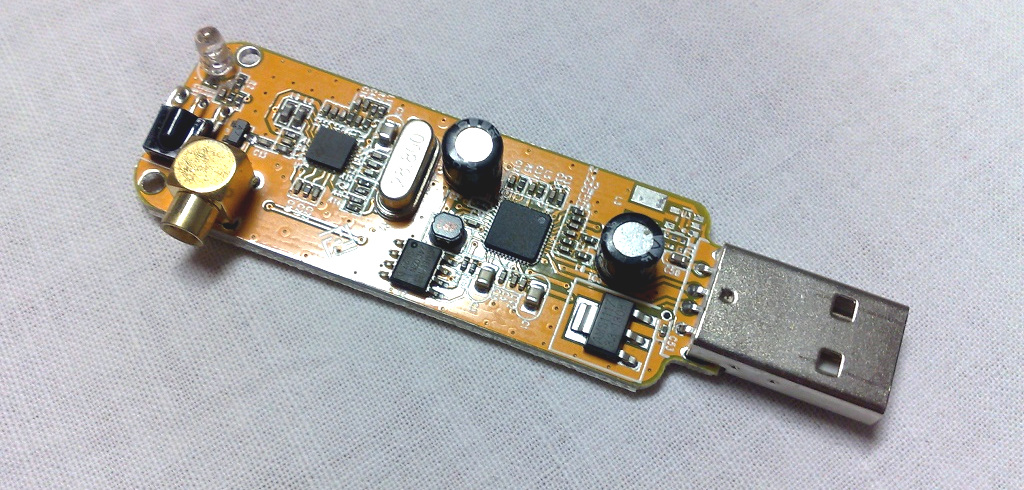
There was a time when using an RTL-SDR dongle meant installing desktop software, hunting down drivers, learning which menu hid the gain control, and occasionally whispering encouraging words to your USB port like it was a nervous houseplant. Today, the story is getting much more interesting. With modern browser APIs, especially WebUSB, it is now possible to use an RTL-SDR directly in the browser, tune signals, view a waterfall display, and listen to demodulated audio without installing a traditional SDR application.
That is the big idea behind “Use Your RTL, In The Browser.” It is not just a catchy hacker-style title; it is a practical shift in how people can experiment with software-defined radio. The humble RTL-SDR, originally based on inexpensive DVB-T TV tuner hardware, has become one of the most accessible tools for exploring radio signals. Pair it with a browser, and suddenly SDR feels less like a specialist workstation activity and more like opening a web app. Your radio bench just moved into a tab.
What Does “Use Your RTL, In The Browser” Actually Mean?
In this context, “RTL” refers to RTL-SDR, a low-cost software-defined radio receiver commonly built around the Realtek RTL2832U chipset and tuner chips such as the R820T, R820T2, R860, or R828D. These devices can receive a wide range of radio frequencies depending on the model, antenna, drivers, and surrounding RF environment. Hobbyists use them to monitor FM radio, airband, ADS-B aircraft signals, weather satellites, amateur radio activity, trunked radio systems where legal, and many other signals.
Traditionally, using an RTL-SDR required native software such as SDR#, GQRX, CubicSDR, HDSDR, GNU Radio workflows, or command-line tools. Those programs are powerful, but they introduce setup friction. A browser-based RTL-SDR application changes the entry point. Instead of installing a full desktop SDR suite, the user opens a compatible web page, grants USB permission, selects the RTL-SDR device, and starts tuning.
The browser is not magically turning into a radio by itself. The SDR dongle still captures radio-frequency signals. The browser-based application uses JavaScript, TypeScript, WebUSB, Web Audio, and signal-processing code to receive IQ samples, process them, display the spectrum, and play audio. In plain English: the dongle hears the radio world, and the browser does the math while pretending this is perfectly normal behavior for a web page. Modern browsers have grown up fast.
Why Browser-Based RTL-SDR Matters
The biggest advantage is convenience. SDR can be intimidating to beginners because it sits at the intersection of radio theory, USB drivers, digital signal processing, operating systems, antennas, and software configuration. That is a lot of doors to unlock before someone can hear their first local FM station or see their first waterfall display. Browser-based RTL-SDR lowers that barrier.
This approach also makes demonstrations easier. Teachers, hardware hackers, makerspaces, and amateur radio clubs can show SDR concepts without asking every participant to install the same software. A web app can provide a consistent interface across supported systems. For classrooms, workshops, and quick demos, that is a huge win. Nobody wants a 45-minute lesson titled “Why Windows Driver Replacement Is Character Building.”
Browser access also encourages experimentation. Developers can build lighter SDR interfaces, aircraft trackers, FM receivers, spectrum viewers, or educational tools using familiar web technologies. JavaScript may not be the first language people associate with radio-frequency experimentation, but when combined with WebUSB and modern browser performance, it becomes surprisingly capable.
How WebUSB Brings RTL-SDR Into the Browser
WebUSB is the bridge that makes this possible. It allows a web application, with user permission, to communicate with supported USB devices. In an RTL-SDR browser app, WebUSB can request access to the dongle, open the device, claim the proper interface, configure endpoints, and stream data for processing.
This is not the same as a random website secretly grabbing every USB device plugged into your computer. WebUSB requires user interaction and permission prompts. It also works only in secure contexts such as HTTPS or local development environments. That permission model matters because USB access is powerful. A browser that can talk to hardware needs guardrails, not a tiny cowboy hat and unlimited freedom.
Supported Browsers and Devices
The current practical limitation is browser support. WebUSB is mainly available in Chromium-based browsers such as Google Chrome, Microsoft Edge, Opera, and compatible Android browsers. Firefox and Safari generally do not support WebUSB in the same way, which means iPhone and iPad users are usually left outside this particular SDR party.
On the hardware side, many projects focus on RTL2832U-based dongles with R820, R828, or R860-style tuners. Popular RTL-SDR Blog V3 and V4 devices are often mentioned because they are common, stable, and well-documented. Generic DVB-T sticks may also work, but quality varies. Some have weak oscillators, poor shielding, awkward connectors, or mystery-chip energy that says, “Good luck, friend.”
What You Can Do With an RTL-SDR in the Browser
A browser-based RTL-SDR setup can support several useful activities, depending on the application. The simplest is listening to FM broadcast radio. Tune to a local station, adjust gain, choose the correct demodulation mode, and audio plays through the browser. That alone is a great first test because FM signals are strong and easy to recognize.
More advanced uses include viewing a live spectrum, watching a waterfall display, decoding aircraft ADS-B messages, experimenting with narrowband FM, studying signal strength, or learning the basics of digital signal processing. Some browser projects focus on general receiving, while others are specialized, such as aircraft radar demos built with an RTL-SDR dongle, antenna, and JavaScript.
There is also a related category of browser-accessible SDR tools such as OpenWebRX. OpenWebRX does not necessarily mean the RTL-SDR is plugged directly into the client browser. Instead, the SDR hardware connects to a server, often a Raspberry Pi or Linux machine, and users access the receiver through a web interface. This is excellent for shared receivers, remote listening, and public SDR stations.
Local Browser SDR vs. Web-Based Remote SDR
It is useful to separate two ideas that often get mixed together. The first is local browser SDR, where your RTL-SDR dongle is physically connected to your computer or Android device, and the browser talks to it through WebUSB. The second is remote web SDR, where the receiver is connected to another machine, and your browser acts as the interface.
Local browser SDR is great when you want a no-install experience on your own device. It keeps the radio hardware beside you and avoids running a separate server. Remote web SDR is better when you want multiple users, remote access, continuous operation, or a receiver mounted somewhere with a better antenna. For example, an OpenWebRX station on a Raspberry Pi can sit near a rooftop antenna while users connect from laptops, tablets, or desktops.
Which One Should You Choose?
Choose local browser RTL-SDR if your goal is quick experimentation, portability, or learning. Choose remote web SDR if your goal is sharing access, running a permanent receiver, or placing the SDR in a better RF location. The local browser approach is like a pocket notebook. The remote server approach is like a public library with an antenna.
Practical Setup: What You Need
To use your RTL-SDR in the browser, you generally need a compatible RTL-SDR dongle, a suitable antenna, a Chromium-based browser, and operating-system permission to access the USB device. On some systems, especially Linux, you may need udev rules or permission adjustments. On Windows, driver configuration can matter because the operating system may assign the dongle to a TV tuner driver instead of a generic USB access path.
A good antenna is just as important as the dongle. The tiny antenna included in many starter kits is fine for testing, but antenna placement can completely change results. Move it near a window, away from noisy electronics, and match the antenna type to the frequency range you want to receive. SDR beginners often blame software when the real issue is that the antenna is sitting behind a laptop power brick, bravely trying to hear the universe through a swamp of electrical noise.
Basic Workflow
A typical browser RTL-SDR session works like this: open the web application, connect the RTL-SDR dongle, click a button such as “Connect” or “Select Device,” approve the browser permission prompt, choose frequency and demodulation mode, adjust gain, and watch the spectrum. For FM broadcast, wide FM mode is appropriate. For many voice radio signals, narrowband FM may be used. For aircraft ADS-B, the app must specifically decode 1090 MHz messages.
Performance: What the Browser Can and Cannot Do
Browser-based SDR is impressive, but it is not magic. Processing live IQ data requires CPU power. A full-featured desktop SDR program may still outperform a browser app in advanced filtering, plugin support, multi-receiver workflows, recording options, and specialized decoders. Browser apps are improving quickly, but native tools still have an edge for heavy-duty work.
Bandwidth is another practical limit. RTL-SDR devices are commonly used around 2.4 MHz of stable instantaneous bandwidth, though some models advertise higher maximum bandwidth under certain conditions. The browser must handle the incoming sample stream, process it, draw the display, and play audio. On older machines or low-power phones, that workload can cause stuttering, lag, or dropped samples.
Still, for many common tasks, the experience is more than good enough. Listening to FM, exploring VHF and UHF signals, demonstrating waterfalls, or decoding simple data streams can work surprisingly well. The key is to treat browser-based RTL-SDR as a convenient and educational tool, not as a guaranteed replacement for every professional SDR workflow.
Security and Privacy Considerations
Any technology that gives a web page access to USB hardware deserves careful thinking. WebUSB includes permission prompts, secure-context requirements, and device selection controls, but users should still be cautious. Only use trusted browser SDR applications, avoid granting USB access to random pages, and disconnect devices when you are done.
Developers also have responsibilities. A good browser RTL-SDR app should clearly explain what device it wants to access, request only what it needs, avoid sneaky behavior, and provide transparent source code when possible. Hardware access in the browser is powerful because it removes friction. That same power means developers should design with security and user trust in mind.
Best Use Cases for Browser-Based RTL-SDR
Browser RTL-SDR is especially useful for education. A teacher can explain frequency, bandwidth, modulation, noise floor, gain, and filtering while students see live radio signals. The waterfall display makes invisible signals visible, which is often the moment SDR finally clicks for beginners. It turns “radio waves are all around us” from a textbook sentence into a moving picture.
It is also useful for quick field checks. If you have an Android phone, a USB-C adapter, and a compatible browser, you may be able to test signals without a laptop. This can help with antenna positioning, interference hunting, or checking whether a signal exists before setting up a larger station.
Developers can use browser-based RTL-SDR as a playground for web-based DSP interfaces. Because the UI is built with web technologies, it is easier to prototype controls, visualizations, and experiments. Want a custom dashboard for a local signal project? A browser app may be the friendliest place to start.
Limitations You Should Know Before You Start
The first limitation is compatibility. If your browser does not support WebUSB, the local browser SDR approach will not work. The second limitation is driver access. Even with the right browser, the operating system may prevent the web app from claiming the RTL-SDR device. The third limitation is RF reality. A bad antenna, poor location, or strong local interference can make even the best interface look disappointing.
Another limitation is legal and ethical use. RTL-SDR receivers can tune many frequencies, but not every signal should be monitored, decoded, recorded, or shared. Laws vary by country and region. Responsible users focus on legal, public, educational, amateur, broadcast, and permitted signals. The browser may make access easier, but it does not turn the radio spectrum into a buffet with no rules.
Why This Trend Is Bigger Than RTL-SDR
Using RTL-SDR in the browser is part of a larger movement: hardware is becoming more web-accessible. WebUSB, WebSerial, WebBluetooth, WebHID, Web Audio, WebAssembly, and WebRTC are helping developers build tools that once required desktop applications. Oscilloscopes, microcontrollers, 3D printers, keyboards, sensors, radios, and lab devices can now interact with web apps in ways that would have sounded unrealistic years ago.
For SDR, this shift matters because radio experimentation benefits from sharing. A web app is easy to distribute, update, fork, and teach. Users can try a receiver without committing to a full software installation. Developers can build focused tools instead of giant applications. The result is not the death of native SDR software. It is a larger ecosystem where browser tools and desktop tools each have their place.
Experience Notes: What It Feels Like to Use RTL-SDR in the Browser
The first experience that stands out is how strange it feels when it actually works. You plug in a small USB dongle, open a web page, click a permission prompt, and suddenly your browser is displaying live RF activity. The mental model of “websites show articles and videos” quickly collapses into “apparently my browser is now a radio shack.” It is a fun little shock, especially for anyone who remembers when SDR setup involved long installation guides and at least one driver-related sigh.
The second experience is that setup still matters. Browser-based does not mean problem-free. On Windows, driver choice can decide whether the app sees the RTL-SDR at all. On Linux, permissions can be the gatekeeper. On Android, cables and power can become the unexpected villains. A cheap USB-C adapter may work perfectly, or it may behave like it has taken a personal oath against radio. The browser simplifies the application layer, but hardware still has opinions.
Once connected, the most satisfying test is usually FM broadcast radio. It gives immediate feedback. You can tune to a known local station, adjust gain, and confirm that the waterfall and audio are alive. From there, scanning around the VHF and UHF bands becomes addictive. You start noticing spikes, bursts, carriers, and patterns. Some are obvious. Some are mysterious. Some are probably your own electronics making noise and laughing quietly.
Gain control is one of the first practical lessons. Too little gain and signals disappear. Too much gain and the spectrum becomes a crowded mess. Beginners often assume maximum gain means maximum performance, but SDR teaches humility quickly. The best setting is usually the one that raises the desired signal without flooding the receiver. It is less like turning up a flashlight and more like focusing a camera.
Antenna placement is another major lesson. Moving the antenna a few feet can change everything. Near a window may be better than the middle of a room. Away from monitors and chargers is usually better than next to a nest of cables. Outdoor antennas often beat indoor antennas, but even simple adjustments can improve reception. Browser-based SDR makes this experimentation faster because you can watch the waterfall respond in real time.
The browser interface also changes the mood of SDR. Desktop software can feel like entering a cockpit. Browser apps tend to feel more approachable. The controls are often fewer, cleaner, and more focused. That can be a limitation for experts, but it is excellent for learning. A beginner does not need twenty panels on day one. They need frequency, mode, gain, spectrum, waterfall, and a reason to say, “Wait, that signal is real?”
Performance varies by machine. A modern laptop can handle many browser SDR tasks smoothly. Older devices may struggle, especially with wider sample rates or heavy visualization. Android support is exciting, but phone performance, battery drain, heat, and USB power all matter. The experience is best when expectations are realistic: use the browser for discovery, demos, quick checks, and focused tools; use native software when you need deep features and long sessions.
The most important experience is accessibility. Browser-based RTL-SDR makes radio feel less locked behind specialized software. It gives curious people a faster first step. That matters because the first successful SDR session can be the spark that leads someone into antennas, electronics, DSP, amateur radio, satellites, aviation tracking, or embedded development. Sometimes all a hobby needs is a lower doorway. In this case, the doorway is a browser tab.
Conclusion
“Use Your RTL, In The Browser” captures a simple but powerful idea: software-defined radio does not always need a traditional desktop application. With an RTL-SDR dongle, a compatible browser, WebUSB, and a decent antenna, users can explore live radio signals through a web interface. It is convenient, educational, portable, and surprisingly capable.
The approach is not perfect. Browser support is limited, hardware permissions can be fussy, and advanced SDR work still benefits from native software. But browser-based RTL-SDR is a meaningful step toward making radio experimentation more accessible. It lowers the barrier for beginners, gives educators a cleaner teaching tool, and gives developers a new playground for signal-processing ideas.
In the end, the browser is no longer just a place for reading pages, watching videos, and accidentally opening too many tabs. It can also become a live radio interface. That is a delightful upgrade. Your RTL-SDR still does the listening, but now your browser gets to join the fun.