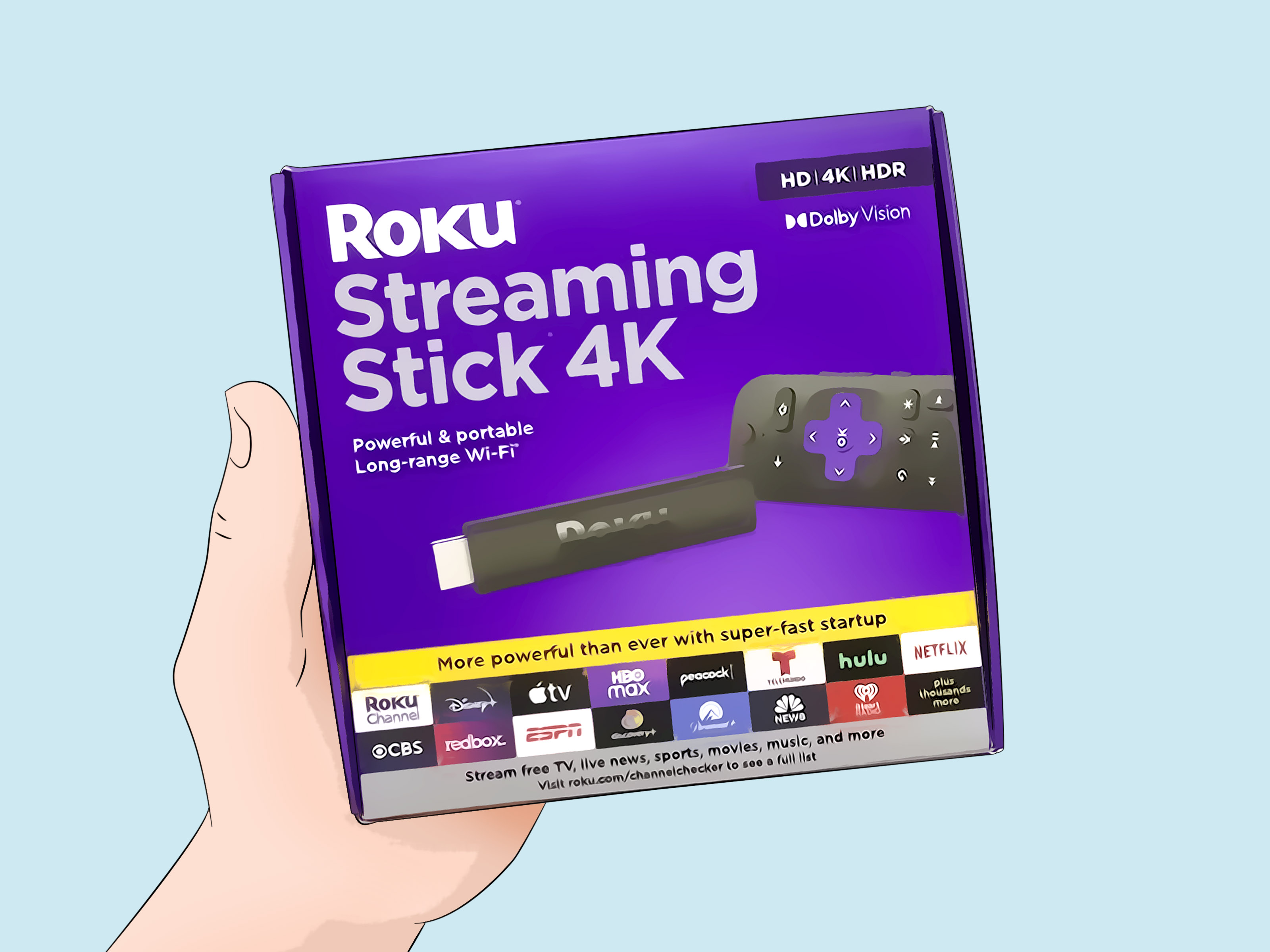
If your Roku keeps restarting, congratulations: your relaxing movie night has officially turned into a tiny tech support seminar. One minute you are choosing a show, the next minute the purple Roku logo appears like it owns the place. Whether you use a Roku Streaming Stick, Roku Express, Roku Ultra, or a Roku TV from brands such as TCL, Hisense, Sharp, or onn., random rebooting usually points to one of a few common problems: weak power, overheating, software glitches, unstable Wi-Fi, a bad app, or a hardware issue.
The good news is that most Roku restart loops can be fixed at home without replacing the device. The even better news? You do not need to be a technician, a firmware wizard, or the person in the family who “knows computers” because they once installed a printer. This guide walks through the top causes and fixes in a practical order, from the easiest solutions to the more serious last-resort steps.
Why Does My Roku Keep Restarting?
A Roku device restarts when its operating system reloads, power gets interrupted, the device gets too hot, or a software process crashes badly enough that the system starts over. Occasional restarts after updates are normal. Repeated restarts every few minutes are not.
The key is to notice the pattern. Does your Roku restart only when the TV turns on? Does it reboot during streaming? Does it get stuck on the logo screen? Does a red light flash or stay solid? Each clue points to a different fix.
Quick Fixes to Try First
1. Perform a Real System Restart
Start simple. A proper system restart clears temporary glitches without deleting your apps, settings, or Roku account. On most Roku devices, go to:
Settings > System > Power > System restart > Restart
If you do not see the Power menu, try:
Settings > System > System restart
If your Roku is frozen and you cannot reach the menu, unplug the power cable, wait at least 10 seconds for a streaming player or about 60 seconds for a Roku TV, then plug it back in. Think of this as giving your Roku a short nap instead of letting it continue its dramatic reboot monologue.
2. Use a Wall Outlet Instead of the TV USB Port
One of the most common reasons a Roku keeps restarting is not enough power. Many Roku streaming players can be powered through a TV’s USB port, but not all USB ports provide steady power. Some TVs cut power to USB when they go into standby. Others provide enough electricity to turn the Roku on, but not enough to keep it stable during streaming.
If your Roku restarts when you turn on the TV, or if you see a low-power warning or flashing red light, plug the Roku directly into a wall outlet using the original Roku USB cable and power adapter. This is especially important for Roku Express, Roku Streaming Stick, and compact Roku players.
3. Check the Power Cable and Adapter
A weak or damaged USB cable can cause restart loops. Cheap replacement cables may charge a phone just fine but fail to deliver stable current to a streaming device. Use the cable that came with your Roku when possible. If you have another compatible Roku power adapter, test it. Avoid loose wall outlets, overloaded power strips, and mystery cables from the drawer of forgotten electronics.
Top Causes and Fixes for a Roku That Keeps Restarting
Cause 1: Low Power or Unstable Power
Symptoms: Roku restarts randomly, restarts when the TV turns on, shows a low-power warning, or has a flashing red light.
Fix: Disconnect the Roku from the TV USB port and use a wall outlet. Use the original cable and adapter. If you must use a TV USB port, try another USB port on the TV, because some ports provide more power than others. For a Roku TV, plug the TV directly into a wall outlet instead of a crowded power strip and test again.
This is the first fix to try because it solves a surprising number of “Roku keeps rebooting” problems. Streaming takes more effort than sitting on the home screen. If the device gets just enough power to boot but not enough to stream reliably, it may restart over and over.
Cause 2: Overheating
Symptoms: Roku restarts during long viewing sessions, feels very hot, shows an overheating message, or displays a solid red light.
Fix: Unplug the Roku and let it cool for at least 10 minutes. Move it to a better-ventilated area. Do not place it inside a closed cabinet, on top of a cable box, behind a hot TV panel, or in direct sunlight. If you use a Roku Streaming Stick, consider using an HDMI extender so the stick sits farther away from the heat coming off the back of the TV.
Heat is the enemy of tiny electronics. Your Roku does not need a luxury spa day, but it does need airflow. A device wedged behind a wall-mounted TV in summer can get hot enough to act unstable.
Cause 3: Software Glitches or Temporary Cache Problems
Symptoms: Roku freezes, slows down, crashes back to the home screen, or restarts after opening menus or apps.
Fix: Perform a system restart from the settings menu. If the remote still responds but the interface is sluggish, you can also try the remote restart sequence:
Home button 5 times > Up 1 time > Rewind 2 times > Fast Forward 2 times
The device may pause for a few seconds, then restart. This can clear temporary data and refresh the system. It does not remove your apps or sign you out.
Cause 4: Outdated Roku Software
Symptoms: Restarting begins after app updates, new channels fail to load, streaming apps crash, or the device behaves inconsistently.
Fix: Check for a Roku OS update manually:
Settings > System > Software update > Check Now
Roku devices usually update automatically, but a manual check can help if the device missed an update or an app requires a newer system build. After updating, restart the Roku and test the same app again.
Cause 5: A Problematic App or Channel
Symptoms: Roku restarts only when opening Netflix, YouTube, Hulu, Disney+, Max, The Roku Channel, or another specific app.
Fix: Remove and reinstall the problem app. Highlight the app on the home screen, press the star button on the remote, choose Remove app, then restart the Roku. After the restart, reinstall the app from the Channel Store and sign in again.
This order matters: remove the app, restart the Roku, then reinstall. Skipping the restart is like sweeping dust under the rug and declaring the house clean. The app’s corrupted temporary data may remain until the system refreshes.
Cause 6: Wi-Fi or Network Instability
Symptoms: Roku restarts or freezes while streaming, buffers heavily before rebooting, or struggles when multiple devices are online.
Fix: Go to:
Settings > Network > Check connection
If the connection is weak, move the router closer, move the Roku away from objects blocking the signal, reduce heavy internet use on other devices, or restart the modem and router. Unplug the router for 20 to 30 seconds, plug it back in, wait for the network to return, then reconnect the Roku.
If several apps fail or the device acts confused about Wi-Fi, reset the network connection:
Settings > System > Advanced system settings > Network connection reset > Reset connection
After that, reconnect to your Wi-Fi network. This will not factory reset your Roku, but it will remove saved network details.
Cause 7: HDMI Problems or Connected Device Conflicts
Symptoms: Roku TV restarts when a game console, soundbar, cable box, or HDMI device turns on; the screen flickers; the TV reboots after switching inputs.
Fix: Disconnect all HDMI devices except the Roku or, for a Roku TV, disconnect everything except the power cord. Turn the TV on and leave it on the Roku home screen for 10 to 15 minutes. If it stops restarting, reconnect devices one at a time.
A bad HDMI cable, a misbehaving soundbar, or HDMI-CEC control conflicts can make a Roku TV act haunted. You may need to replace a cable, use a different HDMI port, or disable one-touch control/CEC settings on connected devices.
Cause 8: Restart Loop After an Update
Symptoms: Roku keeps checking for updates, restarts during setup, or returns to the same screen repeatedly.
Fix: Restart both the Roku and router. For streaming players, unplug the Roku for 30 seconds. For a Roku TV, unplug it for 60 seconds. Restart your modem/router as well. Then try setup again with a strong Wi-Fi connection. If the issue continues, use a wired Ethernet connection if your Roku model supports it, or temporarily move the router closer.
Update loops often happen when the device loses network stability or power during installation. Stable power and a clean network connection are the two boring-but-beautiful heroes here.
Cause 9: Roku TV Stuck on the Logo Screen
Symptoms: Roku TV turns on, shows the logo, restarts, and never reaches the home screen.
Fix: Unplug the TV from power for 60 seconds, then plug it back in. If that fails, use the physical reset button on the TV. Many Roku TV models have a recessed reset button on the back or side panel. With the TV powered on, press and hold the reset button for about 12 seconds, then release it when the reset cycle begins.
If the TV still cannot start normally, Roku TV models may offer Recovery Mode. Recovery Mode can reinstall the operating system, but it should be used carefully and only when normal restart and reset steps fail.
Cause 10: Failing Hardware
Symptoms: Roku restarts even with a wall outlet, original cable, cool placement, updated software, and no connected devices. It may also shut off randomly, freeze during setup, or fail to complete factory reset.
Fix: If every software and power fix fails, hardware may be the issue. For a streaming player, replacement may be the most cost-effective option, especially if the device is older. For a Roku TV, contact the TV manufacturer or Roku support, particularly if it is still under warranty.
Step-by-Step Troubleshooting Checklist
Use This Order for the Fastest Results
- Restart the Roku from the settings menu.
- Unplug the device and power cycle it.
- Use a wall outlet instead of the TV USB port.
- Check for overheating and improve ventilation.
- Update Roku software manually.
- Remove and reinstall any app that triggers restarts.
- Check Wi-Fi strength and restart the router.
- Reset the network connection if several apps fail.
- Disconnect HDMI devices and test one by one.
- Factory reset only after simpler fixes fail.
How to Factory Reset a Roku
A factory reset should be your last resort because it removes apps, sign-ins, preferences, and device settings. You will need to set up the Roku again and reconnect it to your Roku account.
To factory reset from the menu, go to:
Settings > System > Advanced system settings > Factory reset
For Roku TV, choose Factory reset everything and follow the on-screen instructions.
To factory reset with the physical button, locate the reset button on the device. With the Roku powered on, press and hold the button for about 10 seconds on most streaming players. On many Roku TV models, hold the recessed reset button for about 12 seconds. Release it when the status light or reset process begins.
What Not to Do When Your Roku Keeps Restarting
Do not keep unplugging and replugging the device every few seconds. Give it time to shut down properly. Do not cover an overheating Roku with anything cold or wet. That is not a repair strategy; that is how electronics develop trust issues. Do not use random “Roku support” phone numbers from search ads or pop-ups. Use official Roku support channels when you need account or warranty help.
Also, avoid factory resetting too early. A factory reset can help, but it is inconvenient and may not solve a power or overheating problem. Always check the power source and heat first.
When Should You Replace Your Roku?
Consider replacing a Roku streaming player if it is several years old, frequently overheats, no longer receives reliable updates, or restarts even after using a good wall adapter, original cable, fresh software, and a factory reset. Newer Roku models often have better Wi-Fi performance, faster processors, and more stable app support.
For a Roku TV, replacement is a bigger decision. First test the wall outlet, disconnect external devices, try a factory reset, and contact support if the TV is under warranty. If the restart loop continues and the TV is out of warranty, repair costs may help you decide whether replacement makes more sense.
Real-World Experiences: What Usually Works Best
In everyday troubleshooting, the most successful fix for a Roku that keeps restarting is often the least glamorous one: power. Many people assume the device has a deep software problem when it is actually struggling with a weak USB port. A Roku plugged into a TV USB port may boot normally, open apps normally, and still restart when streaming begins. That is because video playback increases demand. Once the device needs more stable power, it taps out and reboots. Moving it to a wall outlet often solves the issue immediately.
Another common experience involves Roku Streaming Sticks hidden behind wall-mounted TVs. These setups look clean, but the back of a TV can become a warm little cave. After an hour of streaming, the stick heats up, performance drops, and the device may restart. An HDMI extender can make a noticeable difference because it moves the Roku away from direct TV heat and gives it more breathing room. It is not fancy, but neither is sweating behind a television while trying to watch a sitcom.
App-specific restarts are also common. For example, a Roku may work perfectly on the home screen and in several apps, then restart every time a certain streaming app opens. In that case, the device itself may not be failing. The app data may be corrupted, outdated, or stuck after an update. Removing the app, restarting the Roku, and reinstalling the app is usually more effective than simply opening and closing it repeatedly. The restart between removal and reinstallation is the step many users miss.
Network-related restarts can be trickier because they look like device problems. A weak Wi-Fi signal may cause buffering, freezing, app crashes, and occasional restarts. This often happens when the router is far away, placed behind furniture, or overloaded with phones, laptops, tablets, smart speakers, cameras, and gaming consoles. Running Roku’s connection check can reveal whether the device has a reliable path to the internet. Restarting the router may feel too simple, but routers also need a refresh now and then. They are basically tiny computers with blinking lights and a superiority complex.
Roku TVs add another layer because external HDMI devices can trigger weird behavior. A soundbar, console, or cable box may send control signals through HDMI-CEC, and sometimes those signals create power or input conflicts. If the TV restarts when a specific device wakes up, unplugging everything and reconnecting devices one at a time can identify the culprit. Replacing a cheap HDMI cable or changing a CEC setting can stop the problem without touching the Roku software at all.
Factory resets do work in some stubborn cases, especially after failed updates or major app instability. However, they should come after power, heat, software updates, app reinstalling, network checks, and HDMI testing. A factory reset is like moving all your furniture outside because you lost the remote. It might solve something, but you should probably check the couch cushions first.
The practical lesson is simple: treat Roku restart problems like a process of elimination. Start with power, then heat, then software, then apps, then network, then HDMI devices, then factory reset. This order saves time and prevents unnecessary frustration. Most Roku devices do not restart randomly for mysterious reasons. They restart because something in the chain is unstable. Find that weak link, and your Roku can go back to doing what it was born to do: launching apps, streaming shows, and judging you silently when you click “next episode” for the fourth time.
Conclusion
If your Roku keeps restarting, do not panic and do not throw the remote into the couch dimension. Start with the basics: restart the device, use a wall outlet, check the power cable, cool the device down, and update the software. If the reboot happens only with one app, remove and reinstall that app. If streaming freezes before the restart, test your Wi-Fi and reset the network connection. If a Roku TV restarts with external devices attached, test HDMI devices one by one.
Most Roku restart loops are fixable without replacing the device. The smartest approach is to troubleshoot in order, beginning with the simplest and most common causes. Your Roku may not be broken; it may just be underpowered, overheated, outdated, or dealing with one cranky app. Give it stable power, fresh software, good airflow, and a clean connection, and there is a strong chance your streaming night can return to normal.