Hidden a Facebook post by accident? Don’t panic. Your post has not packed a suitcase, changed its name, and moved to a quiet cabin in the algorithmic woods. In most cases, it is still sitting inside your Facebook Activity Log or waiting behind a Feed preference setting. You just need to know where Facebook tucked the button this week.
This guide explains how to unhide posts on Facebook using two easy methods: restoring posts hidden from your profile and bringing back posts you stopped seeing in your Feed. Whether you are using the Facebook mobile app, desktop site, iPhone, Android, or a browser, the steps are simple once you understand the difference between “hidden from profile,” “hidden from Feed,” “archived,” and “deleted.” Yes, Facebook uses several slightly different hiding places, because apparently one drawer was not enough.
Before You Start: What Does “Hidden” Mean on Facebook?
On Facebook, “hidden” can mean a few different things. This is why some users search everywhere for a post and feel like they are playing hide-and-seek with a raccoon. The most common situations are:
- Hidden from profile: The post no longer appears on your profile timeline, but it may still exist elsewhere on Facebook depending on its audience and where it was originally shared.
- Hidden from Feed: You told Facebook you did not want to see a post, person, Page, or group in your Feed.
- Snoozed: You temporarily stopped seeing posts from a person, Page, or group for 30 days.
- Unfollowed: You remained friends with a person or connected to a Page/group, but stopped seeing their posts in your Feed.
- Archived or deleted: The post was moved out of public view or removed. Deleted posts may only be restorable for a limited time, depending on how they were deleted.
The good news: if your goal is to unhide a Facebook post from your profile, the Activity Log is usually the answer. If your goal is to see someone’s posts again in your Facebook Feed, Feed preferences are usually the answer.
Method 1: Unhide Posts from Your Facebook Profile Using Activity Log
This method is for posts you previously removed from your profile timeline by choosing something like “Hide from profile” or “Hide from timeline.” It works for many of your own posts, tagged posts, photos, videos, and updates that still exist on Facebook.
How to Unhide a Facebook Post on Mobile
The Facebook app changes its menu labels from time to time, but the general path is usually similar on iPhone and Android:
- Open the Facebook app.
- Tap your profile picture or go to your profile page.
- Tap the three-dot menu near your profile details.
- Select Activity Log.
- Look for Your Facebook Activity, Posts, or Logged actions and other activity.
- Choose Posts hidden from profile or Hidden from profile.
- Find the post you want to restore.
- Tap the three dots beside the post.
- Select Add to profile, Show on profile, or a similar restore option.
After that, return to your profile and refresh the page. The post should appear again if it is eligible to be shown. If it does not appear immediately, do not start arguing with your phone. Close and reopen the app, check your internet connection, or try Facebook in a browser.
How to Unhide a Facebook Post on Desktop
If you prefer using Facebook on a computer, the desktop version can be easier because the screen is larger and the Activity Log is less cramped.
- Go to Facebook in your browser and log in.
- Click your profile picture or name to open your profile.
- Click the three-dot menu near your profile controls.
- Select Activity Log.
- In the left menu, click Your activity across Facebook.
- Choose Posts.
- Click Posts hidden from profile.
- Use filters such as date or year if you are looking for an older post.
- Open the menu beside the post and choose the option to restore it to your profile.
This is the cleanest way to find hidden posts on Facebook because the Activity Log stores many actions in one place. Think of it as Facebook’s filing cabinet: not glamorous, not exciting, but very useful when you need to find the digital equivalent of a receipt from 2016.
Important: Unhiding Does Not Always Change Privacy
When you unhide a post from your Facebook profile, you are usually only changing whether it appears on your profile timeline. You are not automatically making it public. The post’s audience setting still matters. For example, if a post was shared with “Friends,” unhiding it does not magically show it to the entire internet. If it was shared by someone else and you were tagged, the original poster’s privacy settings may control who can see it.
To adjust visibility, open the post and check the audience selector. Depending on the post type, you may be able to choose options such as Public, Friends, Friends except…, or Only me. If the post was created by someone else, you may not have full control over its audience.
Method 2: Unhide Posts in Your Facebook Feed Using Feed Preferences
This method is for posts you stopped seeing in your Facebook Feed. Maybe you hid one post because someone shared their fifth “Monday motivation” quote before breakfast. Maybe you snoozed a Page. Maybe you unfollowed a friend but still want to remain connected. Whatever happened, you can often reverse it.
Undo a Hidden Feed Post Immediately
If you just hid a post from your Feed, Facebook may show an Undo option right away. This is the easiest fix.
- After hiding the post, look for the confirmation message.
- Click or tap Undo.
- The post should return to your Feed.
This works best immediately after you hide the post. Once you leave the page, refresh the app, or continue scrolling, the undo option may disappear faster than a cookie near a toddler.
Reconnect with People, Pages, or Groups You Unfollowed
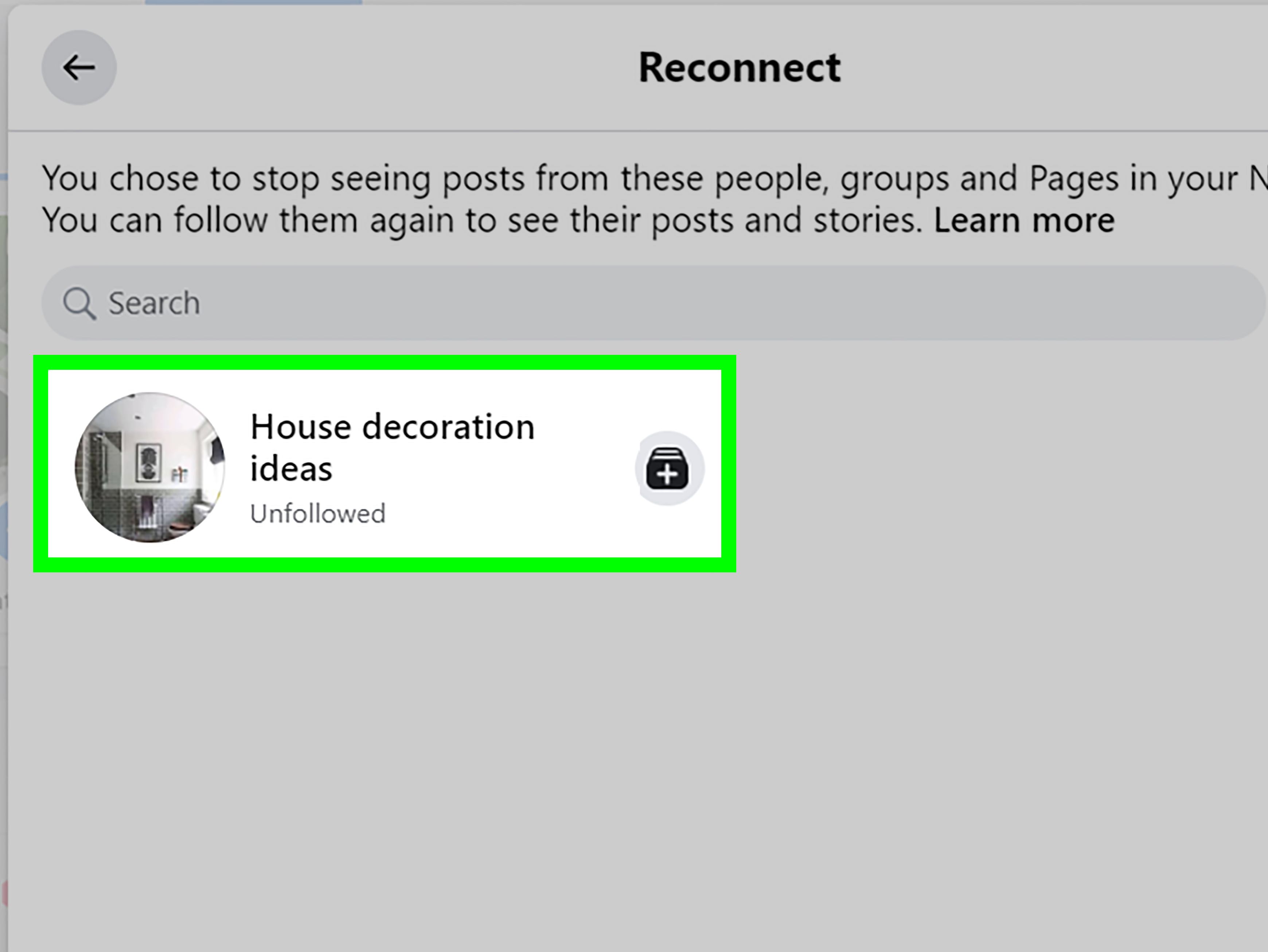
If you unfollowed someone, Facebook does not remove them as a friend. It simply stops showing their posts in your Feed. To see their posts again, you need to reconnect or follow them again.
- Open Facebook.
- Go to Menu.
- Select Settings & privacy.
- Open Feed or Feed preferences.
- Choose Reconnect.
- Select the people, Pages, or groups you want to follow again.
You can also visit a person’s profile or a Page directly and choose Follow. They will not be notified when you follow or unfollow them, which is nice because nobody needs a dramatic push notification that says, “Susan has emotionally returned to your casserole updates.”
Unsnooze a Person, Page, or Group
Facebook’s Snooze feature hides posts from a person, Page, or group for 30 days. If you snoozed someone and changed your mind, you can end the snooze early.
- Open Facebook and go to Settings & privacy.
- Find Feed preferences.
- Look for Snooze or Manage snooze settings.
- Select the profile, Page, or group you want to unsnooze.
- Turn off snooze or reconnect with that source.
Once you unsnooze a source, Facebook may start showing its posts again. However, the Feed algorithm still decides what appears first based on relevance, recency, engagement, and your past behavior. In other words, reconnecting opens the door, but the algorithm still acts like a very picky bouncer.
Hidden from Profile vs. Hidden from Feed: What’s the Difference?
The difference matters because each problem has a different fix.
Hidden from Profile
A post hidden from your profile has been removed from your timeline view. People may not see it when they visit your profile, but the post may still appear in search, Feed, groups, Pages, or the original poster’s profile depending on its privacy settings. Use Activity Log to restore it.
Hidden from Feed
A post hidden from your Feed affects what you see while scrolling. It does not delete the post, remove it from someone else’s profile, or change its audience. Use Undo, Reconnect, Follow, or Unsnooze to bring posts back into your Feed.
Why You May Not See the Post After Unhiding It
Sometimes you follow the steps perfectly and the post still does not appear. Annoying? Yes. Unusual? Not really. Here are the most common reasons.
The Post Was Deleted
If a post was deleted, it is not simply hidden. It may be available in Trash for a limited time if it was deleted through certain Facebook management tools, but once it is permanently deleted, it cannot always be recovered.
The Post Was Archived
Archived posts are removed from public view but kept in your account. If you archived a post instead of hiding it, look for Archive inside Activity Log or Manage Activity, then restore it from there.
You Were Tagged, but the Original Post Changed
If someone else posted the content and tagged you, they may have edited the audience, removed the tag, deleted the post, or restricted who can view it. In that case, your control is limited.
You Are Looking in the Wrong Facebook Profile
Many people now manage personal profiles, Pages, groups, and business accounts. Make sure you are using the correct profile or Page when searching Activity Log. Facebook loves giving you multiple doors, and occasionally they all look like the same door.
The App Needs a Refresh
Facebook can lag. Try closing the app, clearing cache if needed, updating the app, or checking from a desktop browser. If the post appears on desktop but not mobile, the app may simply need a refresh or update.
Tips for Managing Hidden Facebook Posts Like a Pro
Once you know how to unhide posts, it helps to manage your profile more intentionally. A few small habits can save you from future confusion.
Use Filters in Activity Log
If you have been on Facebook for years, your Activity Log may contain enough history to qualify as an autobiography. Use date filters, categories, and post types to narrow your search. Searching by year is especially helpful when looking for vacation photos, old announcements, or posts from a specific event.
Check Privacy Before Restoring a Post
Before you add a post back to your profile, ask: “Do I still want this visible?” A joke from 2012 may have aged like milk in a hot car. Review the content, audience, tags, and comments before restoring it.
Use “Only Me” Instead of Hiding Everything
If you want to keep a post but do not want others to see it, changing the audience to Only me may be better than hiding it. That way, you still know where the post is, and you can change the audience later.
Do Not Confuse Hide, Archive, and Delete
Hide removes a post from a particular view. Archive stores it away. Delete removes it and may become permanent. If you are unsure, choose the least destructive option first. Future you will appreciate not having to reconstruct a heartfelt caption from memory.
Common Questions About Unhiding Facebook Posts
Can I unhide someone else’s post on Facebook?
You can unhide a post from your profile if it involves your profile, such as a tagged post you hid. But you cannot control whether another person keeps their post visible, deletes it, or changes its audience.
Will people be notified when I unhide a post?
Usually, Facebook does not send a special notification simply because you added a hidden post back to your profile. However, people who can view the post may see it if they visit your profile or if Facebook surfaces it in relevant places.
Can I unhide multiple Facebook posts at once?
Facebook tools may allow bulk actions in some areas, but restoring hidden posts is often done one post at a time. This is slower, but it gives you a chance to review each post before putting it back on your profile.
Why is there no “Add to profile” option?
The post may not be eligible to restore, may belong to someone else, may be archived or deleted, or may be controlled by another privacy setting. Try opening the post, checking its source, and reviewing your Activity Log categories.
Can I unhide posts on a Facebook Page?
If you manage a Facebook Page, hidden Page posts may appear in Page settings or the Page Activity Log. You may need admin access to restore them. Personal profiles and business Pages do not always use the same menus.
Practical Experience: What Usually Works Best
In real everyday use, the easiest way to unhide a Facebook post is not to start with a broad search. Start with the question: “Where did I hide it from?” That one question saves time. If the post disappeared from your personal profile, go straight to Activity Log. If posts from a person or Page disappeared from your Feed, go straight to Feed preferences. Most frustration comes from mixing up those two places.
For example, imagine you shared a family photo last year and later clicked “Hide from profile” because you were cleaning up your timeline before a job search. Months later, you want it back. Searching your Feed will not help much because the post was hidden from your profile, not necessarily from Facebook itself. The better move is to open your profile, go into Activity Log, filter for hidden posts, and restore it. That route is faster and avoids the endless scroll of doom.
Now imagine a different situation. You stopped seeing updates from a friend, but you never hid a specific post from your profile. In that case, Activity Log may not reveal anything useful. You probably unfollowed, snoozed, or told Facebook you were not interested in that person’s posts. Feed preferences are the better tool. Reconnect with the friend, follow their profile again, or remove them from Snooze. After that, interact with a few of their posts if you genuinely want to see more from them. Facebook learns from behavior, so a like, comment, or profile visit can help signal interest.
Another helpful experience-based tip: use a desktop browser when the mobile app feels confusing. The Facebook app is convenient, but menus can be nested deeply, and labels may vary slightly between Android and iPhone. On desktop, Activity Log filters are often easier to scan. If you are hunting for an old post from a certain year, the bigger screen can save your thumbs from a scrolling marathon.
It is also smart to pause before restoring old posts. Many people unhide a post because they miss the memory, then realize the comments, tags, or audience are not what they want today. Before clicking “Add to profile,” review the post like a tiny social media editor. Is the audience right? Are the tags still appropriate? Does the caption still make sense? Is there a comment thread underneath it that may create awkward questions at Thanksgiving? A ten-second review can prevent a ten-minute explanation later.
Finally, remember that hiding is not the same as privacy. If a post matters, check its audience setting. If you want it visible only to yourself, choose “Only me” where available. If you want friends to see it, choose “Friends.” If you want a public post to return to your profile, make sure you are comfortable with anyone potentially seeing it. Unhiding restores placement; privacy settings control visibility. Treat those two controls as partners, not twins.
Conclusion
Learning how to unhide posts on Facebook is mostly about knowing where Facebook stores different kinds of hidden content. For posts removed from your profile, use Activity Log and look for Posts hidden from profile. For posts missing from your Feed, use Feed preferences, reconnect with unfollowed people or Pages, remove snooze settings, or tap Undo immediately after hiding a post.
The main rule is simple: profile problems live in Activity Log; Feed problems live in Feed preferences. Once you remember that, the process becomes much less mysterious. And if Facebook moves the button again, which it probably will because buttons apparently need exercise, look for similar labels such as “Hidden from profile,” “Activity,” “Posts,” “Reconnect,” “Snooze,” or “Follow.”
Note: Facebook menu names and layouts may vary by device, app version, account type, and region. If you do not see the exact label mentioned here, look for the closest matching option in Activity Log, Feed preferences, Archive, or Trash.