If you have ever tried to coordinate dinner, a weekend trip, a school pickup, or a family debate over where to eat, you already know one universal truth: one-on-one texting is adorable, but group texting gets things done. The good news is that starting a group text in iMessage is easy. The even better news is that once you know a few small tricks, you can make your group chat feel less like chaos and more like organized chaos.
This guide walks you through exactly how to start a group text in iMessage in five simple steps. Along the way, you will also learn how group iMessage is different from regular SMS or MMS group messages, what those blue and green bubbles really mean, and how to avoid the classic “Why can’t I name this chat?” meltdown.
Whether you are texting your roommates, planning a birthday surprise, or creating the family thread that will somehow become 37% dog photos, here is how to do it right.
What Is a Group Text in iMessage?
Before jumping into the steps, it helps to know what kind of conversation you are creating. In Apple’s Messages app, a group text can take a few forms. A true group iMessage happens when everyone in the chat is using an Apple device with iMessage turned on. Those messages usually appear in blue bubbles, and they support the good stuff: group names, group photos, inline replies, mentions, better media sharing, and other features that make the chat feel smarter.
If one or more people in the conversation are not using Apple devices, the conversation may switch to a carrier-based group message. That often shows up in green bubbles. Mixed-device chats can still work, but they usually lose some iMessage-specific perks. That is why a group thread with all iPhone users feels polished, while a mixed thread sometimes feels like it was assembled with duct tape and optimism.
What You Need Before You Start
Starting a group text in iMessage does not require much, but a quick check saves time:
- Your iPhone should have iMessage turned on.
- You need the phone numbers or Apple IDs of the people you want to add.
- If your chat includes non-Apple users, MMS Messaging may need to be enabled in your Messages settings.
- A stable Wi-Fi or cellular connection helps Messages behave like a civilized app.
If your settings layout looks different from someone else’s screenshots, do not panic. Apple changes menu layouts from time to time. Just search for Messages in Settings if needed.
How to Start a Group Text in iMessage: 5 Steps
Step 1: Open the Messages App
Start on your iPhone’s Home Screen and open Messages. This is the green app with the white speech bubble. If you use it every day, your thumb probably already knows where it lives.
Once you are inside the app, you will see your existing conversations. To create a new one, tap the Compose icon in the upper-right corner. It usually looks like a pencil on a square. That opens a blank message screen where you can build your group chat from scratch.
Step 2: Add Multiple Recipients
Tap the To: field and start entering the names, phone numbers, or Apple IDs of the people you want in the group. Add each person one at a time. As you type, your iPhone will usually suggest matching contacts, which makes the process faster and reduces the odds of accidentally texting “Mike from accounting” instead of your cousin Mike.
To create a group message, you need more than one recipient. Once multiple names appear in the address field, you are building a group conversation rather than a standard one-to-one chat.
This is also the moment when your iPhone quietly decides what kind of group thread you are making. If everyone has iMessage active on Apple devices, you are likely headed into blue-bubble territory. If not, the conversation may use MMS or another carrier-supported format instead.
Step 3: Type Your First Message
After adding the recipients, tap the message field and type whatever you want to send. This can be as practical as “Team, are we meeting at 6?” or as dangerous as “Who ate my leftovers?”
If you want, you can also add a photo, emoji, GIF, link, or other content before sending. A simple first message is often best because it establishes the thread clearly. Something like:
- “Hey everyone, starting this group so we can plan Saturday.”
- “Family chat upgrade complete. Please use responsibly.”
- “Project thread starts here. Coffee opinions welcome but optional.”
Your first message sets the tone. It can be casual, funny, or direct, but clarity helps. The cleaner the opener, the fewer “Wait, who is this?” replies you will get.
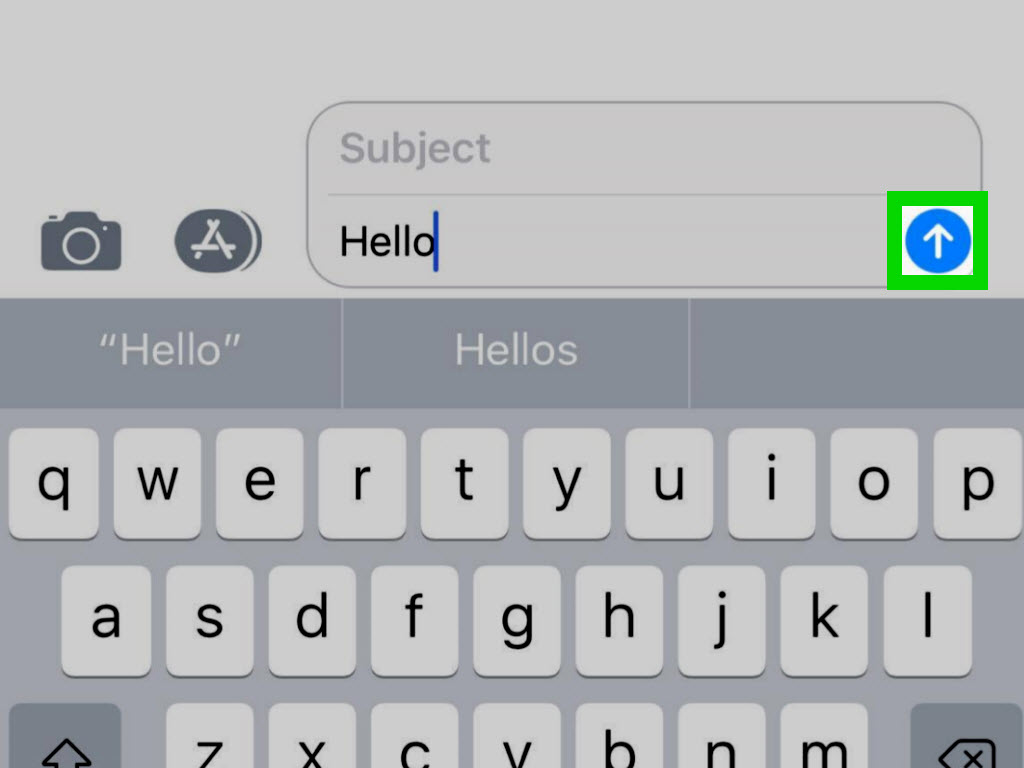
Step 4: Tap Send
Now tap the Send button, usually the upward-pointing arrow. That is it. Your group text is now alive and ready to generate plans, jokes, side conversations, and at least one person who responds with only thumbs-up reactions.
Pay attention to the message color after it sends. If the conversation shows blue, you are in a group iMessage chat. If it turns green, your group is using a non-iMessage format. The chat can still function, but some features may be limited.
Step 5: Customize and Manage the Group
Once the thread exists, you can make it easier to use. Open the conversation, tap the group icons or names at the top, and look for management options. In a true group iMessage, you may be able to:
- Name the group chat
- Add a group photo, emoji, or Memoji
- Add or remove participants in certain cases
- Mute notifications if the chat becomes too enthusiastic
- See participant details and manage the thread more easily
Naming the chat is especially helpful if you have several ongoing threads. “Soccer Parents,” “Weekend Cabin,” or “Do Not Let Dad Buy Another Grill” is much better than squinting at a row of tiny profile circles every time.
Why You Might Not Be Able to Name the Group
This is one of the biggest points of confusion. If the option to name your group text is missing, the problem is usually not you. It is the chat type.
You can typically name a group text only when it is a group iMessage, which means everyone in the conversation is using Apple devices with iMessage enabled. If even one person in the group is on another platform, the name option may disappear. In that case, the chat is no longer a pure iMessage group, and Apple strips away some customization features.
In plain English: one green-bubble participant can turn your stylish named chat into a plain thread with fewer powers. Technology is amazing.
How to Add or Remove Someone Later
Once your group conversation is running, you might want to add another participant or remove one. This is possible in some group iMessage chats, but there are limits.
In general, adding or removing people works best when:
- The conversation is a group iMessage
- Everyone involved is using an Apple device
- The group has enough participants for Apple to allow the change
If you cannot add a person, and that person uses a non-Apple phone, the easiest fix is often to start a new group thread that includes everyone from the beginning. It is not glamorous, but it is effective.
Common Problems and Quick Fixes
Your Messages Turn Green
This usually means the conversation is not using iMessage. Check whether someone in the group is on a non-Apple device, whether iMessage is turned off for someone, or whether iMessage is temporarily unavailable.
You Cannot Send to a Mixed Group
Make sure MMS Messaging is enabled in your iPhone’s Messages settings. Some carriers also require a plan that supports group MMS. If your phone is acting stubborn, toggling cellular data or restarting the device may help.
You Cannot Name the Chat
If the chat includes a non-Apple user, naming may not be available. That is normal. The group is likely using a different message type.
You Cannot Leave the Group
Apple places limits on when you can leave a group conversation. If there are not enough participants, or if the thread is not a true group iMessage, the option may not appear. In that case, muting alerts is often the best peacekeeping move.
Best Tips for a Better iMessage Group Chat
- Name the chat early so it is easy to find later.
- Keep the first message clear so everyone knows why the group exists.
- Mute noisy threads instead of resenting them in silence.
- Use reactions and inline replies when available to keep side topics organized.
- Start a new group if the participant mix changes a lot.
A well-managed group chat is a beautiful thing. A badly managed one can produce 83 notifications before breakfast. Choose wisely.
Real-World Examples of When to Start a Group Text in iMessage
Group texts are useful in more situations than people realize. Here are a few common examples:
Family Planning
Create one thread for holiday plans, grocery lists, or checking who is bringing dessert. This works especially well when everyone uses Apple devices and you can name the group something memorable.
Friends and Social Events
Concerts, birthdays, road trips, and dinner plans all benefit from one shared chat instead of six separate conversations that somehow still leave someone uninformed.
Work or School Coordination
For small teams, study groups, or project partners, a group iMessage thread can be a quick way to confirm times, share updates, and send links without opening a heavier collaboration app.
Experience-Based Advice: What Starting a Group Text in iMessage Is Really Like
In real life, starting a group text in iMessage is rarely just about pressing buttons. It is about what happens after the chat begins. The technical setup takes less than a minute, but the human side of group messaging is where the story gets interesting.
A family group chat, for example, usually starts with noble intentions. Someone wants one place to coordinate dinner, birthdays, or travel updates. The first few messages are practical and efficient. Then, within days, the thread evolves into a digital attic full of baby photos, weather reports, blurry screenshots, and a relative asking a question that was clearly answered six messages earlier. Even so, it works. Everyone stays connected, and the group becomes the default place for important updates.
Friend-group chats have a different energy. These usually begin because one person is tired of repeating the same plan five times. The group starts with something simple like, “Hey, let’s pick a time for brunch.” Ten minutes later, the chat has split into three micro-debates: where to go, who is driving, and whether one person is “five minutes away” in the emotional sense rather than the literal one. In those moments, iMessage group features really help. Reactions reduce clutter, naming the group makes it easier to spot, and a shared thread keeps everyone on the same page, or at least in the same general chapter.
Work-related group texts are often the most revealing. People love them when they are efficient and hate them when they become endless. A well-started iMessage group text for work feels focused: clear name, clear purpose, direct first message. A badly started one feels like a conference call that somehow learned how to buzz in your pocket. The lesson is simple: create the group for a reason, state that reason early, and avoid turning it into a 24-hour stream of nonessential chatter.
There is also a small emotional victory that comes with a properly set up group iMessage. When the bubbles are blue, the group name sticks, the photo looks good, and everyone replies in one thread, the chat feels polished. It feels intentional. When it switches to green because one participant is outside the Apple universe, the mood changes instantly. Suddenly, some features disappear, media may behave differently, and the thread loses a bit of its shine. It still works, but it no longer feels like the luxury edition of texting.
The biggest real-world takeaway is this: starting a group text in iMessage is easy, but starting a useful one takes a tiny bit of thought. Pick the right people, give the chat a clear purpose, name it when you can, and do everyone a favor by not sending 14 separate “LOL” messages in a row. Your future self, and everyone else in the thread, will thank you.
Conclusion
If you want to start a group text in iMessage, the process is simple: open Messages, create a new message, add multiple recipients, type your first message, and send it. After that, you can customize the group, manage notifications, and keep conversations organized. The biggest thing to remember is that true group iMessage features work best when everyone is using Apple devices. If the thread turns green, some options may change, but the conversation can still do its job.
Once you know the difference between group iMessage and standard group texting, you can avoid common frustrations and set up chats that are actually helpful. In other words, you will spend less time fighting your phone and more time getting the group to finally agree on a pizza order.