Adding a hyperlink in Yahoo Mail sounds like one of those tiny tech tasks that should take three secondsuntil you are staring at the compose window wondering where the little link button went. Is it hiding? Is it judging you? Did Yahoo move it during a coffee break? Good news: creating a clickable link in Yahoo Mail is simple once you know where to look.
A hyperlink lets you turn plain text, a full URL, an image, or sometimes a pasted web address into something the recipient can click. Instead of sending a messy link that looks like it escaped from a robot factory, you can write clean, helpful text such as “view the meeting agenda,” “download the file,” or “visit our website.” That makes your email easier to read, more professional, and less likely to scare your recipient into thinking you are secretly a phishing villain wearing a cardigan.
In this guide, you will learn how to hyperlink in Yahoo Mail in 9 steps, how to fix common linking problems, how to write better anchor text, and how to use links safely. Whether you are sending a work update, sharing a recipe, linking to a portfolio, or emailing your cousin the “very important” video of a raccoon stealing cat food, these steps will help you do it neatly.
What Is a Hyperlink in Yahoo Mail?
A hyperlink is clickable text or content that sends someone to another place. In Yahoo Mail, that place is usually a website, online document, calendar invite, map, product page, article, or download page. You can also paste a full URL directly into the email body, and Yahoo Mail usually recognizes it as a clickable link automatically.
For example, instead of writing:
https://example.com/very-long-page-name-with-too-many-random-characters
You can write:
Read the full project update here.
The second version is cleaner, friendlier, and much easier on the eyes. Hyperlinks are especially useful when you want your email to look polished, organized, and readable on both desktop and mobile devices.
How to Hyperlink in Yahoo Mail: 9 Steps
Step 1: Open Yahoo Mail and Sign In
Go to Yahoo Mail in your browser and sign in to your account. You can use Yahoo Mail on popular browsers such as Chrome, Firefox, Safari, or Edge. For the smoothest experience, use an updated browser because older versions may hide or break formatting tools.
If Yahoo Mail loads slowly or looks unusual, refresh the page before composing your email. A tiny refresh can save you from a surprisingly dramatic amount of button-hunting.
Step 2: Click “Compose”
Once you are inside your inbox, click the Compose button. This opens a new message window where you can add your recipient, subject line, and email content.
Before adding your link, write at least part of your message. A hyperlink works best when it appears naturally in a sentence. For example, “You can review the updated schedule here” is much better than “LINK LINK LINK!!!” unless your goal is to sound like a panicked office printer.
Step 3: Add the Recipient and Subject Line
Enter the recipient’s email address in the To field. Add a short, clear subject line that explains the purpose of your message. If the email contains a link, make the subject specific enough that the recipient understands why they are receiving it.
Examples of helpful subject lines include:
- Updated Contract for Review
- Link to Tomorrow’s Meeting Agenda
- Portfolio Samples for Your Feedback
- Photos From Saturday’s Event
A clear subject line builds trust. That matters because people are naturally cautious about links in emailand honestly, they should be.
Step 4: Type the Text You Want to Turn Into a Link
In the body of your message, type the words you want readers to click. This is called anchor text. Good anchor text tells the reader exactly what will happen when they click.
Instead of using vague text like “click here,” try something more descriptive:
- View the invoice
- Read the full guide
- Open the shared folder
- See the event location
- Download the presentation
Descriptive link text is better for readability, accessibility, and trust. It also looks more professional, especially in business emails.
Step 5: Highlight the Text
Use your mouse or keyboard to highlight the exact words you want to hyperlink. Be careful not to highlight extra spaces, punctuation, or half the paragraph unless that is your intention.
For example, in the sentence “Please review the project brief before Friday,” you might highlight only “project brief.” This keeps the link focused and easy to understand.
If you are using keyboard shortcuts, place your cursor before the text, hold Shift, and use the arrow keys to select the words. It is not glamorous, but it worksand sometimes keyboard shortcuts make you feel like a tech wizard with excellent posture.
Step 6: Click the Link Icon in the Formatting Toolbar
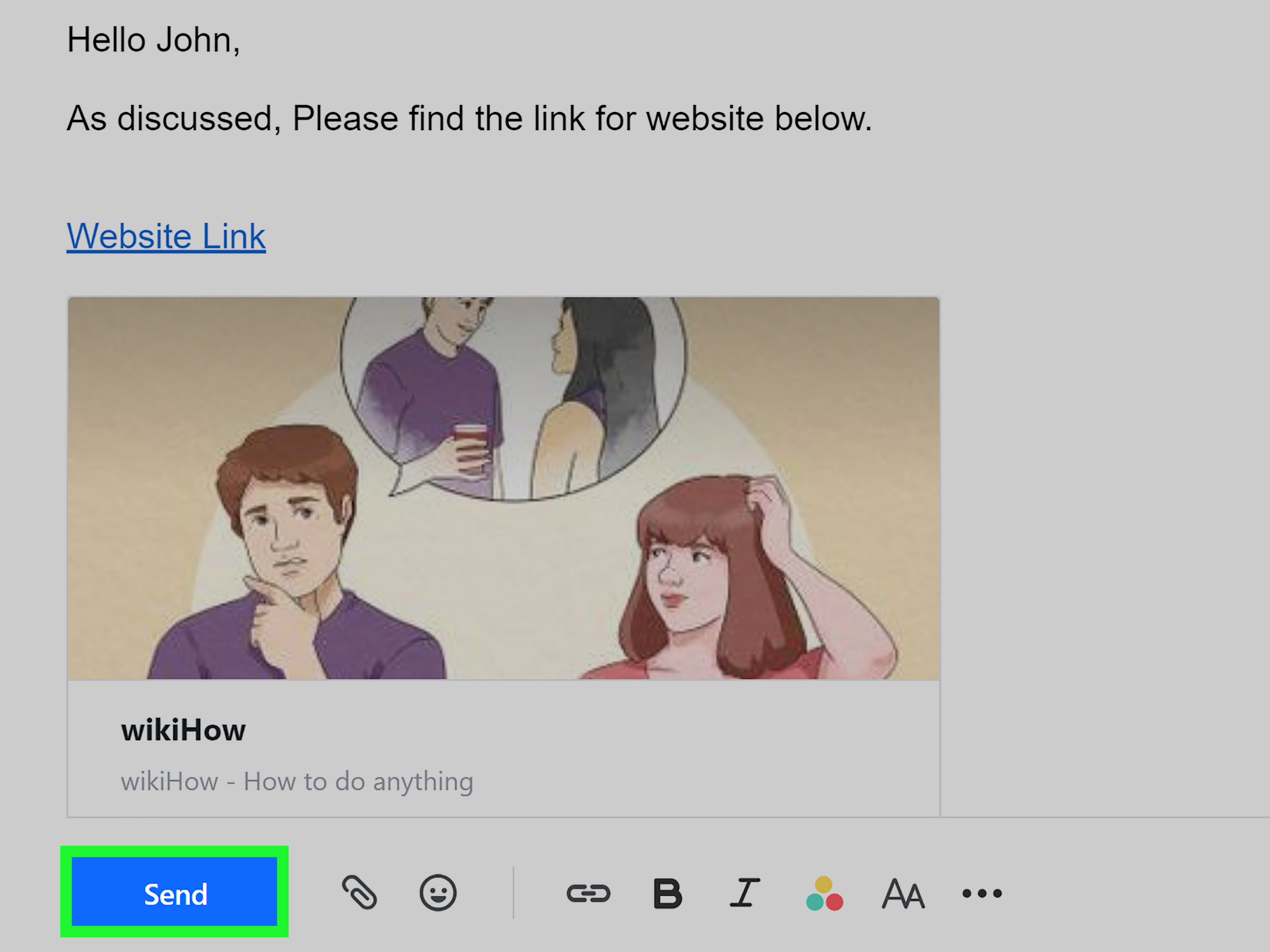
Look at the formatting toolbar near the bottom of the Yahoo Mail compose window. Find the icon that looks like a small chain link. That is the hyperlink button.
If you do not see the formatting toolbar, Yahoo Mail may be in plain text mode, your compose window may be too small, or your browser may not be displaying the toolbar properly. Try expanding the compose window, clicking the formatting options, switching back to rich text mode, refreshing the page, or using another browser.
Once you click the link icon, Yahoo Mail should open a small box where you can paste or type the web address.
Step 7: Paste the URL
Copy the destination URL from your browser’s address bar, then paste it into the link field in Yahoo Mail. Make sure the link starts with https:// or http://. Most modern websites use HTTPS, which indicates a more secure connection.
Before inserting the link, double-check that the address is correct. A single missing letter can send your recipient to an error page, the wrong document, or a mysterious corner of the internet where nobody wanted to go.
For example, if you are linking to a shared document, confirm that the file permissions allow the recipient to open it. A beautiful hyperlink is not very helpful if it leads to a “You need access” screen.
Step 8: Insert or Save the Link
After pasting the URL, click the button that confirms the action. Depending on your Yahoo Mail version and interface, it may say Save, OK, or something similar. Your selected text should now appear as a clickable hyperlink.
Usually, linked text appears underlined or colored differently from normal text. That visual cue tells the recipient, “Yes, I am clickable. Please proceed responsibly.”
If the text does not change, try highlighting it again and repeating the process. Also check whether you accidentally pasted the URL into the email body instead of the link field.
Step 9: Test the Link Before Sending
Before sending your email, test the hyperlink. In many email editors, you can hover over the link or click it to preview where it goes. If clicking opens the page, document, or resource you intended, you are ready to send.
This final check is important. Broken links make emails look rushed, and misleading links can damage trust. If you are sending a professional message, testing the hyperlink is like checking your teeth before a video call. Small step, big difference.
Alternative Method: Paste a Full URL Directly
If you do not need fancy anchor text, you can simply paste a full URL into the Yahoo Mail message body. In many cases, Yahoo Mail automatically turns it into a clickable link after you press the spacebar, Enter, or continue typing.
This method is fast and useful for casual emails. For example, if you are sending a friend a restaurant menu or a news article, a full URL may be perfectly fine. However, for business emails, newsletters, applications, client communication, or formal messages, linked anchor text usually looks cleaner.
How to Edit a Hyperlink in Yahoo Mail
If you inserted the wrong link, do not panic. Click the linked text in your draft and look for an option to edit, change, or remove the link. If that does not appear, you can delete the linked text and insert it again with the correct URL.
When editing a hyperlink, check both parts: the visible text and the hidden destination URL. For example, the text might say “view the budget report,” but the URL might still point to last month’s sales deck. That is how confusion is born, and confusion already has enough hobbies.
How to Remove a Hyperlink in Yahoo Mail
To remove a hyperlink, click or highlight the linked text and look for an unlink option, often shown as a broken chain icon. If you cannot find it, delete the linked text and retype it as plain text.
You may want to remove a hyperlink if the link is outdated, incorrect, too long, unnecessary, or not safe to share. Removing extra links can also make an email cleaner and easier to read.
Best Practices for Hyperlinks in Yahoo Mail
Use Clear Anchor Text
The best email hyperlinks are specific. “Download the tax form” is clearer than “here.” “Open the appointment details” is better than “link.” Readers should know what they are clicking before they click.
Do Not Overload the Email With Links
One or two useful links are helpful. Fifteen links in a short email can feel like walking into a digital yard sale. Keep links focused on the purpose of the message.
Check Link Permissions
If you are linking to Google Drive, Dropbox, OneDrive, a company portal, or a private document, make sure your recipient has permission to access it. Otherwise, your email may create extra back-and-forth messages.
Avoid Misleading Links
The visible text should match the destination. If the link says “view invoice,” it should not lead to a product page, survey, or unrelated download. Misleading links can look suspicious even when your intentions are innocent.
Use HTTPS Links When Possible
When linking to a website, use the secure version of the URL whenever available. HTTPS links are standard for reputable websites and help build confidence with recipients.
Common Problems When Adding Links in Yahoo Mail
The Link Button Is Missing
If the hyperlink button is not visible, your email may be in plain text mode. Rich text formatting is usually required for linked anchor text. Look for formatting options in the compose window and switch back to rich text if needed.
You can also try widening the compose window, refreshing Yahoo Mail, clearing your browser cache, disabling extensions, or switching browsers.
The Link Is Not Clickable
If your pasted URL does not become clickable, make sure it includes the full beginning, such as https://. After pasting the URL, press the spacebar or Enter. If that still does not work, use the link icon method instead.
The Link Opens the Wrong Page
This usually happens when the wrong URL was copied. Open the destination page in your browser, copy the address again, and replace the old link in your email draft.
The Recipient Cannot Open the Link
If the link goes to a private file, folder, calendar, or account-based page, the recipient may need permission. Update the sharing settings before sending, or tell the recipient what account they should use to access it.
Yahoo Mail Looks Different on Mobile
The Yahoo Mail mobile app may not show the exact same formatting toolbar as the desktop web version. If you need full control over anchor text, editing, and formatting, the desktop version is often easier. Mobile is great for quick replies; desktop is better when your email needs to dress up a little.
Safety Tips Before Sending Links
Email links are useful, but they also deserve caution. Phishing scams often rely on links that look urgent, official, or emotionally persuasive. When you send links, make your email look trustworthy by explaining what the link is and why you are sending it.
For example, instead of writing “Open this now,” try “Here is the registration page for Friday’s webinar we discussed.” The second version gives context and feels safer.
Before sending a link, ask yourself:
- Does the recipient know why I am sending this?
- Is the link from a trustworthy website?
- Does the anchor text accurately describe the destination?
- Have I checked the URL for typos?
- Would I click this if someone sent it to me?
That last question is surprisingly powerful. If your own email makes you suspicious, improve it before sending.
Examples of Good Hyperlinks in Yahoo Mail
Here are a few examples of clean, useful hyperlink wording:
- Business: “Please review the updated proposal before Wednesday.”
- School: “You can find the reading assignment in the class folder.”
- Event planning: “Here is the map to the venue.”
- Job search: “My portfolio is available here.”
- Personal: “I found the recipe we talked about.”
Each example tells the reader what to expect. That is the secret sauce: a hyperlink should reduce friction, not create a tiny mystery novel.
When Should You Use a Hyperlink Instead of an Attachment?
Use a hyperlink when the file or resource is stored online, may be updated later, or is too large to attach. Links are especially helpful for shared documents, cloud folders, videos, forms, sign-up pages, maps, and live project files.
Use an attachment when the recipient needs a fixed copy of a document, such as a PDF receipt, completed form, signed file, or image. However, attachments can trigger security concerns, especially if the recipient is not expecting them. A well-explained hyperlink to a trusted cloud file may be smoother in many situations.
Experience-Based Tips for Hyperlinking in Yahoo Mail
After working with email content, tutorials, and everyday user questions, one thing becomes clear: the technical step is rarely the hardest part. The real challenge is making the link useful, obvious, and trustworthy. Many people know how to paste a URL, but fewer people think about how that link feels to the person receiving it.
For example, imagine receiving an email from someone that says, “Check this out,” followed by a long, strange link. Even if the sender is legitimate, the message feels suspicious. Now compare that with: “Here is the product page for the desk lamp we discussed yesterday.” The second email gives context. It tells the reader why the link exists. That simple sentence can be the difference between a click and a delete.
Another useful habit is testing links in a private or incognito browser window when sharing documents. This helps reveal whether the recipient will actually be able to open the file. If the document requires your personal login, you will catch the problem before your recipient has to email back with the classic, “I can’t access this.” That message is the unofficial anthem of cloud sharing.
It also helps to keep links visually separated when an email includes more than one action. For example, if you are sending a client both a proposal and a calendar link, place them in separate sentences or bullet points. Do not bury two important links inside one giant paragraph. People scan emails quickly, especially on phones, and clear formatting makes your message easier to act on.
For professional emails, avoid using raw URLs unless there is a reason the recipient needs to see the full address. Clean anchor text usually looks more polished. However, there are exceptions. If you are sending a technical instruction, legal reference, or security-related message, showing the full URL may help the recipient verify the destination. In that case, you can include both: descriptive text and the visible URL nearby.
One common mistake is linking too many words. A full sentence can be clickable, but it often looks messy. Short phrases work better. Instead of hyperlinking “please click this link to see the report I mentioned earlier in our meeting,” hyperlink only “see the report.” The email instantly becomes cleaner.
Another practical tip is to write the email first and add links second. When people start with links, the message can become link-driven instead of reader-driven. Write what the recipient needs to know, then add the hyperlink exactly where it supports the message. Think of links as helpful doors, not decorations. You do not need a door every three feet unless you are designing a very confusing hotel.
On mobile, be extra careful. It is easier to accidentally select the wrong text, paste the wrong link, or send before testing. If the email is important, draft it on mobile if you must, but review it on desktop when possible. Yahoo Mail’s desktop compose tools generally give you better visibility and control.
Finally, remember that a hyperlink is part of your communication style. A good link says, “I made this easy for you.” A bad link says, “Good luck, brave traveler.” When you use clear anchor text, test the destination, and give helpful context, your Yahoo Mail messages become more professional, more useful, and much less likely to be mistaken for digital chaos in a trench coat.
Conclusion
Learning how to hyperlink in Yahoo Mail is a small skill with a big payoff. With just a few stepscompose your email, highlight your text, click the link icon, paste the URL, and test the resultyou can create messages that look cleaner and work better.
Hyperlinks help you share information without cluttering your email with long web addresses. They make business emails more polished, personal emails more convenient, and shared resources easier to access. The key is to use them thoughtfully: choose clear anchor text, confirm the destination, check permissions, and avoid anything that feels vague or suspicious.
Once you get comfortable adding links in Yahoo Mail, you will probably wonder why you ever pasted giant URLs into emails like spaghetti on a keyboard. A clean hyperlink is simple, professional, and reader-friendlyand your recipients will appreciate not having to decode a mile-long web address before their second cup of coffee.
Note: Yahoo Mail features and toolbar labels may vary slightly by browser, device, app version, and account interface. If your screen looks different, use the same general process: compose, highlight text, find the link or formatting option, add the URL, and test before sending.