If your Mac suddenly flashes the warning “Your system has run out of application memory”, it can feel like your computer just looked you in the eye and said, “I’m tired, boss.” The good news? This message does not always mean your Mac is broken, ancient, or secretly plotting a dramatic retirement. Most of the time, it means macOS is struggling to give your open apps enough working memory, often because one app is hogging resources, too many tabs are partying in the background, or your startup disk is too full for macOS to use virtual memory comfortably.
This guide explains what the error means, why it happens, and how to fix it step by step. Whether you are using a MacBook Air, MacBook Pro, iMac, Mac mini, or Mac Studio, the solutions below will help you free up memory, reduce memory pressure, and stop the warning from interrupting your work like an overcaffeinated hall monitor.
What Does “Your System Has Run Out of Application Memory” Mean?
On macOS, application memory is the memory used by apps and processes currently running on your Mac. When your Mac runs low on available RAM, it uses compression and swap memory to keep things moving. Swap memory means macOS temporarily uses storage space on your drive as extra memory. This is clever, but it is not magic. If too many apps are open, one process leaks memory, or your disk is almost full, macOS may throw the application memory warning.
In plain English: your Mac has too many plates spinning, and one of them may be on fire.
Common Causes of the Application Memory Error
Too Many Apps Open at Once
Running Safari, Chrome, Photoshop, Final Cut Pro, Slack, Spotify, Mail, Messages, Notes, and 47 browser tabs may feel productive, but your Mac may disagree. Apps consume memory even when they are sitting quietly in the background pretending to be innocent.
A Browser Using Too Much Memory
Browsers are frequent suspects. Chrome, Safari, Firefox, and Edge can all consume large amounts of memory when many tabs, extensions, videos, web apps, or cloud tools are open. A single misbehaving tab can sometimes eat more memory than a full desktop app.
Low Free Storage Space
If your startup disk is almost full, macOS has less room for swap files and temporary system operations. This can trigger the application memory warning even when your physical RAM does not look completely maxed out.
Memory Leaks
A memory leak happens when an app keeps requesting memory but does not properly release it. Over time, that app becomes the digital equivalent of someone hoarding every coffee mug in the office kitchen.
Heavy Creative or Development Apps
Video editors, photo editors, virtual machines, music production software, 3D tools, coding environments, and large spreadsheets can push memory usage very high. These apps are powerful, but they are not shy about asking for resources.
Login Items and Background Services
Some apps launch automatically when your Mac starts. Cloud sync tools, menu bar utilities, updaters, messaging apps, and helper processes can quietly pile up in the background and contribute to memory pressure.
How to Fix “Your System Has Run Out of Application Memory”
1. Save Your Work First
Before clicking buttons with heroic confidence, save your open documents. The warning usually asks you to quit apps, and force quitting can cause unsaved work to disappear faster than snacks in a shared kitchen.
Save important files in apps such as Word, Pages, Photoshop, Excel, Final Cut Pro, Logic Pro, and browser-based tools like Google Docs or Canva. Once your work is safe, you can troubleshoot without sweating through your keyboard.
2. Quit Apps You Are Not Using
Start simple. Quit apps you do not need right now. On a Mac, closing a window does not always quit the app. That little dot under the icon in the Dock means the app is still running.
To quit an app normally, click the app name in the menu bar and choose Quit, or press Command + Q. Start with heavy apps like browsers, photo editors, video editors, games, virtual machines, and collaboration tools.
3. Use Force Quit for Frozen Apps
If an app is frozen, open the Force Quit window by pressing Option + Command + Esc. Select the app that is not responding, then click Force Quit.
Use Force Quit carefully. It is excellent for stuck apps, but it can discard unsaved changes. Think of it as the emergency exit, not the front door.
4. Open Activity Monitor and Check Memory Pressure
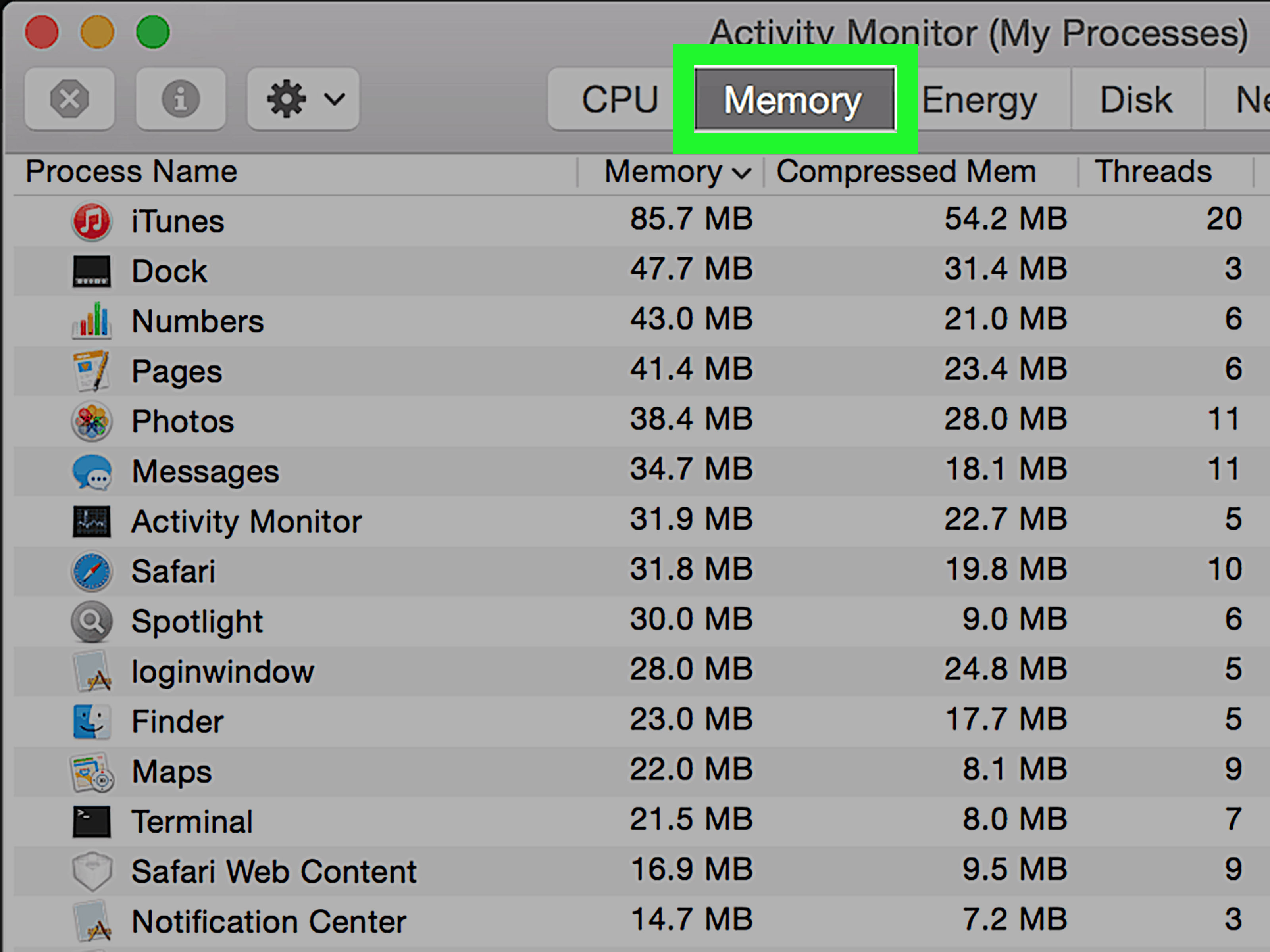
Activity Monitor is the best built-in tool for diagnosing memory problems on a Mac. Open it by pressing Command + Space, typing Activity Monitor, and pressing Return. Then click the Memory tab.
At the bottom, look for Memory Pressure. Green means your Mac is handling memory well. Yellow means it is working harder. Red means your Mac is under serious memory stress.
Next, sort the list by the Memory column. This shows which apps and processes are using the most memory. If one app is using a shocking amount of RAM, that is your prime suspect. Select it, click the X button in the toolbar, and choose Quit or Force Quit if necessary.
5. Restart Your Mac
A restart is not a boring suggestion; it is often the fastest fix. Restarting clears temporary memory usage, closes stuck processes, resets background services, and gives macOS a clean start.
Click the Apple menu in the top-left corner and choose Restart. After your Mac restarts, open Activity Monitor again and check whether memory pressure returns to green during normal use.
6. Free Up Storage Space
Low storage can make application memory problems worse because macOS relies on available disk space for swap files and temporary operations. To check storage, go to Apple menu > System Settings > General > Storage.
Delete large files you no longer need, empty the Trash, remove old installers, clear downloads, and move bulky media files to an external drive or cloud storage. Pay special attention to video files, disk images, duplicate archives, and forgotten screen recordings. Those “quick little recordings” somehow become storage goblins.
As a practical rule, try to keep at least 15–20% of your drive free if possible. macOS performs better when it has breathing room.
7. Reduce Browser Memory Usage
If your browser is the main memory hog, start by closing unused tabs. Then remove extensions you do not need. Extensions can run scripts, track pages, sync data, or inject features into websites, all of which may use memory.
In Chrome, go to Settings > Performance and turn on Memory Saver. This feature helps free memory from inactive tabs. In Safari, close tab groups you are not using and avoid leaving dozens of video-heavy pages open. In Firefox, update the browser and test whether extensions are causing high memory use by disabling them temporarily.
8. Update macOS and Your Apps
Software updates often include performance improvements, bug fixes, and compatibility patches. If an app is leaking memory because of a bug, updating may solve the problem.
To update macOS, open System Settings > General > Software Update. To update apps, use the App Store or the app’s own update menu. For professional apps like Adobe Creative Cloud, Microsoft Office, Final Cut Pro, Logic Pro, or development tools, check their official update managers.
9. Remove Unnecessary Login Items
Login items launch automatically when your Mac starts. Some are useful. Others are clingy little gremlins wearing productivity costumes.
Go to System Settings > General > Login Items & Extensions. Review the apps listed under Open at Login and remove anything you do not need immediately after startup. Also review background items and disable nonessential services from apps you rarely use.
10. Check for Problem Apps and Memory Leaks
If the warning appears after opening a specific app, that app may be causing the issue. Open Activity Monitor, use the app normally, and watch whether its memory usage climbs continuously without dropping. If it does, quit the app and reopen it.
You can also try reinstalling the app, removing old plugins, resetting preferences, or contacting the developer. For creative tools, reduce project size, close unused documents, lower preview quality, or adjust memory-related settings. In Photoshop, for example, avoid giving the app nearly all available RAM because macOS and other apps still need memory too.
11. Start Your Mac in Safe Mode
Safe Mode loads macOS with only essential components and clears certain system caches. It is useful when you suspect a startup item, extension, cache, or background service is causing memory trouble.
On Apple silicon Macs, shut down your Mac, hold the power button until startup options appear, select your disk, hold Shift, and click Continue in Safe Mode. On Intel Macs, restart and immediately hold Shift until the login window appears.
If the memory error disappears in Safe Mode, the cause may be a login item, third-party extension, or background utility.
12. Repair Your Disk with Disk Utility
Disk problems can cause unusual system behavior. Open Disk Utility, select your startup disk, and run First Aid. First Aid checks and repairs formatting and directory issues when possible.
Back up important data before disk repair. If Disk Utility reports serious problems or says the disk may be failing, treat that warning seriously. Your Mac is not being dramatic; storage failure is one of the few times the machine deserves sympathy.
13. Scan for Malware or Suspicious Software
Malware is not the most common cause of this error, but suspicious background processes can consume memory. If Activity Monitor shows unfamiliar processes using lots of resources, investigate carefully. Avoid downloading random “Mac cleaner” tools that promise instant miracles. Some of them behave like the problem they claim to solve.
Use trusted security software if needed, remove unknown browser extensions, and uninstall apps from sources you do not recognize. Also check System Settings for profiles, extensions, VPN tools, and background services you did not intentionally install.
14. Consider Whether Your Mac Needs More RAM
Many modern Macs have unified memory that cannot be upgraded after purchase. If you regularly work with large video projects, huge Photoshop files, virtual machines, software development environments, or hundreds of browser tabs, your workload may simply be bigger than your Mac’s available memory.
If Activity Monitor frequently shows yellow or red memory pressure during normal work, and you have already cleaned up apps and storage, your next Mac should have more memory. For casual use, 8GB may be workable. For heavier multitasking, 16GB or more is much more comfortable. For professional creative and technical workflows, 32GB or more can be worth it.
Quick Fix Checklist
- Save your work immediately.
- Quit unused apps with Command + Q.
- Force quit frozen apps with Option + Command + Esc.
- Use Activity Monitor to find high-memory apps.
- Restart your Mac.
- Free up storage space.
- Close browser tabs and remove unnecessary extensions.
- Update macOS and apps.
- Remove unnecessary login items.
- Test in Safe Mode.
- Run Disk Utility First Aid.
Real-World Experience: What Usually Fixes This Error
In real-world troubleshooting, the application memory warning often looks scarier than it is. The most common pattern is simple: someone has a browser open with too many tabs, a few productivity apps running, maybe a photo editor in the background, and almost no free storage left. Then macOS tries to juggle everything and eventually says, “Absolutely not.”
One typical example is a MacBook Air with 8GB of memory and dozens of Chrome tabs open. The user may not think the tabs count because they are “just sitting there,” but modern websites are not passive pages anymore. Gmail, YouTube, Canva, Facebook, Google Docs, analytics dashboards, project management tools, and online editors can act like full applications inside the browser. Close twenty tabs, turn on Memory Saver, restart the browser, and suddenly the Mac feels like it found a second cup of coffee.
Another common experience involves low disk space. A Mac may have 16GB of RAM, but if the internal drive has only 3GB free, macOS has very little room for swap memory. In that case, quitting apps helps temporarily, but the deeper fix is storage cleanup. Deleting old iPhone backups, moving videos to an external drive, emptying Trash, and removing unused apps can make the warning disappear for good.
Creative apps are also frequent culprits. Photoshop, Lightroom, Final Cut Pro, Premiere Pro, After Effects, Logic Pro, and similar tools can consume huge amounts of memory, especially with large files. The best fix is not always “buy a new Mac tomorrow.” Sometimes it is closing unused projects, reducing preview quality, clearing cache inside the app, updating plugins, and restarting the app between heavy sessions. Professional apps are like sports cars: powerful, exciting, and not exactly sipping fuel politely.
Developers can run into the same problem with Docker, virtual machines, emulators, local servers, IDEs, and browser test windows all open at once. In that situation, Activity Monitor is your friend. Sort by memory usage and look for the biggest consumers. You may find a virtual machine allocated too much memory, a runaway Node process, or an emulator still running after you forgot about it.
My favorite practical habit is a weekly “Mac reset ritual.” Restart the Mac, install updates, clean Downloads, remove login items you no longer need, close old browser windows, and check Activity Monitor. It takes only a few minutes, but it prevents many performance issues before they become dramatic pop-ups. Your Mac does not need pampering, exactly, but it does appreciate not being treated like a digital storage shed with Wi-Fi.
If the warning keeps coming back even after cleanup, pay attention to patterns. Does it happen only after opening one app? Only after waking from sleep? Only when using an external monitor? Only while editing video? Patterns turn random frustration into useful evidence. Once you know the trigger, the fix becomes much easier.
The bottom line: start with Activity Monitor, quit the worst offenders, free up storage, update software, and restart. Those steps solve the majority of “Your system has run out of application memory” cases. If they do not, Safe Mode, Disk Utility, and deeper app-specific troubleshooting are the next smart moves.
Conclusion
The message “Your system has run out of application memory” usually means your Mac is under heavy memory pressure, not that it is doomed. Start with the basics: save your work, quit unused apps, check Activity Monitor, restart, and free up storage. Then move deeper by reducing browser load, updating software, removing login items, testing Safe Mode, and checking for problem apps.
The key is not to guess. Activity Monitor shows what is really happening. Once you identify the app, process, or storage issue behind the warning, you can fix the cause instead of repeatedly closing the same annoying pop-up. Your Mac will run smoother, your apps will behave better, and you can get back to work without macOS waving a tiny panic flag in your face.