Trying to open your camera on Android should not feel like cracking a secret code written by a sleep-deprived wizard. Yet sometimes the Camera app refuses to cooperate, a social app says it cannot see your lens, or Chrome acts like your webcam does not exist. The good news is that most camera-access problems on Android can be fixed in a few minutes if you know where to look.
This guide walks you through five practical steps to access the camera on Android, whether you want to snap a photo, join a video call, scan a QR code, or let an app use the camera the right way. Along the way, you will also learn how Android camera permissions work, why some devices hide settings in slightly different places, and what to do when the camera still says “nope.”
Why Camera Access on Android Sometimes Gets Blocked
Android takes privacy seriously, which is great for users and mildly annoying for anyone trying to join a video meeting two seconds before it starts. Modern Android phones use app permissions, privacy controls, and camera indicators to help you decide which apps can use your camera and when. That means access can be blocked in more than one place.
For example, the camera may be unavailable because the app permission is denied, the phone’s system-level camera access is switched off, the browser blocked a website, or the app itself is glitching and needs a quick reset. On newer Android versions, unused apps may also lose sensitive permissions over time, which is helpful for security but confusing when an app suddenly forgets it ever met your camera.
The fix is usually simple. You just need to go step by step instead of rage-tapping your screen like it owes you money.
Step 1: Open the Camera the Fast Way
The first step sounds obvious, but it matters because Android phones offer multiple ways to open the camera. If one method fails, another may still work.
Common ways to access the camera on Android
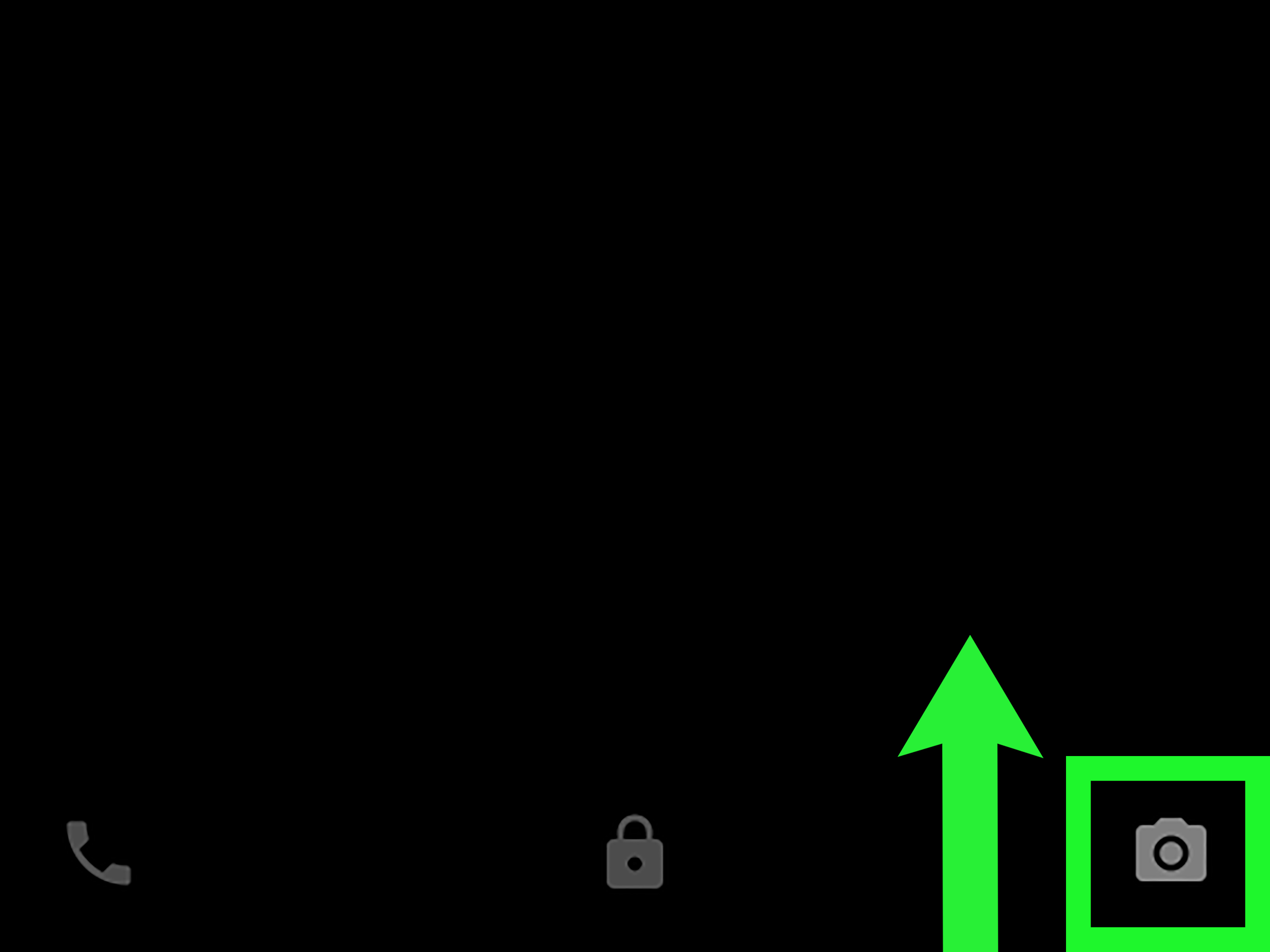
You can usually open the Camera app from the home screen, the app drawer, the lock screen shortcut, or the quick launch feature built into your phone. On many Android devices, double-pressing the power button launches the camera instantly. Some Samsung Galaxy phones also make the camera accessible right from the lock screen or cover screen, depending on the model.
Why this step matters
If the camera opens normally in the Camera app but does not work inside another app, your problem is probably not the camera hardware. It is more likely a permission issue, a browser setting, or a problem with that specific app. If the Camera app itself will not open, skip ahead to the troubleshooting sections after you work through the permission steps below.
Step 2: Allow Camera Permission for the App
If an app wants to take photos, scan codes, record video, or join a video call, it usually needs camera permission. Android should prompt you the first time. If you denied that request, the app may act confused forever unless you manually change the setting.
How to turn on camera permission for one app
Go to Settings > Apps, then tap the app you want to fix. Choose Permissions, then tap Camera. From there, select the permission option that makes sense. Depending on your Android version and the app, you may see choices like Allow, Allow only while using the app, Ask every time, or Don’t allow.
For most camera-based apps, Allow only while using the app is the sweet spot. It gives the app access when you actually need it, without handing over permanent keys to your digital living room.
Best examples of apps that need camera access
Video chat apps, banking apps with mobile check deposit, barcode and QR code scanners, social media apps for stories and live video, telehealth apps, and document scanning apps often need camera permission. A basic calculator app asking for camera access, however, deserves a raised eyebrow and maybe a polite goodbye.
Step 3: Check System-Level Camera Access
Some Android phones include a master privacy toggle that can disable camera access for the whole device. If that switch is off, individual app permissions will not save you. It is like giving everyone tickets to a concert after locking the building.
Where to find the camera access toggle
Open Settings > Security & Privacy or Privacy. Look for Camera access or Privacy controls. If camera access is turned off, switch it back on. The exact menu name varies by brand and Android version, but the setting is commonly stored in the privacy section.
How to know if the camera is in use
On newer Android versions, especially Android 12 and later, a green indicator appears near the top of the screen when an app is using the camera or microphone. If you swipe down and tap the indicator, Android may show which app is currently using the camera. That is helpful when you suspect another app is hogging the lens or when your phone starts acting like it is filming a documentary without your consent.
Step 4: Use Permission Manager and Privacy Dashboard
If you are not sure which app has camera access, Android gives you a better way to investigate than random guessing. Permission Manager and Privacy Dashboard let you review who has access and who recently used it.
How to review all camera permissions
Open Settings > Security & Privacy > Privacy > Permission Manager, or go to the Privacy Dashboard if your phone offers it. Tap Camera. You will see which apps are allowed, which are denied, and sometimes which apps accessed the camera recently.
Why this feature is useful
This screen is perfect when you cannot remember which app is causing trouble. It is also useful when you want to clean up permissions and remove access from apps that no longer need it. If you installed a random flashlight app two years ago and it still wants camera access, this is your chance to end that relationship respectfully.
When to reset permissions
If an app still behaves oddly, try changing the permission to Don’t allow, close the app, reopen it, and then grant access again. Sometimes refreshing the permission handshake fixes issues that look bigger than they really are.
Step 5: Allow Camera Access in Chrome or Fix the App
Not every camera problem comes from the Android settings menu. Sometimes the issue lives inside the app itself, or inside Chrome if you are trying to use a website for video calling, online proctoring, telehealth, or browser-based scanning.
How to allow camera access in Chrome on Android
Open Chrome > Settings > Site settings > Camera. Make sure camera access is enabled. If a specific site is blocked, find it in the blocked list and change it to Allow. You may also need to revisit the website and approve the permission prompt there.
How to fix a buggy app that cannot access the camera
If the permission is already allowed and the app still refuses to use the camera, try these quick fixes:
Force stop the app, reopen it, clear its cache, update it from the Play Store, and restart your phone. If the problem continues, uninstall and reinstall the app. For the Camera app itself, clearing cache is often worth trying before you assume your phone is doomed.
When the hardware might be the problem
If the camera fails in every app, including the built-in Camera app, the issue may be deeper. It could be a software bug, a system-level conflict, or a hardware fault. In that case, test the phone after a restart and software update. If the problem remains, you may need device support or repair.
Quick Recap: The 5 Steps to Access Camera on Android
- Open the Camera app from your home screen, app drawer, lock screen, or quick launch shortcut.
- Grant camera permission to the app in Settings > Apps > [App Name] > Permissions.
- Make sure the phone’s system-level Camera access setting is turned on.
- Use Permission Manager or Privacy Dashboard to review and change camera access.
- Check Chrome site permissions or troubleshoot the app with force stop, cache clearing, updates, or reinstalling.
Common Android Camera Access Problems and Fixes
The app says it needs camera permission even though you already allowed it
This usually means the app needs a restart, the permission setting did not apply correctly, or the app has another dependency such as microphone or storage access. Some apps need both camera and microphone permissions for video features to work properly.
The camera works in the Camera app but not in Snapchat, Zoom, or another app
That points to an app-specific problem. Check the app’s permission page, update the app, and review whether Android auto-reset its permissions after a long period of inactivity.
The green dot appears, but you do not know which app is using the camera
Tap the indicator or go to the Privacy Dashboard to identify the app. This is one of the easiest ways to catch background camera use or figure out why your device suddenly thinks it is Spielberg.
A website cannot access your camera in Chrome
Review both Android app permissions for Chrome and Chrome’s site settings. A website can be blocked even if Chrome itself has permission to use the camera.
Best Practices for Camera Privacy on Android
Only grant camera permission to apps that clearly need it. Prefer “while using the app” when available. Review your Permission Manager once in a while, especially after installing new apps. Pay attention to the green camera indicator. And if an app’s permission request feels weird, trust your instincts. Your wallpaper app probably does not need to inspect your face like it is running airport security.
Real-World Experiences: What Accessing the Camera on Android Usually Feels Like
For many Android users, the experience of enabling camera access is not dramatic at all. You download an app, tap a feature that needs the camera, approve the prompt, and move on with life. That is the ideal version. But in real-world use, the experience is often messier, and that is exactly why understanding the five steps makes such a difference.
One of the most common experiences happens during a rushed moment. Someone opens Zoom, Google Meet, or a telehealth portal right before an appointment and suddenly sees a warning that the camera is blocked. The panic is immediate. The user starts tapping every visible icon like they are trying to defuse a bomb in a movie. In reality, the fix is often just one buried permission setting away. Once people learn where Apps > Permissions > Camera lives, they stop feeling helpless and start fixing the issue in under a minute.
Another frequent scenario shows up with social apps. A user installs Snapchat, Instagram, or TikTok, denies camera access the first time because they are not ready, and later forgets they ever said no. Days or weeks later, the app opens to a blank camera screen or a pop-up asking for access again. That leads many users to think the app is broken when the real issue is simply a denied permission. This experience is surprisingly common because Android gives people control, but people are also very good at forgetting their own choices.
There is also the browser-based experience, which deserves its own little award for confusion. A user joins a meeting or launches a web app in Chrome, confirms Android camera access for Chrome, and still cannot get the site to see the camera. Why? Because Chrome has two layers to consider: app-level camera permission and site-level permission. Once users understand that a website can be blocked separately inside Chrome, the problem suddenly makes sense. Before that moment, it feels like Android is gaslighting them.
Samsung and Pixel users often notice another real-world detail: settings menus can look slightly different from screenshots they find online. One device says Security & Privacy, another says Privacy, and another puts permission tools under apps first. This difference makes many users assume they are in the wrong place, when actually they are one tap away from the correct setting. The broader experience here is not that Android is impossible, but that brand-specific menu labels can turn a simple task into a scavenger hunt.
Then there is the privacy side of the experience. Many users first learn about Android’s camera indicators when they notice a green dot in the corner of the screen and briefly assume they are being spied on by a submarine. Usually it just means an app is actively using the camera or microphone. After the initial confusion, that feature becomes reassuring. It gives people visible proof that Android is surfacing sensor use instead of hiding it.
Overall, the real experience of camera access on Android is a mix of convenience, privacy controls, and occasional menu hide-and-seek. Once users understand the logic behind permissions, system toggles, Privacy Dashboard, and browser settings, the whole thing becomes much less mysterious. The phone stops feeling stubborn, and the user gets their camera back without sacrificing privacy.
Conclusion
Accessing the camera on Android is usually a quick job once you know where the controls live. Open the Camera app, grant the right app permission, make sure system-level camera access is enabled, review the Privacy Dashboard, and check Chrome or app-specific settings when necessary. These five steps solve the majority of camera access issues without requiring advanced tech skills or a dramatic speech to your phone.
The bigger lesson is that Android’s camera settings are designed to balance convenience and privacy. Once you learn that balance, you can use your phone more confidently, fix permission problems faster, and keep unnecessary apps away from your camera. That is a win for productivity, privacy, and your blood pressure.