Note: This guide reflects Windows 11 archive support available as of June 2026. Exact menus can vary slightly by Windows version, device manufacturer, and workplace IT policies.
For years, opening a RAR or 7z file on Windows felt like being handed a suitcase with no zipper. You could see it sitting there, smugly occupying your Downloads folder, but you needed another app before you could discover what was inside. ZIP files got the VIP treatment, while RAR and 7z files waited outside the velvet rope.
Thankfully, Windows 11 has grown up. On modern versions of Windows 11, File Explorer can open and extract common archive formats such as RAR, 7z, ZIP, and TAR without requiring extra software for basic jobs. That means many users can finally retire the emergency “Which unzipper should I download?” search.
There is one important catch: native Windows support is convenient, but it is not a full replacement for specialized archive tools. Password-protected archives, split RAR files, advanced compression settings, recovery records, and serious file-management workflows may still need 7-Zip, WinRAR, or PeaZip.
This guide explains how to get RAR and 7z support in Windows 11 right now, how to check whether your PC already supports it, and when a dedicated compression tool is still the smarter choice.
The Quick Answer: Windows 11 Can Open RAR and 7z Files Natively
If your computer runs Windows 11 version 24H2 or newer, File Explorer can handle basic RAR and 7z archive tasks without installing a separate extractor. In most cases, you can double-click the archive, browse its contents, or right-click it and choose an extraction option.
Windows can also create several archive types directly from File Explorer, including ZIP, 7z, and TAR files. However, Windows does not natively create RAR archives. RAR remains a proprietary format, so creating one generally requires WinRAR or another tool that supports RAR compression.
For everyday downloads, shared folders, school files, game mods, photo collections, and project archives, built-in Windows support is usually enough. Think of it as File Explorer finally learning how to open more than one kind of lunchbox.
Step 1: Check Your Windows 11 Version
Before downloading anything, check whether your PC already has the archive support you need. Many people install a third-party tool out of habit, only to discover that Windows 11 was ready to help all along.
Use the Winver Command
- Press Windows + R.
- Type winver.
- Press Enter.
- Look for your Windows 11 version number.
If you see version 24H2, 25H2, 26H1, or a newer release, you should have built-in support for opening and extracting RAR and 7z archives.
Update Windows 11 if Necessary
- Open Settings.
- Select Windows Update.
- Choose Check for updates.
- Install available feature and quality updates.
- Restart your computer when Windows asks.
After updating, try opening the RAR or 7z file again. A restart may feel like the computer equivalent of “Have you tried turning it off and on again?” because, well, sometimes that ancient wisdom still works.
Step 2: Open a RAR or 7z File in File Explorer
Once Windows 11 is updated, opening an archive is straightforward. Navigate to the folder containing the .rar or .7z file, then double-click it.
File Explorer should display the files stored inside the archive. You can inspect folders, view file names, and copy individual items to another location. This is useful when you only need one file rather than the entire archive.
Extract Individual Files
To copy one file from a RAR or 7z archive, open the archive in File Explorer and drag the file to a normal folder, such as Documents, Desktop, or Downloads.
For example, imagine receiving a marketing-assets.7z file containing 300 images, five PDFs, and a spreadsheet named “final_final_really_final.xlsx.” If you only need the spreadsheet, dragging out that one file is much faster than unpacking the entire digital attic.
Extract Everything at Once
- Right-click the RAR or 7z file.
- Select Extract All or the available extraction option.
- Choose a destination folder.
- Select Extract.
Windows creates a regular folder containing the archive’s contents. Once extraction finishes, you can work with the files normally.
Step 3: Create a 7z Archive in Windows 11
Windows 11 can do more than open archive files. On updated systems, File Explorer can create 7z archives directly, which is useful when you want smaller files for sharing or storage.
- Select one or more files or folders in File Explorer.
- Right-click the selection.
- Choose Compress to.
- Select 7z file, or choose Additional options for more settings.
- Name the archive and confirm the location.
The additional options screen may let you choose the archive format, compression level, and destination. For basic file sharing, the default settings are usually fine. For large folders full of documents, source code, or plain-text data, 7z can sometimes produce noticeably smaller archives than ZIP.
However, do not expect miracles from photos, videos, MP3 files, or already-compressed downloads. Compressing a folder of JPEGs is a little like trying to fold a sandwich after it has already been vacuum-sealed. Windows will try, but the result may not shrink much.
RAR vs. 7z: What Is the Difference?
RAR and 7z are both archive formats, but they are built for somewhat different purposes.
RAR Files
RAR is a long-running proprietary archive format commonly used for large downloads, software packages, old backup sets, and multi-part archives. You may see file names such as:
- project-files.rar
- project-files.part1.rar
- project-files.r00
- project-files.r01
Windows 11 can open and extract ordinary RAR files, but it cannot create new RAR archives. For that, you will usually want WinRAR.
7z Files
7z is a modern archive format associated with 7-Zip. It is popular because it can deliver strong compression, supports advanced settings, and can use AES-256 encryption when created with compatible software.
For personal backups, document bundles, game files, and folders containing lots of text or code, 7z is often an excellent option. It is especially useful when file size matters more than universal compatibility.
ZIP Files
ZIP remains the most universally recognized archive format. Almost every modern operating system can open ZIP files without extra tools. When sending files to clients, teachers, coworkers, or relatives who still believe “the cloud” is suspicious weather, ZIP is usually the safest format.
When Built-In Windows Archive Support Is Enough
You can rely on File Explorer for most simple archive tasks:
- Opening downloaded RAR and 7z files.
- Extracting standard archives.
- Copying a single file from an archive.
- Creating basic ZIP, 7z, and TAR archives.
- Compressing folders before uploading them to cloud storage.
- Unpacking class materials, work files, game mods, or photo bundles.
For many Windows 11 users, that covers 90 percent of real-life archive work. The other 10 percent is where things become interesting, technical, and occasionally capable of ruining a peaceful Tuesday afternoon.
When You Still Need 7-Zip, WinRAR, or PeaZip
Native Windows 11 archive support is helpful, but it has limits. You should install a dedicated archive app when you need advanced features.
Password-Protected and Encrypted Archives
Windows 11 does not fully support operations involving encrypted archives. If a RAR or 7z file asks for a password, File Explorer may not be able to open or extract it correctly.
For encrypted archives, use a trusted utility such as:
- 7-Zip: Excellent for creating encrypted 7z and ZIP archives with AES-256 encryption.
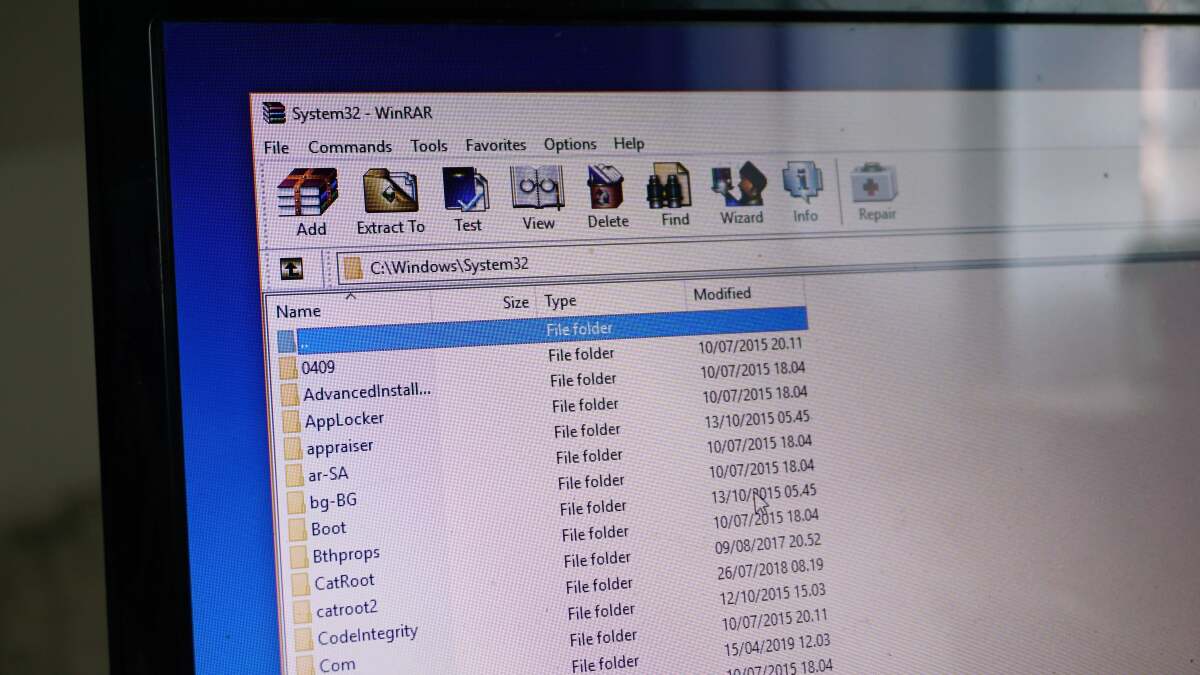
- WinRAR: Best choice when you need to create, repair, or manage RAR archives.
- PeaZip: A flexible open-source archive manager with support for many formats and advanced options.
Never email a password in the same message as the encrypted archive. That is not password protection; that is merely putting a lock on the front door and taping the key to it.
Split or Multi-Part Archives
Large downloads may arrive in pieces, such as backup.part1.rar, backup.part2.rar, and backup.part3.rar. Place every part in the same folder, then extract the first file in the sequence.
If one part is missing, renamed, incomplete, or damaged, extraction may fail. A dedicated tool such as WinRAR or 7-Zip usually provides clearer error messages for multi-part archives than File Explorer.
Creating RAR Archives
Windows 11 can extract RAR files, but it does not create RAR archives natively. If a client, colleague, or legacy workflow specifically requires a RAR file, install WinRAR and use its “Add to archive” option.
7-Zip can open many RAR archives, but it does not create RAR files because the RAR compression format is proprietary. Use 7z or ZIP instead unless RAR is required by the recipient.
Advanced Compression and Recovery Options
Third-party archive tools are also better for serious compression work, including:
- Splitting a large archive into smaller files.
- Adding passwords and encrypted file names.
- Testing archive integrity.
- Creating self-extracting archives.
- Adding recovery records to certain RAR archives.
- Automating backups with command-line tools.
- Creating archives with custom compression methods.
How to Choose the Best Archive Tool for Windows 11
Choose 7-Zip for Free, Powerful Compression
7-Zip is a strong choice for users who want a free tool with excellent compression performance and reliable 7z support. It works especially well for creating password-protected 7z archives, extracting RAR files, and handling large folders.
It also includes a command-line version, making it useful for developers, IT professionals, and anyone who enjoys automating repetitive tasks instead of clicking the same button 400 times.
Choose WinRAR for RAR Creation and Repair
WinRAR remains the classic choice for people who regularly work with RAR archives. It is particularly useful when you need to create RAR files, manage multi-volume archives, or use recovery features.
It may not be the flashiest tool on your computer, but neither is a fire extinguisher. You are very happy to have one when the situation gets dramatic.
Choose PeaZip for Broad Format Support
PeaZip is a good option for users who want a modern interface, broad support for archive formats, encryption features, and portable versions that do not require a full installation.
It is especially useful when your Downloads folder looks like a museum of strange file extensions: RAR, 7z, TAR, GZ, CAB, ISO, WIM, and whatever mysterious artifact a coworker sent at 4:57 p.m. on Friday.
Troubleshooting RAR and 7z Files in Windows 11
The Archive Does Not Open
First, check your Windows version. If your device is running an older Windows 11 release, install the latest updates and restart. If the archive still does not open, try 7-Zip or PeaZip.
The archive may also be damaged, incomplete, password-protected, or part of a multi-file set.
Windows Says the File Is Invalid
Download the archive again from the original source. Interrupted downloads can create files that look complete but are missing data. Compare the downloaded file size with the size listed on the download page when possible.
If the sender provided a checksum, verify it. Checksums are not glamorous, but neither is discovering that your 12 GB download is actually a digital potato.
Extraction Is Slow
Large solid 7z and RAR archives can take time to extract, especially when they contain thousands of files. Make sure you have enough free storage space and avoid extracting directly to a slow USB flash drive.
For huge archives, dedicated tools may provide better progress information and more detailed error messages. Windows has improved archive extraction performance in recent releases, but heavy compression work can still test the patience of both humans and hard drives.
The File Opens in the Wrong Program
If double-clicking a RAR or 7z file launches an app you do not want, right-click the archive, choose Open with, and select your preferred archive tool. You can also change default apps by file type in Windows Settings.
Security Tips Before Extracting RAR and 7z Files
Archive files are useful, but they can also hide malicious files. Treat unknown RAR and 7z downloads with the same caution you would use for a suspicious package left on your doorstep.
- Download archives only from trusted sources.
- Scan unfamiliar files before opening them.
- Right-click the archive, choose Show more options, then select Scan with Microsoft Defender.
- Extract questionable archives into a separate folder rather than directly into Documents or Desktop.
- Be cautious with unexpected EXE, BAT, CMD, JS, VBS, SCR, or MSI files.
- Do not disable Microsoft Defender merely because a random download tells you to.
- Make sure you have enough free disk space before extracting very large archives.
A tiny archive can sometimes expand into a surprisingly large amount of data. Check the archive’s reported size before extracting it, especially when the original download appears suspiciously small.
Practical Experience: What Everyday RAR and 7z Support Feels Like
In day-to-day use, native RAR and 7z support in Windows 11 feels less like a revolutionary event and more like a missing drawer finally being added to your kitchen. You may not throw a party for it, but after using it a few times, you wonder why it took so long.
Consider a typical workday. A designer sends a RAR archive filled with product photos, a developer shares a 7z file containing a test build, and a client uploads a ZIP file with contracts and spreadsheets. Before native support, every unfamiliar archive could trigger a small interruption: download an app, wonder whether it is legitimate, choose file associations, decline several toolbars from 2009, and hope the installer does not make your browser homepage look like a casino.
With a current Windows 11 installation, basic archive work becomes much calmer. You double-click the file, inspect the contents, extract what you need, and continue with your day. For simple tasks, that is exactly how file management should work. No drama, no unnecessary software, no guessing whether “free-unzipper-super-fast.exe” is actually plotting against your bank account.
The biggest convenience appears when you only need one item. Imagine downloading a 7z archive containing a folder of 800 images but needing only the logo file inside it. Instead of unpacking several gigabytes of data, you can browse the archive and copy out the one file you need. That saves time, storage space, and the emotional burden of watching a progress bar crawl across the screen while your laptop fan prepares for takeoff.
Native support is also useful for people who receive occasional archives but do not want another permanent app cluttering the Start menu. Students opening assignment materials, families downloading photo collections, office workers handling vendor documents, and gamers unpacking mods can often get the job done directly in File Explorer.
Still, the experience changes once archives become more complicated. A password-protected 7z file is where the built-in approach reaches its limit. A split RAR archive with files named movie.part01.rar, movie.part02.rar, and movie.part03.rar can also turn a quick task into a troubleshooting session. In those situations, 7-Zip, WinRAR, or PeaZip feels less like optional software and more like a proper toolbox.
For regular backups, a dedicated utility also provides more control. You can create encrypted archives, split large backups into manageable pieces, test whether an archive is healthy, and choose compression settings that make sense for your files. That matters when you are archiving years of documents, client materials, source code, or family photos that absolutely should not disappear because someone accidentally named a folder “New Folder (18).”
The practical lesson is simple: use native Windows 11 archive support for quick, ordinary tasks. Keep a reliable archive utility installed for password-protected files, RAR creation, advanced backups, and anything that looks like it was assembled by an IT department during a lunar eclipse.
Final Thoughts
Windows 11 now makes RAR and 7z support far easier than it used to be. On an updated PC, File Explorer can open and extract common archive formats without forcing you to install extra software just to access a folder.
For quick downloads and everyday sharing, the built-in tools are fast, simple, and perfectly practical. For encrypted files, split archives, RAR creation, archive repair, advanced compression, or backup workflows, install a trusted tool such as 7-Zip, WinRAR, or PeaZip.
The best setup is not choosing one approach forever. It is using File Explorer when the job is simple and reaching for a dedicated archive tool when the files start behaving like a puzzle box designed by a villain with too much free time.