Faxing from Gmail sounds like the kind of thing that should have disappeared around the same time as dial-up internet, motivational office posters, and printers that demand cyan ink before printing a black-and-white document. Yet here we are. Faxing is still alive, especially in healthcare, law, finance, real estate, government forms, insurance claims, and that one office where someone named Carol insists “the fax is more official.”
The good news: you do not need a fax machine, a phone line, a stack of paper, or a tiny desk shrine dedicated to toner cartridges. You can send a fax from Gmail using an online fax service, a Gmail add-on, or an email-to-fax gateway. Gmail itself does not include a built-in fax button, but it can work as the sending interface when connected to a compatible online fax provider.
This guide explains exactly how to send a fax from Gmail, what online faxing options are available, how to prepare documents, what to watch out for, and how to choose the right service without turning a five-minute task into an afternoon of digital archaeology.
Can You Really Send a Fax from Gmail?
Yes, you can send a fax from Gmail, but not directly through Gmail alone. Gmail is an email service, not a fax carrier. To transmit a document to a real fax number, you need a third-party online fax service that converts your email attachment into a fax transmission.
Think of Gmail as the front door and the online fax provider as the delivery truck. You prepare the message in Gmail, attach the document, address it in the format required by the fax service, and the provider sends it to the recipient’s fax number. If the fax succeeds, you usually receive a confirmation email. If it fails, you get an error notice, which is still better than standing beside a physical fax machine while it screams in modem language.
How Online Faxing from Gmail Works
Most Gmail fax workflows use one of three methods:
1. Email-to-Fax
This is the most common method. You compose a new email in Gmail, enter the recipient’s fax number followed by the provider’s domain, attach your file, and click send. For example, a provider might require a format like [email protected]. The exact domain depends on the fax service you use.
2. Gmail or Google Workspace Add-On
Some providers offer add-ons through Google Workspace Marketplace. After installation, the fax tool appears in Gmail, Google Drive, Google Docs, or other Google apps. This is useful if you frequently fax PDFs, contracts, invoices, forms, or signed documents stored in Google Drive.
3. Online Fax Dashboard
Instead of sending from Gmail directly, you can log in to the provider’s website, upload your document, enter the fax number, add a cover page, and send. This is often the easiest option for one-time faxes or when you want a clearer preview before sending.
Before You Fax: What You Need
Before sending a fax from Gmail, gather the following:
- A Gmail account
- An online fax service account or pay-per-fax provider
- The recipient’s correct fax number, including country code if needed
- A document in a supported format, usually PDF, DOC, DOCX, JPG, PNG, or TIFF
- A clear subject line or cover page note
- Permission to send sensitive documents, if applicable
PDF is usually the safest format because it preserves layout, signatures, page breaks, and formatting. If you fax a spreadsheet, photo, or Word document, preview it first. Fax machines are famously unforgiving. A beautiful color brochure may arrive looking like it was photocopied during a thunderstorm.
How to Send a Fax from Gmail Step by Step
Step 1: Choose an Online Fax Service
Pick a provider that supports email-to-fax or Gmail integration. Popular online faxing options include eFax, Fax.Plus, iFax, Dropbox Fax, SRFax, Nextiva vFAX, Ooma Office, RingCentral Fax, and similar cloud fax services. Some are built for casual users, while others focus on business, healthcare, compliance, team management, or high monthly fax volume.
When choosing a service, look for supported countries, file size limits, confirmation receipts, mobile access, Google Drive integration, security features, and whether the service supports incoming faxes. If you only need to fax one document, a pay-per-fax option may make more sense than a monthly subscription.
Step 2: Create or Sign In to Your Fax Account
Most providers require you to create an account before sending. Some assign you a fax number for receiving faxes, while others only let you send. Business plans may allow multiple users, shared numbers, administrator controls, and audit logs.
If you are sending medical, legal, financial, or personally identifiable information, do not choose a random free tool simply because it appears first in search results. Check the provider’s security practices, privacy policy, retention settings, and compliance options. “Free” is lovely for stickers and coffee samples. It is less lovely when your tax form wanders into the internet fog.
Step 3: Open Gmail and Compose a New Email
Log in to Gmail and click Compose. In the message window, you will prepare the fax just like an email. The recipient field, however, will use the fax provider’s special format instead of a regular email address.
Step 4: Enter the Fax Number in the Correct Format
The “To” field usually requires the recipient’s fax number plus the provider’s email-to-fax domain. Examples vary by provider. One service may use a format like [email protected], another may use [email protected], and another may use a different gateway domain.
Always remove spaces, dashes, parentheses, and extra symbols unless your provider says otherwise. For U.S. numbers, include the full 10-digit number and any required leading country code. For international faxes, follow the provider’s international dialing instructions.
Step 5: Add a Subject Line and Cover Message
Depending on the provider, your Gmail subject line may become part of the fax cover page. The body of the email may also appear as a cover note. Keep it simple and professional:
Subject: Insurance Claim Documents for Jane Smith
Message: Please find attached the signed claim form and supporting documents. Thank you.
If you are sending sensitive information, avoid placing private details in the subject line. Subject lines can be easier to expose in email systems, inbox previews, notifications, and logs.
Step 6: Attach the Document
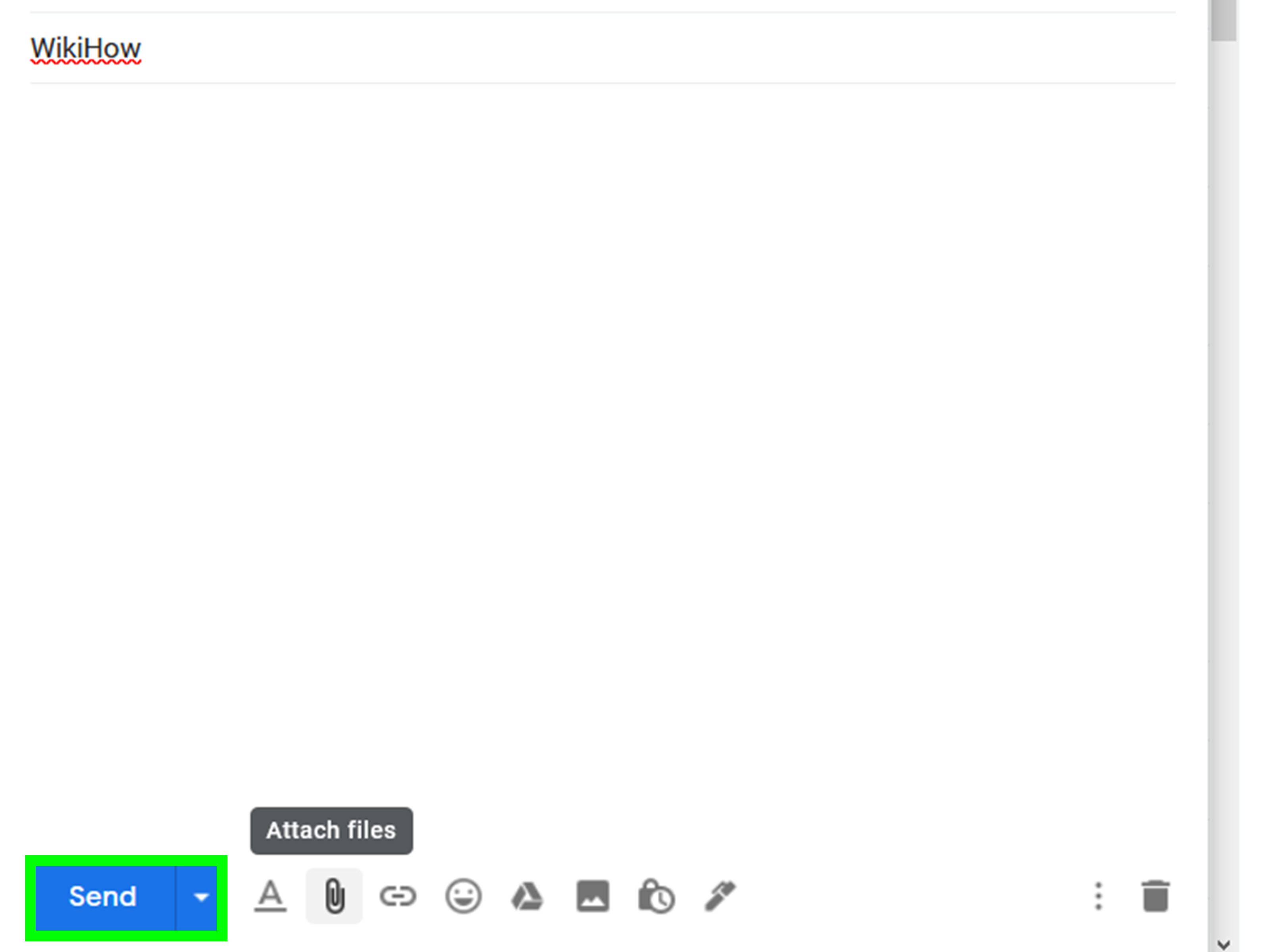
Click the attachment icon in Gmail and upload your document. Gmail commonly supports attachments up to 25 MB for personal accounts, while some Google Workspace environments may have different limits set by administrators. Many fax services have their own limits too, so a huge file may fail even if Gmail accepts it.
For best results, compress large PDFs, remove unnecessary images, scan in black and white when color is not required, and keep the document legible. A clean five-page PDF beats a 47 MB photo dump named “final_final_REAL_final_scan2.jpg.”
Step 7: Send the Email
Click Send. Your Gmail message goes to the fax provider, which converts the attachment and transmits it to the destination fax number. Do not assume the fax was delivered just because Gmail says the email was sent. Gmail only confirms that your message left Gmail, not that the fax machine on the other end accepted the document.
Step 8: Check the Fax Confirmation
Most online fax providers send a delivery confirmation, failed delivery notice, or dashboard status update. Save the confirmation if the fax is important. For legal, medical, insurance, or business records, the confirmation may matter almost as much as the document itself.
Best Online Faxing Options for Gmail Users
eFax
eFax is one of the best-known online fax services and supports sending faxes from email accounts such as Gmail. It is a practical option for users who want a traditional online fax account with sending, receiving, mobile access, and confirmation features. It may fit businesses that send faxes regularly and want a recognizable provider.
Fax.Plus
Fax.Plus offers Google integrations, including Gmail and Google Drive workflows. Users can send a fax by email or through Google Workspace add-ons. It is a strong option for people who already keep documents in Google Drive and want a smoother Google-based workflow.
iFax
iFax promotes Gmail, Google Drive, and Google Workspace faxing, with business-friendly features and healthcare-focused options. It may be useful for users who want cloud storage integrations, signing features, or compliance-oriented fax workflows.
Dropbox Fax
Dropbox Fax, formerly known as HelloFax, lets users send documents online and can support sending faxes through email formatting. It is especially appealing if you already use Dropbox or want a simple upload-and-send experience without babysitting a fax machine from the year 1998.
SRFax
SRFax supports email-to-fax and is often discussed in professional and healthcare contexts. It allows authorized email addresses to send faxes through its system, which can be helpful for teams that need controlled access.
Nextiva vFAX
Nextiva vFAX supports faxing through email and online tools. It can be a good fit for businesses already using Nextiva communications products or those that want a business-oriented fax solution with account controls.
Ooma Office Virtual Fax
Ooma Office offers virtual faxing for business users. It is more of a business phone system add-on than a casual Gmail fax tool, but it works well for companies that want faxing bundled with office communications.
Email-to-Fax vs. Gmail Add-On vs. Web Portal
The best Gmail faxing method depends on how often you fax and how much control you need.
Email-to-Fax Is Best For Speed
If you already have the provider’s correct gateway format, email-to-fax is fast. Compose, attach, send, confirm. It is ideal for repeat recipients and simple documents.
Gmail Add-Ons Are Best For Google Workspace Users
Add-ons are helpful when your documents live in Google Drive or your team works heavily inside Gmail. They reduce formatting mistakes and may offer a friendlier sidebar interface.
Web Portals Are Best For One-Time or Sensitive Faxes
A web portal is often better when you need to preview documents, add a structured cover page, manage multiple recipients, or verify transmission history before and after sending.
Security Tips for Faxing from Gmail
Faxing from Gmail can be convenient, but sensitive documents require extra care. If you send health records, tax documents, contracts, banking forms, identification documents, or legal paperwork, choose a provider with clear security standards.
- Use a reputable provider with encryption and access controls.
- Check whether the provider stores faxed documents and for how long.
- Confirm whether the service offers audit logs and delivery receipts.
- For healthcare use, verify whether a Business Associate Agreement is available when HIPAA applies.
- Double-check fax numbers before sending.
- Avoid sending sensitive data from public Wi-Fi or shared computers.
- Keep confirmation receipts in a secure folder.
Gmail’s convenience does not replace compliance. If your organization has rules for protected information, follow them. The fastest fax is not always the safest fax, and the safest fax is usually the one where nobody typed the wrong number while eating a sandwich.
Common Mistakes When Sending a Fax from Gmail
Using the Wrong Gateway Domain
Each fax provider has its own email-to-fax domain. If you type the wrong one, your fax will not send. Save the correct format in a secure internal guide if your team faxes often.
Forgetting the Country Code
International faxes often require country codes or special dialing formats. Check your provider’s instructions before sending documents outside the United States.
Sending Unsupported File Types
PDF is your friend. Some providers support Word documents and images, but PDF is usually the most reliable for preserving format.
Assuming Email Sent Means Fax Delivered
Always wait for the fax confirmation. Gmail sending the email is only step one. The provider still has to convert and deliver the fax.
Sending Blurry Scans
If the scan looks bad on your screen, it will look worse as a fax. Use a scanning app or office scanner, crop edges, increase contrast, and make sure signatures are visible.
When Should You Still Use a Traditional Fax Machine?
For most people, online faxing is easier than using a physical fax machine. However, a traditional fax machine may still make sense if your office already has one, your workflow depends on physical paper, or your recipient has strict requirements. Some organizations still prefer direct fax lines for internal processes.
That said, online faxing usually wins for remote work, document storage, searchable records, mobile access, and fewer paper jams. Also, online faxing will not stare at you with a flashing red error light after refusing to explain what it wants.
Practical Example: Sending a Signed Form from Gmail
Imagine you need to fax a signed medical release form to a clinic. Here is a practical workflow:
- Scan the signed form as a PDF.
- Name the file clearly, such as Smith_Medical_Release_Form.pdf.
- Log in to your online fax service.
- Check the provider’s required email-to-fax format.
- Open Gmail and compose a new email.
- Enter the fax number using the provider’s gateway address.
- Add a simple subject line: Medical Release Form.
- Attach the PDF.
- Send the message.
- Save the delivery confirmation.
This process can take less than five minutes once your account is set up. The first time may take longer because you need to choose a provider, verify your email address, and learn the correct format. After that, faxing from Gmail becomes almost boring, which is exactly what business paperwork should be.
How to Choose the Right Gmail Fax Service
The best online fax service is not always the one with the loudest homepage. Choose based on your actual needs.
For One-Time Faxing
Look for a pay-per-fax option or a provider with a simple trial. Avoid signing up for a monthly plan if you only need to send one form to one office one time.
For Small Businesses
Choose a service with inbound and outbound faxing, multiple users, searchable history, delivery confirmations, and customer support. Google Drive integration can save time if your team already works in Google Workspace.
For Healthcare and Legal Work
Prioritize security, audit logs, user permissions, retention controls, and compliance documentation. If HIPAA applies, confirm whether the provider will sign a Business Associate Agreement before sending protected health information.
For High-Volume Faxing
Look for monthly page allowances, bulk sending features, admin tools, API access, and reliable delivery reporting. High-volume faxing needs more than a cute “send fax now” button.
FAQ About Sending a Fax from Gmail
Can I send a fax from Gmail for free?
Sometimes, but free faxing is usually limited by page count, destination, file size, branding, or trial terms. For important documents, a paid service is often more reliable.
Can I receive faxes in Gmail?
Yes, many online fax services assign you a fax number and deliver incoming faxes to your email inbox as PDF attachments. This is called fax-to-email.
Is faxing from Gmail secure?
It depends on the provider and how the fax is handled. Gmail alone is not a complete fax security solution. Use a reputable provider and follow your organization’s privacy rules.
Can I fax a PDF from Gmail?
Yes. PDF is usually the preferred format for online faxing because it keeps formatting stable and is widely supported.
Do I need a fax number to send a fax from Gmail?
Not always. Some services let you send without having your own fax number, while others assign one as part of your account. You do need the recipient’s fax number.
Experience-Based Tips: What Faxing from Gmail Is Like in Real Life
After working through the typical Gmail-to-fax process, one thing becomes obvious: the technology is simple, but the little details matter. Most failed fax attempts are not caused by Gmail or even the fax provider. They happen because of preventable mistakes: a missing country code, a blurry scan, an oversized attachment, a typo in the fax number, or a provider address typed from memory instead of copied from the official instructions.
The first practical lesson is to treat faxing like mailing a certified document, not like sending a casual email. Slow down for thirty seconds before clicking send. Check the recipient’s fax number against the official website, letterhead, form, or staff instructions. If the document is sensitive, avoid relying on an old fax number saved in your contacts from three jobs ago. Fax numbers move, departments merge, and office equipment retires. Unfortunately, fax errors do not always arrive wearing a neon sign.
The second lesson is that document preparation makes a huge difference. A clean PDF with black text on a white background transmits better than a phone photo taken under kitchen lighting. If you must scan with a phone, use a scanning app that detects edges, straightens the page, and exports to PDF. Before sending, open the PDF and zoom in. If you cannot read the fine print, the recipient probably cannot either. This is especially important for signatures, ID numbers, dates, checkboxes, and handwritten notes.
The third lesson is to keep your fax workflow organized. Create a folder in Gmail or Google Drive called “Fax Confirmations” or “Sent Faxes.” Save the original document, the sent email, and the delivery receipt together. When someone later says, “We never received it,” you will not have to search your inbox like a detective in a low-budget mystery movie. You can pull up the confirmation and respond calmly.
The fourth lesson is to understand the difference between convenience and compliance. Gmail makes the sending process feel casual, but faxed documents may contain highly sensitive information. If you are sending medical records, legal forms, financial statements, or government paperwork, use a service that matches the seriousness of the content. For workplace use, ask your manager, compliance officer, or IT administrator which provider is approved. Personal convenience should not override company policy.
The fifth lesson is that online fax dashboards are underrated. Email-to-fax is fast, but a dashboard often gives you a better sense of control. You can preview pages, confirm the recipient number, add cover sheet details, and track status from one place. For a one-page form, Gmail is perfect. For a 25-page legal packet, the dashboard may save you from sending page 17 upside down with your lunch receipt accidentally attached.
The final lesson is simple: test the process before you urgently need it. If your business depends on faxing, send a harmless test document to a known fax number and confirm the workflow. Learn how your provider reports success and failure. Know where confirmations appear. Know whether your attachments are included in the receipt. The best time to learn online faxing is not five minutes before a deadline, while a receptionist is saying, “Just fax it over,” as if faxing were a natural human reflex.
Conclusion
Sending a fax from Gmail is not magic, but it is surprisingly convenient once you understand the workflow. Gmail does not send faxes by itself. Instead, it works with an online fax service that converts your email and attachment into a fax transmission. The basic process is simple: choose a provider, compose a Gmail message, enter the recipient’s fax number in the provider’s required format, attach your document, send, and save the confirmation.
For occasional users, email-to-fax or a pay-per-fax service may be enough. For businesses, Google Workspace add-ons, shared fax numbers, audit logs, cloud storage integrations, and compliance features are worth considering. For sensitive documents, security and privacy should guide your provider choice more than price or convenience.
Faxing may feel old-fashioned, but online faxing from Gmail gives it a modern upgrade. No paper jams. No mystery beeps. No waiting beside a machine that sounds like it is contacting a submarine. Just prepare the document carefully, double-check the fax number, and let your online fax service do the heavy lifting.
Note: This HTML body is written for web publishing and intentionally excludes source links inside the article, while reflecting current real-world Gmail and online faxing practices.