There are few sounds in modern life more unnecessarily dramatic than an Android phone chirping every time you tap a number. You meant to quietly call the dentist; your phone decided to perform a tiny electronic piano solo. Fortunately, learning how to turn off the Android dialpad sounds is simple once you know where the setting hides.
Dialpad sounds, also called dial pad tones, keypad tones, dialing keypad sounds, or touch tones, are the little beeps you hear when entering a phone number in the Phone app. On most Android phones, you can disable them through the Sound & vibration menu or inside the Phone app settings. The exact wording changes depending on whether you use a Google Pixel, Samsung Galaxy, Xiaomi, Motorola, OnePlus, or another Android device, but the idea is the same: find the sound feedback option and turn it off.
This guide walks you through the six practical steps, explains what to do when the option is missing, and clears up a common confusion: turning off dialpad sounds is not always the same as turning off in-call DTMF tones used for voicemail menus, banking systems, or “press 1 to continue” phone trees.
Quick Answer: How Do You Turn Off Android Dialpad Sounds?
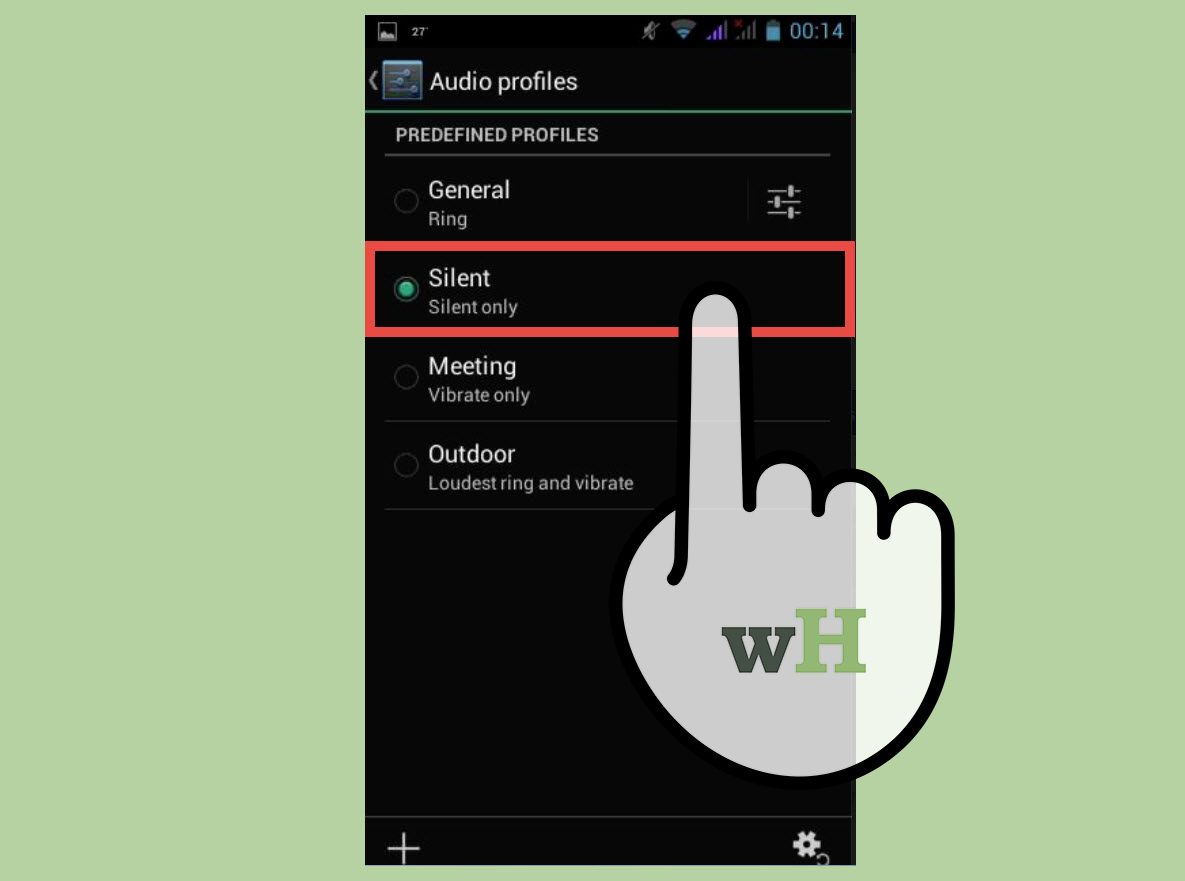
Open Settings, go to Sound & vibration, find Dial pad tones or Keypad tones, and switch it off. If you do not see that option, open the Phone app, tap the three-dot menu, choose Settings, then look under Sounds and vibration, Call alerts and ringtone, or Other call settings.
On Samsung Galaxy phones, the setting may appear as Dialing keypad sound or Play sound for keypad taps. On Google Phone, it may appear as Dial pad tones or Keypad tones. On Xiaomi phones, it may live under Sound & vibration > Additional settings.
Before You Start: Dialpad Sounds vs. Keyboard Sounds vs. DTMF Tones
Android sound settings can feel like a drawer full of mystery cables: everything looks similar until you actually need the right one. Before changing anything, it helps to understand which sound you are trying to silence.
Dialpad sounds
These are the tones you hear when you tap numbers in the Phone app before placing a call. For example, when you open the dialer and type 555-1234, each number may make a beep. This is the sound most people want to turn off.
Keyboard sounds
These are typing clicks from Gboard, Samsung Keyboard, Microsoft SwiftKey, or another keyboard app. Turning off keyboard sounds will not always stop dialpad sounds, because the Phone app’s number pad and your text keyboard can use separate sound settings.
DTMF tones during a call
DTMF stands for dual-tone multi-frequency. In plain English, these are the tones sent when you press numbers during a live call, such as entering a PIN for voicemail or choosing an option in an automated customer service menu. Some phones let you choose normal or long DTMF tones, but they may not let you fully silence them because they help phone systems recognize your input.
How to Turn Off the Android Dialpad Sounds: 6 Steps
-
Step 1: Open the Settings app
Start from your home screen or app drawer and tap Settings. The icon usually looks like a gear. You can also swipe down from the top of the screen and tap the gear icon in Quick Settings. This is the main control room for Android sounds, notifications, vibration, and other system feedback.
-
Step 2: Tap Sound & vibration
Look for Sound & vibration, Sounds and vibration, Sound, or a similar menu name. Android manufacturers love slightly different labels, because apparently “one menu name for everyone” was too peaceful. On most recent Android phones, this section controls ringtone volume, notification volume, alarm volume, touch sounds, charging sounds, screen lock sounds, vibration, and dialpad tones.
-
Step 3: Find Dial pad tones or Keypad tones
Scroll through the sound options and look for Dial pad tones, Keypad tones, Dialing keypad sound, Dialpad tone, or Touch tones. On Pixel-style Android, this option may appear under the system sounds area. On Xiaomi, it may be inside Additional settings. On older phones, it may be under Other sounds or Advanced.
-
Step 4: Turn the switch off
Tap the switch next to the dialpad sound option so it moves to the off position. Once disabled, your phone should stop making a sound when you tap numbers before starting a call. You do not usually need to restart your phone. Android should apply the change immediately, which is refreshing because not every tech fix needs a ritual reboot.
-
Step 5: Test it in the Phone app
Open the Phone app and tap the keypad icon. Enter a few numbers without placing the call. If the sound is gone, congratulations: your phone has been politely shushed. If you still hear tones, check whether your phone has a separate Phone app setting, especially on Samsung Galaxy devices or phones using a manufacturer-customized dialer.
-
Step 6: Check the Phone app settings if needed
Open the Phone app, tap the three-dot menu in the upper-right corner, and choose Settings. Then look for Sounds and vibration, Call alerts and ringtone, Other call settings, or Dialpad tones. Turn off any option related to keypad taps, dialing sounds, or dialpad tones. This second route is especially useful when the main Settings app does not show the option clearly.
How to Turn Off Dialpad Sounds on Samsung Galaxy Phones
Samsung Galaxy phones often place phone-related sound options inside the Phone app rather than only in the general Android sound menu. Try this path:
Phone app > Three-dot menu > Settings > Call alerts and ringtone > Play sound for keypad taps > Off
On some Samsung models, the wording may be Dialing keypad sound. You may also find related controls under Settings > Sounds and vibration > System sound/vibration control. If you want a quieter phone overall, you can also turn off touch interactions, screen lock sounds, charging sounds, and Samsung keyboard sounds from that area.
One important Samsung note: if you are already on a call and pressing numbers to control voicemail or an automated menu, those tones may behave differently from the pre-call dialing keypad sound. The pre-call keypad beep is usually easy to disable. The in-call tone may be required so the system on the other end can understand which number you pressed.
How to Turn Off Dialpad Sounds on Google Pixel Phones
Google Pixel phones usually keep sound controls clean and easy to find. Try this:
Settings > Sound & vibration > System sounds & vibrations > Dial pad tones > Off
You can also check the Google Phone app:
Phone app > Three-dot menu > Settings > Sounds and vibration > Dial pad tones > Off
If you do not see Dial pad tones, look for Keypad tones. Google’s own Phone app guidance uses both names depending on device and version. That is not you missing something; that is Android wearing a different hat.
How to Turn Off Dialpad Sounds on Xiaomi, Motorola, OnePlus, and Other Android Phones
Many Android phones follow a similar path, but manufacturers place the switch in slightly different rooms of the same house.
Xiaomi, Redmi, and POCO
Try Settings > Sound & vibration > Additional settings > Dial pad tones, then turn the option off. This is common on Xiaomi phones using MIUI or HyperOS-style menus.
Motorola
Try Settings > Sound & vibration > Dial pad tones. Motorola’s Android experience is usually close to stock Android, so the setting is often easier to locate than on heavily customized phones.
OnePlus
Try Settings > Sound & vibration, then look for system feedback, touch tones, or dialpad tones. On some OxygenOS versions, additional sound controls are grouped under a broader system sounds section.
Lenovo and older Android phones
Some older Lenovo and Android models may use labels like Key voice, Touch tones, or Audible touch tones. If your phone is older, search inside Settings for “dial,” “keypad,” “tone,” or “touch sound.”
What If the Dialpad Sounds Option Is Missing?
If you cannot find the setting, do not panic. Android settings are searchable on most modern phones. Open Settings and use the search bar at the top. Search for:
- Dial pad tones
- Keypad tones
- Touch sounds
- System sounds
- Dialing keypad
- DTMF
If search returns nothing, open the Phone app and check its internal settings. Some phones treat dialpad tones as a calling feature instead of a general sound feature. Also make sure your Phone app is updated through the Google Play Store or Galaxy Store. Menu names can change after app updates, Android upgrades, or manufacturer software updates.
Troubleshooting: Why Do I Still Hear Beeps?
You are hearing in-call DTMF tones
If the beep happens while you are already on a call, such as when entering a voicemail password, that is probably an in-call DTMF tone. It is not the same as the dialpad sound you hear before calling. In-call DTMF tones help automated phone systems detect your key presses. Some phones let you change DTMF tone length to normal or long, but they may not provide a full off switch.
You turned off keyboard sounds, not dialpad sounds
Keyboard settings affect typing in messages, search boxes, notes, and apps. Dialpad settings affect the Phone app keypad. If your phone still beeps when entering a phone number, go back to the Phone app or system sound settings and look specifically for dialpad or keypad tones.
Your phone is using a different dialer app
If you installed a third-party dialer, its sound controls may be separate. Open that dialer app, check its settings, and look for sound feedback, touch tones, keypad sounds, or dialing tones. If the app does not provide a setting, consider switching back to your default Phone app.
System volume is still active
On some phones, touch feedback sounds follow system volume. Press a volume button, tap the expanded volume menu, and look for system volume or touch feedback volume. Lowering that slider may quiet several small system sounds at once. Just remember that it may also affect lock sounds, charging sounds, or other feedback noises.
Should You Turn Off Android Dialpad Sounds?
For most people, yes. Turning off dialpad sounds makes your phone quieter in public places and reduces accidental attention. It is especially helpful in offices, classrooms, libraries, hospitals, shared apartments, public transportation, and late-night “I forgot to call them back” moments.
Dialpad tones can be useful if you like audible confirmation that each number was tapped. They can also help people with certain accessibility preferences. But if you mostly dial from contacts, call logs, or voice search, you probably do not need a beep for every number. Your thumb already knows it tapped the screen. It does not need a tiny robot applause track.
Privacy Benefits of Disabling Dialpad Sounds
Turning off dialpad sounds is not just about peace and quiet. It can also improve privacy. When your phone plays tones for every number, people nearby may notice that you are dialing, and in rare cases, someone with a very good ear might recognize familiar tone patterns. That is not a daily threat for most people, but privacy is often built from small habits.
A silent dialpad is also less revealing in shared spaces. If you are calling a bank, clinic, school, delivery service, or workplace, there is no reason to announce every tap to the room. Disabling Android dialpad sounds keeps your phone behavior a little more discreet.
Extra Quiet Phone Tips
Once you turn off dialpad sounds, you may notice other tiny noises. Android phones can make sounds when you lock the screen, connect a charger, tap menu items, type on the keyboard, take screenshots, or receive notifications. If you want a calmer phone, review the entire Sound & vibration menu.
Consider turning off Touch sounds, Screen locking sound, Charging sounds, and Keyboard sound on keypress. You can keep important alerts, such as calls and alarms, while muting unnecessary tap noises. Think of it as spring cleaning for your phone’s personality.
Experience Notes: What It Feels Like to Live Without Dialpad Sounds
After turning off Android dialpad sounds, the first thing most people notice is not silence itself, but the absence of tiny interruptions. The Phone app suddenly feels smoother. You open the dialer, tap a number, correct a digit, and nothing chirps back at you. It is a small change, but it makes the phone feel less like a toy cash register and more like a tool.
In everyday use, the biggest benefit appears in quiet places. Imagine sitting in a meeting and needing to call a client after the discussion ends. With dialpad sounds on, entering a number can feel embarrassingly loud, even if the volume is not technically high. Every tap sounds like your phone is narrating your choices to the conference table. With the tones off, you can dial without creating a mini sound effect show.
The same applies at night. If you share a room or live with family, dialing with tones on can be surprisingly noticeable. A single beep is small; ten beeps in a row sound like a gadget trying to win an argument. Turning the tones off makes late calls less disruptive, especially when you are already trying not to wake anyone.
Another practical benefit is focus. Some people are sensitive to repetitive sounds, especially short digital clicks and beeps. Dialpad tones may not seem annoying at first, but they can become irritating when you are entering long numbers, account codes, extensions, or customer service lines. Disabling them removes one more piece of sensory clutter from the day.
There is also a confidence factor. Many users turn off keyboard sounds but forget about dialpad tones, then wonder why the Phone app still makes noise. Once you know the difference, troubleshooting becomes much easier. If typing is noisy, check keyboard preferences. If dialing is noisy before the call starts, check dialpad tones. If pressing numbers during a live call still beeps, that is probably DTMF behavior. Knowing these differences saves time and prevents the classic settings-menu spiral, where you tap through twelve screens and begin questioning your relationship with technology.
For older adults or people who rely on sound feedback, keeping dialpad tones on may still be helpful. The sound confirms that the tap registered, especially on phones with large screens or screen protectors that slightly change touch feel. The best setting is not always the quietest setting; it is the one that matches how you use your phone.
Personally, the best setup for most users is simple: turn off dialpad sounds, keep vibration or haptic feedback if it helps, and leave important call and alarm sounds active. That gives you a quieter phone without making it easy to miss something important. In other words, your Android can still alert you when it matters without beeping like a microwave every time you tap a number.
Conclusion
Turning off Android dialpad sounds takes less than a minute once you know where to look. Go to Settings > Sound & vibration, find Dial pad tones or Keypad tones, and switch it off. If that option is not available, open the Phone app and check its sound or call settings.
The most important thing to remember is that Android sound settings vary by brand and version. Google Pixel, Samsung Galaxy, Xiaomi, Motorola, OnePlus, and older Android devices may use different labels, but the goal is the same: disable the sound feedback for keypad taps in the Phone app. Once it is off, your calls become quieter, your phone feels less intrusive, and public dialing becomes much less awkward.
Note: Menu names may vary depending on your Android version, phone manufacturer, carrier software, and Phone app version. If you cannot find the exact wording, use the Settings search bar and try “dial pad,” “keypad,” “tone,” “touch sounds,” or “system sounds.”