Adding music to a video on a Samsung Galaxy can turn a normal clip into something that feels polished, emotional, funny, cinematic, or at least less like “I accidentally recorded my thumb for four seconds.” Whether you are editing a travel montage, a birthday recap, a product video, a school project, a TikTok, an Instagram Reel, or a quick family clip, the right background music can make the whole thing feel more intentional.
The good news is that you do not need a laptop, expensive editing software, or a degree in “mysterious buttons with tiny icons.” Your Samsung Galaxy already gives you several practical ways to add music to video. You can use the built-in Samsung Gallery video editor, try Google Photos for simple video creations, or use a dedicated editing app like CapCut, Adobe Express, Canva, or TikTok when you want more control.
In this guide, we will walk through three simple ways to add music to a video on Samsung Galaxy, explain when each method works best, and share practical editing tips so your video sounds smooth instead of chaotic. Because yes, music matters. The wrong song can make a peaceful beach video feel like a car commercial. The right one can make your cat walking across the couch look like an award-winning documentary.
Why Add Music to a Video on Samsung Galaxy?
Music is not just decoration. It helps set the mood, guide attention, and make your video feel complete. A cheerful acoustic track can make a family picnic feel warm and nostalgic. A fast beat can make a workout clip feel energetic. A soft piano track can make a graduation video feel emotional enough to make relatives reach for tissues like it is an Olympic sport.
On Samsung Galaxy phones, adding background music is especially useful because many videos are recorded in everyday environments. Maybe the original audio has wind noise, background chatter, traffic, or someone asking, “Are you recording?” at the worst possible moment. By lowering or muting the original video sound and adding music, you can create a cleaner final result.
Before You Start: Prepare Your Video and Music
Before jumping into any editor, take a moment to organize your files. Open your Gallery and choose the video you want to edit. If the clip is too long, trim it first. Shorter videos are easier to match with music, especially if you are making content for social media.
You should also think about where your music will come from. Some apps include built-in soundtracks. Others let you upload audio from your phone. If you plan to publish the video online, use music you have permission to use, music from a licensed in-app library, or tracks from trusted royalty-free sources. This is not the fun police speaking; this is the “please do not let your video get muted after you spent 45 minutes editing it” department.
Method 1: Add Music Using the Samsung Gallery Video Editor
The easiest way to add music to a video on Samsung Galaxy is through the built-in Gallery app. This is the best option when you want a quick edit without installing another app. Samsung’s video editor is designed for everyday users, so it keeps the process simple: open the video, tap edit, choose background music, adjust the volume, and save.
Best For
This method is ideal for quick edits, family clips, travel videos, school videos, casual social media posts, and anyone who prefers not to download a third-party app. If your editing goal is “make this look nicer before I send it,” Samsung Gallery is usually enough.
How to Add Background Music in Samsung Gallery
Open the Gallery app on your Samsung Galaxy phone. Select the video you want to edit. Tap the Edit icon, usually shown as a pencil. In the video editor, look for the sound or speaker option. Depending on your Galaxy model and One UI version, you may see an option such as Add background music. Tap it, choose a track, and apply it to your video.
After adding music, adjust the balance between the original video sound and the background music. If your video includes important speech, keep the original audio clear and lower the music. If the original sound is mostly wind, traffic, or random background noise, reduce it or mute it completely. Your viewers should not have to choose between hearing the message and surviving a surprise trumpet solo.
How to Save the Edited Video
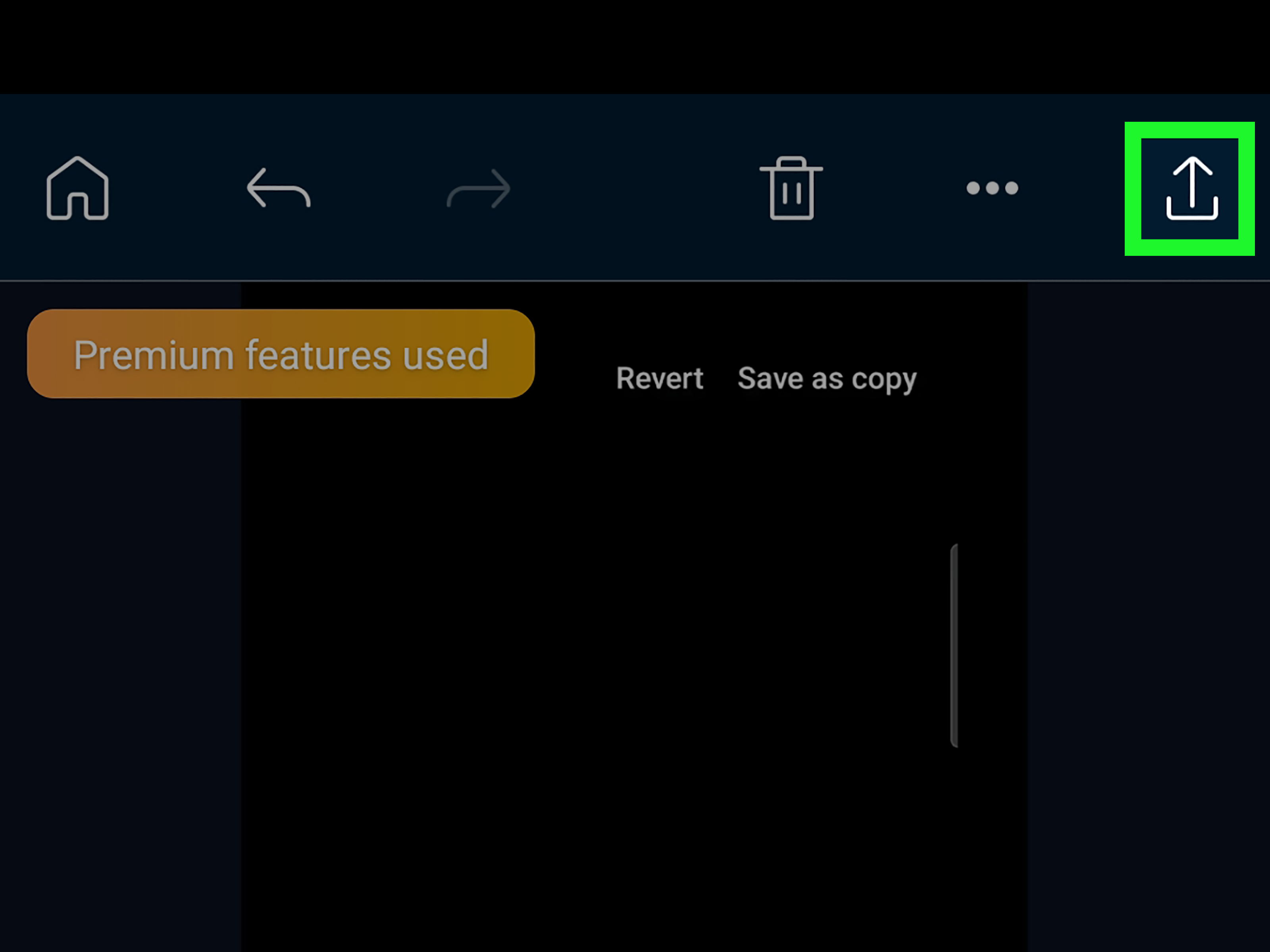
Once you are happy with the sound, preview the full video from beginning to end. This is important because music that sounds great in the first five seconds can become awkward if it suddenly cuts off mid-beat. When everything looks and sounds right, tap Save or Save as copy. Saving as a copy is usually safer because it keeps your original video untouched.
Pros and Cons of Samsung Gallery
The biggest advantage is convenience. Samsung Gallery is already on your phone, opens quickly, and works well for simple background music. You do not need an account, a subscription, or a complicated timeline. The downside is that it may not offer advanced audio editing features on every Galaxy model. Some devices may have fewer tools depending on the model, region, software version, or app updates.
If you only need one music track and basic volume control, start here. If you need beat syncing, multiple audio layers, voiceover, sound effects, captions, and trendy social templates, move to Method 3 before your patience packs a suitcase.
Method 2: Add Music with Google Photos or a Simple Video Creation Tool
Many Samsung Galaxy users also have Google Photos installed. While Samsung Gallery is the native Samsung option, Google Photos can be useful for creating short video projects, highlight videos, and simple edits using photos and clips. It is especially helpful if your media is already backed up to your Google account.
Best For
Use Google Photos when you want to make a quick memory-style video from several photos or clips. It is great for vacations, birthdays, pet videos, family moments, and “look, I actually organized my camera roll” projects.
How It Works
Open the Google Photos app on your Samsung Galaxy. Choose the photos and videos you want to include, then look for creation tools such as video, highlight video, or movie-style options, depending on the current app version available on your device. When the editor allows music, you can choose from available soundtracks or add downloaded music if the app has permission to access music and audio on your phone.
If Google Photos asks for permission to access music and audio, allow it through your Android settings. Without permission, the app may not be able to find downloaded tracks on your device. This is one of those tiny settings that can make you question reality for ten minutes, so check permissions early.
When Google Photos Is Better Than Samsung Gallery
Google Photos shines when you are combining multiple memories into one video. For example, if you have ten photos from a weekend trip and three short clips, Google Photos can help you turn them into a simple highlight video with music. This is faster than manually editing each clip one by one.
However, for adding a song directly to one single video, Samsung Gallery or a dedicated video editor may feel more straightforward. Google Photos is often more creation-focused, while Samsung Gallery is more direct-edit focused.
Tips for Better Results
Choose clips that match the rhythm of the music. A slow song works well with scenic shots, sunsets, food videos, and emotional moments. A fast track works better for sports, events, quick transitions, and energetic social posts. If the video feels “off,” the problem may not be the footage. It may simply be that the music and visuals are fighting like two raccoons in a trash can.
Method 3: Use a Dedicated Editing App for More Control
If you want the most control over how music fits your video, use a dedicated video editing app. Popular options include CapCut, Adobe Express, Canva, and TikTok’s built-in editor. These apps are especially useful for creators who post to TikTok, YouTube Shorts, Instagram Reels, Facebook, or business pages.
Best For
This method is best for social media videos, brand content, tutorials, short-form videos, school presentations, product demos, voiceover projects, and more polished edits. If Samsung Gallery is a bicycle, apps like CapCut and Adobe Express are scooters with cup holders. Still simple, but more powerful.
How to Add Music in CapCut
Open CapCut on your Samsung Galaxy and start a new project. Import your video from your phone. Tap the audio option, then choose music from the app’s library, your device, or another available source inside the app. Place the audio track under your video, trim it to match the clip, and adjust the volume.
CapCut is especially useful because it gives you a timeline. That means you can decide exactly where the music starts, where it fades, and how it lines up with cuts or transitions. If your video has a dramatic moment, you can place the beat drop right there. Congratulations, your sandwich reveal now has cinematic tension.
How to Add Music in Adobe Express
Adobe Express is a strong choice for simple, polished videos. You can upload a video, add audio, use stock music options, or include a voiceover. It works well for creators, students, small businesses, and anyone making clean-looking videos without wanting a complicated editing workspace.
After importing your video, add an audio track, adjust timing, and export the final version. Adobe Express is particularly helpful if you also need text, branding, resizing, or quick design elements for platforms like Instagram, YouTube, and Facebook.
How to Add Music in Canva
Canva is another friendly option for Samsung Galaxy users who want to add music to a video while also designing graphics, titles, overlays, and social posts. Upload your video, open the editor, choose audio from Canva’s music options or upload your own file if available, then place the music on the timeline.
Canva is great for business videos, educational content, event invitations, simple ads, and presentation-style videos. If you are making a video that needs text and music together, Canva keeps things approachable.
How to Add Music in TikTok
If your video is meant for TikTok, you may want to add the sound directly inside TikTok instead of adding it before upload. Open TikTok, tap the create button, upload your Samsung Galaxy video, and choose a sound from TikTok’s music library. You can then adjust the sound and original video volume before posting.
This approach can be useful because TikTok sounds are connected to trends, search, and discovery inside the app. If you export a video with music already attached, it may not behave the same way as a video using TikTok’s native sound feature.
How to Choose the Best Method
Choose Samsung Gallery if you want the fastest way to add background music to a video on Samsung Galaxy. It is simple, built in, and good enough for many everyday edits.
Choose Google Photos if you are making a memory-style video from multiple photos and clips. It is useful when your media already lives in Google Photos and you want a quick highlight video.
Choose a dedicated editor like CapCut, Adobe Express, Canva, or TikTok if you want more control. These apps are better for social media content, music timing, voiceovers, captions, templates, and polished exports.
Editing Tips for Better Music and Video Quality
Match the Music to the Mood
Do not choose music only because you like the song. Choose it because it fits the video. A calm coffee-making video usually does not need aggressive action-movie drums. A basketball highlight probably does not need sleepy elevator jazz. Unless that is the joke, in which case, carry on, comedy director.
Control the Volume
Volume balance is one of the biggest differences between amateur and polished videos. If people are speaking, music should sit quietly in the background. If the video is visual only, the music can be louder. Always preview with headphones and phone speakers, because what sounds perfect in earbuds may sound like a tiny marching band on a phone speaker.
Use Fade-In and Fade-Out When Available
A sudden music cut can feel harsh. If your editing app offers fade-in and fade-out, use them. A short fade makes the video feel smoother and more professional. This is especially helpful for emotional videos, travel clips, and business content.
Trim the Song to Fit the Video
Do not let the music randomly end in the middle of a lyric or beat. Trim the song so the ending feels intentional. If your video is short, choose a section of the song that has a clear beginning and ending. Your audience may not notice perfect editing, but they will notice an awkward cut that sounds like the song tripped over a chair.
Be Careful with Copyright
If the video is only for private sharing, copyright may not feel like a big issue. But if you upload to YouTube, TikTok, Instagram, Facebook, or a business website, music rights matter. Use tracks from the platform’s licensed library, royalty-free sources, or music you own or have permission to use. A great video losing its sound after upload is the digital version of baking a cake and dropping it at the finish line.
Common Problems and Easy Fixes
I Cannot Find the Add Music Option
Update your Samsung Gallery app and your phone software. Some features depend on the Galaxy model, One UI version, or region. Also check whether you are editing from Samsung Gallery, Google Photos, or another app, because the editing tools are not identical.
The App Cannot See My Music Files
Check app permissions. Go to your phone settings, find the app, and allow access to music, audio, photos, or videos as needed. Android permissions can block editors from seeing files even when the files are clearly sitting on your phone, looking innocent.
The Music Is Too Loud
Lower the music volume and raise the original video audio if speech matters. For voice-heavy videos, background music should support the message, not wrestle it to the ground.
The Video Quality Drops After Export
When exporting from third-party apps, choose a higher resolution if available. For social media, 1080p is usually a good choice. Avoid repeatedly exporting and re-importing the same video because each export can reduce quality.
Real-World Examples
Example 1: A Birthday Video
You have a 40-second birthday clip recorded on your Samsung Galaxy. The original audio includes people talking, laughing, and one cousin yelling about cake. Use Samsung Gallery, add a cheerful background track, lower the music volume, keep some original sound, and save as a copy. The result feels warm without erasing the real moment.
Example 2: A Travel Reel
You have several short clips from a beach trip. Use CapCut or Canva to combine them, add upbeat music, trim clips to match the beat, and add a title like “Weekend in Miami.” Keep the total length short and energetic. Nobody needs a 12-minute montage unless there is a dolphin hosting it.
Example 3: A Small Business Product Video
You filmed a product demo on your Galaxy phone. Use Adobe Express or Canva to add soft background music, text labels, and your brand colors. Keep the music low so it does not distract from the product. Export in the correct size for Instagram, Facebook, or your website.
Experience Notes: What Actually Works When Adding Music on Samsung Galaxy
After editing videos on phones for everyday projects, one lesson becomes obvious fast: simple usually wins. The first instinct is to download three editing apps, test ten songs, add transitions, add captions, add stickers, add a sparkle effect, and somehow turn a 20-second lunch video into a full production that asks for popcorn. But when it comes to adding music to a video on Samsung Galaxy, the cleanest result often comes from choosing one clear mood and supporting it with one good audio track.
For casual videos, Samsung Gallery is usually the most comfortable starting point. It opens quickly, keeps the workflow familiar, and avoids the “why am I creating an account just to add a song?” problem. It is especially helpful when you want to send a video to friends or family. A short clip with a gentle background track can feel more thoughtful, even when the edit takes only a few minutes.
For social media, however, dedicated apps are worth the extra step. CapCut is useful when timing matters. If you want a cut to land on a beat, or you want the music to start after a title screen, a timeline editor makes life much easier. TikTok is better when the sound itself is part of a trend. In that case, adding the sound inside TikTok can help your post feel native to the platform instead of like a video that arrived wearing the wrong shoes.
One practical habit is to edit the video first and choose music second. Trim boring beginnings, remove shaky sections, and decide the final length before picking the track. Otherwise, you may spend time matching music to footage that you later delete. This is emotionally painful in a tiny but annoying way, like peeling a sticker and leaving half of it behind.
Another useful habit is to preview the video without looking at the screen. Just listen. If the music is too loud, the cut is too abrupt, or the original audio clashes with the song, you will notice it faster. Then watch the video again with sound. Good mobile editing is not about using every feature. It is about making the viewer feel like the music belongs there.
Finally, save a copy of your original video. Always. Editing apps are better than ever, but future-you may want the untouched clip for a different version. Maybe today it is a funny Reel. Next month it might be part of a family montage. Original files are like spare phone chargers: boring until the exact moment you desperately need one.
Conclusion
Learning how to add music to a video on Samsung Galaxy is simple once you know your options. For quick edits, Samsung Gallery is the easiest path. For memory videos, Google Photos can help combine clips and photos with music. For more creative control, apps like CapCut, Adobe Express, Canva, and TikTok offer stronger tools for timing, soundtracks, voiceovers, templates, and social sharing.
The best method depends on your goal. A family clip may only need soft background music. A TikTok may need a trending sound. A business video may need licensed music, clean volume, and branded text. Whatever you create, remember the golden rule: music should support the video, not hijack it like a tiny DJ with too much confidence.
With a Samsung Galaxy phone and the right editing method, you can turn ordinary clips into videos that feel more engaging, more polished, and more shareable. Start simple, listen carefully, and save your original file. Your future masterpiece might be hiding in your camera roll right now, probably between a screenshot of a receipt and seven blurry photos of dinner.