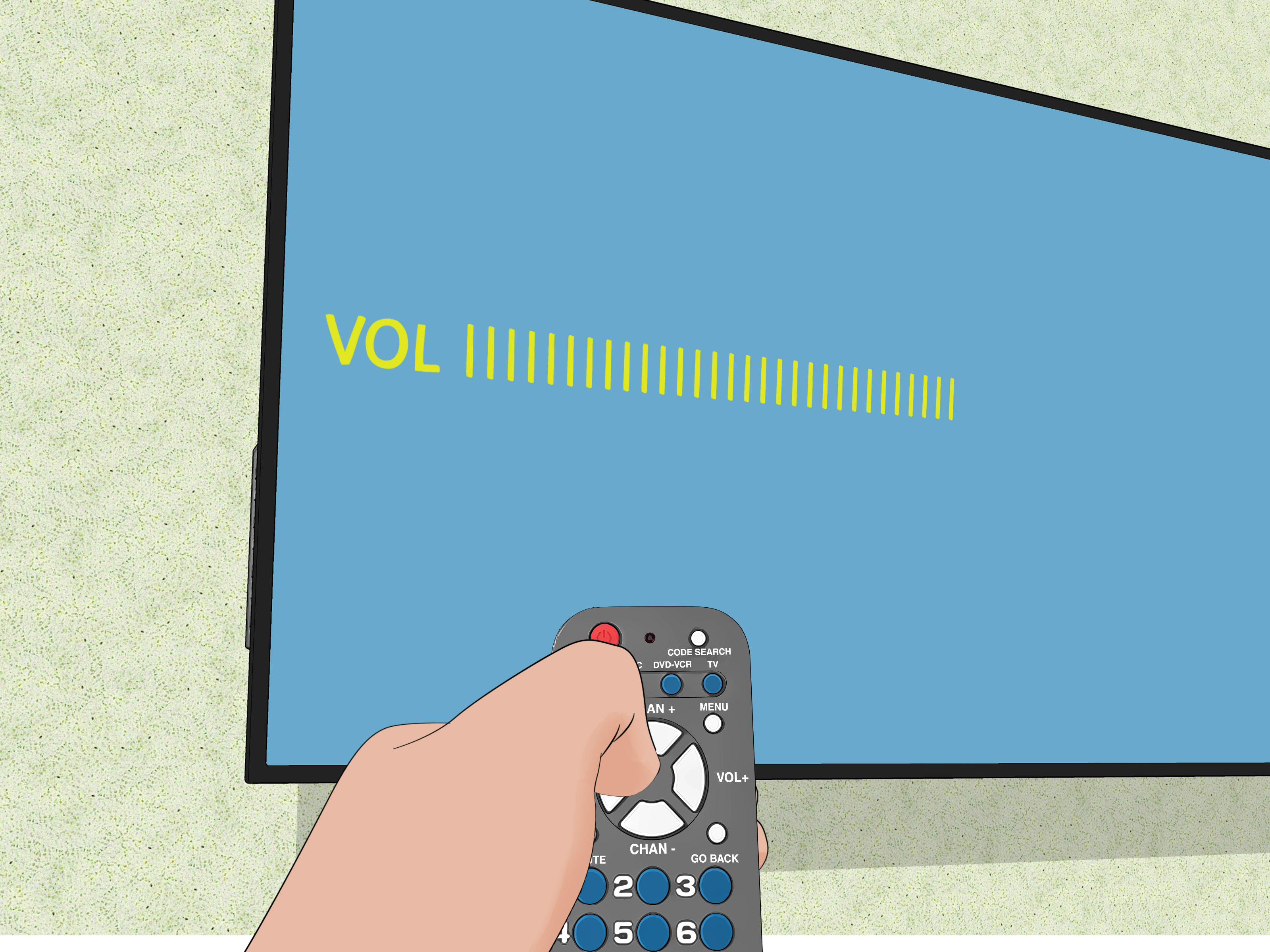
An RCA universal remote can rescue your coffee table from a small plastic avalanche. Instead of hunting for separate controls for the TV, soundbar, cable box, and Blu-ray player, you can teach one remote to handle several devices. The setup usually takes only a few minutesprovided you use the instructions for the correct remote model.
This guide covers the two most useful methods: direct code entry and automatic code search. Direct entry is fastest when you have the correct device code. Auto search is the reliable backup when the code list is missing, your brand has several possibilities, or the first codes refuse to cooperate.
Before You Program the RCA Universal Remote
Gather the remote, fresh batteries, the device you want to control, and the model-specific RCA code list if you plan to use direct entry. Turn on the device manually and keep the remote pointed toward its infrared receiver.
- Install fresh batteries. Weak batteries can light the indicator but still produce an unreliable signal.
- Identify the remote revision. Look under the battery cover, on the rear label, or in the original manual.
- Confirm the device category. Select TV, DVD, STREAM, SAT-CBL, AUDIO, or AUX as appropriate.
- Clear the signal path. Open cabinet doors and move anything blocking the device’s infrared sensor.
Know Which Programming Buttons You Have
Older RCA remotes often include a dedicated Code Search key. Newer versions may enter programming mode by holding a device key, sometimes together with Power. During automatic searching, the remote may also use Play, Reverse, Stop, Enter, or OK. Two remotes can look like close cousins while following different button choreography.
Way 1: Program an RCA Universal Remote With Direct Code Entry
Direct code entry is the best place to start because it is quick and predictable. You locate the codes assigned to your device brand, enter them one at a time, and keep the code that provides the most complete control.
Step 1: Find the Correct Device Codes
Use the code sheet packaged with the remote or RCA’s code-lookup resources. Match the list to the remote’s exact model or revisionnot simply to the RCA name. Codes may contain three, four, or five digits depending on the remote.
Find the correct device section and manufacturer. Many brands have several codes because they have used different infrared command sets across product lines and model years. Begin with the first code and keep the others nearby.
Step 2: Turn On the Device
Use the device’s physical power button or original remote. Keep the RCA remote aimed at the front sensor throughout setup.
Step 3: Enter Programming Mode
- Remote with Code Search: Hold Code Search until the indicator stays on. Release it, then press the device key, such as TV.
- Remote without Code Search: Hold the appropriate device key until the power light stays on. Some models require you to keep holding that key while entering the code.
- Remote with Setup: Hold Setup until the light remains on, then press the correct device key.
Step 4: Enter and Test the Code
Enter the complete code with the number pad. Depending on the model, the indicator may switch off, remain lit until you release a button, or blink to confirm acceptance. Rapid blinking usually means the code was rejected or entered incorrectly.
Point the remote at the device and press Power. If the device does not respond, repeat the process with the next code. When power works, also test Volume, Mute, Input, channel controls, menu navigation, and playback buttons. A code that turns off the TV but cannot change inputs is only a partial match.
Direct-Entry Example
To program a television, turn it on, place the RCA remote in programming mode, select TV if required, and enter the first code from the TV section of the correct code list. Test power, volume, input, and navigation. If an important command fails, try the next listed code. It is less dramatic than defusing a movie bomb, although the blinking indicator may disagree.
Way 2: Program an RCA Universal Remote With Auto Code Search
Use automatic code search when you cannot find a code, your brand is absent from the list, or every listed code fails. The remote cycles through stored infrared command sets until the device responds.
Auto Search on Many Newer RCA Remotes
- Turn on the device manually and point the remote at it.
- Press and hold the correct device key, such as TV. While holding it, press and hold Power until the power light turns off and then comes back on. Release both keys.
- Press Play and wait several seconds. If the device remains on, press Play again. Continue until the device turns off.
- Press Reverse at the interval specified by the manual until the device turns back on. This steps backward through the most recent group of codes.
- Press Stop, Enter, or the model’s designated save key.
- Test all frequently used functions.
Code Search on Older RCA Remotes
- Turn on the device.
- Hold Code Search until the indicator remains lit, then release it.
- Press the matching device key. The light should blink and stay on.
- Point the remote at the device and press Power or On/Off repeatedly, pausing briefly after each press.
- As soon as the device turns off, press Enter to save the code.
- Turn the device back on and test its major controls.
Stop pressing as soon as the device responds. Overshooting the working code may force you to restart. Auto search rewards patience and punishes enthusiastic button mashinga surprisingly specific life lesson from a remote.
Troubleshooting RCA Universal Remote Programming
The Indicator Light Does Not Turn On
Replace the batteries and confirm their polarity. Remove them for a minute, press several remote buttons, reinstall them, and try again. Check for a key that is stuck in the pressed position.
The Code Is Accepted, but Nothing Happens
Confirm that you selected the correct device key and code category. Recheck the remote revision, try the next code for the brand, aim directly at the infrared sensor, and remove any obstruction.
Only Some Buttons Work
You probably found a partial code match. Test every listed code and keep the one that controls the most important functions. Universal remotes may not reproduce specialized features such as voice search, Bluetooth pairing, motion control, proprietary app shortcuts, or advanced service menus.
Auto Search Does Not Find the Device
Keep the device on, use fresh batteries, maintain a clear line of sight, and pause long enough for the equipment to react. Some electronics rely on radio-frequency or Bluetooth control instead of standard infrared. A basic RCA infrared remote cannot directly operate an RF-only device.
A Streaming Stick Does Not Respond
Many sticks sit behind the TV and use wireless remotes. Some RCA models support compatible streaming boxes, but compatibility depends on the remote revision and player. You may be able to control TV power and volume with the RCA remote while using the original streaming remote for navigation.
Tips for a Faster, More Reliable Setup
- Use direct entry first. It is faster than cycling through the entire code library.
- Try every code for the brand. A later code may support input and menu commands better.
- Program one component at a time. Test it fully before moving to the next device.
- Write down the successful code. Store it inside the battery cover, in the manual, or in a phone note.
- Record device assignments. Note that AUX controls the soundbar or STREAM controls the media box.
Practical Experience: What RCA Remote Setup Is Really Like
In a typical living-room setup, the biggest time-waster is starting before identifying the remote revision. Two black RCA remotes may have almost identical number pads, yet one expects a dedicated Code Search button while the other expects TV and Power. Following the wrong instructions makes a perfectly functional remote look broken. A useful habit is to remove the battery cover first, photograph the model information, and keep that photo open while finding the matching code list.
Direct entry can feel almost suspiciously easy when the first code works. The television responds, the light goes out, and the job appears finished. Then movie night begins and the Input key does nothing. Experienced setup is less about asking, “Did the TV turn off?” and more about asking, “Does this code control everything I use?” Test power, volume, mute, input, arrows, back, and menu before writing down the code.
It is also common to find two usable codes with different strengths. One may control power and volume but not input. Another may operate menus but handle channel commands poorly. Choose the code that supports the functions your household uses most. A streaming household may care about volume, input, arrows, and back. A cable household may value channel, guide, and last-channel controls. The best code is the one that removes the most daily friction.
Auto search is where patience becomes a technical skill. On older models, the working command may appear after dozens of power-button presses. Press too quickly and the television may respond after your finger has already advanced to another code. Use a steady rhythm: aim carefully, press once, wait for the device to react, and continue. The moment it turns off, stop and save. A second person watching the screen can help when the TV reacts slowly.
Room layout matters more than expected. A soundbar may block the television’s infrared sensor. A component may hide behind a cabinet door. During setup, stand several feet in front of the equipment with a clear signal path. After programming, test from the couch. If the remote works only when held overhead like a ceremonial wand, suspect weak batteries or a blocked sensor before blaming the code.
Finally, document the result. Batteries die, settings are overwritten, and instruction sheets disappear with impressive efficiency. Record the successful code, remote model, and button assignments. A note such as “TV: living-room Samsung; AUX: Vizio soundbar” can turn a future reprogramming session from an evening project into a three-minute chore. Universal remotes are supposed to simplify life; a little documentation keeps them from staging a sequel.
Conclusion
Programming an RCA universal remote is straightforward when you match the instructions to the correct model. Use direct code entry for the fastest setup and auto code search when the correct number is unavailable. Install fresh batteries, maintain a clear infrared path, save the working code, and test more than power alone.
The reward is delightfully ordinary: fewer remotes, fewer batteries, and fewer questions about who last had the soundbar controller. It may not be futuristic home automation, but it is a much calmer coffee table.
Research synthesis: official RCA support and manuals, RCA TV support, Allconnect, Lifewire, Best Buy, Techwalla, Digital Trends, PC Guide, WePC, Sony Support, Roku Support, Samsung Support, and Xfinity Support. Key procedural and compatibility references: