Downloading emails from Gmail on Android sounds like it should be a one-tap mission. Open Gmail, tap a button, boomyour email is saved forever like a tiny digital trophy. Unfortunately, Gmail on Android is a little more mysterious than that. The mobile app lets you save attachments easily, print messages as PDFs, sync messages for offline access, and use Google Drive for storage, but it does not offer the same simple “Download message” option that Gmail provides on desktop.
That does not mean you are stuck taking screenshots like it is 2012. You can still save important Gmail messages from your Android phone in practical ways: as PDFs, through Google Drive, by downloading attachments, by enabling sync, or by using Google Takeout when you need a full mailbox backup. This guide walks you through the simplest seven-step method for saving an individual Gmail email on Android, then explains the best alternatives for different situations.
The main keyword here is “download emails from Gmail on Android,” but the real goal is peace of mind. Whether you need a receipt, a school document, a travel confirmation, a legal note, or that one email your future self will definitely forget, this guide will help you keep it safe without turning your phone into a filing cabinet with a screen.
Can You Download Emails Directly from the Gmail App on Android?
Yes and no. You can download email attachments directly from the Gmail app on Android. You can also save an email as a PDF by using the Android print feature, depending on your device and installed apps. However, Gmail for Android usually does not provide a built-in “Download message” button for saving the full email as an EML file. That specific option is available in Gmail on a computer.
So, when people ask how to download Gmail emails on Android, they usually mean one of three things:
- Saving the email content as a PDF file
- Downloading files attached to the email
- Backing up Gmail messages for long-term storage
For most Android users, the best everyday method is saving the email as a PDF. It keeps the message readable, easy to share, and simple to upload to Google Drive or store in your phone’s Files app.
How to Download Emails from Gmail on Android: 7 Steps
Step 1: Open the Gmail App on Your Android Phone
Start by opening the Gmail app on your Android phone or tablet. Make sure you are signed in to the correct Google account, especially if you manage several accounts. This tiny detail matters. Saving the wrong email from the wrong inbox is the digital version of putting salt in your coffeetechnically possible, emotionally unnecessary.
Use the search bar at the top if you need to find a specific message. You can search by sender, subject line, date, keyword, or attachment name. For example, search “invoice,” “flight,” “receipt,” or the sender’s email address. Gmail search is usually faster than scrolling through three years of promotional emails and newsletters you promised yourself you would unsubscribe from someday.
Step 2: Open the Email You Want to Save
Tap the email message you want to download or save. Before moving forward, check that the message is fully loaded. If your internet connection is weak, Gmail may show only part of the message or delay loading images and attachments. For important emails, connect to Wi-Fi first so the message opens correctly.
If the email is part of a conversation thread, scroll carefully and choose the exact message you want. Gmail groups replies together, which is helpful until you save the wrong reply and realize your “important document” is actually just someone saying, “Thanks!”
Step 3: Tap the Three-Dot Menu
Inside the email, look for the three-dot menu. Depending on your phone and Gmail version, you may see more than one three-dot icon. One may apply to the whole conversation, while another applies to a specific message inside the thread. Tap the menu connected to the individual email you want to save.
This menu may include options such as Print, Reply, Forward, Mark unread, or other Gmail actions. If you see “Print,” you are on the right path. The Print option is the bridge between Gmail and saving the email as a PDF on Android.
Step 4: Choose Print
Tap Print. Android will open the print preview screen. Do not worry if you do not own a printer. You are not about to summon a dusty office machine from the closet. Android’s print feature commonly includes an option called Save as PDF, which lets you create a PDF file instead of printing on paper.
Review the preview before saving. Some long emails may take several pages. If the email includes images, tables, or formatting, the PDF preview helps you confirm everything looks readable. If something is missing, go back to the email and allow the message to load fully before trying again.
Step 5: Select “Save as PDF”
On the print screen, tap the printer selection area and choose Save as PDF. The exact wording may vary slightly by Android version, phone brand, or installed print services, but the idea is the same: instead of sending the email to a printer, you save it as a PDF file.
This is the most practical way to download an email from Gmail on Android because PDF files are widely supported. You can open them on almost any phone, tablet, computer, or cloud storage service. A PDF also preserves the content in a neat, shareable format, which is useful for receipts, confirmations, school records, customer support messages, and personal documentation.
Step 6: Pick a Folder and Save the File
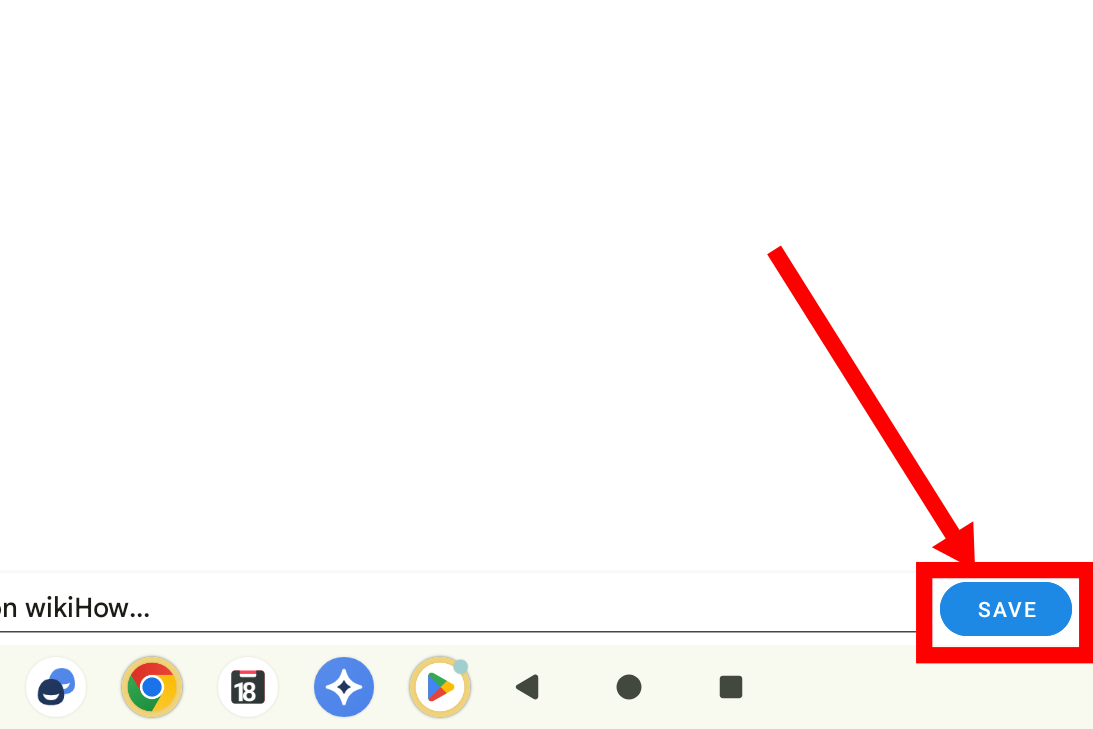
After choosing Save as PDF, tap the save icon. Android will ask where you want to store the file. You may choose Downloads, Documents, internal storage, or another folder depending on your device. Some Android phones use the Files app, while Samsung and other manufacturers may include their own file manager.
Give the file a clear name before saving. Instead of leaving it as something vague like “Gmail.pdf,” use a descriptive filename such as:
- flight-confirmation-delta-may-2026.pdf
- amazon-receipt-headphones.pdf
- school-registration-email.pdf
- client-contract-update.pdf
Good filenames save future you from opening twelve mystery PDFs while muttering, “Which one of these is the thing?”
Step 7: Find, Share, or Upload the Saved Email
Once saved, open your Files app and check the folder you selected. On many Android phones, downloaded files appear in the Downloads folder. From there, you can open the PDF, share it, move it to another folder, or upload it to Google Drive.
To upload the saved email PDF to Google Drive, open the Google Drive app, tap the plus button, choose Upload, and select the PDF file from your device. This is a smart move if the email is important because it keeps a backup in the cloud. If your phone gets lost, damaged, or mysteriously disappears into the couch dimension, your saved email still has a safe home.
How to Download Gmail Attachments on Android
If your goal is to download an attachment rather than the email text, the process is even simpler. Open the Gmail message, find the attachment, and tap the download icon or the Save to Drive option. Gmail supports common attachment types such as PDFs, images, documents, spreadsheets, and compressed files.
For photos embedded inside the email body rather than attached as separate files, you may need to tap or press the image, open it, and then choose the save option. The exact steps can vary by device, but the general process is straightforward: open the file, save it locally, or store it in Google Drive.
One useful tip: if you regularly download attachments, check Gmail settings. Gmail on Android includes an option to download attachments automatically over Wi-Fi. This can be helpful, but be careful if your phone storage is already gasping for air. Automatic downloads are convenient until your device starts warning you that it has no room left for anything except regret.
How to Save Gmail Emails for Offline Access on Android
Saving an email as a PDF is different from making Gmail available offline. When Gmail sync is enabled on Android, the app stores recent mail so you can read some messages even when your connection is poor. This is useful for travel, commuting, or areas with unreliable internet.
To check sync settings, open Gmail, tap the menu icon, go to Settings, choose your account, and look for Gmail sync options under data usage. If sync is turned off, your messages may not update properly. If it is turned on, Gmail can keep your inbox more accessible on your device.
However, offline sync is not the same as downloading a permanent copy. If you need a record for taxes, school, business, warranty claims, or legal paperwork, save the message as a PDF or export it through a backup method. Offline sync is like keeping snacks in your backpack; a PDF backup is like putting the recipe in a safe.
How to Download Gmail Messages as EML Files
If you specifically need an EML file, use Gmail on a computer. The desktop version of Gmail includes a “Download message” option that saves an email as an EML file. EML files are useful because they preserve email headers and can be opened in many desktop email clients.
On Android, this option is generally not available inside the Gmail app. A workaround is to open Gmail in a mobile browser and request the desktop site, but the experience can be clunky on a small screen. For important EML downloads, a computer is usually cleaner, faster, and less likely to make you pinch-zoom until your fingers file a complaint.
How to Back Up All Gmail Emails
For full Gmail backup, use Google Takeout. Google Takeout lets you export Gmail data and create an archive for your records. Gmail messages are commonly exported in MBOX format, which can be opened or imported by compatible mail applications such as desktop email clients.
This method is best when you want a large backup, not when you simply need one receipt or confirmation email. Google Takeout can export a lot of data, and the archive may take time to prepare. It is ideal for long-term recordkeeping, account migration planning, or storing a copy of your mailbox outside Gmail.
If you only need a few emails, PDF saves are easier. If you need hundreds or thousands of messages, Takeout is the grown-up option wearing sensible shoes.
Best Uses for Downloaded Gmail Emails
Receipts and Invoices
Receipts are one of the most common reasons people save Gmail emails on Android. A PDF copy makes it easier to organize purchase records, track expenses, or prepare documents for reimbursement. If you run a small business or freelance, saving receipts by month can prevent chaos later.
Travel Confirmations
Flight bookings, hotel reservations, rental car details, and event tickets are worth saving before a trip. Internet access can be unpredictable when traveling, and opening Gmail at the airport with one bar of signal is not a personality-building exercise anyone asked for.
School and Work Documents
Students, parents, employees, and job seekers often receive important information by email. Saving admission notices, assignment instructions, interview confirmations, HR documents, or meeting details can make them easier to find later.
Customer Support Records
If you are dealing with a refund, warranty issue, account problem, or service complaint, keep copies of important emails. A saved PDF gives you a clean record of what was said and when.
Common Problems When Saving Gmail Emails on Android
The Print Option Is Missing
If you do not see Print, update the Gmail app and your Android system if updates are available. Also check whether you tapped the correct three-dot menu inside the specific message. In long conversation threads, the menu position matters.
The PDF Looks Incomplete
Wait for the full email to load before printing. Images, long threads, and dynamic content may need a moment. If the email includes hidden trimmed content, expand the message first.
You Cannot Find the Saved File
Open the Files app and check Downloads, Documents, Recent files, or internal storage. Some phone brands use a file manager with a different name, such as My Files. Searching by the filename can help if you renamed the PDF before saving.
Attachments Will Not Download
Check your internet connection, Gmail sync settings, storage space, and file type. Some attachments may be blocked or unavailable if the original file was removed, access changed, or the message came from a restricted account environment.
Security Tips Before Downloading Gmail Emails
Before saving emails to your Android phone, think about privacy. A downloaded PDF is no longer protected only by your Gmail login. Anyone with access to your unlocked phone or shared storage may be able to open it. For sensitive documents, use a secure folder, screen lock, or trusted cloud storage account.
Avoid downloading suspicious attachments. If an email looks strange, contains urgent threats, asks for passwords, or comes from an unknown sender, do not open its files. Gmail has built-in protections, but common sense is still the best antivirus with shoes on.
Also remember to clean up old files. Downloaded email PDFs can pile up quickly. Review your Downloads folder occasionally and delete copies you no longer need. Your phone storage deserves a peaceful life too.
Practical Experiences: What It Is Really Like to Download Gmail Emails on Android
In real-world use, saving Gmail emails on Android is less about fancy technology and more about building a reliable habit. The people who have the easiest time finding important emails later usually do three things well: they save the message in a readable format, name the file clearly, and store it somewhere predictable. That may sound boring, but boring systems are often the ones that actually work.
For example, imagine you are at a hotel desk and the receptionist asks for your booking confirmation. You open Gmail, but the airport Wi-Fi from earlier has apparently followed you just to cause drama. If you saved the confirmation as a PDF before leaving home, you can open it from Files or Google Drive in seconds. No panic. No scrolling. No awkward smile while a line forms behind you.
Another common situation is online shopping. Many people keep receipts in Gmail and assume search will always save the day. Usually it does, but not always quickly. If you bought several similar items from the same store, a saved PDF with a proper filename is much easier to locate. A folder named “Receipts 2026” with files organized by store or month can make returns, warranties, and budgeting far less annoying.
Work and school emails are another area where downloading messages helps. Suppose a teacher sends project instructions, or a manager sends approval for a schedule change. Saving the email as a PDF creates a stable record. It also makes sharing easier. Instead of forwarding a long thread with extra replies, you can share one clean file.
The biggest lesson is that not every email needs to be downloaded. Saving everything creates clutter. Save messages that prove something, explain something, confirm something, or protect you from future confusion. Receipts, contracts, travel details, account notices, support conversations, and official instructions are good candidates. Random newsletters and “your food delivery is arriving soon” emails can probably live their short, spicy lives inside Gmail.
It also helps to decide where saved emails belong. If the file is temporary, the Downloads folder is fine. If it matters for months or years, upload it to Google Drive and place it in a named folder. For sensitive files, avoid leaving copies scattered across multiple apps. A little organization now prevents a treasure hunt later.
Finally, test your method before you truly need it. Save one harmless email as a PDF, find it in Files, open it, and upload it to Drive. Once you know the steps on your specific Android phone, the process becomes quick. Think of it like learning where the flashlight is before the lights go out. Future you will be grateful, and possibly a little smug.
Conclusion
Downloading emails from Gmail on Android is easy once you understand what Gmail can and cannot do on mobile. For a single email, the best method is usually to open the message, choose Print, select Save as PDF, and store the file in your phone or Google Drive. For attachments, use Gmail’s built-in download or Save to Drive option. For full mailbox backups, use Google Takeout. For EML files, switch to Gmail on a computer.
The key is choosing the right method for the job. A PDF is perfect for everyday records. Google Drive is great for cloud storage. Takeout is better for large backups. Gmail sync helps with offline reading, but it is not a permanent archive. With the seven steps above, your important emails can stop hiding in your inbox and start living in a place where you can actually find them.