Snapchat notifications have a special talent: they either arrive at the exact moment you are pretending to be productive, or they sound exactly like every other alert on your phone. Was that Snapchat? A bank app? Your delivery driver? A weather alert telling you it might drizzle in 12 hours? The mystery is exhausting.
The good news is that you can change how Snapchat notifications sound, but the exact method depends on your phone and whether you use Snapchat+. On Android, you can often change Snapchat’s notification tone through your phone’s app notification settings. On iPhone, the options are more limited because iOS controls app alert sounds differently. And if you subscribe to Snapchat+, you can set custom notification sounds for specific friends or groups directly inside Snapchat.
This guide explains how to change Snapchat notification sound in three simple ways, with clear steps for Android, iPhone, and Snapchat+. You will also learn why the sound option may not appear, how to fix common notification problems, and how to choose a tone that is actually useful instead of merely louder than a fire alarm in a shoebox.
Can You Change the Snapchat Notification Sound?
Yes, but with a small “it depends” attached. Snapchat notification sounds are controlled in different places depending on your device. If you are using Android, your phone may let you change the sound for Snapchat as an app, or even change sounds for different Snapchat notification categories. If you are using iPhone, you can manage Snapchat alerts in iOS settings, but you may not always get a dedicated custom sound picker for Snapchat itself.
Snapchat+ users have another option: custom notification sounds for individual friends and groups. This is helpful if you want to know who messaged you before you even look at the screen. Your best friend can have one sound, your group chat can have another, and that one person who sends “streak?” at midnight can be assigned something appropriately dramatic.
Before you begin, update Snapchat and your phone software. Notification menus change over time, especially on Android, where Samsung, Google Pixel, Motorola, OnePlus, and other manufacturers may label settings differently. The steps below cover the most common paths.
Method 1: Change Snapchat Notification Sound on Android
Android usually gives users the most control over app notification sounds. Depending on your phone, you may be able to change the main Snapchat notification tone or adjust sound settings by category, such as chats, calls, mentions, or story alerts.
Step-by-Step Instructions for Most Android Phones
- Open the Settings app on your Android phone.
- Tap Apps, Apps & notifications, or Notifications.
- Find and select Snapchat.
- Tap Notifications.
- Look for Notification categories, Notification channels, or a similar option.
- Choose the category you want to edit, such as chats or general notifications.
- Tap Sound.
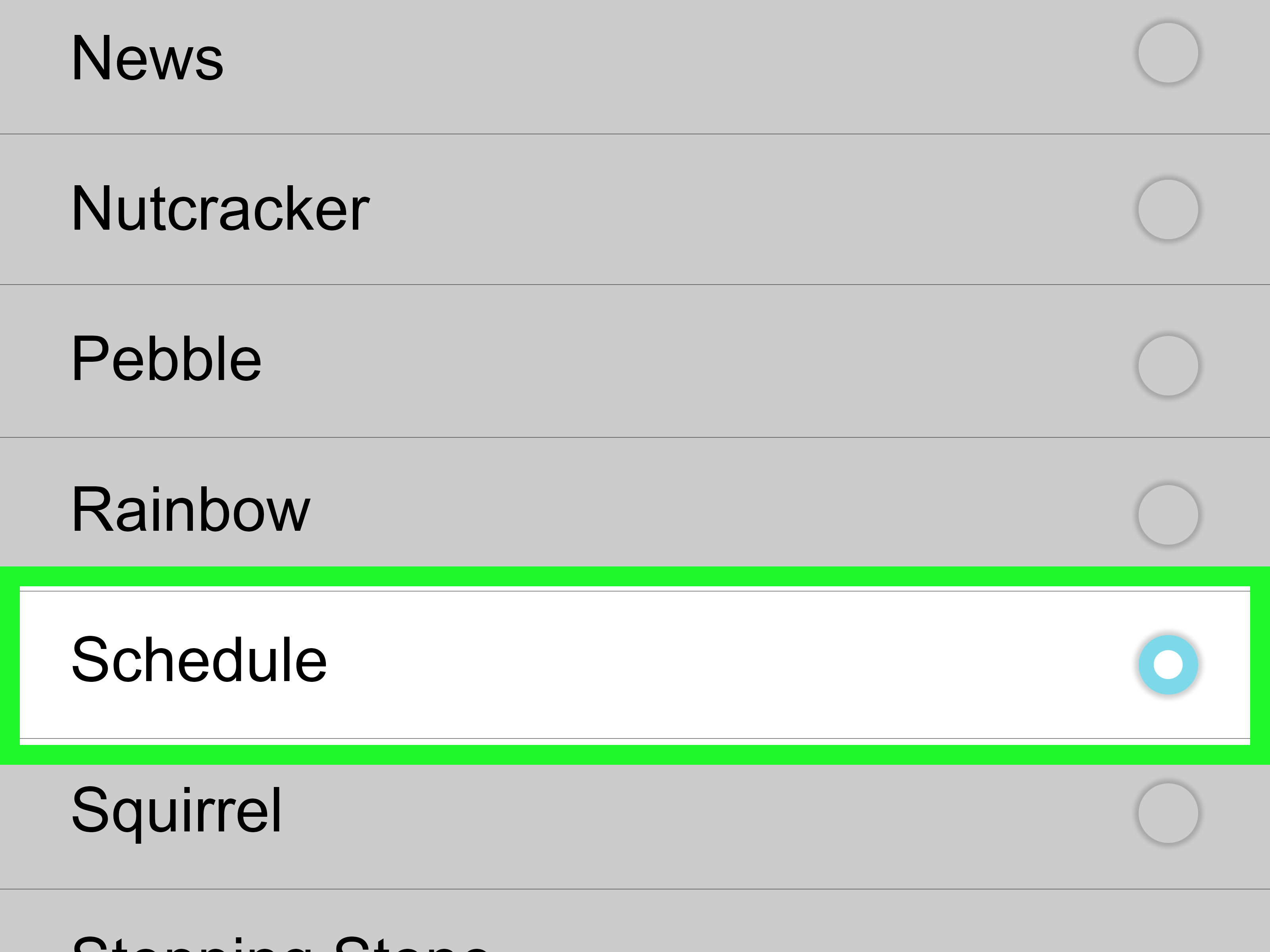
- Select a new notification sound and save your choice if prompted.
On many Android phones, notification categories are the secret doorway. Do not just tap the on/off switch next to a category. Tap the category name itself. That is often where the sound, vibration, lock screen, and pop-up options are hiding.
How to Change Snapchat Sound on Google Pixel
On a Google Pixel phone, the path is usually:
- Open Settings.
- Tap Notifications.
- Tap App notifications.
- Select Snapchat.
- Tap a notification category.
- Tap Sound.
- Choose your preferred tone.
You can also change the default notification sound for the whole phone by going to Settings > Sound & vibration > Notification sound. However, changing the default sound affects more than Snapchat, so use this option only if you want a broader alert makeover.
How to Change Snapchat Sound on Samsung Galaxy
Samsung Galaxy phones sometimes hide notification categories behind an advanced setting. If you do not see categories for Snapchat, try this first:
- Open Settings.
- Tap Notifications.
- Tap Advanced settings.
- Turn on Manage notification categories for each app.
- Go back to Notifications and select App notifications.
- Choose Snapchat.
- Open Notification categories.
- Select the Snapchat category you want and tap Sound.
This extra Samsung step is easy to miss. It is the smartphone equivalent of hiding the TV remote under a blanket and then acting surprised when nobody can find it.
Method 2: Adjust Snapchat Notification Sound on iPhone
Changing Snapchat notification sound on iPhone is more limited than on Android. Apple lets users control whether Snapchat notifications appear, whether they make a sound, where they appear, and how they behave. However, iOS may not always provide a separate custom tone menu for Snapchat the way Android does.
How to Check Snapchat Sound Settings on iPhone
- Open the Settings app on your iPhone.
- Tap Notifications.
- Scroll down and tap Snapchat.
- Make sure Allow Notifications is turned on.
- Make sure Sounds is turned on.
- Adjust alerts for the Lock Screen, Notification Center, and banners as needed.
If a Sounds menu appears for Snapchat on your version of iOS, you can select from the available tones. If it does not appear, your iPhone may only allow you to turn Snapchat sounds on or off, not choose a custom Snapchat-specific alert sound.
Change the Default iPhone Alert Sound
If Snapchat uses your iPhone’s default alert tone, changing the default alert sound may affect how Snapchat sounds. Try this:
- Open Settings.
- Tap Sounds & Haptics.
- Tap Default Alerts, if available on your iOS version.
- Select a new tone.
This setting may affect other apps too, so choose wisely. A fun sound is charming for about eight notifications. After that, your “cute little chime” may become the soundtrack to your villain origin story.
Control Snapchat Notifications Inside the Snapchat App
You should also check Snapchat’s internal notification settings:
- Open Snapchat.
- Tap your profile icon.
- Tap the gear icon to open Settings.
- Tap Notifications.
- Turn specific notification types on or off.
This does not always change the sound itself, but it controls which Snapchat alerts are allowed to reach your phone. If Snapchat notifications are disabled inside the app, changing system sound settings will not help much. That is like buying a louder doorbell for a house with no front door.
Method 3: Use Snapchat+ Custom Notification Sounds
The most Snapchat-specific way to change notification sounds is through Snapchat+. With Snapchat+, you can set custom sounds for specific friends and groups. This is ideal if you want different alerts for your closest friends, family group chat, best friend, or favorite conversation.
How to Set a Custom Snapchat+ Notification Sound
- Open Snapchat.
- Go to the Chat screen.
- Press and hold the friend or group conversation.
- Tap Chat Settings or Chat and Notification Settings.
- Tap Notification Sounds, Notification Settings, or Ringtone.
- Choose a sound from the available options.
- Tap Set Notification Sound or save the selection.
You may also be able to manage this through your Snapchat+ membership card:
- Open Snapchat and tap your profile icon.
- Tap your Snapchat+ membership card.
- Select Custom Notification Sounds.
- Choose a friend or group.
- Pick the sound you want.
This feature is especially useful if you receive a lot of Snapchat alerts. Instead of checking your phone every time it buzzes, you can recognize important conversations by sound. It is a tiny productivity upgrade disguised as a fun customization feature.
Why You May Not See the Sound Option
If you are following the steps and cannot find the sound option, do not panic. Your phone is not judging you. Probably.
1. Your Phone Does Not Support Per-App Sounds
Some phones and operating system versions offer fewer notification controls than others. Android typically provides more granular sound options, while iPhone notification sound customization depends heavily on iOS and the app’s available settings.
2. Notification Categories Are Disabled
On some Samsung Galaxy phones, notification categories may be turned off by default. Enable Manage notification categories for each app under advanced notification settings, then check Snapchat again.
3. Snapchat Needs an Update
If the app is outdated, features may be missing or behave strangely. Open the App Store or Google Play Store, search for Snapchat, and install any available update.
4. Snapchat+ Is Required for Friend-Specific Sounds
If you want different Snapchat sounds for individual friends or groups, that feature is tied to Snapchat+. Without Snapchat+, you may still be able to change app-level notification sounds through your phone, but not assign special sounds to specific Snapchat contacts inside the app.
5. Focus Mode, Silent Mode, or Do Not Disturb Is On
Before blaming Snapchat, check whether your phone is muted. On iPhone, look at Focus settings and the silent switch or Action Button configuration. On Android, check Do Not Disturb, volume sliders, and notification mode. Even the perfect notification sound cannot perform if your phone has been told to sit quietly in the corner.
How to Fix Snapchat Notification Sound Not Working
If Snapchat notifications appear but make no sound, try these fixes in order.
Check Snapchat Notification Permissions
On iPhone, go to Settings > Notifications > Snapchat and make sure notifications and sounds are enabled. On Android, go to Settings > Apps > Snapchat > Notifications and confirm that Snapchat is allowed to send alerts.
Check Notification Settings Inside Snapchat
Open Snapchat, tap your profile, open Settings, and select Notifications. Make sure the notification types you care about are enabled. If chat notifications are off inside Snapchat, your phone may never get the chance to play a sound.
Turn Up Notification Volume
Media volume and notification volume are not always the same thing. On Android, press a volume button, open the expanded volume panel, and check notification volume. On iPhone, go to Settings > Sounds & Haptics and adjust alert volume.
Restart Snapchat and Your Phone
Close Snapchat completely and reopen it. If that does not work, restart your phone. It sounds basic because it is basic, but basic fixes work surprisingly often. Technology, like people, sometimes just needs a short nap.
Clear Snapchat Cache
Inside Snapchat, go to your profile, tap Settings, and look for the option to clear cache. Clearing Snapchat cache can help with app glitches and should not delete Memories, Snaps, or Chats. Still, read the confirmation screen carefully before tapping anything with dramatic energy.
Reinstall Snapchat
If nothing works, uninstall and reinstall Snapchat. After reinstalling, log back in and allow notification permissions when prompted. This can reset broken notification behavior, especially after a major phone update.
Best Snapchat Notification Sound Tips
Choosing a notification sound is more strategic than it sounds. A good alert should be noticeable, short, and easy to recognize. A bad alert is either too quiet, too long, or so embarrassing that you suddenly become a silent-mode philosopher.
Choose a Short Sound
A quick tone is better than a long musical clip. Snapchat notifications can arrive frequently, and a long alert becomes annoying fast. Think “helpful ping,” not “concert nobody bought tickets for.”
Use Different Sounds for Different Priorities
If you use Snapchat+ custom notification sounds, reserve the most noticeable tone for important people or groups. Use softer tones for casual conversations. This keeps your phone from treating every meme like a national emergency.
Avoid Sounds That Match Other Apps
If your email, text messages, and Snapchat all sound alike, you have not solved the problem. You have created a tiny audio escape room. Pick a tone that clearly belongs to Snapchat.
Test the Sound in Real Life
A tone that sounds perfect in a quiet bedroom may disappear completely in a coffee shop, car, or busy office. Choose something you can hear without making everyone nearby wonder whether a small robot is trapped in your pocket.
Android vs. iPhone: Which Is Better for Snapchat Sound Customization?
Android is generally better if your main goal is system-level customization. Many Android phones let you change notification sounds for individual apps and categories. This means you may be able to make Snapchat chats sound different from other notifications without paying for Snapchat+.
iPhone is simpler but more restricted. You can control whether Snapchat makes a sound, where notifications appear, and whether alerts are allowed, but you may not always be able to pick a unique Snapchat-only sound from iOS settings. Snapchat+ can help if your goal is friend-specific sounds within Snapchat.
In plain English: Android gives you more knobs to turn; iPhone gives you fewer knobs but a cleaner cabinet. Snapchat+ adds another set of knobs inside Snapchat itself.
Common Mistakes to Avoid
Changing Media Volume Instead of Alert Volume
If you turn up YouTube volume, that does not always increase notification volume. Check the alert or notification volume specifically.
Muting the Conversation
If a Snapchat chat is muted, you may not hear alerts from that person or group no matter what sound you select. Open the conversation settings and make sure notifications are not muted.
Forgetting About Do Not Disturb
Do Not Disturb and Focus modes can silence Snapchat. If your custom sound works sometimes but not always, check whether a schedule is automatically turning on at night, during work, or while driving.
Expecting Snapchat+ Features Without Snapchat+
Custom sounds for specific Snapchat friends and groups are part of Snapchat+. If you do not see the option in the app, check whether you are subscribed and whether the feature is available in your region and app version.
Real-World Experience: What Changing Snapchat Sounds Actually Feels Like
Changing your Snapchat notification sound sounds like a tiny adjustment, but it can make your phone feel less chaotic. The biggest benefit is not novelty; it is recognition. When every app uses the same default ding, your brain has to do extra work. You hear the sound, pick up your phone, unlock it, check the notification, and then realize it was not important. Repeat that enough times and your phone starts to feel less like a tool and more like a needy digital parrot.
In everyday use, the best setup is usually simple. On Android, setting Snapchat to a distinct but short tone makes a noticeable difference. You do not need anything flashy. A clean pop, click, or soft chime is enough. The goal is to know “that was Snapchat” without looking. If the sound is too dramatic, you will eventually turn it off. If it is too subtle, you will miss it. The sweet spot is somewhere between “barely audible” and “arcade machine having a breakdown.”
For Samsung users, the experience can be slightly confusing at first because notification categories may be hidden. Once enabled, however, the controls are powerful. You can treat different types of app alerts differently, which is useful if Snapchat sends you more than one kind of notification. The trick is learning to tap into the category itself instead of just flipping the toggle. Many people miss this because the menu design does not exactly roll out a red carpet.
On iPhone, the experience is more about managing expectations. You can make sure Snapchat sounds are enabled, adjust how alerts appear, and change broader alert settings when available. But if you want total Snapchat-specific sound control, iOS may feel restrictive. That does not mean you are doing anything wrong. It simply means Apple’s notification system is more controlled. For some users, that is cleaner. For others, it feels like trying to customize a sandwich while the chef gently removes half the ingredients.
Snapchat+ custom notification sounds are most useful for people who rely on Snapchat as a primary messaging app. If you only open Snapchat once in a while, friend-specific sounds may be fun but unnecessary. If you use Snapchat daily, especially for close friends or group chats, custom sounds can reduce screen-checking. Hearing one sound for your best friend and another for a group chat gives you context before you even touch your phone.
A practical example: imagine you are studying, working, cooking, or driving with your phone nearby. A generic notification sound forces you to wonder whether it matters. A custom Snapchat sound tells you the app. A Snapchat+ friend-specific sound tells you the person. That tiny bit of information helps you decide whether to respond now or later. The phone interrupts you less, even though notifications are still on.
The biggest mistake is choosing a sound because it is funny for five minutes. Funny tones age quickly. A duck quack, laser blast, or chaotic cartoon noise might be hilarious the first afternoon, but by day three you may be ready to apologize to everyone within hearing distance. Pick something you can live with in public. Your future self, your coworkers, and possibly your dog will thank you.
Another useful habit is reviewing notification settings every few months. Apps update. Phone systems update. Menus move around. A setting that worked last year may not be in the same place today. If Snapchat suddenly stops making your chosen sound, check app permissions, system notification settings, silent modes, and Snapchat’s internal notification menu before assuming the feature disappeared.
Ultimately, changing your Snapchat notification sound is not just about personalization. It is about making alerts more useful. Your phone should not make you solve a mystery every time it pings. With the right setup, Snapchat gets its own recognizable voice, important chats stand out, and your day becomes a little less noisy. Not silent, of course. This is Snapchat we are talking about. But definitely less chaotic.
Conclusion
Changing the Snapchat notification sound is easy once you know where to look. On Android, start with your phone’s notification settings and look for Snapchat notification categories. On Samsung Galaxy devices, enable notification categories if they are hidden. On iPhone, check Snapchat under iOS notification settings and make sure sounds are enabled, while understanding that custom app-specific tone options may be limited. For the most personalized option, Snapchat+ lets you assign custom sounds to specific friends and groups.
The best approach is to choose a short, recognizable tone that helps you identify Snapchat without checking your screen every five seconds. Keep Snapchat updated, review both app and system settings, and remember that silent mode, Focus, Do Not Disturb, and muted chats can all stop your carefully chosen sound from playing. Once everything is set correctly, your Snapchat alerts can finally sound less generic and more like they belong to you.