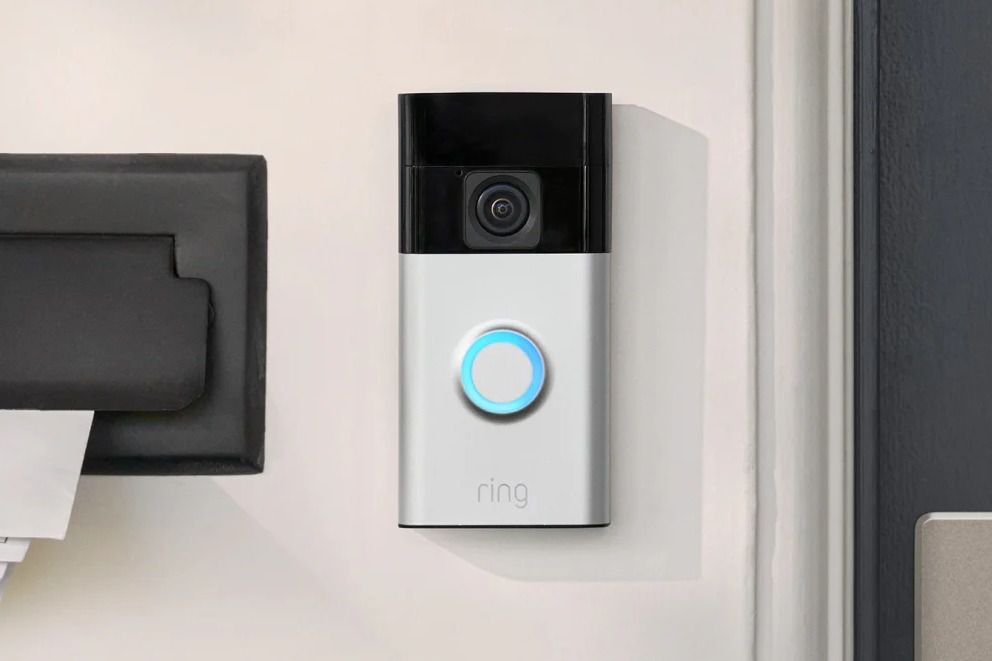
If your Ring doorbell has gone from “smart home hero” to “tiny wall-mounted diva,” you are not alone. One day it is catching package deliveries like a champ. The next day it refuses to connect to Wi-Fi, ignores the app, or flashes lights like it is auditioning for a nightclub. That is usually when people start searching for one magic fix: reset the Ring doorbell.
The good news is that resetting a Ring doorbell is usually simple. The even better news is that you do not always need a full factory reset. In many cases, a quick reboot, power cycle, or Wi-Fi reconnection will do the trick without forcing you to start from scratch. This guide walks you through all of it in plain English, with no robotic jargon, no fluff, and no “have you tried turning it off and on again?” energy. Well, maybe a tiny bit of that energy, because sometimes it really does work.
Why You Might Need to Reset a Ring Doorbell
Most people do not wake up thinking, “Today feels like a great day to reset my doorbell.” Usually, a problem pushes you there. Your Ring doorbell may need attention if it will not connect to Wi-Fi, drops offline after a router change, freezes during setup, stops sending alerts, shows strange light patterns, or becomes unresponsive in the app.
Resetting also makes sense when you are moving, giving the device to someone else, or reinstalling it after a long break. In those cases, you want a clean setup so the device can connect properly and behave like it remembers what century it is in.
Before You Reset: Know the Three Different Fixes
This is where many guides get sloppy. “Reset” gets used as a catch-all term, but there are really three different actions that solve different problems.
1. Reboot the device
If your Ring doorbell is still online in the app, a reboot is the gentlest option. Think of it as a polite restart. It is useful when the device is acting weird but still connected.
2. Power cycle the device
A power cycle means temporarily cutting power and restoring it. On battery models, that usually means removing the battery briefly. On wired models, it means shutting off power at the switch or breaker and turning it back on. This is a good middle-ground fix when the doorbell is glitchy, sluggish, or recently went offline.
3. Factory reset the device
This is the big one. A factory reset clears the local setup so you can set the doorbell up again from the beginning. If the device will not reconnect, will not enter setup mode, or keeps failing during installation, a full reset is often the cleanest fix.
For most people searching how to reset a Ring doorbell, the factory reset is what they really need. So let’s get to it.
What You Need Before You Start
Before you touch a screw or press a button, grab a few basics. You will save yourself a lot of muttering under your breath.
- Your phone with the Ring app installed
- Your Ring account login information
- Your Wi-Fi name and password
- The included screwdriver or the correct security tool
- A fully charged battery if you have a battery-powered model
- Access to the QR code or PIN on the device or under the faceplate
If your Ring doorbell is wired, it is also smart to be cautious around power. If you need to remove the unit or work near wiring, turn off the appropriate breaker first. Hero moves are for movies, not doorbell maintenance.
How to Reset a Ring Doorbell Step by Step
Step 1: Decide whether you really need a full reset
If the device is still visible and responsive in the Ring app, try a reboot or Wi-Fi reconnection first. A full reset is best when the doorbell is unresponsive, stuck offline, unable to enter setup mode, or being prepared for a fresh installation.
Step 2: Find the setup button
The setup button is the one you need, not the main doorbell button on the front. Its location depends on the model:
- Models with an internal battery: the setup button is usually on the back of the device.
- Models with a removable battery: the setup button is usually under the faceplate, on the front area.
- Wired models: the setup button is commonly under the faceplate on the right side.
If you have a newer or less familiar model, look carefully before you start poking random buttons like you are trying to beat a video game boss.
Step 3: Remove the faceplate if your model requires it
Some Ring doorbells hide the setup button and QR code under the faceplate. Remove the security screw at the bottom, then gently lift or pull the faceplate off according to the design of your model. Do not force it. If it feels like you are wrestling a small metal alligator, pause and check the fit again.
Step 4: Press and hold the setup button for 20 seconds
This is the actual factory reset. Press and hold the setup button for 20 seconds, then release it. The doorbell should begin the reset process. Give it a moment. Do not keep pressing it over and over out of panic. One good press-and-hold is the move.
Step 5: Wait for the device to restart and enter setup mode
After the reset, the doorbell should reboot and enter setup mode. On Ring devices, a white spinning light generally means the unit is in setup mode. Wait patiently for the startup sequence to finish before trying to reconnect in the app.
Step 6: Open the Ring app and set the doorbell up again
In the Ring app, go to the main dashboard, choose the option to set up a device, and follow the prompts. You will likely need to scan the QR code or enter the PIN, connect the device to Wi-Fi, and confirm the installation location.
If setup mode times out, do not panic. It usually lasts long enough to complete the process, but if needed, you can re-enter setup mode and try again.
How to Reconnect Ring to Wi-Fi Without a Full Reset
If your Ring doorbell is still online enough to talk to the app, you may not need to factory reset it at all. This is especially common when you changed your router, updated your Wi-Fi password, or split your network names.
Open the Ring app, select your doorbell, and go to Device Health. Under the network section, look for Reconnect or Change Network. Follow the prompts to connect the doorbell to your current Wi-Fi.
This is the cleaner option because it preserves your setup flow without forcing you to start from zero. In other words, it is the adult choice. The factory reset is still there when diplomacy fails.
How to Reboot a Ring Doorbell in the App
If the doorbell is online but acting flaky, a reboot may be enough. In the Ring app, open the device, go to Device Health, and choose Reboot This Device. This is ideal for temporary glitches, delayed alerts, or odd camera behavior.
A reboot is not the same as a factory reset. It restarts the device without wiping its setup. Think of it as a nap, not amnesia.
How to Power Cycle a Ring Doorbell
Sometimes the problem is not configuration. It is power.
For a battery-powered Ring doorbell, remove the battery for about 10 seconds, then reinsert it. For a wired Ring doorbell, switch off power at the light switch or circuit breaker, wait briefly, and restore power. This simple step can help with lockups, temporary freezing, or startup hiccups.
If your device behaves normally afterward, congratulations. You fixed it with the smart-home version of “walk it off.”
What the Ring Doorbell Light Means During Reset
Ring light patterns are helpful once you know what they mean. They can also feel like secret messages from a gadget that thinks it is more mysterious than it really is.
- White light spinning in a circle: the doorbell is in setup mode.
- Blue light moving upward: the device is connecting to Wi-Fi during setup.
- Charging pattern: the battery is charging.
If you are resetting the device and see the white spinning light, that is usually a good sign. It means the doorbell is ready for the app to continue setup.
Troubleshooting: What to Do If the Reset Does Not Work
The Ring doorbell will not enter setup mode
Try the reset again and make sure you are pressing the setup button, not the doorbell button. Hold it for the full 20 seconds. If the battery is low, charge it fully before retrying. On wired models, confirm the unit is receiving stable power.
The device still will not connect to Wi-Fi
Double-check the Wi-Fi password, router distance, and whether your phone can join the same network normally. If your phone cannot connect cleanly, the Ring doorbell probably cannot either. Sometimes the network is the real villain.
You cannot find the QR code or PIN
The QR code is typically on the back of the device or under the faceplate. If it is missing or hard to read, the Ring app can help identify where it should be located for your model during setup.
The device is tied to someone else’s account
If you bought a used Ring doorbell or left one behind during a move, a factory reset alone is not enough. The current owner must remove or transfer the device in the Ring app before a new owner can fully set it up. This catches a lot of people off guard.
The doorbell is wired and still dead
Check the breaker, transformer, and wiring condition. A reset cannot solve a power delivery problem. If the unit has no reliable power, it may look like a software issue when it is really an electrical one.
Should You Reset a Ring Doorbell Before Selling or Giving It Away?
Yes, but do not stop at the button press.
If you are transferring ownership, you should remove or deactivate the device in the Ring app. Simply uninstalling it from the wall or deleting the app from your phone does not release ownership. That is a common mistake and a guaranteed future headache.
If you want to keep access to saved clips for a limited time, deactivation may make sense first. If you are completely done with the device, removing it from your account is the cleaner handoff. Also remember that deleting the device from your account does not automatically cancel a Ring subscription. Handle that separately so your wallet does not keep making generous donations.
Common Mistakes to Avoid
- Holding the front doorbell button instead of the setup button
- Trying a full reset before checking Wi-Fi reconnection in the app
- Resetting on a nearly dead battery
- Forgetting to scan or locate the QR code before reinstallation
- Assuming physical removal also removes account ownership
- Ignoring power issues on wired doorbells
A little patience saves a lot of unnecessary frustration. Most reset problems are not actually difficult. They are just annoyingly specific.
When to Call Support Instead of Resetting Again
If you have reset the device correctly, confirmed power, verified Wi-Fi, and still cannot complete setup, it may be time to contact Ring support. Repeating the same reset six more times rarely unlocks a secret ending. It usually just wastes your afternoon.
Support is especially worth contacting if the setup button does nothing, the device shows no lights at all, the faceplate or security screw is damaged, or the doorbell appears to be registered to another owner and you cannot resolve it yourself.
Extra Experiences: What Resetting a Ring Doorbell Usually Feels Like in Real Life
In real homes, resetting a Ring doorbell usually happens during one of three moments: after changing internet service, after a random offline incident, or right before giving the device to someone else. And let’s be honest, none of those moments arrive with peaceful background music and unlimited patience.
A very common experience is the post-router-upgrade surprise. Everything else reconnects just fine, but the Ring doorbell acts like it never met your house before. You open the app, see the device offline, and start wondering if the doorbell has decided to take early retirement. In that situation, many people jump straight to a factory reset, even though a simple “Change Network” option inside Device Health may solve it faster. It is the smart-home equivalent of taking your whole kitchen apart because one cabinet hinge squeaks.
Another familiar experience is the mysterious “it was working yesterday” problem. The battery was decent. The internet seems fine. The app loads, but the doorbell freezes, misses motion alerts, or refuses to load live view. That is where a reboot or power cycle often saves the day. Plenty of people discover that the device did not need a dramatic wipe, just a clean restart and a minute to calm down. Technology, much like people, occasionally needs a snack and a reboot.
Then there is the moving-day scenario. This one is a classic. Someone removes the Ring doorbell from the wall, packs half the house, and hands the doorbell to a relative or buyer thinking the hard part is over. Later, the new owner tries to install it and runs into the dreaded ownership roadblock. The device was physically removed, yes, but not actually released from the account. That experience teaches a memorable lesson: in the smart-device world, taking something off the wall and actually letting go of it are two very different achievements.
There is also the emotional journey of faceplate removal. On paper, it sounds easy: remove security screw, lift plate, press setup button. In real life, this can become a tiny home-improvement drama starring one stripped screw, one missing tool, and one person saying, “Why is this so personal?” The best resets tend to happen when you slow down, use the right tool, and resist the urge to improvise with a butter knife or pure determination.
The most successful Ring reset stories usually share one theme: people stop rushing. They charge the battery first, confirm which button is the setup button, gather their Wi-Fi info, and go through the process once, carefully. That method is far less exciting than randomly pressing things, but it works much better. So if your Ring doorbell is acting up, the real secret is simple: pick the right fix, follow the steps in order, and do not let one stubborn little gadget convince you that you have forgotten how technology works. You have not. It is just being a doorbell with opinions.
Conclusion
Resetting a Ring doorbell is not difficult once you know which fix matches the problem. If the device is merely cranky, start with a reboot or power cycle. If it is offline, stuck, or preparing for a fresh setup, use the setup button and perform a full factory reset. From there, reconnect in the Ring app, watch for setup mode, and make sure ownership and Wi-Fi details are handled correctly.
The short version? Do not panic, do not mash random buttons, and do not assume every problem calls for the nuclear option. A Ring doorbell reset is simple when you take it step by step.