If you have an old Windows 8 machine humming along in the corner like a loyal office toaster, Remote Desktop can make it surprisingly useful. Instead of marching over to that PC every time you need a file, app, or setting, you can log in from another computer and control it remotely. It is one of those features that feels a little bit like magic, right up until you forget the password and start bargaining with the monitor.
This guide explains how to use Remote Desktop on Windows 8 in plain English, with practical steps, common troubleshooting tips, and a healthy respect for the fact that Windows 8 is no longer young. The instructions also apply closely to Windows 8.1, though some wording and menu locations can look a little different. If you want a real-world, SEO-friendly, human-readable explanation instead of a pile of dry menu paths, you are in the right place.
What Remote Desktop Actually Does on Windows 8
Remote Desktop lets you connect to one Windows PC from another device and use that remote computer as though you were sitting in front of it. You can open programs, manage files, run business apps, check settings, and handle quick support tasks without physically touching the machine.
That sounds simple, but there are two important details many people miss:
- Remote Desktop is not the same as Remote Assistance. Remote Assistance is meant for helping someone else troubleshoot their PC. Remote Desktop is meant for logging in and using the machine directly.
- Your Windows edition matters. On Windows 8, not every edition can act as the host computer that receives incoming Remote Desktop connections.
In other words, before you get excited and try to remote into your old family laptop from the couch, make sure the machine is capable of accepting the connection in the first place.
Before You Start: Check These Essentials First
1. Make Sure the Remote PC Supports Incoming Remote Desktop Connections
This is the big one. A Windows 8 PC can usually connect out as a client without much drama, but to receive Remote Desktop connections, you generally need a Pro or Enterprise-level edition. If the computer is running a basic or core-style edition, you may find that the full host option is missing. That is not a glitch. That is Windows being Windows.
If you do not see the proper Remote Desktop settings, the edition is the first thing to check. It saves a lot of time, and possibly a dramatic sigh.
2. Keep the Remote Computer Powered On
Remote Desktop only works if the remote PC is turned on, connected to the network, and not sleeping. If the computer falls asleep after ten minutes, your remote session is not going to rise heroically from the dead. It is just going to fail.
For the smoothest setup, adjust the power settings so the PC stays awake during the times you may need remote access. This is especially important for office desktops, home media PCs, and spare machines that sit quietly until somebody suddenly needs “that one file from last month.”
3. Use an Account with a Password
Remote Desktop typically works best when the account on the remote PC has a password. If you are using a local Windows account with no password, do not be surprised if the connection process becomes uncooperative. Security and convenience rarely go bowling together.
How to Enable Remote Desktop on Windows 8
Once you confirm that your Windows 8 PC supports hosting Remote Desktop sessions, enabling it is fairly straightforward.
- Open Control Panel.
- Go to System and Security, then click System.
- Click Remote settings in the left pane.
- In the System Properties window, open the Remote tab.
- Under Remote Desktop, choose Allow remote connections to this computer.
- If the option appears, check Allow connections only from computers running Remote Desktop with Network Level Authentication for better security.
- Click Select Users if you want to allow specific non-admin users to connect.
- Click Apply, then OK.
If you are signed in as an administrator, your account is usually already allowed. If another user needs access, add that account explicitly. This is the part many people skip, then later blame the router, the network, Mercury in retrograde, or all three.
Why Network Level Authentication Matters
Network Level Authentication, often shortened to NLA, adds an extra layer of protection by requiring authentication before a full remote session is created. In plain terms, it is the digital equivalent of checking ID at the door instead of inviting everybody into the living room first. If both devices support it, use it.
How to Connect to a Windows 8 PC from Another Computer
After the host PC is ready, you can connect from another Windows device using the built-in Remote Desktop Connection tool.
- On the computer you are using, press Windows + R.
- Type mstsc and press Enter.
- In the Computer field, enter the remote PC’s name or IP address.
- Click Show Options if you want to adjust advanced settings.
- Click Connect.
- Enter the username and password for the remote computer.
- Approve any security prompts, and the session should open.
If you are connecting on the same local network, using the PC name often works fine. If that fails, use the local IP address instead. For example, something like 192.168.1.25 is often more reliable than a computer name that Windows has decided to treat as a rumor.
Settings Worth Adjusting Before You Connect
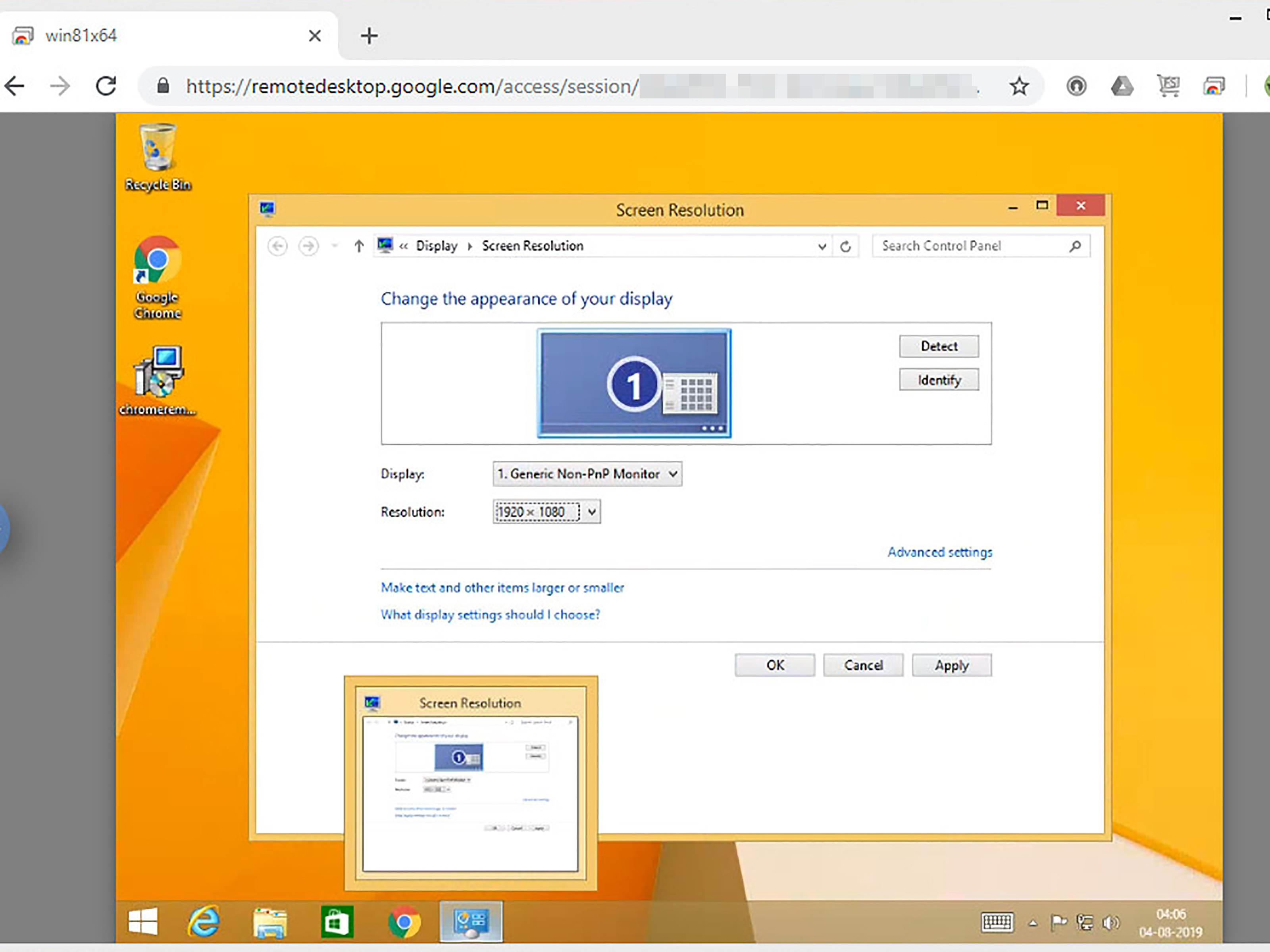
The Show Options area in Remote Desktop Connection is more useful than many people realize. It can make the difference between a smooth session and a laggy pixel swamp.
- Display: Lower the resolution if the connection feels slow.
- Local Resources: Choose whether sound plays on your local PC and whether printers or clipboard content are shared.
- Experience: Reduce visual effects for better performance on slower connections.
- General: Save the connection settings so you do not have to re-enter everything next time.
If you frequently connect to the same Windows 8 PC, saving a connection profile is a genuine quality-of-life upgrade. It is not glamorous, but neither is typing the same IP address forever.
How to Use Remote Desktop Over the Internet
Using Remote Desktop inside your home or office network is the easy part. Using it from outside that network takes a bit more planning.
To connect over the internet, the remote PC needs to be reachable from outside your router. Traditionally, that means one of two things:
- Set up a VPN so you connect securely into the remote network first.
- Configure port forwarding on the router for the Remote Desktop port, typically TCP 3389.
The Safer Route: Use a VPN
If you can choose only one approach, use a VPN. A virtual private network creates a more secure path into the network, which reduces the risk of exposing Remote Desktop directly to the public internet. This is the better option for business use, home offices, and anyone who would rather not invite internet scanners to knock on their digital front door.
The Faster Route: Port Forwarding
Port forwarding can work, but it needs to be handled carefully. You would log into the router, forward TCP port 3389 to the internal IP address of the Windows 8 PC, and then connect using the router’s public IP address. If your internet provider changes your public IP now and then, you may also need dynamic DNS.
This approach is convenient, but it also increases exposure. If you go this route, use a strong password, keep the machine as locked down as possible, and avoid leaving Remote Desktop enabled when you do not need it.
Common Remote Desktop Problems on Windows 8 and How to Fix Them
The Remote Desktop Option Is Missing
This usually points to the Windows edition. If the machine is not running the right version of Windows 8, it may not support incoming Remote Desktop connections. Check the edition before you spend an hour wrestling with settings that are not actually available.
You Can Connect on the Same Network, but Not from Outside
This is often a router issue. The local setup is working, which is good news. The missing piece is usually port forwarding, public IP changes, firewall rules, or the lack of a VPN. In other words, your PC is ready, but your network is acting like an overprotective bouncer.
The Remote PC Is Not Responding
Make sure the target computer is powered on and not asleep. Also confirm it is connected to the network and that Windows Firewall or any third-party firewall is not blocking the Remote Desktop traffic.
The Connection Is Slow or Looks Terrible
Try lowering the session resolution, turning off wallpaper and animations, and reducing extra redirected resources such as printers and drives. Remote Desktop can feel excellent on a decent network, but on a weak connection it may behave like it is streaming through a potato.
You Get Authentication Errors
Double-check the username format, the password, and whether the account is allowed in the Remote Desktop Users list. If you are mixing older and newer systems, compatibility and NLA settings can also affect authentication.
Remote Desktop vs. Remote Assistance on Windows 8
These two tools are related, but they are not twins. They are more like cousins who dress alike and confuse everybody at family gatherings.
Use Remote Desktop when:
- You want to sign into your own PC from somewhere else.
- You need access to apps, settings, or files on that machine.
- You are doing regular work from another location.
Use Remote Assistance when:
- You are helping another person troubleshoot their PC.
- The other user is present and can invite you in.
- You need collaborative help instead of a full remote login session.
For many home users, this distinction matters. If your goal is “help my parents fix the printer,” Remote Assistance may fit better. If your goal is “open the accounting app on my old office machine from home,” Remote Desktop is the right tool.
Best Practices for Using Remote Desktop on Windows 8
- Use strong passwords on all remote-enabled accounts.
- Prefer Network Level Authentication whenever possible.
- Use a VPN for internet-based access instead of exposing RDP directly.
- Disable Remote Desktop when you do not need it.
- Keep the machine awake during the periods you expect to connect.
- Give the PC a clear name so it is easier to identify on the network.
- Use wired Ethernet for the host PC if stability matters.
Also remember that Windows 8 and especially Windows 8.1 are old platforms now. They can still function, but age and security risk are very real. If the machine contains important data or is exposed to the internet, upgrading to a supported Windows version should be part of the long-term plan.
Conclusion
Learning how to use Remote Desktop on Windows 8 is not difficult once you understand the moving parts. First, confirm that the host machine supports incoming Remote Desktop connections. Then enable the feature, allow the correct users, and connect from another PC with Remote Desktop Connection. If you want access from outside your local network, set it up carefully and lean toward VPN-based access whenever possible.
The real beauty of Windows Remote Desktop is that it turns an older PC into something much more flexible. A Windows 8 machine in another room can become your file station, legacy app box, test machine, or emergency backup computer. That is a pretty good second act for an operating system that has already taken its final bow.
Real-World Experiences Using Remote Desktop on Windows 8
In real-world use, Remote Desktop on Windows 8 feels like one of those features people ignore for years and then suddenly wonder how they ever lived without. The first experience is usually a mix of curiosity, suspicion, and mild panic. You enable the setting, type in the computer name, click connect, and for a second nothing feels normal. Then the remote desktop appears, and your brain does that funny little pause where it realizes you are moving a mouse on one machine while controlling another machine somewhere else. It still feels a little sci-fi, even on an older operating system.
For home users, the most common experience is convenience. Maybe the desktop PC with the important files is in the study, but you are on the couch with a laptop. Maybe the printer software only works correctly on the old Windows 8 tower that nobody wants to replace yet. Maybe there is one weird legacy program that runs perfectly on that machine and nowhere else. Remote Desktop shines in these situations because it makes the older PC feel less like dead weight and more like a useful tool parked in another room.
For office or small business users, the experience is often about continuity. Someone leaves work, gets home, and realizes the one spreadsheet they need is still open on the office PC. Or the accounting app lives on a machine that nobody dares to touch because it has been working for five years and everyone is afraid to “fix” it. Remote Desktop becomes the quiet hero. It lets people finish tasks, check settings, grab files, and keep moving without driving back to the office or begging a coworker to click things on speakerphone.
That said, the experience is not always flawless. On a good local network, Remote Desktop on Windows 8 feels fast and surprisingly natural. On a weaker internet connection, it can become a patience-building exercise. Menus may lag, videos will not be happy, and fancy animations become a waste of time. This is where smart tuning matters. Lower the display resolution, reduce visual extras, and suddenly the session feels much smoother. It is not glamorous optimization, but it works.
Another common experience is discovering that setup is either delightfully easy or weirdly fussy, with very little middle ground. When everything lines up, correct edition, awake PC, proper user account, stable network, it works beautifully. When one tiny piece is wrong, Remote Desktop becomes a dramatic production full of vague errors and muttered threats. Often the culprit is something simple: the computer is asleep, the wrong username is being used, the router is not forwarding the port correctly, or the Windows edition does not support hosting in the first place.
Security also changes the emotional experience. Many people feel great about Remote Desktop right up until they remember that opening remote access to an old Windows machine is not exactly the digital equivalent of locking your bike with titanium chains. The safest users end up treating Remote Desktop like a power tool: extremely useful, but not something to leave lying around carelessly. They use strong passwords, prefer VPN access, and turn the feature off when it is no longer needed.
Overall, the lived experience of using Remote Desktop on Windows 8 is a blend of practicality and pleasant surprise. It is not flashy. It will not win design awards. It definitely carries some old-school Windows energy. But when configured correctly, it is dependable, efficient, and genuinely helpful. And honestly, there is something satisfying about getting extra life out of an aging PC instead of letting it sit there like expensive furniture with a power button.