Microsoft Access is the database tool people often discover right after one spreadsheet has become twenty spreadsheets, three versions of “FINAL_final_v7.xlsx,” and a small office mystery involving missing customer records. If Excel is a very tidy notebook, Microsoft Access is a filing cabinet with labels, drawers, forms, reports, and a surprisingly capable brain.
This guide explains how to use Microsoft Access from the ground up: creating a database, building tables, setting relationships, importing data, designing queries, making forms, generating reports, and keeping your database healthy. Along the way, you will see picture suggestions you can use when publishing the article, so readers know exactly what each screen or step should look like.
Access is especially useful for small businesses, school projects, department trackers, inventory lists, customer databases, event registrations, research logs, and any situation where data needs structure instead of spreadsheet chaos wearing a fake mustache.
What Is Microsoft Access?
Microsoft Access is a desktop relational database application for Windows PCs. It lets you store related information in tables, connect those tables through relationships, ask questions with queries, enter or edit data with forms, and present results with reports. The most current subscription version is available through Microsoft 365, while Access 2024 is available as a one-time purchase for compatible Windows systems.

Microsoft Access vs. Excel: When Should You Use Access?
Excel is wonderful for calculations, quick lists, charts, and flexible analysis. Access is better when your data has structure and relationships. For example, a bakery might use Excel to calculate monthly sales totals, but Access would be better for tracking customers, orders, products, ingredients, suppliers, and invoices in one connected system.
Use Access when you need multiple tables, repeatable data entry, searchable records, filtered results, printed reports, or a database that more than one person may use. Use Excel when you mainly need formulas, charts, financial models, or quick one-table analysis.
Step 1: Open Access and Create a New Database
When you open Microsoft Access, you can start with a ready-made template or build a blank desktop database. Templates are helpful because they already include tables, forms, queries, and reports. A contact management template, for example, may already contain fields for names, phone numbers, companies, and notes.
Create a Blank Database
- Open Microsoft Access.
- Select Blank desktop database.
- Enter a file name, such as CustomerTracker.accdb.
- Choose a folder where you can easily find the file later.
- Click Create.

Access database files usually use the .accdb format. Think of this file as the container that holds your tables, queries, forms, reports, macros, and modules.
Step 2: Understand the Main Access Objects
Access becomes much easier once you understand its main building blocks. They are not as scary as they sound. In fact, they behave like a tiny office team where everyone has one job and hopefully nobody brings tuna to the break room.
Tables
Tables store data. A table is made of fields and records. Fields are categories such as CustomerID, FirstName, Email, or OrderDate. Records are the individual rows of data.
Queries
Queries ask questions about your data. For example, you can create a query that shows all unpaid invoices, all customers in California, or all orders placed after January 1.
Forms
Forms make it easier to enter, view, and edit records. Instead of typing directly into a table, users can work with a clean screen that shows only the fields they need.
Reports
Reports format your data for printing, PDF export, summaries, invoices, labels, and professional-looking business documents.
Macros and Modules
Macros automate actions without heavy coding. Modules use VBA for more advanced customization. Beginners can safely ignore VBA at first. It will still be there later, lurking politely.
Step 3: Create Your First Table
Tables are the foundation of an Access database. Before creating one, decide what type of information it should store. A beginner-friendly example is a customer table.
Example: Customers Table
| Field Name | Data Type | Example |
|---|---|---|
| CustomerID | AutoNumber | 1 |
| FirstName | Short Text | Maria |
| LastName | Short Text | Johnson |
| Short Text | [email protected] | |
| Phone | Short Text | 555-0104 |
| DateAdded | Date/Time | 6/2/2026 |
To create a table, open your database, go to Create, choose Table Design, enter field names, choose data types, and save the table with a clear name such as Customers. Avoid vague names like “Table1” unless you enjoy future confusion as a lifestyle choice.

Step 4: Set a Primary Key
A primary key is a unique identifier for each record. In a Customers table, CustomerID might be the primary key. In a Products table, ProductID could do the job. Primary keys prevent Access from mixing up records that look similar.
For beginners, the easiest primary key is usually an AutoNumber field. Access automatically assigns a unique number to each new record. This is much safer than relying on names, because two people can share the same name, and one of them will definitely email you at 4:58 p.m. on a Friday.
Step 5: Add More Tables
A good Access database usually has more than one table. Do not put everything into one giant table. That is the database version of stuffing your entire closet into one drawer and calling it “organized.”
For a basic order tracking database, you might create these tables:
- Customers: Stores customer contact details.
- Products: Stores product names, prices, and categories.
- Orders: Stores order dates and customer references.
- OrderDetails: Stores which products were included in each order.
This structure reduces duplicate data. Instead of typing the customer’s name and email into every order, you store the customer once and connect orders to that customer.
Step 6: Create Relationships Between Tables
Relationships are where Access becomes powerful. They connect matching fields between tables. For example, the CustomerID field in the Customers table can connect to the CustomerID field in the Orders table. This tells Access which orders belong to which customers.
How to Create a Relationship
- Go to the Database Tools tab.
- Select Relationships.
- Add the tables you want to connect.
- Drag the primary key from one table to the matching foreign key in another table.
- Choose whether to enforce referential integrity.
- Click Create.

Referential integrity helps keep your data clean. For instance, it can prevent an order from being assigned to a customer who does not exist. It is like a polite but firm bouncer for your database.
Step 7: Import Data from Excel
Many Access projects begin as Excel spreadsheets. Before importing, clean the spreadsheet. Make sure each column has a clear heading, each column contains one type of data, blank rows are removed, and values are consistent. “NY,” “New York,” and “newyork??” should not all mean the same thing unless you enjoy query headaches.
Import an Excel File
- Open your Access database.
- Go to External Data.
- Select New Data Source, then From File, then Excel.
- Browse for the workbook.
- Choose whether to import the data into a new table, append it to an existing table, or link to the source file.
- Follow the Import Spreadsheet Wizard.
- Review field names and data types before finishing.

Importing creates a copy of the data inside Access. Linking keeps the data connected to the original file. For most beginners, importing is simpler. Linking is better when the source file will keep changing and you want Access to read the latest version.
Step 8: Create a Simple Query
Queries help you find exactly what you need. Imagine you have 5,000 customer records and want only customers from Texas who joined this year. A query can do that in seconds, without scrolling until your wrist files a complaint.
Use the Query Wizard
- Go to Create.
- Select Query Wizard.
- Choose Simple Query Wizard.
- Select the table or query you want to use.
- Add the fields you want to display.
- Name the query and click Finish.

Use Query Design
Query Design gives you more control. You can add tables, select fields, sort results, and enter criteria. For example, to show only customers from Florida, place “Florida” in the Criteria row under the State field. To show orders after a date, use a criterion such as >#1/1/2026#.
Step 9: Build a Data Entry Form
Forms make Access much friendlier. Instead of exposing users to raw tables, you can create a clean screen with labels, text boxes, dropdowns, buttons, and navigation controls. Forms are ideal for customer records, order entry, employee information, event registrations, and anything humans need to type without accidentally editing the wrong row.
Create a Basic Form
- Select the table or query in the Navigation Pane.
- Go to Create.
- Click Form for a quick automatic form.
- Save the form with a clear name, such as Customer Form.
Create a Form with the Form Wizard
Use the Form Wizard when you want to choose specific fields or include fields from related tables. This is especially useful for forms based on queries.

After creating a form, switch to Layout View or Design View to resize controls, adjust labels, add buttons, or change colors. Do not overdecorate. A database form should be clear, not dressed like a birthday cake.
Step 10: Create Reports
Reports turn database information into printable, shareable layouts. You can use reports for invoices, sales summaries, customer lists, inventory sheets, mailing labels, class rosters, and monthly performance summaries.
Use the Report Wizard
- Go to Create.
- Select Report Wizard.
- Choose the table or query that contains your data.
- Select the fields to include.
- Choose grouping and sorting options.
- Select a layout and orientation.
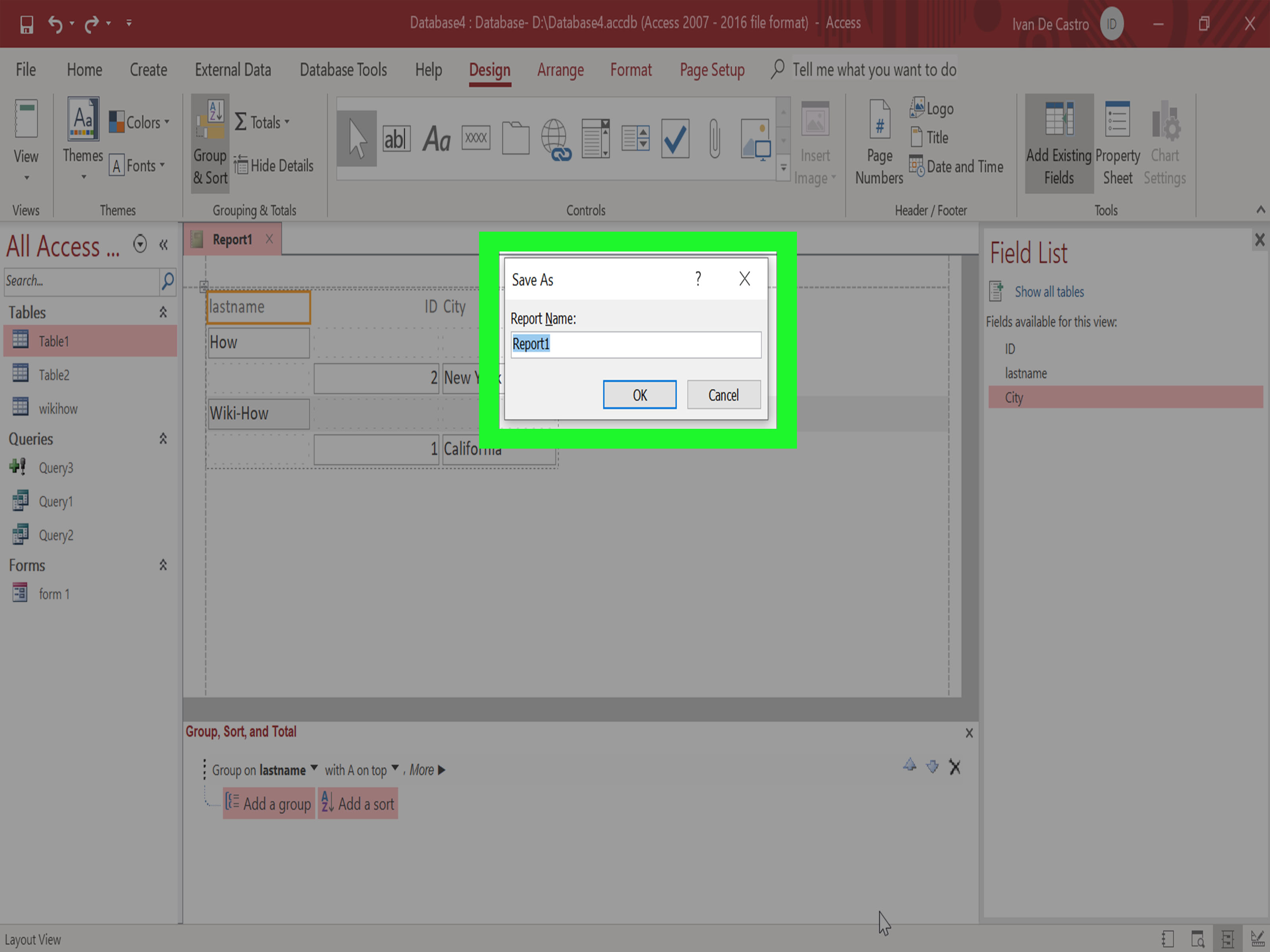
- Name the report and click Finish.

A smart practice is to base reports on queries rather than raw tables. The query filters and organizes the data first; the report presents it neatly. This keeps your reports focused and easier to update.
Step 11: Save, Back Up, and Compact Your Database
Access databases can grow larger as you add, edit, and delete objects or records. Over time, unused space may remain in the file. The Compact and Repair Database command can reduce file size, improve performance, and help fix certain file issues.
Compact and Repair
- Close other users out of the database if it is shared.
- Make a backup copy first.
- Open the database.
- Go to File, then Info.
- Select Compact & Repair Database.
Backups are not optional. They are the seat belts of database life: boring until the exact second they become heroic.
Step 12: Know the Limits of Access
Access is powerful, but it is not the right tool for every job. An Access database has a file size limit of 2 GB, minus space needed for system objects. For many small business and department databases, that is plenty. For large-scale web applications, enterprise systems, or huge multi-user workloads, SQL Server, Azure SQL, PostgreSQL, or another server database may be more appropriate.
Access can also serve as a front end for other data sources. In that setup, forms and reports live in Access, while the data itself may be stored in a stronger back-end system. This approach is common when organizations want Access convenience with more scalable storage.
Common Microsoft Access Mistakes Beginners Should Avoid
Using One Giant Table
Split related data into separate tables. Customers, orders, products, and payments should not all live in one monster table.
Skipping Primary Keys
Every important table should have a primary key. Without unique identifiers, relationships become messy.
Typing Data Inconsistently
Use lookup fields, validation rules, and controlled lists where possible. Consistent data creates better queries and reports.
Naming Objects Poorly
Use clear names like Customers, Orders, Monthly Sales Report, and Unpaid Invoices Query. Avoid names like NewTable2RealFinal.
Forgetting Backups
Back up your database before major changes, imports, repairs, or design edits. Future you deserves kindness.
Beginner Practice Project: Build a Mini Inventory Database
To learn Microsoft Access faster, build a small inventory database. Create a Products table with ProductID, ProductName, Category, UnitPrice, QuantityInStock, and SupplierID. Then create a Suppliers table with SupplierID, SupplierName, Email, and Phone. Connect Suppliers to Products with a relationship.
Next, create a query showing products where QuantityInStock is less than 10. Build a form for entering products, then create a report called Low Stock Report. This project teaches nearly every beginner skill in one neat package: tables, primary keys, relationships, queries, forms, and reports.

of Real-World Experience: What Using Access Actually Feels Like
The first time many people use Microsoft Access, they expect it to behave like Excel with extra buttons. That expectation lasts about twelve minutes. Access has tables that look spreadsheet-like, yes, but the real power comes from planning. The software rewards users who pause before clicking. You have to ask: What information am I storing? Which pieces repeat? Which tables should be separate? What should connect to what? It feels slower at first, but that planning saves hours later.
One practical experience with Access is that small design choices matter. For example, choosing Short Text for phone numbers is usually better than Number because phone numbers are not used for math. Nobody is multiplying a ZIP code by a fax number unless the office printer has finally won. Similarly, using AutoNumber primary keys prevents duplicate records from causing confusion. Beginners often underestimate these choices, but they make the database easier to query, sort, filter, and maintain.
Another real-world lesson is that forms can make or break user adoption. If you ask coworkers to enter data directly into tables, someone will eventually type a note into the wrong field, delete a value, or panic because the screen looks too technical. A simple form with clear labels, logical tab order, and a few dropdown menus can make the database feel like a custom app. Users do not need to know how the tables work behind the scenes. They just need a friendly screen that says, “Type the customer name here.”
Queries are where Access starts feeling magical. Once data is properly structured, you can create a query for unpaid invoices, overdue tasks, low inventory, active customers, or sales by month. The best moment is when a task that used to take thirty minutes of filtering and copy-pasting in Excel turns into a saved query that runs in two seconds. That is when Access stops feeling like homework and starts feeling like a tiny robot assistant wearing office shoes.
Reports are also more useful than beginners expect. A report can turn messy records into clean summaries for meetings, managers, clients, teachers, or team members. Instead of exporting data and formatting it repeatedly, you design the report once and reuse it. Grouping, sorting, headers, footers, totals, and page breaks make reports especially helpful for recurring work.
The biggest caution from real use is this: do not treat Access as invincible. Back up the database. Compact and repair it regularly. Keep naming consistent. Document what each table and query does. If multiple users need the database, consider splitting the front end and back end so each person uses their own copy of the interface while sharing the data file. And when the data grows too large or the business process becomes mission-critical, be honest about whether it is time for a server database.
Microsoft Access is not glamorous software. It will not trend on social media next to dancing cats and suspiciously perfect sourdough. But for organizing real business data, building quick internal tools, and replacing fragile spreadsheets, it remains extremely practical. Once you understand tables, relationships, queries, forms, and reports, Access becomes less intimidating and much more useful.
Conclusion
Learning how to use Microsoft Access starts with understanding the basics: create a database, build tables, assign primary keys, connect related data, import clean information, ask questions with queries, simplify data entry with forms, and present results with reports. Once those pieces click, Access becomes a powerful tool for organizing information that is too connected, too repetitive, or too important for a basic spreadsheet.
The best way to learn is to build something small and useful. Start with a contact list, inventory tracker, order log, or event registration database. Keep your table design simple, use clear names, back up your work, and let Access do what it does best: turn scattered data into organized answers.
Note: This article is written for educational publishing and includes picture placement suggestions. Replace each image file name with your own screenshots before uploading the article to your website.