Google Maps is brilliant at getting you from your kitchen to a coffee shop you swear you “just discovered,” but sometimes the map spins around like it has had three espressos too many. One minute north is at the top. The next minute your route is sideways, the blue dot is facing a mysterious alley, and your sense of direction has quietly left the group chat.
If you prefer the classic map view where north stays at the top of the screen, you are looking for one specific Google Maps setting: Keep map north up. On an iPhone, this setting helps keep the map oriented with north at the top during navigation, instead of constantly rotating the map based on your direction of travel.
This guide explains how to keep Google Maps pointing north on an iPhone in five simple steps, plus how to fix common orientation problems caused by location permissions, compass calibration, weak GPS, CarPlay behavior, and old-fashioned “my phone is confused” moments.
What Does “Keep Google Maps Pointing North” Mean?
When Google Maps is pointing north, the top of your screen represents north. If you drive east, your route may move across the screen from left to right. If you drive south, your route may move downward. This is different from the “direction of travel up” view, where the map rotates so the direction you are moving always appears toward the top of the screen.
Neither view is wrong. They simply serve different brains. Some people love north-up because it feels like reading a paper map. Others prefer direction-up because it feels like a video game, except with traffic and fewer coins. If you are the kind of person who mentally tracks neighborhoods, highways, rivers, and city grids, north-up can make Google Maps feel calmer and more predictable.
How to Keep Google Maps Pointing North on an iPhone: 5 Steps
Follow these steps in the Google Maps app on your iPhone. The exact wording can vary slightly depending on your Google Maps app version, but the setting is typically found inside Navigation settings.
Step 1: Open Google Maps on Your iPhone
Start by opening the Google Maps app. Make sure you are signed in if you normally use a Google account with Maps, because some preferences may sync or behave more consistently when the app recognizes your profile.
If you have not updated Google Maps in a while, open the App Store, search for Google Maps, and install any available update. Map orientation bugs are sometimes fixed quietly in app updates. Yes, the boring “update the app” advice is boring because it works more often than anyone wants to admit.
Step 2: Tap Your Profile Picture or Initial
In the upper-right corner of Google Maps, tap your profile picture or initial. This opens the main account menu, where you can access settings, offline maps, timeline options, saved places, and other controls.
This is also a useful place to check whether you are using the correct Google account. If you use multiple accounts, such as one for work and one for personal travel, your settings may not always feel consistent.
Step 3: Go to Settings > Navigation
From the account menu, tap Settings. Then choose Navigation. On some versions, this may appear as Navigation settings.
This is the control room for your turn-by-turn experience. It includes options for guidance volume, route preferences, alerts, map display, and other driving or walking navigation behaviors. Think of it as the dashboard behind the dashboard.
Step 4: Find “Keep Map North Up”
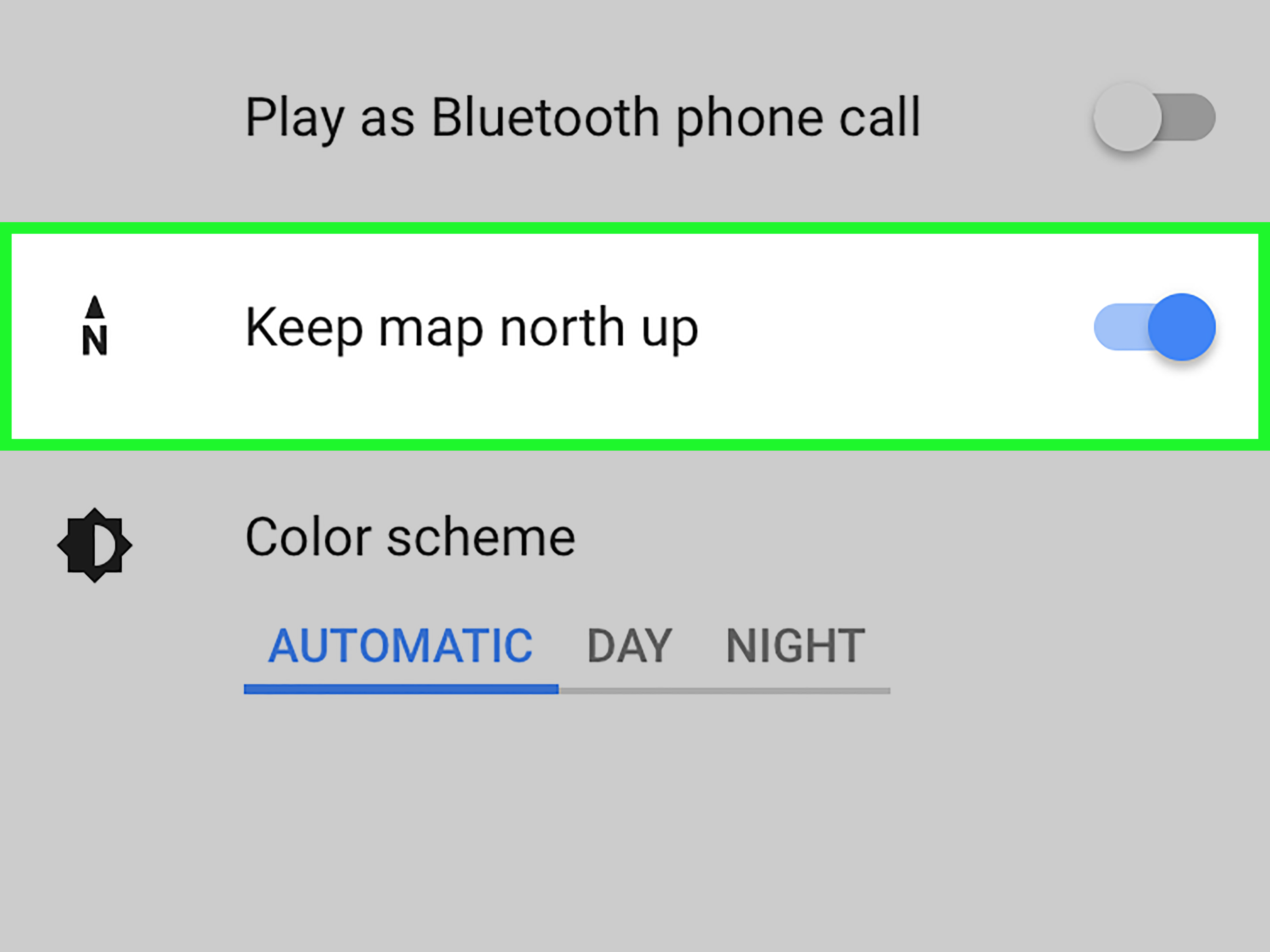
Scroll until you see the Map display section. Look for the switch labeled Keep map north up.
This is the setting you came for. It tells Google Maps to keep north at the top of the navigation screen instead of rotating the map to match the direction you are traveling. If the switch is off, Google Maps is more likely to use a heading-based view where the road ahead points upward.
Step 5: Turn On “Keep Map North Up”
Turn on the Keep map north up switch. Then start navigation to test it. Search for a destination, tap Directions, choose your travel mode, and tap Start.
During navigation, check whether the map stays fixed with north at the top. If it does, congratulations: your map is now calmer, your inner cartographer is pleased, and your iPhone has stopped pretending every intersection is a carnival ride.
Quick Fix: Use the Compass Icon While Viewing the Map
Even with the north-up setting enabled, Google Maps can sometimes look rotated if you manually twist the map with two fingers or switch views. When that happens, look for the compass icon on the map screen.
Tap the compass icon to reorient the map. In many Google Maps views, tapping the compass returns the map to a north-up position. If you do not see the compass, try rotating the map slightly with two fingers; the compass often appears only after the map has been rotated.
This is the fastest fix when the map looks sideways but your settings are already correct. It is the navigation equivalent of tapping the vending machine gently instead of declaring war on it.
Why Google Maps Keeps Rotating on Your iPhone
If Google Maps keeps changing direction, one of several things may be happening. The most common reason is that Keep map north up is turned off. In that case, Google Maps may rotate the display so your direction of travel stays near the top.
Another possibility is manual map rotation. Google Maps lets you rotate the map with two fingers. That is helpful when exploring, but it can also leave the screen tilted in a way that makes your neighborhood look like it was designed by a raccoon with a ruler.
A third cause is compass or location inaccuracy. Google Maps uses your iPhone’s location data, motion sensors, compass, Wi-Fi signals, cellular towers, and GPS information to estimate where you are and which direction you are facing. When those signals are weak or confused, the blue dot may drift, the direction beam may widen, or your map orientation may feel unreliable.
Make Sure Google Maps Has the Right iPhone Location Permissions
North-up display is a Google Maps setting, but accurate navigation still depends on iPhone permissions. If Google Maps does not have proper location access, it may struggle to place the blue dot correctly or update your route smoothly.
Check Location Services
- Open the Settings app on your iPhone.
- Tap Privacy & Security.
- Tap Location Services.
- Make sure Location Services is turned on.
- Scroll down and tap Google Maps.
- Choose While Using the App or Always, depending on how you use Maps.
For normal navigation, While Using the App is usually enough. If you use Timeline, background location features, or frequent trip tracking, Always may be useful. Choose the setting that matches your privacy comfort level and actual needs.
Turn On Precise Location
Inside the Google Maps location permission screen, make sure Precise Location is turned on. Without it, your iPhone may share only an approximate area instead of your exact position. Approximate location can be fine for weather apps, but it is not ideal when you are trying to find the correct highway exit, trail entrance, parking garage, or taco truck.
Calibrate the Compass If the Blue Dot Points the Wrong Way
If the Google Maps blue dot is facing the wrong direction, the map may not be the real problem. Your iPhone’s compass may need help.
Open Google Maps and look at the blue dot. If the blue direction beam is wide or pointing somewhere that makes no sense, move your iPhone in a figure-eight motion a few times. This helps recalibrate the compass so Maps can better understand which direction the phone is facing.
You can also open the iPhone’s built-in Compass app to check your heading. Hold the phone flat and away from magnets, metal surfaces, car mounts, wallet cases, and other objects that can interfere with compass readings. A magnetic phone case may look stylish, but if it makes your map think north is inside a sandwich shop, it is not helping.
Improve Google Maps Accuracy Before Blaming the North-Up Setting
If Google Maps still behaves oddly, try improving your location signal. Start with these practical fixes:
- Turn on Wi-Fi: Even when you are not connected to a Wi-Fi network, nearby Wi-Fi signals can help with location accuracy.
- Turn off Airplane Mode: Navigation needs location and network signals to work well.
- Step outside if possible: GPS accuracy can be poor inside buildings, tunnels, garages, and dense urban areas.
- Restart your iPhone: A restart can refresh stuck location services and app behavior.
- Update iOS and Google Maps: Software updates often fix bugs related to navigation, sensors, and CarPlay.
- Remove magnetic accessories: Some cases, mounts, wallets, and charging accessories can interfere with the compass.
Google Maps estimates your position using several signals. GPS can be very accurate outdoors, but it may struggle around tall buildings or underground. Wi-Fi and cellular signals can help fill in the gaps, but they are not magic. If you are in a parking garage under a stadium during rush hour, even your phone may briefly question its life choices.
North-Up vs. Direction-Up: Which View Should You Use?
The best Google Maps orientation depends on how you think while navigating.
Use North-Up If You Like a Stable Map
North-up is excellent if you want a consistent overview of the area. It is especially helpful in cities with grid layouts, long highways, rural roads, or places you already know reasonably well. Because the map does not spin constantly, it can be easier to understand your position in relation to neighborhoods, rivers, exits, and landmarks.
North-up also helps when you are comparing Google Maps with road signs, printed maps, trail maps, or your own mental map. It keeps the world anchored. That stability can reduce confusion, especially when you are planning turns several steps ahead.
Use Direction-Up If You Want Turn-by-Turn Simplicity
Direction-up is useful when you mainly care about the next turn. The road ahead stays visually “up,” which can feel natural while driving. Many people find it easier because left on the screen usually feels like left in real life.
The downside is that the map rotates constantly. If you are trying to understand where you are in the bigger picture, the spinning can be disorienting. It is like trying to read a menu while someone keeps rotating the table.
What If Google Maps on CarPlay Won’t Stay North-Up?
CarPlay can introduce another layer of orientation behavior. If Google Maps looks correct on your iPhone but strange on your car display, check the CarPlay Google Maps screen while navigation is active.
Tap the map display, look for a settings or gear icon, and check whether there is a True North or map orientation control. Some users report that toggling the CarPlay orientation control helps when the car display gets stuck in the wrong view.
If the problem continues, update your iPhone, update Google Maps, restart your phone, and reconnect CarPlay. Also test with Apple Maps to see whether the issue is specific to Google Maps or affects navigation generally. If both apps are wrong, the issue may be iPhone location, compass calibration, the vehicle interface, or CarPlay software rather than one app setting.
Common Problems and Simple Solutions
Problem: The Map Is Sideways
Solution: Tap the compass icon. If that does not work, use two fingers to rotate the map back, then tap the compass again. Also confirm that Keep map north up is turned on in Navigation settings.
Problem: The Blue Dot Is Gray or Missing
Solution: Check Location Services. Go to Settings > Privacy & Security > Location Services > Google Maps and allow location access while using the app. Turn on Precise Location for better navigation accuracy.
Problem: The Direction Beam Points the Wrong Way
Solution: Calibrate the compass by moving your iPhone in a figure-eight motion. Remove magnetic cases or mounts, and avoid calibrating while standing next to large metal objects.
Problem: Google Maps Keeps Switching Back
Solution: Update Google Maps, restart your iPhone, and check the setting again. If you are using CarPlay, check orientation controls on the car display as well as inside the iPhone app.
Problem: The Route Looks Wrong Even Though North Is Up
Solution: North-up controls orientation, not routing. If the route looks strange, check route options such as avoid highways, avoid tolls, or avoid ferries. Also make sure your starting point is accurate.
Best Practices for Keeping Google Maps Stable on iPhone
Once you have enabled Keep map north up, a few habits can make Google Maps more reliable:
- Keep Google Maps updated through the App Store.
- Keep iOS updated when practical.
- Allow Google Maps to use Precise Location.
- Turn Wi-Fi on for better location assistance.
- Use the compass icon whenever the view looks rotated.
- Calibrate the compass if the blue beam is wide or incorrect.
- Keep magnetic accessories away from the phone during navigation.
These steps do not just help with north-up orientation. They also improve general navigation accuracy, walking directions, driving routes, and the tiny daily miracle of figuring out which side of the street your destination is on.
Experience Notes: Real-World Lessons From Using North-Up Google Maps on an iPhone
After using Google Maps in both north-up and direction-up modes, the biggest lesson is that north-up feels slower for the first five minutes and smarter after that. Direction-up is great when you are following one simple route. But north-up gives you context. You can see that the highway runs east-west, the river stays on your right, downtown is south, and your destination is not “somewhere ahead” but actually northwest of where you are now.
This is especially helpful in cities with grid systems. In places like Chicago, Manhattan, Phoenix, Denver, or many parts of Los Angeles, keeping north at the top makes the map feel organized. Streets, avenues, highways, and neighborhoods become easier to understand because they do not keep rotating every time you turn. If you miss a turn, you can recover faster because the map still matches the mental picture in your head.
North-up is also useful when walking. Direction-up can be awkward on foot because phones are constantly being raised, lowered, tilted, and turned. One second you are facing the coffee shop; the next second you are checking a text, and the map has spun like it is auditioning for a talent show. North-up keeps the layout steady. You may need a moment to translate “walk east” into the real world, but once you get used to it, the map becomes easier to trust.
For road trips, north-up shines when you want to understand the whole journey. It helps you see whether you are traveling generally north, south, east, or west. That can be surprisingly comforting on long drives. Instead of blindly obeying turn-by-turn instructions, you understand the route. You know when you are looping around a city, when you are heading away from traffic, or when Maps is taking you on a scenic detour that may or may not include cows.
The main drawback is quick decision-making. If you are in a complicated interchange and the map is north-up, your next turn may appear sideways or downward on the screen. Some drivers prefer direction-up because it makes the immediate maneuver visually obvious. If you find north-up confusing in heavy traffic, consider switching based on the situation: north-up for planning and familiar areas, direction-up for intense turn-by-turn driving.
Another practical lesson: compass accuracy matters more than people think. A poorly calibrated compass can make the blue beam point the wrong way, especially when standing still. That does not always ruin driving navigation, because movement helps Maps infer direction, but it can make walking directions frustrating. If your blue dot acts strange, calibrate it before changing every setting in frustration.
Finally, do not underestimate accessories. Magnetic wallet cases, metal dashboard mounts, charging stands, and even certain car interiors can interfere with direction readings. If Google Maps suddenly thinks you are facing backward, remove the phone from the mount and test it in your hand. Sometimes the “bug” is not Google, Apple, or satellites. Sometimes it is a magnet quietly causing chaos like a tiny villain.
Overall, keeping Google Maps pointing north on an iPhone is a small setting that can make navigation feel more controlled. It is best for users who like spatial awareness, stable maps, and a clearer sense of geography. Once you combine the north-up setting with good location permissions, Precise Location, compass calibration, and a little common sense, Google Maps becomes less spinny and much more dependable.
Conclusion
To keep Google Maps pointing north on an iPhone, open Google Maps, tap your profile picture, go to Settings > Navigation, find Keep map north up, and turn it on. That one switch controls the main behavior most users want: north stays at the top of the navigation screen.
If the map still rotates or points the wrong way, do not panic. Tap the compass icon, check iPhone Location Services, enable Precise Location, calibrate the compass, turn on Wi-Fi, and update both Google Maps and iOS. A stable north-up map is usually just a few taps away, which is good news for everyone who prefers navigation without unnecessary spinning drama.