Cutting and pasting in email sounds like the kind of computer skill you learn once and never think about againuntil your carefully copied paragraph shows up in 17 fonts, your signature jumps into the middle of the message, or you accidentally paste a private note into a reply-all thread. Fun? Not exactly. Memorable? Unfortunately, yes.
The good news is that learning how to cut and paste in email is simple, useful, and surprisingly powerful. Whether you use Gmail, Outlook, Apple Mail, Yahoo Mail, or a mobile email app, the basic idea is the same: select text, move or copy it, then place it where you want it. The better news is that there are several ways to do it, so you can choose the method that feels fastest, safest, and least likely to make your email look like it was assembled during a small earthquake.
In this guide, we’ll cover three practical ways to cut and paste in email: using keyboard shortcuts, using the right-click or touch menu, and using paste options such as “paste as plain text.” We’ll also look at common mistakes, formatting fixes, mobile tips, and real-world examples so you can write cleaner emails with less frustration.
Why Cutting and Pasting in Email Still Matters
Email may be old enough to have opinions about fax machines, but it remains one of the most important tools for work, school, customer service, job hunting, and everyday communication. A clean email can help you sound organized and professional. A messy pasted email, on the other hand, can make even a brilliant message look rushed.
Cut and paste skills are helpful when you need to move a sentence higher in a message, reuse a tracking number, quote part of a previous conversation, insert a prepared response, copy an address, or clean up a long draft. These small actions save time, especially if you send many emails each week.
The trick is knowing the difference between cutting, copying, and pasting:
- Cut removes selected text from its current location and stores it temporarily on your clipboard.
- Copy leaves the original text where it is and stores a duplicate on your clipboard.
- Paste inserts the clipboard content wherever your cursor is placed.
Think of the clipboard as a tiny digital tray. Cut or copy puts something on the tray. Paste places it down somewhere else. It is simple, but like carrying soup across a room, things can get messy if you rush.
Way 1: Cut and Paste in Email With Keyboard Shortcuts
Keyboard shortcuts are the fastest way to cut and paste in email. They work in most email platforms, including Gmail, Outlook, Apple Mail, and webmail opened in a browser. Once you learn them, you can move text around without taking your hands off the keyboard.
Keyboard Shortcuts for Windows and Chromebook
If you are using a Windows computer or Chromebook, the main shortcuts are:
- Ctrl + X to cut selected text
- Ctrl + C to copy selected text
- Ctrl + V to paste text
- Ctrl + A to select all text in a field or draft
- Ctrl + Z to undo the last action
Here is a simple example. Suppose you write this sentence at the end of an email: “Please find the updated invoice attached.” Then you realize it should appear near the beginning. Highlight the sentence, press Ctrl + X, click where you want the sentence to go, and press Ctrl + V. The sentence moves instantly. No dragging, no retyping, no emotional support snack required.
Keyboard Shortcuts for Mac
On a Mac, the shortcuts use the Command key:
- Command + X to cut selected text
- Command + C to copy selected text
- Command + V to paste text
- Command + A to select all text
- Command + Z to undo the last action
These commands work well in Apple Mail, Gmail in a browser, Outlook for Mac, and most other email tools. The process is the same: select the text, cut or copy it, place your cursor, and paste.
When Keyboard Shortcuts Work Best
Keyboard shortcuts are best when editing a draft, reorganizing paragraphs, reusing short phrases, or copying information from another document into an email. They are also ideal for people who write long messages, customer support replies, newsletters, proposals, or job applications.
One important tip: always look at the pasted result before sending. Email editors sometimes bring over formatting from the original source. If you copy from a website, spreadsheet, PDF, or document, your email may inherit strange spacing, fonts, colors, or hidden links. That is when the third method in this article becomes your best friend.
Way 2: Cut and Paste in Email With the Right-Click Menu
If you prefer using a mouse or trackpad, the right-click menu is an easy way to cut and paste in email. It is slower than keyboard shortcuts, but it is visual, beginner-friendly, and helpful when you do not remember which key does what.
How to Use Right-Click on a Computer
To cut and paste with a mouse, follow these steps:
- Open your email draft.
- Highlight the text you want to move.
- Right-click the highlighted text.
- Select Cut from the menu.
- Click the place where you want the text to appear.
- Right-click again and select Paste.
This method works in many email apps and webmail services. In Gmail, Outlook, and similar platforms, you can usually use right-click options inside the message body. Some browsers may show a slightly different menu, but the basic choicescut, copy, pasteare usually easy to find.
How to Use Control-Click on Mac
If you use a Mac and do not have right-click enabled, press the Control key while clicking the selected text. This opens a shortcut menu where you can choose cut, copy, or paste. Many Mac trackpads also allow a two-finger click to open the same menu.
How to Cut and Paste in Email on iPhone or iPad
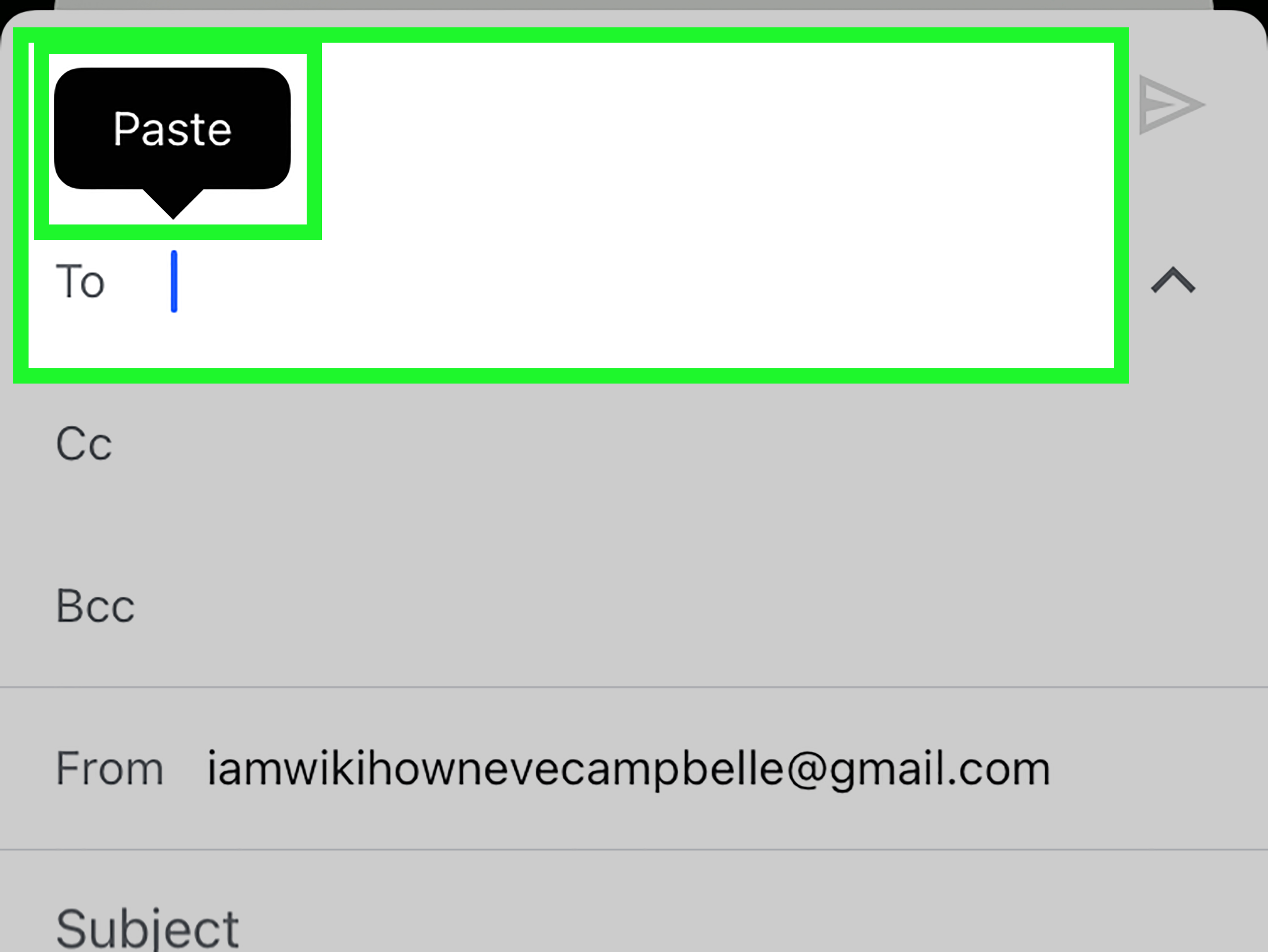
On an iPhone or iPad, cutting and pasting works through touch gestures and pop-up menus. Tap and hold text to bring up selection handles, adjust the highlighted area, then choose Cut, Copy, or Paste. In email apps, this is useful for moving sentences, copying addresses, or inserting text from Notes, Safari, Messages, or another email.
Mobile selection can feel a little dramatic at first. You aim for one word and somehow select half the paragraph, the subject line, and possibly your hopes for the day. Be patient. Use the selection handles carefully, zoom in if needed, and check the message before sending.
How to Cut and Paste in Email on Android
On Android, the process is similar. Tap and hold the text, adjust the selection handles, then choose Cut, Copy, or Paste. In Gmail for Android and other mobile email apps, you can also format selected text with options such as bold, italic, underline, and color, depending on the app.
The right-click or touch-menu method is especially helpful for casual users, mobile users, and anyone who likes seeing the available choices before taking action.
Way 3: Use Paste Options, Paste as Plain Text, and Clipboard Tools
The third method is the one that saves your email from formatting chaos. Standard paste inserts both the content and, sometimes, the formatting. Paste options let you control how the pasted text looks after it lands in your email.
What “Paste as Plain Text” Means
Paste as plain text removes most original formatting from copied content. That means no surprise fonts, oversized headings, background colors, random bullet spacing, or mysterious hyperlinks. You get the words without the costume.
On many Windows apps and browsers, Ctrl + Shift + V pastes without formatting. On many Mac apps and browsers, Command + Shift + V or a similar “paste and match style” command may be available. The exact shortcut can vary by app, but the idea is the same: paste the text so it matches the email you are writing.
Paste as plain text is especially useful when copying from webpages, PDFs, AI writing tools, word processors, spreadsheets, chat apps, or old emails. It gives you a cleaner starting point and reduces the time you spend fixing fonts.
Using Paste Options in Outlook and Office-Based Email
Outlook and other Microsoft Office tools often provide paste choices such as keeping source formatting, merging formatting, or keeping text only. These options matter when you copy text from Word, Excel, a webpage, or another email.
- Keep Source Formatting keeps the original style from the copied content.
- Merge Formatting tries to blend the pasted text with the surrounding email style.
- Keep Text Only removes most formatting and keeps the words.
For professional emails, Keep Text Only or Merge Formatting is usually the safest choice. It helps your message look consistent, which is important when sending proposals, client updates, resumes, cover letters, or internal announcements.
Using Plain Text Mode in Gmail
Gmail also lets you write messages in plain text mode. This can be useful when you want a simple email with no rich formatting. Plain text emails are clean, lightweight, and less likely to display strangely across different email clients.
However, plain text mode removes formatting such as bold, italics, colored text, and embedded links. Use it when simplicity matters more than design. For example, plain text works well for quick business notes, technical instructions, or messages where readability is more important than visual style.
Using Clipboard History
Some systems offer clipboard history, which lets you access more than the most recent copied item. Windows, for example, includes a clipboard history feature that can store multiple copied items when enabled. Microsoft Office also has clipboard tools that can help you paste more than one copied item while working across documents and email.
Clipboard history can be useful when you need to paste several pieces of information into an email, such as a name, tracking number, appointment time, and address. Still, be careful when copying private information. Clipboard tools may temporarily store sensitive data, so avoid copying passwords, bank details, medical information, or confidential client notes unless absolutely necessary.
Common Problems When Cutting and Pasting in Email
Even simple email editing can go sideways. Here are the most common problems and how to fix them.
The Formatting Looks Weird
This happens when pasted text brings its original style into your email. Use paste as plain text, choose “keep text only,” or paste the content into a plain text editor first, then copy it again into your email. You can also highlight the pasted text and manually adjust the font, size, color, and spacing.
The Text Goes to the Wrong Place
Before pasting, click exactly where the text should appear. Look for the blinking cursor. If the pasted text lands in the wrong spot, press undo immediately. On most computers, Ctrl + Z or Command + Z will reverse the mistake.
You Accidentally Deleted Something
If you cut text and cannot find it, do not panic. First, try paste. The text may still be on your clipboard. If that does not work, press undo. Email drafts in Gmail, Outlook, and other platforms often save automatically, but undo is still your fastest rescue tool.
The Paste Command Does Not Work
If paste does not work, the browser or email app may not have permission to access the clipboard, or the content may not have copied correctly. Try copying again, use keyboard shortcuts instead of the menu, refresh the draft carefully, or paste into another app to test whether the clipboard contains the content.
Best Practices for Cutting and Pasting in Professional Emails
Cutting and pasting can make email writing faster, but it can also create avoidable mistakes. Use these best practices to keep your messages polished.
Read the Full Email Before Sending
After moving text around, reread the entire message. Make sure the flow still makes sense. A paragraph that worked at the bottom may need a transition when moved to the top.
Watch for Duplicate Sentences
When copying and pasting, it is easy to repeat a line without noticing. Duplicate sentences make an email feel sloppy, especially in sales messages, job applications, or client communication.
Check Names, Dates, and Attachments
If you paste from an older email, update names, dates, prices, times, and attachment references. Nothing says “I copied this from last Tuesday” quite like sending “Hi Jennifer” to Michael.
Do Not Paste Sensitive Information Carelessly
Be careful with passwords, account numbers, private addresses, legal details, health information, and internal business data. Also, avoid clicking links in unexpected emails or copying questionable links into your own messages. If a message seems suspicious, contact the sender or company through a trusted website or phone number instead of using the information inside the suspicious email.
Use Templates, But Personalize Them
Email templates are helpful, but pasted template text should never feel robotic. Add the recipient’s name, mention the specific situation, and remove any placeholder text. A template should be a starting point, not a cardboard personality.
Examples of Cutting and Pasting in Everyday Email
Example 1: Moving a Key Detail Higher
You write a long update to your manager and realize the deadline is buried in the final paragraph. Cut the sentence “The final report is due Friday at 3 p.m.” and paste it near the beginning. This makes the email easier to scan and reduces the chance that the most important detail gets missed.
Example 2: Copying a Tracking Number
You receive a shipping confirmation and need to send the tracking number to a customer. Copy the number, paste it into your reply, and double-check that every digit transferred correctly. For numbers, accuracy matters more than speed.
Example 3: Cleaning Up Text From a Website
You copy event details from a webpage into an email invitation. The pasted text arrives with huge fonts and strange spacing. Use paste as plain text, then add your own formatting. The result looks intentional instead of “browser goblin chic.”
Extra Experience: What Real Email Users Learn the Hard Way
After years of writing, editing, and fixing emails, one lesson becomes clear: cutting and pasting is not just a technical action. It is part of communication hygiene. The people who use it well usually send clearer, shorter, more useful emails. The people who use it carelessly sometimes create confusion with one badly placed paragraph.
One common experience is the “almost sent it” moment. You paste a paragraph from another email, then notice it includes the wrong client name. Your finger hovers over Send like a movie hero deciding whether to cut the red wire or the blue wire. That tiny pause can save you embarrassment. A good habit is to search the draft for old names, dates, and company references after pasting reused text.
Another practical lesson is that plain text paste is often better than fancy paste. Beautiful formatting from a document may look great in the original file, but email apps do not always agree about how to display it. What looks perfect in your compose window may look strange on a phone. Plain text gives you control. Paste clean words first, then add bold headings, bullets, or links directly in the email editor.
Many users also learn that mobile cut and paste requires patience. On a phone, it is easy to select too much or too little text. When editing an important email on mobile, slow down. Use short selections. Paste into the correct spot. Then scroll through the entire message before sending. Mobile email is convenient, but it is also where tiny mistakes dress up as productivity.
For workplace emails, cutting and pasting can improve structure. Draft freely first, then rearrange. Move the main point to the top. Place background details below it. Put action items in bullets. This editing style makes emails easier to read, especially for busy recipients who skim messages between meetings.
Customer service teams often rely on pasted responses, but the best teams personalize them. A pasted answer can be efficient, but it should still sound human. Add a sentence that directly addresses the customer’s problem. Remove irrelevant template lines. Make sure the pasted instructions match the customer’s device, account type, or situation.
Students and job seekers should be especially careful when pasting from resumes, cover letters, or application forms. Formatting can break, bullet points can change, and smart quotes can appear oddly in some systems. Paste as plain text first, then rebuild the formatting. It takes a few extra seconds, but it keeps the message professional.
The biggest experience-based tip is simple: after every major paste, reread the area around it. Not just the pasted sentencethe sentence before it and the sentence after it. Good email writing is about flow. A pasted paragraph may be correct, but it still needs to connect naturally to the rest of the message.
In short, cutting and pasting in email is easy to learn, but thoughtful use makes the difference. Use shortcuts for speed, right-click or touch menus for control, and plain text paste for clean formatting. Then review before sending. Your future selfand your recipientswill appreciate it.
Conclusion
Learning the three main ways to cut and paste in email can make everyday writing faster, cleaner, and less stressful. Keyboard shortcuts are best for speed. Right-click and touch menus are great for visual control. Paste options, especially paste as plain text, help prevent formatting disasters and keep your message looking professional.
The next time you edit an email, remember this simple workflow: select carefully, cut or copy intentionally, paste where the cursor belongs, and review before sending. That final review is the difference between a polished message and an email that looks like it went through a blender wearing a necktie.