Spotify should make your favorite songs feel alivenot like the band is performing from inside a neighbor’s sock drawer. If your music sounds unusually quiet, muddy, thin, or lifeless, the problem may not be your headphones. Spotify’s volume normalization, streaming quality, equalizer, device settings, and connection method can all affect what reaches your ears.
The good news is that you do not need an audio engineering degree, a wall of blinking equipment, or a friend who says “soundstage” every six minutes. A few carefully chosen settings can make Spotify louder, clearer, punchier, and more enjoyable on phones, computers, earbuds, speakers, and home audio systems.
Why Does Spotify Sometimes Sound Too Quiet?
Spotify volume is controlled by more than one slider. The app processes recordings from different artists and eras, your phone or computer controls the system output, and your headphones or speakers may have another independent volume setting. One weak link can make the entire chain sound underpowered.
Recordings also vary dramatically. A modern pop track may have a dense, aggressively loud master, while a jazz album recorded decades ago may preserve a much wider difference between quiet and loud passages. Spotify uses loudness normalization to reduce these sudden jumps, but the selected normalization level can make playback seem louder or softer.
Sound quality and loudness are related, but they are not identical. Raising the streaming quality will not magically double the volume. It can, however, improve clarity, instrument separation, bass definition, and treble detail. Cleaner sound often feels more powerful because you can hear more of the recording instead of receiving a blurry musical sandwich.
1. Turn On Volume Normalization and Select “Loud”
The fastest way to make Spotify louder is to enable volume normalization and choose the Loud volume level. Spotify currently offers three normalization choices:
- Loud: Designed for noisy environments and higher perceived volume.
- Normal: The default balance between loudness and dynamics.
- Quiet: Intended for calm environments and lower playback levels.
How to change Spotify volume level on iPhone or Android
- Open the Spotify app.
- Tap your profile picture.
- Select Settings and privacy.
- Tap Playback.
- Turn on Enable Audio Normalization or Volume Normalization.
- Under Volume level, select Loud.
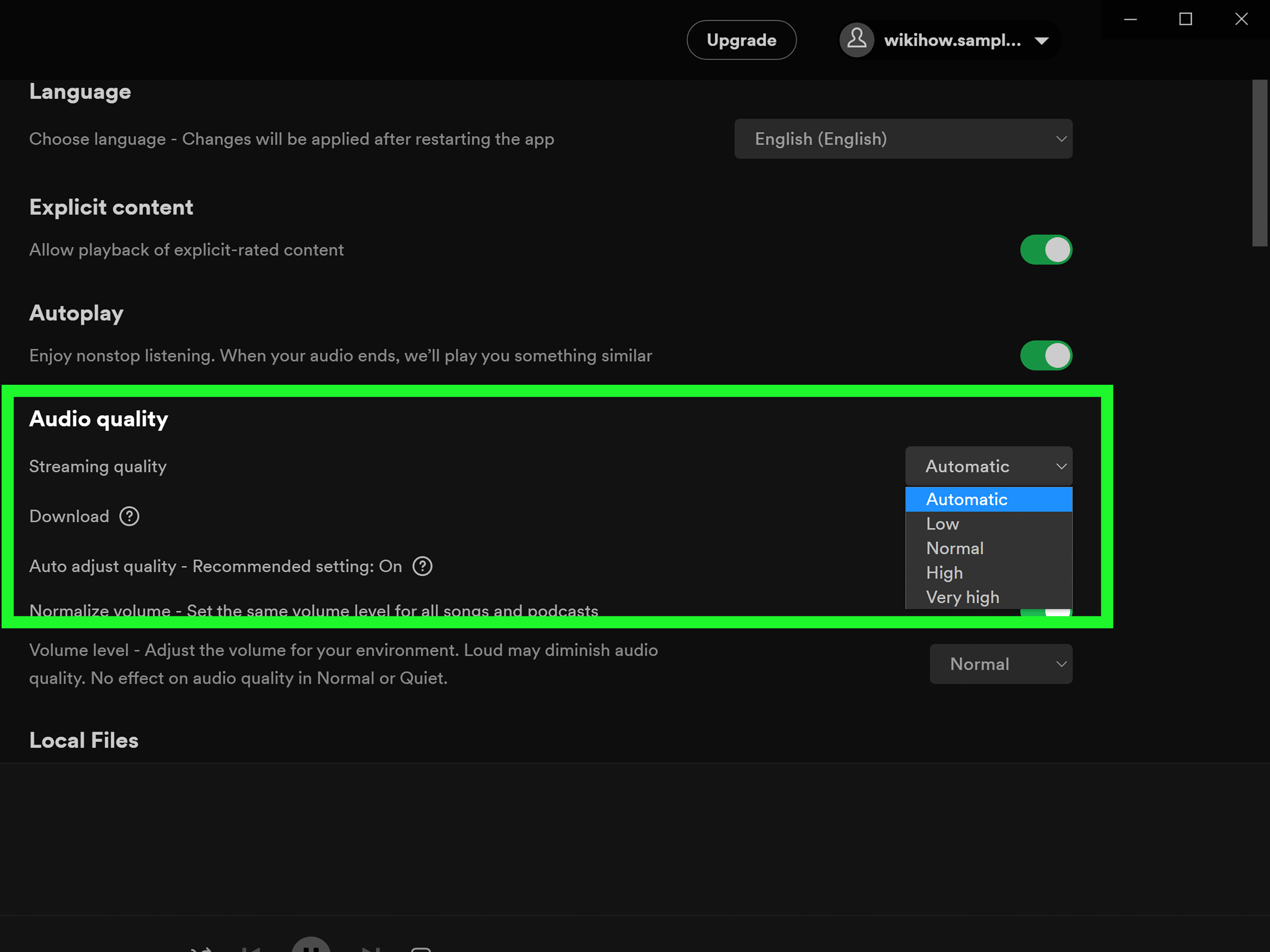
How to make Spotify louder on a computer
- Open the Spotify desktop app.
- Click your profile picture and select Settings.
- Find the Audio Quality section.
- Turn on Normalize volume.
- Set Volume level to Loud.
Spotify targets approximately -11 LUFS in Loud mode, compared with -14 LUFS in Normal mode and -19 LUFS in Quiet mode. Loud mode can therefore deliver a noticeable increase in perceived volume. Spotify also uses limiting to help prevent clipping when quieter, highly dynamic recordings are boosted.
There is a tradeoff: Spotify states that Loud mode produces less dynamic variation. That means the soft and loud parts of a recording may sound closer together. This can be useful on a train, at the gym, during a party, or beside someone who believes leaf blowers should operate before breakfast. For focused listening in a quiet room, Normal may sound more natural.
Volume normalization may behave differently in Spotify’s web player and on third-party devices. When using Spotify Connect, the receiving speaker or audio system may control playback processing instead of your phone.
2. Increase Spotify’s Streaming Quality
If Spotify sounds harsh, flat, or fuzzy at higher volume, increasing the media quality can help. Spotify normally adjusts quality automatically to prevent buffering. That is convenient when your internet connection is wobbling like a shopping cart with one bad wheel, but it may quietly lower quality when the connection becomes unstable.
Change audio quality on a phone or tablet
- Tap your profile picture in Spotify.
- Open Settings and privacy.
- Find Media Quality.
- Set Wi-Fi streaming to Very High or Lossless, when available.
- Select your preferred cellular and download quality separately.
- Consider turning off Auto-adjust quality when using a reliable connection.
Change Spotify quality on Windows or Mac
- Click your profile picture.
- Select Settings or Settings and privacy.
- Scroll to Audio Quality or Media Quality.
- Choose the highest practical streaming quality.
Higher-quality streams can reveal quieter details such as room ambience, backing vocals, cymbal decay, and the texture of acoustic instruments. Bass may also sound tighter because the signal contains more useful information and fewer compression artifacts.
Spotify Lossless, where available for your account and equipment, supports files up to 24-bit/44.1 kHz. However, the benefits depend on the original recording, your playback device, your connection, and your headphones or speakers. Standard Bluetooth connections may not preserve a fully lossless signal, even when the source file is lossless.
For the best result at home, use a compatible Spotify Connect device over Wi-Fi, a wired connection, or supported audio hardware. On cellular data, remember that higher-quality streaming uses more data. Lossless is excellent for a carefully arranged listening session; it is less charming when it eats your monthly data allowance during a three-hour road trip.
3. Use the Spotify Equalizer Without Creating Distortion
An equalizer changes the balance of bass, midrange, and treble frequencies. It does not simply raise the entire volume. Instead, it can make important parts of the music more prominent, helping Spotify sound fuller or clearer without pushing the master volume to its maximum.
How to open the Spotify equalizer
On mobile, open Settings and privacy, select Playback, and turn on Equalizer. On the desktop app, open Settings, scroll to Playback, and enable the equalizer. You can choose a preset or move the frequency controls manually.
Simple EQ starting points
- For stronger bass: Raise the lowest frequencies slightly, but stop if kick drums become boomy or vocals disappear.
- For clearer podcasts: Emphasize the midrange and reduce excessive low bass.
- For brighter vocals: Add a small amount of upper midrange or treble.
- For harsh headphones: Reduce the highest frequencies instead of boosting everything else.
- For small speakers: Use a preset designed for small speakers, or slightly emphasize the mids where those speakers perform best.
Begin with the Flat or Normal preset. Make one small adjustment, listen to several songs, and then adjust again. A dramatic “smiley face” curve with enormous bass and treble boosts may sound exciting for thirty seconds, followed by fifteen minutes of wondering why every singer appears to be trapped behind a subwoofer.
Reducing unpleasant frequencies is often cleaner than heavily boosting the frequencies you like. Large boosts consume headroom and can cause clipping, crackling, or muddy bass. If Spotify becomes louder but sounds worse, reset the equalizer and try gentler changes.
On some Android phones, Spotify opens the device’s system equalizer, so your adjustments may affect other apps. Spotify also notes that its equalizer settings cannot be changed from the controller device while using Spotify Connect. In that situation, use the receiving speaker’s own EQ or companion app.
4. Remove Hidden Volume Limits on Your Device
When Spotify is quiet even after selecting Loud mode, the bottleneck may be outside Spotify. Phones, computers, Bluetooth accessories, and operating systems can all limit or independently control audio output.
Check every volume control
- Raise the media volume on your phone, not the ringtone or alarm volume.
- Check the physical volume buttons on your headphones or speaker.
- Confirm that Spotify is playing through the intended output device.
- Disconnect unused Bluetooth devices that may be stealing the audio connection.
- Make sure the left-right audio balance is centered.
Check the Windows Volume Mixer
Windows can assign different volume levels to individual apps. Go to Settings > System > Sound > Volume mixer and confirm that both the system volume and Spotify volume are turned up. Also verify that Spotify is routed to the correct headphones or speakers.
If sound remains unusually quiet or distorted, Microsoft recommends testing with audio enhancements turned off. Manufacturer enhancements can sometimes improve sound, but occasionally they reduce output, introduce strange processing, or make bass sound like furniture being moved upstairs.
Check iPhone Headphone Safety
On an iPhone, open Settings > Sounds & Haptics > Headphone Safety. The Reduce Loud Audio feature can automatically lower headphone output above a selected level. This is an important hearing-protection feature, so do not disable it casually. Check it mainly when Spotify is dramatically quieter than expected and you are trying to identify the cause.
Fix low Bluetooth volume
Some Bluetooth devices maintain their own volume level, while others synchronize with the phone. If your earbuds seem stuck at low output, raise the volume using both the phone and the earbud controls. Unpairing and reconnecting the device can also reset an incorrect volume relationship.
On certain Android devices, Bluetooth Absolute Volume or Media Volume Sync controls whether the phone and accessory share one volume scale. The exact option varies by manufacturer, and changing developer settings can produce unpredictable results. Treat it as an advanced troubleshooting step rather than the first button to poke enthusiastically.
5. Improve Your Headphones, Speakers, and Listening Environment
Software cannot fully rescue hardware that is poorly fitted, blocked, underpowered, or placed in a terrible location. Before buying anything new, make sure your existing setup is working as intended.
Get a better earbud seal
Earbuds need a snug seal to reproduce bass effectively and block external noise. Try the different ear-tip sizes included with your earbuds. If the tips are too small, bass escapes and outside noise enters, encouraging you to increase the volume. A proper fit can make music sound louder and fuller at a lower, safer setting.
Clean the sound openings
Dust, pocket lint, and earwax can partially block speaker grilles and earbud nozzles. Clean them according to the manufacturer’s instructions using appropriate tools. Do not attack the grille with a needle like you are defusing a tiny bomb; puncturing the protective mesh may permanently damage the driver.
Use noise cancellation strategically
Active noise cancellation does not directly increase Spotify’s output. It lowers competing environmental noise, allowing music and podcasts to seem clearer without excessive volume. This can be especially useful on airplanes, trains, buses, and in busy offices.
Update firmware and charge wireless audio devices
Install available firmware updates through the headphone or speaker manufacturer’s app. Updates may improve Bluetooth stability, equalizer behavior, codecs, and volume controls. A nearly empty battery can also affect the behavior of some wireless products, so test again after charging.
Use the right connection
For casual listening, Bluetooth is convenient and usually sounds good. For maximum fidelity, consider Spotify Connect over Wi-Fi, a wired connection, or an external digital-to-analog converter and headphone amplifier when using demanding wired headphones. Avoid maximizing every volume control in the chain, because an overloaded input can create distortion rather than clean loudness.
Best Spotify Settings for Common Listening Situations
| Situation | Volume Level | Quality | EQ Approach | Extra Tip |
|---|---|---|---|---|
| Noisy commute | Loud | High or Very High | Mild vocal and bass boost | Use noise cancellation |
| Quiet home listening | Normal | Very High or Lossless | Flat or gentle custom EQ | Use Wi-Fi, wired audio, or Spotify Connect |
| Party speaker | Loud | Very High | Reduce muddy bass before boosting highs | Check both phone and speaker volume |
| Podcasts | Normal or Loud | Normal or High | Emphasize speech frequencies | Reduce excessive bass |
| Limited mobile data | Normal | Automatic or Normal | Flat | Download playlists on Wi-Fi |
Quick Troubleshooting: Why Is Spotify Still Quiet?
The Loud option is missing
Update the Spotify app and confirm that normalization is enabled. Some options may depend on your account, platform, or playback method. The web player and some Spotify Connect devices do not expose the same controls as the mobile and desktop apps.
Spotify is loud on the phone but quiet on a speaker
The speaker probably has a separate volume level. Raise its physical or app-based control and verify that the correct input is selected.
Music became distorted after using the equalizer
Reduce the boosted frequencies or reset the EQ to Flat. Excessive bass and treble boosts can overload the signal before it reaches the final volume control.
One earbud is quieter than the other
Check the audio balance, clean both earbud openings, recharge the earbuds, and test them on another device. A persistent difference may indicate a hardware problem.
Lossless does not sound dramatically different
That is not necessarily a malfunction. The recording, headphones, listening environment, hearing, and connection method all influence whether the difference is obvious. Lossless improves technical fidelity, but it does not transform every recording into a private concert in your kitchen.
Listen Louder Without Punishing Your Ears
A louder Spotify setup is useful only when it remains comfortable and safe. Repeated exposure to loud sound can cause permanent noise-induced hearing loss. Warning signs include ringing, muffled hearing, discomfort, or needing increasingly high volume to hear familiar details.
Instead of overpowering background noise, improve the earbud seal, use noise cancellation, move closer to the speaker, or choose a quieter place. Take listening breaks during long sessions and reduce the volume if your ears feel tired afterward. Your future self would probably like to continue hearing cymbals, birds, conversations, and the microwave’s unnecessarily judgmental beeping.
Real-World Experiences: What These Spotify Tricks Actually Change
A useful way to understand these adjustments is to imagine testing the same playlist in several everyday situations. Start with a pair of wireless earbuds during a morning commute. With normalization set to Normal, an older rock song may seem noticeably quieter after a heavily compressed modern pop track. Selecting Loud reduces that difference. The older recording becomes easier to hear over traffic and conversation, although some of its dramatic rise-and-fall character may feel slightly compressed.
Next, try the same playlist at home in a quiet room. Loud mode may now feel unnecessary. Switching back to Normal can restore more breathing room around drums, strings, and vocals. This is the first important lesson: the loudest setting is not automatically the best setting. The best choice depends on whether you are competing with a subway car or sitting peacefully on a couch while pretending not to see the laundry.
Streaming quality creates a different kind of improvement. Moving from an automatic low-quality stream to Very High may not produce a huge volume jump, but crowded recordings can become easier to follow. Background instruments separate more clearly, vocal edges sound less smeared, and cymbals may lose some of their brittle, splashy character. The effect is usually more noticeable with good headphones, a stable connection, and familiar music.
Equalizer changes are often the most immediately entertainingand the easiest to overdo. A small bass increase can give electronic music more impact, especially with earbuds that sound naturally thin. Push the same control too far, however, and the bass begins covering the lower part of the vocals. The track may technically seem louder while becoming less intelligible. Resetting the EQ and making smaller changes usually produces a cleaner result.
Podcasts offer another revealing test. A bass-heavy EQ that works beautifully for hip-hop can make spoken voices sound congested. Reducing deep bass and gently emphasizing the midrange often makes dialogue easier to understand. As a result, you may be able to lower the master volume rather than turning it up. Better clarity frequently solves what initially appears to be a loudness problem.
External speakers introduce additional surprises. A phone may show maximum volume while the Bluetooth speaker remains at 40 percent because it stores its own output level. Raising the speaker’s physical control can suddenly produce the missing power. On Windows, the opposite problem may occur: the system volume is high, but Spotify’s individual Volume Mixer slider is low. Correcting that single slider can outperform twenty minutes of random equalizer experimentation.
Earbud fit can be even more dramatic. An undersized silicone tip may eliminate much of the bass and allow environmental noise to enter. Installing a larger tip creates a tighter seal, making drums sound more substantial and vocals more centered. The music seems louder even though the actual volume setting has not changed. This is one of the few audio upgrades that may already be sitting unused in the earbud box.
Finally, compare Bluetooth listening with a compatible Wi-Fi speaker using Spotify Connect. The Wi-Fi setup may sound more stable, spacious, and detailed, particularly with high-quality or lossless playback. The difference will not always be enormous, but it demonstrates an important principle: Spotify’s final sound is the result of the entire playback chain. The app setting matters, but so do the connection, device, room, fit, and recording.
The most reliable practical setup is therefore not “everything at maximum.” It is Loud mode when the environment requires it, Normal mode when dynamics matter, high-quality streaming on a stable connection, modest EQ adjustments, and hardware that fits and functions correctly. That combination delivers more usable loudness without turning every song into an exhausted block of bass and treble.
Conclusion
To make Spotify louder quickly, enable volume normalization and select Loud. To make it sound better as well, raise the streaming quality, use restrained equalizer adjustments, remove device-level volume restrictions, and improve the fit or connection of your audio equipment.
Test one change at a time using songs you know well. Otherwise, you may improve three settings, break a fourth, and have no idea which digital gremlin deserves the blame. The ideal Spotify setup should sound powerful, clear, and enjoyable without distortion or uncomfortable listening levels.
For noisy environments, Loud mode and noise cancellation are usually the strongest combination. For careful listening at home, Normal volume, Very High or Lossless quality, a flat EQ, and a good wired or Wi-Fi connection will generally preserve more musical detail. Your earsnot the number beside the volume slidershould make the final decision.