A shadow on a laptop screen can make your perfectly good computer look like it has developed a tiny thundercloud. One day the display is crisp and bright; the next day there is a dark corner, gray patch, ghostly image, uneven brightness, or mysterious smudge that refuses to disappear no matter how many times you clean the screen. Before you panic-buy a new laptop, take a breath. A shadow on a laptop screen can come from several causes, and not all of them require a screen replacement.
In many cases, the problem is something simple: adaptive brightness, a graphics driver glitch, an incorrect display setting, or temporary image retention. In other cases, the shadow points to hardware trouble, such as backlight failure, LCD pressure damage, moisture inside the panel, a loose display cable, or a worn-out screen. The trick is learning how to separate software weirdness from physical display damage. Think of it as laptop detective work, except the suspect is usually either “the driver did it” or “the screen took a hit and is pretending nothing happened.”
This guide explains what causes a shadow on a laptop screen, how to diagnose the issue, what fixes are safe to try at home, and when it is smarter to call a technician instead of turning your laptop into a very expensive puzzle.
What Does a “Shadow” on a Laptop Screen Look Like?
The word “shadow” can mean different things depending on what you are seeing. Some laptop screen shadows look like a darker area along one edge. Others appear as cloudy patches, gray smudges, faint rectangles, bright halos, or ghost images from a previous window. The pattern matters because each type of shadow points to a different likely cause.
Common types of laptop screen shadows
A dark shadow in one corner often suggests uneven backlighting, pressure damage, or a failing LCD panel. A faint image that remains after you close a window may be image retention. A shadow that changes when you move the lid can indicate a loose display cable. A dim screen with uneven brightness while running on battery may be caused by power-saving display settings. A blotchy stain that appeared after a spill or humid storage may mean moisture has reached the diffuser layers inside the display.
In short, the screen is giving you clues. Unfortunately, it does not speak English, so we have to translate the clues into practical troubleshooting steps.
Main Causes of a Shadow on Laptop Screen
1. Backlight Bleeding or Uneven Backlighting
Most laptop screens use an LCD panel with LED backlighting. The backlight shines through layers inside the display so you can see images clearly. When the light does not spread evenly, you may notice dark corners, cloudy patches, or brighter areas near the edges. This is often called backlight bleed, backlight clouding, flashlighting, or uneven brightness.
Minor backlight unevenness is common on many LCD screens, especially when viewing a black image in a dark room at high brightness. However, if the shadow is visible during everyday use, such as browsing, writing, gaming, or watching videos, it may be more than normal panel variation.
Backlight issues can be caused by panel aging, pressure on the screen, loose internal layers, manufacturing defects, overheating, or damage from being dropped. If the shadow is fixed in one area and appears even before Windows or macOS loads, the problem is likely hardware-related.
2. Pressure Damage to the LCD Panel
Laptop screens are thin, delicate sandwiches of glass, liquid crystal layers, polarizers, diffuser sheets, and backlight components. They are impressive engineering. They are also not huge fans of backpacks stuffed like Thanksgiving turkeys.
Pressure damage happens when something presses against the screen. Common causes include closing the lid with an object on the keyboard, placing books on top of the laptop, carrying it in a tight bag, gripping the lid too hard, or accidentally leaning on the device. The result may be a dark spot, cloudy patch, distorted area, or permanent shadow.
Pressure marks may look like gray bruises on white backgrounds. They often stay in the same location and do not disappear after restarting the computer. If the shadow appeared after travel, a drop, or a “whoops” moment, physical pressure is a strong suspect.
3. A Loose or Damaged Display Cable
Inside your laptop, a thin display cable connects the motherboard to the screen. This cable usually runs through the hinge area, which means it bends every time you open or close the laptop. Over time, the cable can loosen, wear out, or become damaged.
A display cable problem may cause shadows, flickering, vertical lines, color distortion, random dimming, or a screen that changes when you adjust the lid angle. If the shadow appears, disappears, or shifts when you move the screen, the cable or connector may be the issue.
This is not usually a software problem. Updating drivers might make you feel productive, but it will not magically re-seat a loose cable. If movement affects the shadow, professional inspection is usually the safest route.
4. Graphics Driver or Software Glitch
Not every screen shadow is a hardware failure. Sometimes the laptop display is physically fine, but the graphics driver, operating system, or an app is misbehaving. A corrupted display driver can cause flickering, color problems, dimming, strange overlays, or visual artifacts that may look like shadows.
Software-related shadows are more likely if the problem started after a Windows update, graphics driver update, new app installation, gaming session, external monitor setup, or display setting change. These issues may also disappear after rebooting, changing resolution, resetting the graphics driver, or booting into Safe Mode.
On Windows laptops, a quick graphics reset shortcut is Windows + Ctrl + Shift + B. The screen may blink briefly, and you may hear a beep. This does not delete anything; it simply restarts the graphics driver. If the shadow vanishes afterward, congratulations: your laptop just needed a tiny digital espresso shot.
5. Adaptive Brightness and Power-Saving Display Settings
Modern laptops try very hard to save battery life. Sometimes they try too hard. Features such as adaptive brightness, content adaptive brightness control, panel self-refresh, dynamic contrast, ambient light sensors, and Intel display power-saving technology can reduce brightness or contrast in certain areas of the screen.
This may make the screen look uneven, especially when the laptop is unplugged. Users sometimes describe it as dark corners, a dim patch, or a shadow that appears only on battery power. If the shadow disappears when the laptop is plugged in, power-saving display settings should be near the top of your suspect list.
Look in Windows display settings, your graphics control panel, and manufacturer utilities for options related to adaptive brightness, dynamic contrast, or battery display saving. Turning these off may restore normal brightness.
6. Image Retention or Ghosting
If you see a faint outline of a previous window, logo, toolbar, or webpage after it has closed, you may be dealing with image retention. This is sometimes called ghosting or a temporary afterimage. It is more noticeable when a static image stays on the screen for a long time.
Image retention is not the same as a cracked LCD or dead pixels. In many cases, it fades after changing the image, turning off the display, using a screen saver, lowering brightness, or letting the panel rest. However, repeated static images at high brightness can make the issue more noticeable over time.
To reduce image retention, avoid leaving the same high-contrast image on screen for hours, use sleep settings, enable a screen saver, and lower brightness when possible. Your laptop screen enjoys variety. Give it something new to look at occasionally.
7. Moisture or Liquid Damage
Moisture inside a laptop screen can create stains, cloudy shadows, dark patches, bright spots, or uneven areas. This can happen after a spill, cleaning with too much liquid, exposure to rain, high humidity, or storing the laptop in a damp place.
Liquid can seep between layers of the display and leave mineral residue behind. Even if the screen dries, the stain may remain. This is why spraying cleaner directly onto a laptop screen is a bad idea. The screen is not a window. It does not appreciate being treated like one.
If moisture damage is suspected, turn the laptop off, unplug it, avoid heat guns or hair dryers, and do not keep pressing the display to “spread it out.” Liquid damage can affect more than the screen, so professional inspection is recommended.
8. Dead Pixels, Stuck Pixels, or Pixel Bleeding
Dead pixels are tiny points on the screen that no longer light up. Stuck pixels may stay red, green, blue, white, or another color. Pixel bleeding or black ink-like areas can happen when the LCD layer is physically damaged. A cluster of damaged pixels may look like a shadow, spot, bruise, or spreading stain.
A few isolated dead pixels may be annoying but not always repairable at home. A spreading black spot, however, usually indicates panel damage. If the spot grows over time, the LCD is likely failing and the screen will need replacement.
How to Diagnose a Shadow on Laptop Screen
Step 1: Clean the Screen Carefully
Start with the least dramatic option. Turn off the laptop and inspect the screen under good lighting. Use a clean microfiber cloth. If needed, lightly dampen the cloth with water or screen-safe cleaner, but never spray liquid directly onto the display.
Sometimes a “screen shadow” is just oil, dust, residue, or a stubborn fingerprint. This is especially common if the laptop has a touchscreen or if someone in the house believes snacks and computers are a perfect couple.
Step 2: Take a Screenshot
Take a screenshot of the area where the shadow appears. Then view that screenshot on another device, such as a phone, tablet, or external monitor. If the shadow appears in the screenshot on another device, the issue is likely software-related. If the screenshot looks normal elsewhere, the problem is likely with the laptop display hardware.
This is one of the easiest ways to separate a display panel issue from a graphics or software issue.
Step 3: Connect an External Monitor
Connect your laptop to an external monitor or TV using HDMI, USB-C, DisplayPort, or another supported connection. If the external display looks normal while the laptop screen still has a shadow, the laptop’s built-in display, cable, or backlight is probably the issue.
If the same shadow or distortion appears on the external monitor, look at software, display drivers, graphics hardware, or operating system settings.
Step 4: Check the BIOS or Startup Screen
Restart the laptop and enter the BIOS, UEFI, startup diagnostics, or manufacturer logo screen. If the shadow appears before the operating system loads, the issue is almost certainly not caused by an app or desktop setting.
A shadow visible in BIOS often points to the screen panel, backlight, cable, or graphics hardware. A shadow that appears only after logging in may be caused by software settings, drivers, or apps.
Step 5: Use Built-In Diagnostics
Many major laptop brands include built-in display tests or hardware diagnostics. Dell laptops, for example, often include an LCD built-in self-test. HP systems may include HP PC Hardware Diagnostics. Lenovo, ASUS, Acer, and other manufacturers also provide diagnostic tools or support utilities for display issues.
These tests display solid colors or patterns to help identify dark areas, lines, dots, stuck pixels, and brightness problems. If the shadow appears during a built-in screen test, the panel likely needs service.
How to Fix a Shadow on Laptop Screen
Fix 1: Restart the Laptop
Yes, “turn it off and on again” sounds like the official anthem of tech support, but it works more often than people want to admit. Restarting clears temporary glitches, refreshes the graphics system, and may remove software-based display artifacts.
If the shadow disappears after a reboot and does not come back, the issue may have been temporary. If it returns frequently, continue troubleshooting.
Fix 2: Reset or Update the Graphics Driver
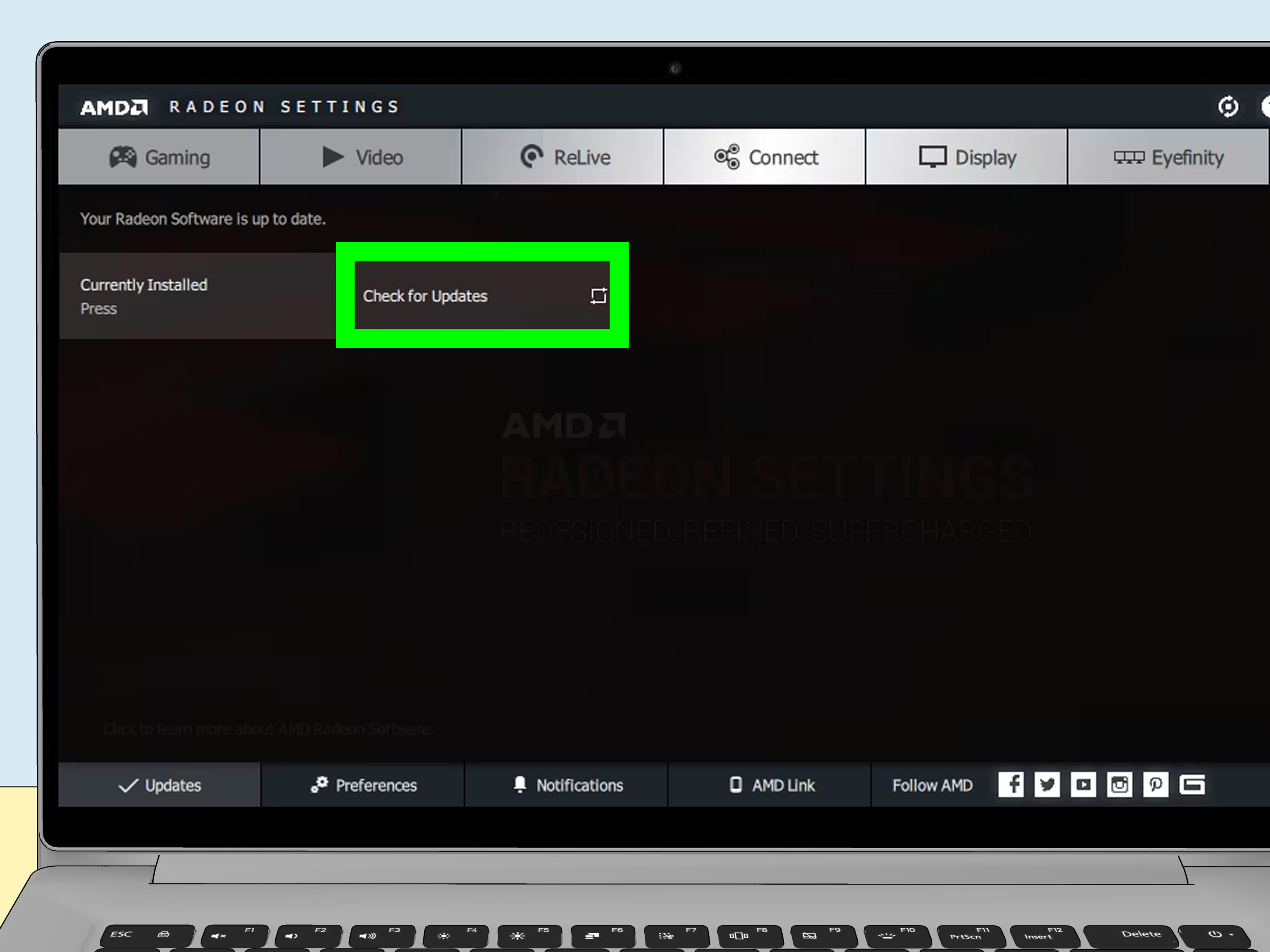
On Windows, press Windows + Ctrl + Shift + B to reset the graphics driver. If that does not help, update your display driver through Windows Update, Device Manager, or your laptop manufacturer’s support page. For laptops with Intel, NVIDIA, or AMD graphics, you may also check the graphics control software.
If the shadow started after a recent driver update, rolling back to the previous driver may help. Newer is usually better, but occasionally “newer” arrives wearing clown shoes.
Fix 3: Adjust Brightness, Contrast, and Power Settings
Reduce brightness and check whether the shadow becomes less visible. Then plug in the laptop and compare the display while on AC power versus battery power. If the shadow appears only on battery, disable adaptive brightness or display power-saving features.
On Windows, check Settings > System > Display and Settings > System > Power & battery. Also open the Intel Graphics Command Center, AMD Software, NVIDIA Control Panel, or your manufacturer’s display utility if available.
Fix 4: Change Resolution and Refresh Rate
An unsupported or unstable resolution or refresh rate can cause display problems. Set the screen to its recommended native resolution and a standard refresh rate. On many laptops, this will be 60Hz, although gaming laptops may support higher rates.
If the shadow appeared after connecting an external monitor or changing display mode, restore the built-in screen to recommended settings.
Fix 5: Check for Image Retention
If the shadow looks like a ghost image of a previous window, turn off the display for a while or show a moving full-screen video. You can also use a plain white, gray, or changing-color screen to see whether the afterimage fades.
For prevention, use sleep mode, avoid leaving static images for long periods, lower brightness, and keep the screen saver enabled. This is especially helpful for users who keep spreadsheets, dashboards, editing timelines, or browser tabs open all day.
Fix 6: Gently Relieve External Pressure
If the shadow is near the edge and looks like pressure-related clouding, you can gently clean the area with a microfiber cloth while the screen is off. Do not press hard. Do not massage the screen like it owes you money. Excessive force can make the damage worse.
Also remove clip-on accessories, webcam covers, magnetic privacy filters, or anything that may press against the panel when the lid closes. If you use a keyboard cover, make sure it is thin enough for your laptop model.
Fix 7: Test With Safe Mode
Booting into Safe Mode loads Windows with minimal drivers and services. If the shadow disappears in Safe Mode, a driver, app, color profile, overlay, or startup program may be causing the issue.
From there, update or uninstall recently added apps, remove display calibration tools, disable overlays, and reinstall graphics drivers. Gaming overlays, screen dimming apps, blue light filters, and remote desktop tools can occasionally create display oddities.
Fix 8: Get the Screen Cable Checked
If the shadow changes when you open, close, or tilt the laptop lid, stop bending the screen repeatedly and have the display cable checked. A technician can reseat or replace the cable if needed. This repair is often less expensive than replacing the entire screen, depending on the model.
Do not open the laptop unless you are experienced with electronics repair. Laptop screens and hinges can be fragile, and one tiny connector can turn a simple repair into a new hobby you did not ask for.
Fix 9: Replace the Screen Panel
If diagnostics confirm panel damage, the shadow is visible in BIOS, the external monitor looks normal, or the dark patch is growing, replacing the laptop screen may be the real fix. Screen replacement is common and often possible without replacing the whole laptop.
The cost depends on the model, screen size, resolution, touch support, refresh rate, and whether the panel is OLED, mini-LED, or standard LCD. A basic 14-inch or 15.6-inch LCD panel is usually cheaper than a high-refresh gaming display or touchscreen assembly.
When Is a Laptop Screen Shadow Not Worth Fixing?
Sometimes the honest answer is: it depends on the laptop. If the computer is older, slow, out of warranty, and needs other repairs, replacing the screen may not be the best investment. But if the laptop is fairly new, fast, expensive, or still under warranty, repair is usually worth considering.
A minor shadow that only appears on a black screen in a dark room may not affect real use. A large shadow across the center of the display, however, can ruin productivity, photo editing, gaming, video calls, and your mood before coffee.
How to Prevent Laptop Screen Shadows
Prevention is easier than repair. Use a padded laptop sleeve. Do not place heavy objects on top of the laptop. Do not close the lid with pens, earbuds, crumbs, charging adapters, or tiny mystery objects on the keyboard. Avoid cleaning the screen with dripping liquid. Keep the laptop away from extreme heat, moisture, and direct pressure.
When carrying your laptop in a backpack, place it in a dedicated compartment with the screen facing away from hard objects. If you travel often, a rigid case can help. Also keep your graphics drivers updated and use recommended display settings.
Real-World Examples: What the Shadow Usually Means
Example 1: Dark corner on battery power only
If your laptop screen looks normal while plugged in but shows dark corners on battery, the cause may be power-saving display technology. Disable adaptive brightness or graphics power-saving settings and compare again.
Example 2: Shadow moves when the lid moves
If tilting the screen changes the shadow, flickering, or color, suspect the display cable. Avoid repeatedly moving the hinge to “test” it, because a weak cable can get worse.
Example 3: Gray patch after carrying laptop in a backpack
A fixed gray patch that appeared after travel often points to pressure damage. Cleaning and driver updates will not repair crushed LCD layers. A screen replacement may be needed.
Example 4: Faint outline of a browser window
If the shadow resembles a previous window or toolbar, it may be image retention. Let the screen rest, reduce brightness, use moving content, and avoid leaving static images on display for long periods.
Example 5: Shadow after a spill
A cloudy stain after liquid exposure usually means moisture reached the display layers. Turn the device off and seek professional help. Rice is not a laptop repair plan; it is dinner.
Extra Experience-Based Tips for Fixing Laptop Screen Shadows
After dealing with laptop display issues in everyday situations, one lesson becomes clear: the timing of the shadow tells you a lot. If someone says, “It just appeared,” the next question should be, “What happened right before that?” Did the laptop travel in a backpack? Was there a Windows update? Did it fall off the couch? Was it cleaned with too much liquid? Did a cat sit on it with the confidence of a tiny landlord? The event before the shadow often reveals the cause.
For example, a laptop that develops a faint gray area after being packed tightly with books usually has pressure damage. The user may not remember a direct impact because the screen was protected by the lid, but pressure through the lid can still affect the LCD layers. In that case, software fixes are unlikely to help. It is better to back up important files, check warranty coverage, and get a screen replacement quote.
Another common experience is the “battery-only shadow.” The laptop looks fine on the charger, but as soon as it runs on battery, the screen gets oddly dim or uneven. This can feel like a hardware problem, but it is often caused by aggressive power management. Some laptops automatically reduce contrast or adjust brightness based on content to save energy. Turning off adaptive brightness or display power-saving features can make the screen look normal again. This is one of the happiest outcomes because it costs nothing and does not involve a screwdriver.
Display cable problems have their own personality. They are often inconsistent. The screen may look fine at one angle and strange at another. A shadow may come with flickering, lines, or color shifts. People sometimes keep opening and closing the lid to “find the good angle,” but that can make the cable worse. If the hinge angle affects the display, stop testing it like a game show buzzer and have the cable checked.
Image retention is another issue that can scare users more than it should. A faint shadow of a static window can look permanent, but it may fade after the screen rests. This happens more often when brightness is high and the same image stays on screen for hours. Office workers, coders, students, designers, and gamers with static HUD elements may notice it. The practical fix is simple: lower brightness, use sleep settings, rotate content, and avoid leaving the same high-contrast screen open all day.
One of the biggest mistakes people make is pressing hard on the screen to “fix” the shadow. Gentle cleaning is fine. Pressing, rubbing aggressively, twisting the lid, or tapping the dark spot is not fine. Laptop displays are layered and fragile. If the shadow is caused by pressure damage, more pressure is like trying to fix a dented car by hitting it with another car.
Another useful habit is documenting the issue. Take photos of the screen with solid white, black, red, green, and blue backgrounds. Take a screenshot and compare it on another device. Write down when the shadow appears: during startup, after login, only on battery, only at certain angles, or all the time. This information helps technicians diagnose the issue faster and can also support a warranty claim.
Finally, know when to stop troubleshooting. If the shadow appears during built-in diagnostics, shows before the operating system loads, stays in exactly the same place, or gets worse over time, the screen likely needs repair. At that point, more driver updates will not help. A professional screen replacement may be the cleanest solution, and it can often make the laptop feel almost new again.
Conclusion
A shadow on a laptop screen can come from software settings, graphics driver issues, adaptive brightness, image retention, backlight problems, pressure damage, moisture, dead pixels, or a loose display cable. The fastest way to diagnose it is to clean the screen, take a screenshot, test an external monitor, check BIOS or startup screens, and run built-in diagnostics. If the shadow disappears during software tests, you may be able to fix it with settings or driver updates. If it appears everywhere, especially before the operating system loads, the problem is probably hardware-related.
The good news is that not every screen shadow means your laptop is doomed. The bad news is that some shadows are the display’s way of saying, “I have been physically offended.” Start with safe fixes, avoid pressing the screen, protect the laptop from pressure and moisture, and seek repair when the evidence points to panel or cable damage.
SEO Tags
Note: This article is written for general laptop troubleshooting and web publishing. For warranty, electrical safety, or internal hardware repair, contact the laptop manufacturer or a qualified repair technician.