Saved places on Google Maps are wonderfully usefuluntil they are not. One minute, your map is a neat little digital notebook of favorite coffee shops, potential date-night restaurants, hiking trails, airports, hotels, and “I swear I’ll go here someday” pins. The next minute, it looks like a geography teacher dropped a box of confetti on your screen. If your Google Maps is cluttered with old stars, flags, hearts, or custom list markers, it may be time for a cleanup.
The good news is that removing saved places on Google Maps from a PC or Mac is simple once you know where Google tucked the controls. The slightly annoying news is that the wording can change depending on your account, browser, interface updates, or whether you are using the newer Maps layout. Still, the basic idea remains the same: open Google Maps, go to your saved lists, edit the list, and remove the place you no longer want.
This guide explains how to remove saved places on Google Maps on PC or Mac in 8 clear steps. We will also cover the difference between deleting a saved place, hiding a list, deleting a whole list, and removing Maps activity. Yes, those are different things. Google Maps likes to keep life interesting.
What Are Saved Places on Google Maps?
Saved places are locations you add to Google Maps so you can find them again later. On desktop, these saved locations usually live inside lists such as Favorites, Want to go, Starred places, Travel plans, or your own custom lists. You might save your dentist, your gym, a future vacation hotel, a restaurant you saw on TikTok, or that one parking garage where you did not lose your car for once.
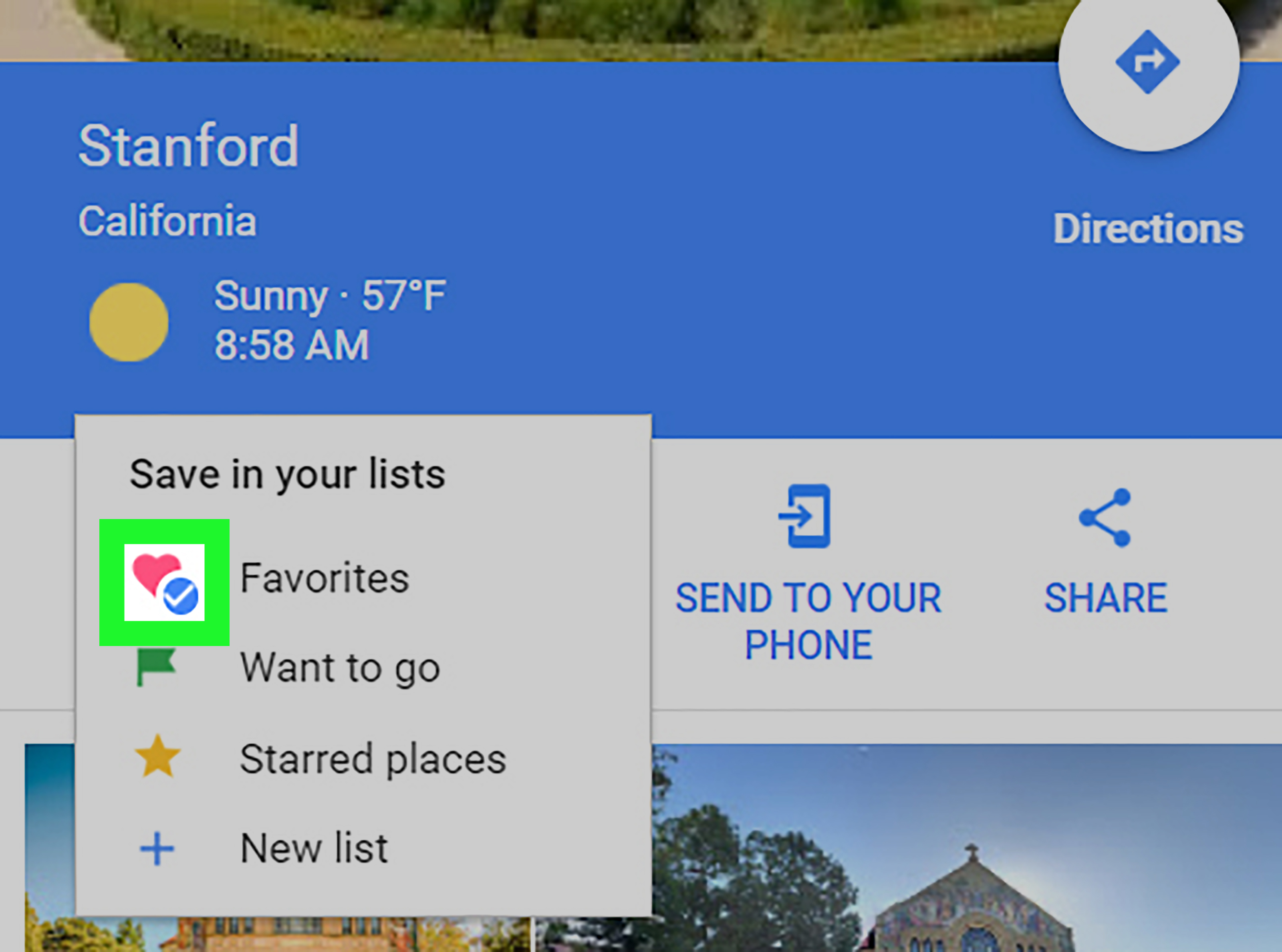
Each list can display a different icon on the map. Favorites may appear with hearts, Want to go locations may appear with flags, and Starred places often show as stars. Custom lists can have their own markers or icons depending on the current Google Maps interface. These icons are useful when you want quick access, but they can become visual clutter when your map is full of outdated stops.
Removing a saved place does not delete the business from Google Maps. It only removes that location from your personal saved list. For example, if you remove a saved pizza restaurant from your Favorites list, the restaurant still exists on Google Maps. You are simply telling your account, “We had a good run, but I no longer need this pepperoni landmark pinned to my digital life.”
Before You Start: Make Sure You Are Signed In
Saved places are tied to your Google Account. That means you must be signed in to the same account you used when saving the place. If you use multiple Google Accountspersonal, work, school, or the mysterious old account you made in 2012check the profile icon in the top-right corner of Google Maps before you begin.
This matters because many people think their saved places disappeared or cannot be edited, when they are simply viewing Maps from the wrong account. On a shared PC, office computer, or family Mac, account confusion is especially common. Before blaming Google Maps, your browser, Mercury retrograde, or your laptop’s general attitude, confirm the account first.
How to Remove Saved Places on Google Maps on PC or Mac: 8 Steps
The process is nearly identical on Windows PCs and Macs because you are using Google Maps in a web browser. Chrome, Safari, Edge, Firefox, and other modern browsers should work. The layout may look slightly different, but the workflow is the same.
Step 1: Open Google Maps in Your Browser
Open your preferred browser on your PC or Mac and go to Google Maps. Make sure the page fully loads before clicking around. If your internet connection is slow, give it a moment. Google Maps is powerful, but it still appreciates a second to gather itself.
If you are not signed in, click the sign-in button and log into the Google Account that contains the saved place you want to remove. Once signed in, your saved places should appear when you open the Saved section or view the map at the right zoom level.
Step 2: Click “Saved” or Open the Menu
On many desktop versions of Google Maps, you will see Saved in the left-side panel. Click it. If you do not see Saved right away, click the menu icon, often shown as three horizontal lines in the upper-left corner. In some layouts, the saved places area may appear under a menu item such as Your places or simply Saved.
This is one of the places where Google’s interface can feel like a scavenger hunt. Do not panic if your screen does not match someone else’s screenshot exactly. Look for the words Saved, Your places, Lists, or anything that clearly points to your stored map locations.
Step 3: Choose the List That Contains the Place
After opening the Saved area, you will see your lists. These may include default lists like Favorites, Want to go, Starred places, Travel plans, and Saved places. You may also see custom lists you created for trips, restaurants, errands, real estate hunting, client visits, or places you definitely meant to visit but somehow forgot for three years.
Click the list that contains the place you want to remove. If you are not sure which list holds it, check the most likely ones first. A restaurant might be in Favorites or Want to go. A random address may be in Starred places. A hotel may be in Travel plans. A custom list may have a name like “Chicago Weekend,” “LA Food,” or “Do Not Forget This Place Again.”
Step 4: Open the List Options
Next to the list name, look for a More button, usually represented by three dots. Click it to open the list options. Depending on your version of Google Maps, you may see options such as Edit list, Delete list, Hide on your map, Share list, or Sharing options.
For removing only one saved place, do not choose Delete list unless you want the entire list gone. That is the digital equivalent of cleaning your desk by throwing the desk out the window. Effective? Technically. Recommended? Not usually.
Step 5: Click “Edit List”
Select Edit list. This opens a version of the list where individual saved places can be removed. You may see each saved location displayed with its name, address, note, or icon. In some versions, Google Maps autosaves changes as you make them.
If the list is long, scroll carefully. Saved places can pile up faster than browser tabs during online shopping. If you have hundreds of saved places, use your browser’s page search feature or scan alphabetically if Google displays the list in a predictable order.
Step 6: Find the Place You Want to Remove
Locate the saved place you want to delete from the list. Read the name and address carefully, especially if several locations have similar names. This is common with chain restaurants, hotels, coffee shops, gas stations, and stores. Removing the wrong location is not catastrophic, but it can be annoying when you later realize you deleted the useful Starbucks and kept the one inside an airport terminal you will never visit again.
If the place has a note attached, review it before removing the location. Sometimes a saved place looks random until the note reminds you why you saved it. “Great tacos near conference center” is more helpful than “Unnamed place near 4th Street,” which sounds like a clue in a detective movie.
Step 7: Click the Remove Button or X
Next to the place, click Remove, the X icon, or the visible delete control provided by Google Maps. The wording and icon can vary, but the function is the same: it removes that specific place from the selected saved list.
In many cases, the change is saved automatically. If Google Maps shows a Save button or confirmation prompt, follow the on-screen instruction. Do not close the tab too quickly if the list says changes are being saved. Give it a few seconds so your cleanup sticks.
Step 8: Refresh and Confirm the Place Is Gone
After removing the place, refresh Google Maps or return to the main map view. Check whether the icon disappeared from the map and whether the place no longer appears in the list. If it still shows up, wait a moment and refresh again. Syncing between desktop and mobile can take a little time.
If the place remains visible, it may be saved in more than one list. For example, the same restaurant could be in both Favorites and Want to go. Open the place card, click the saved status, and see whether multiple lists are checked. Uncheck the lists you no longer want. Once a place is removed from every saved list, its saved marker should disappear from your personal map view.
Alternative Method: Remove a Saved Place from the Place Page
There is another quick method if you can find the saved location directly on the map. Click the saved place marker or search for the place by name. When the place information panel opens, look for the Saved button. Click it to view the lists where that place is saved. Then unselect the list you want to remove it from.
This method is handy when you are staring directly at the marker and want it gone immediately. It is less convenient when the map is crowded or when you do not remember the exact name of the place. In that case, editing the list is usually faster and more reliable.
How to Delete an Entire Saved List
If a whole list is outdated, you can delete the list instead of removing places one by one. Open Google Maps, go to Saved, find the list, click the three-dot More menu, and choose Delete list. Confirm the deletion if prompted.
Be careful with this option. Deleting a list removes the list and its saved organization from your account. It does not delete the physical places from Google Maps, of course, but it does erase your personal collection. If the list contains notes or carefully curated travel stops, consider reviewing it before deleting. Future you may be grateful. Future you is already dealing with enough.
How to Hide Saved Places Without Deleting Them
Sometimes you do not actually want to remove saved places. You just want the map to stop looking like it has a severe case of icon acne. In that case, hiding a list may be better than deleting it.
To hide a saved list on desktop, open Google Maps, go to Saved, click the three-dot More menu next to the list, and choose Hide on your map. This keeps the list in your account but removes its markers from the main map view. You can show it again later by choosing Show on your map.
Hiding is perfect for travel planning lists, seasonal lists, or project-based lists you may need again. For example, if you created a “Boston Apartment Hunt” list, you may not want those pins all over your map forever. But if you are not ready to delete the list, hiding it gives you a cleaner screen without losing the information.
Saved Places vs. Maps Activity: Do Not Confuse Them
Here is the part that trips up many users: saved places and Maps activity are not the same thing. A saved place is a location you intentionally added to a list. Maps activity includes things like searches, directions, places viewed, and other actions connected to your Google Account activity settings.
If you remove a saved restaurant from Favorites, you are not necessarily deleting the fact that you searched for that restaurant. Likewise, if you delete Maps activity, that does not always remove places you saved in lists. These are different storage areas inside the Google ecosystem.
To manage Maps activity on a computer, open Google Maps, sign in, open the menu, and look for Maps activity. From there, you can delete individual activity items, remove activity by date, or manage broader Google activity settings through My Activity. This is helpful if your goal is privacy cleanup rather than map organization.
Why You Might Want to Remove Saved Places
Cleaning up saved places is not just about aesthetics. It can make Google Maps faster to read, easier to use, and more helpful when you actually need directions. A cluttered map can distract you with irrelevant icons, especially in dense cities where every block already has a dozen restaurants, shops, transit stops, and landmarks.
You may want to remove saved places after a vacation, a move, a job change, a breakup, a completed project, or a phase of life that no longer needs map pins. That “perfect brunch spot near your old apartment” may have been useful in 2021. In 2026, it may just be emotional clutter with pancakes.
Removing outdated places can also improve your planning process. If you keep only useful locations, your saved lists become more trustworthy. When you open Favorites, you know the places inside are still worth remembering. When you open Want to go, you know it contains current ideasnot a museum that closed, a restaurant you already visited, and a hotel from a trip you took four years ago.
Troubleshooting: What If a Saved Place Will Not Disappear?
The Place Is Saved in Multiple Lists
If a marker remains after you remove it from one list, open the place page and check whether it is saved to another list. Uncheck every list where you no longer want it saved.
You Are Signed Into the Wrong Account
If you cannot find the list or the place, check your Google Account profile icon. You may be viewing Maps from another account.
The Browser Needs a Refresh
Refresh the page, close and reopen the tab, or clear site cache if the interface seems stuck. Sometimes Google Maps simply needs a tiny digital nap.
The Marker Is from a Shared or Followed List
If you follow someone else’s list, the place may appear because of that list. Unfollow or hide the shared list if you do not want those markers on your map.
The Item Is Activity, Not a Saved Place
If the location appears in recent searches or history, remove it from Maps activity instead of saved lists.
Best Practices for Managing Saved Places
Once you remove the saved places you no longer need, it is worth building a cleaner system. Use default lists sparingly. Favorites should be reserved for places you truly love or need often. Want to go should contain realistic future visits, not every attractive café you saw during a late-night scrolling session. Starred places work well for quick temporary reminders.
Create custom lists for specific purposes. For example, use “New York Work Trip,” “Family Restaurants,” “Weekend Hikes,” “Client Offices,” or “Gift Shops Near Home.” Descriptive list names make cleanup easier later because you can quickly tell what belongs and what does not.
Review your saved places every few months. Remove duplicates, outdated addresses, closed businesses, completed trip stops, and places you no longer care about. Think of it as spring cleaning for your map. No dust, no boxes, no mystery cablesjust fewer unnecessary pins.
Experience-Based Tips: What It Feels Like to Clean Up Google Maps Saved Places
Removing saved places sounds like a tiny task, but anyone who uses Google Maps heavily knows it can feel surprisingly satisfying. It is similar to cleaning out your email inbox or deleting old screenshots from your desktop. At first, you think, “This will take two minutes.” Then you discover saved places from old vacations, restaurants that changed names, apartments you toured years ago, and random pins with no explanation whatsoever. Suddenly, you are an archaeologist excavating your own decision-making history.
One common experience is realizing that many saved places were useful only for a short season. Travel planning is the biggest culprit. Before a trip, you may save twenty restaurants, six museums, three bakeries, two backup hotels, and a scenic viewpoint someone recommended in a comment section. After the trip, half of those pins become irrelevant. If you leave them there, your map keeps shouting vacation suggestions long after you have returned to normal life and laundry.
Another familiar situation is moving to a new city or neighborhood. During the first few weeks, you may save grocery stores, pharmacies, gyms, parking areas, coffee shops, bus stops, and takeout places. Some become part of your routine; others turn out to be forgettable. Cleaning up those saved places makes your map feel more local and less experimental. It is like telling Google Maps, “We know our way around now. Please stop reminding me about that sandwich place with the tragic bread.”
Saved places can also carry emotional baggage. A map may contain restaurants from old relationships, offices from former jobs, schools, apartments, or cities connected to previous chapters of life. Removing those pins can feel practical, symbolic, or both. It does not erase memories, but it can make your daily map experience feel less cluttered by the past. Sometimes digital organization is not just about efficiency; it is about making your tools match your current life.
For productivity, the best experience comes from using fewer, clearer lists. A map with five well-named lists is easier to manage than one giant collection of mystery pins. For example, separate places into categories like “Regular Errands,” “Favorite Food,” “Future Trips,” “Work Locations,” and “Temporary Reminders.” Then, when something is no longer needed, you know exactly where to remove it. Your map becomes a tool instead of a junk drawer with satellite imagery.
It is also worth using the hide feature more often. Many people delete lists too quickly, then regret it later. Hiding a list is a low-risk option when you want a clean map but may need the information again. For example, hide your “Seattle Trip” list after your vacation, then delete it later if you are sure you do not need it. This two-step approach prevents accidental loss while still reducing visual clutter.
Finally, there is a small but real confidence boost in knowing how to control your own map data. Google Maps is one of those apps people use constantly but rarely manage intentionally. Once you learn how saved places, lists, hidden lists, and Maps activity differ, the whole system feels less confusing. You can remove what you do not need, keep what is useful, and stop letting old pins boss your screen around.
Conclusion
Removing saved places on Google Maps from a PC or Mac is straightforward: open Google Maps, go to Saved, choose the right list, edit it, and remove the unwanted place. The most important detail is knowing what you are trying to remove. A saved place lives in a list. A search or direction record lives in Maps activity. A visible marker might also come from a hidden, shared, followed, or duplicate list.
Once you understand that difference, managing Google Maps becomes much easier. You can delete individual saved places, remove entire lists, hide lists from the map, or clean up activity history depending on your goal. The result is a cleaner, calmer, more useful mapone that shows where you actually want to go instead of every place you once considered during a planning spiral at 1:14 a.m.
Note: Google Maps interface labels may vary slightly by account, browser, country, or product update. If you do not see the exact same wording, look for similar controls such as Saved, Your places, Lists, More, Edit list, Remove, Hide on your map, or Maps activity.